Week 3 Hands-On — Symbology, Labels, and a First Layout
Hands-On Practice · Day 5 · Thursday of Week 3 — Maps, Symbology, and Cartography
Topics
- Follow along: make a map of the United States
- Practice point, line, and polygon symbology
- Explore the attribute table
- Add labels
Materials
- United States shapefiles (same zip as the one on Learning Suite): download
This session gets you ready for Lab 2.
What you need
QGIS 3.44 LTR, and the United States shapefiles — either the download link in Materials above, or the same zip from the Week 3 Thursday entry on Learning Suite. Unzip it before class.
The zip holds more than the three layers this session uses: states, counties, cities,
roads, rivers, lakes, and a 10,769-feature RiversInt. Load states.shp, cities.shp and
roads.shp and ignore the rest. The field names you need are STATE_NAME and SUB_REGION on
states, CITY_NAME on cities, and POP1990 for population on both. The .mwprj, .mwsr,
.mwsymb and .lbl files are MapWindow leftovers; QGIS ignores them, as it does testline.shp.
Note
Three things to know about this data. states.shp holds 49 features — the lower 48 plus
the District of Columbia. Alaska and Hawaii are not in it, so "a map of the United States"
here is the contiguous one, and zooming to full extent frames the lower 48. Population is
POP1990 (with a POP1997 estimate alongside), so every number on your screen is a 1990
census figure. And every layer is EPSG:4326, unprojected lat/long, which is why the country
looks horizontally stretched — remember that at step 6, where your layout has to name its own
projection.
Overview
Where the walkthrough is going, so you can see the shape of it before you start:
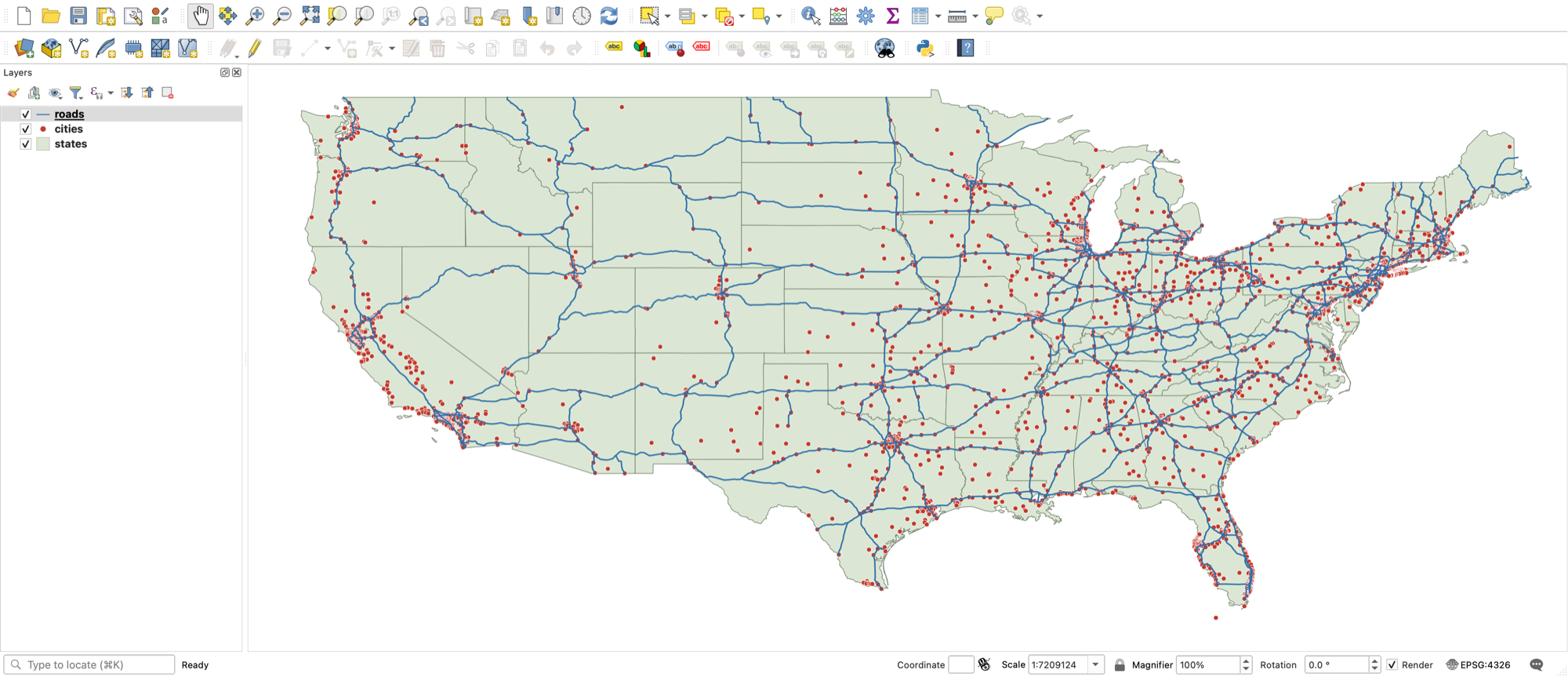
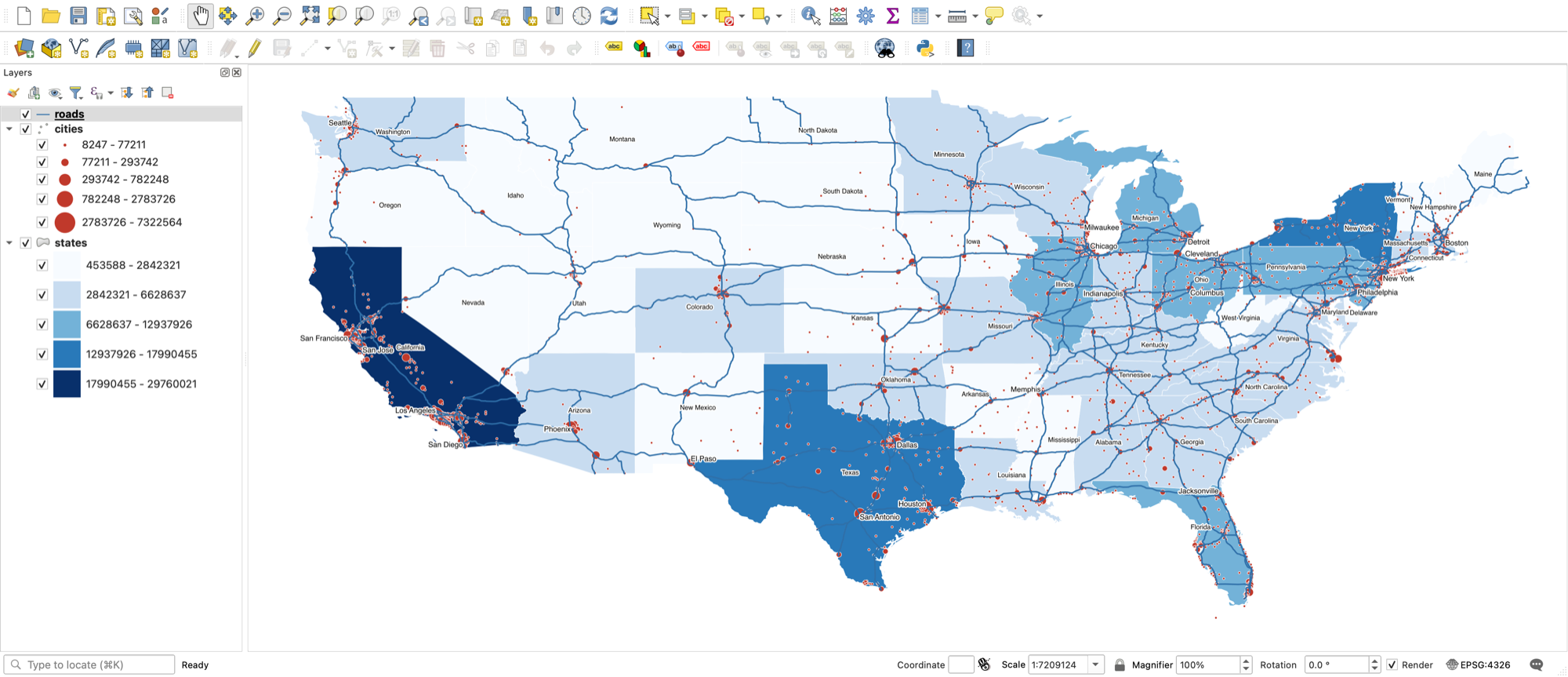
- Style each layer with a Single Symbol: a fill and stroke for states, 0.6 mm blue for the line layer, a size 2 marker for cities.
- States > Categorized on
SUB_REGION, click Classify, pick a ramp. Then switch to Graduated onPOP1990, Natural Breaks (Jenks), 5 classes. - Cities > Graduated on
POP1990with Method = Size, range 1 to 6 mm. - Labels > Single Labels on
STATE_NAME, font 8, Buffer on, white, 1 mm. Then label cities with the expressionCASE WHEN "POP1990" > 500000 THEN "CITY_NAME" END. That leaves 23 cities labeled. - Attribute table: sort a column, Select Features by Expression with
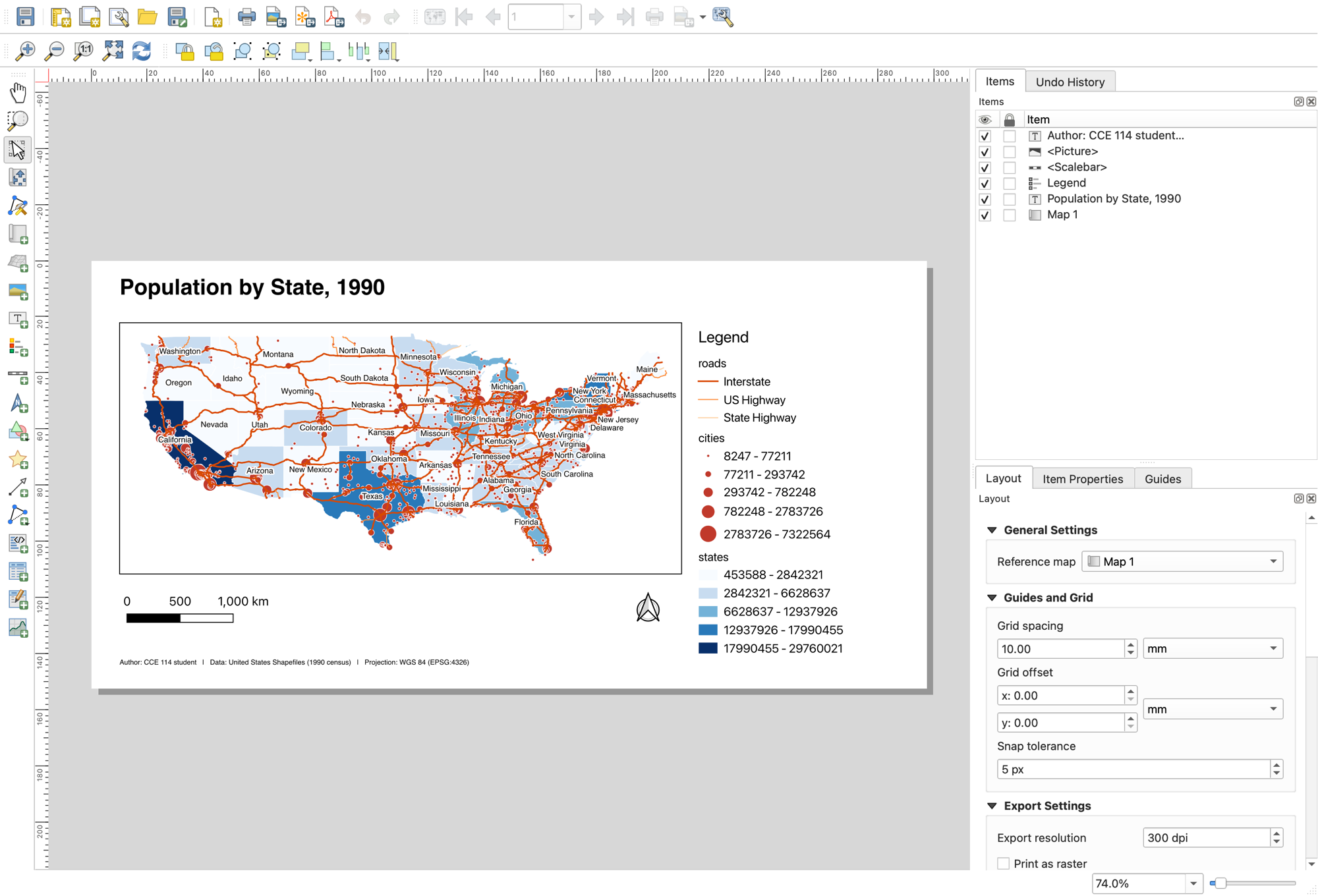
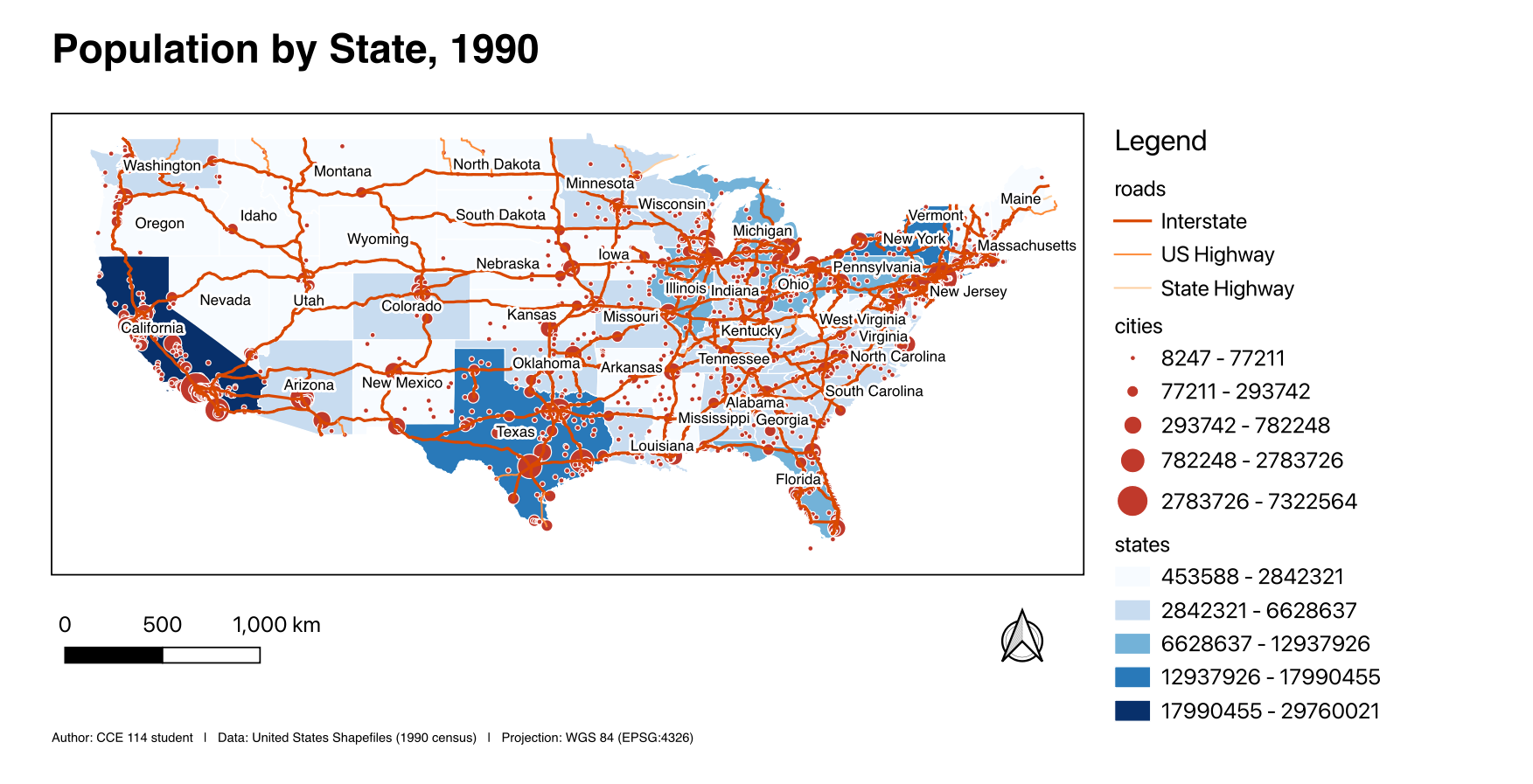
"POP1990" > 1000000(8 cities), then Field Calculator to add a decimal fieldpop_kas"POP1990" / 1000. - Project > New Print Layout. Add a map, a legend with Auto update unticked, a scale bar, a north arrow, a title, and a small label with author, date, data source and projection. Layout > Export as Image.
Walkthrough
0. Download, unzip, and add the data to your map
- Download united-states-shapefiles.zip (2.9 MB) from Materials above, or take the same file from the Week 3 Thursday entry on Learning Suite.
- Unzip it. The layers are inside, under
United States/Shapefiles/. - In QGIS, Layer > Add Layer > Add Vector Layer... and add
states.shp,cities.shpandroads.shp. Dragging the three files onto the map canvas does the same thing. - In the Layers panel, drag them so
citiesis on top,roadsin the middle andstatesunderneath. In any other order the points and lines hide behind the polygons. - QGIS reads the coordinate system from each
.prjfile, so EPSG:4326 appears in the bottom-right corner of the window. That is the unprojected lat/long noted above.
1. Single symbols
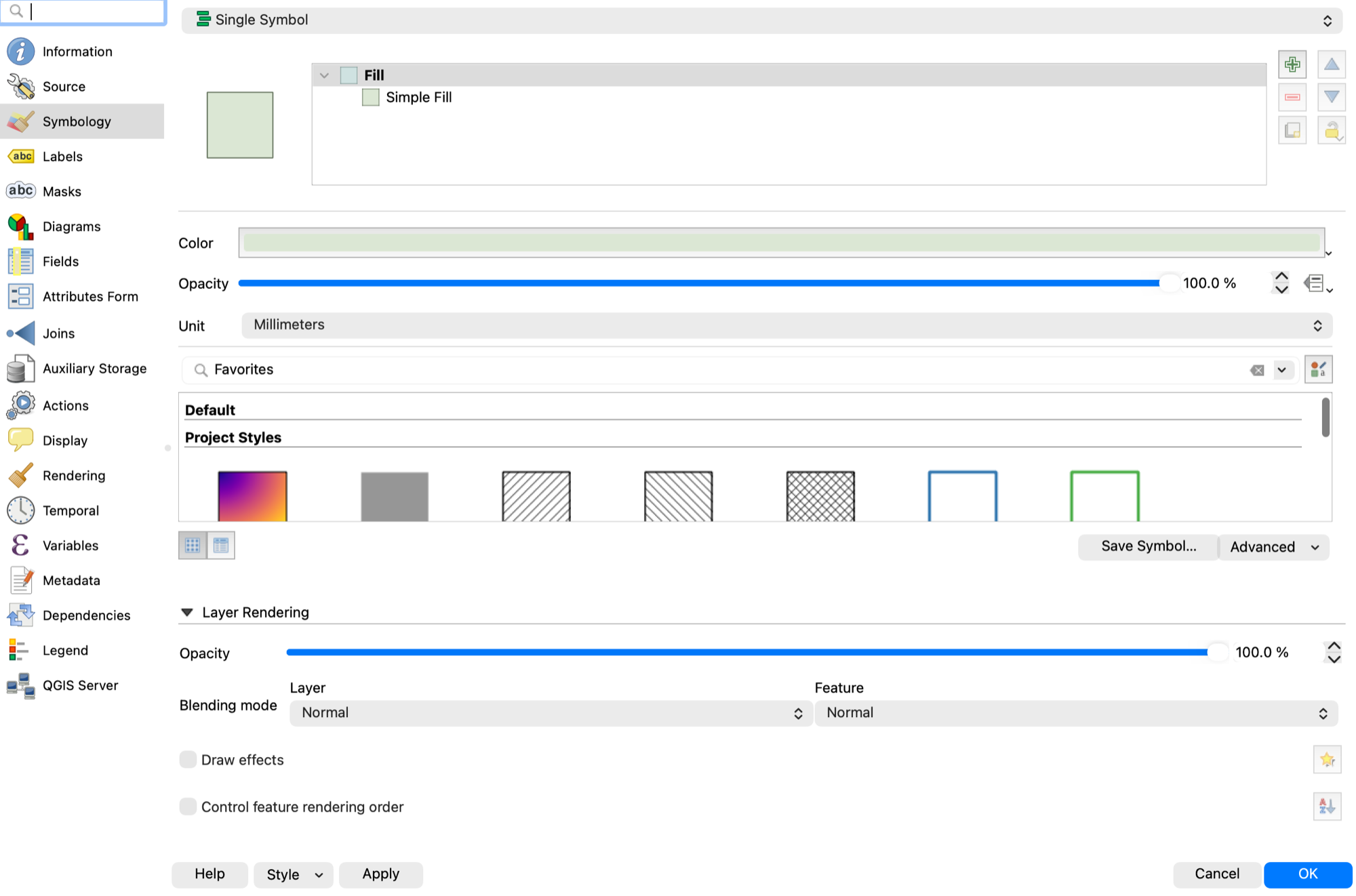
Right-click the states layer > Properties > Symbology. The default is Single Symbol. Change the fill color and the stroke width; click Apply and keep the dialog open. Do the same for the line layer (width 0.6 mm, a blue) and the cities (a simple marker, size 2). This is where Lab 2 begins.
2. Polygons that carry data
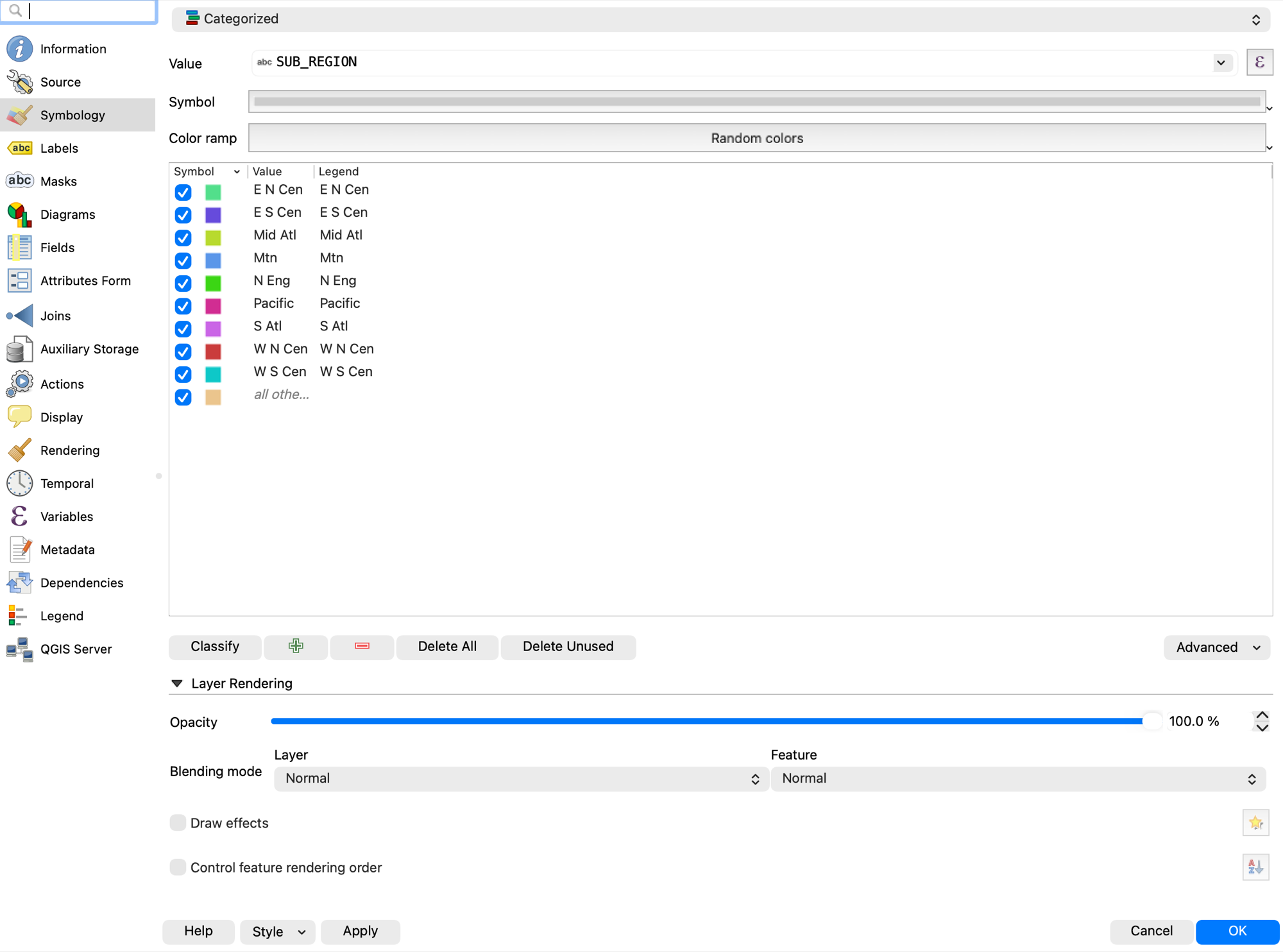
- Switch states to Categorized, Value =
SUB_REGION, click Classify. The nine values are terse (E N Cen,Mtn,Pacific,S Atl…), so rename them in the legend if you want them readable. Pick a color ramp. Every distinct value gets a color; delete the "all other values" row if it is empty. - Switch to Graduated, Value =
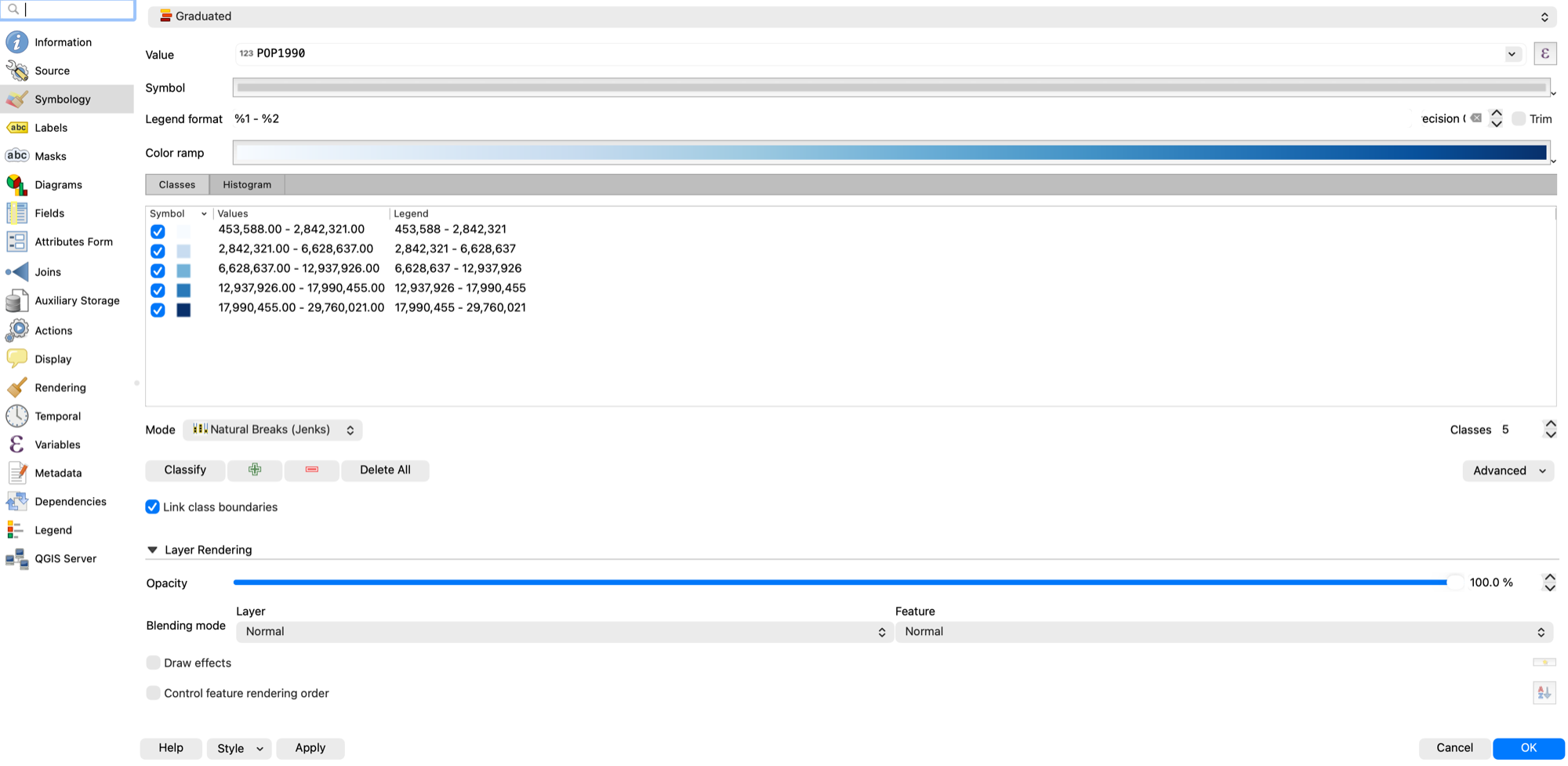
POP1990, Mode = Natural Breaks (Jenks), 5 classes, a sequential ramp (light to dark). Show the class boundaries in the legend and change the Legend format to%1 – %2. - Compare the two: which map answers "where are people?" and which answers "where is the South?" Same layer, same data, different question — the symbology is what changed.
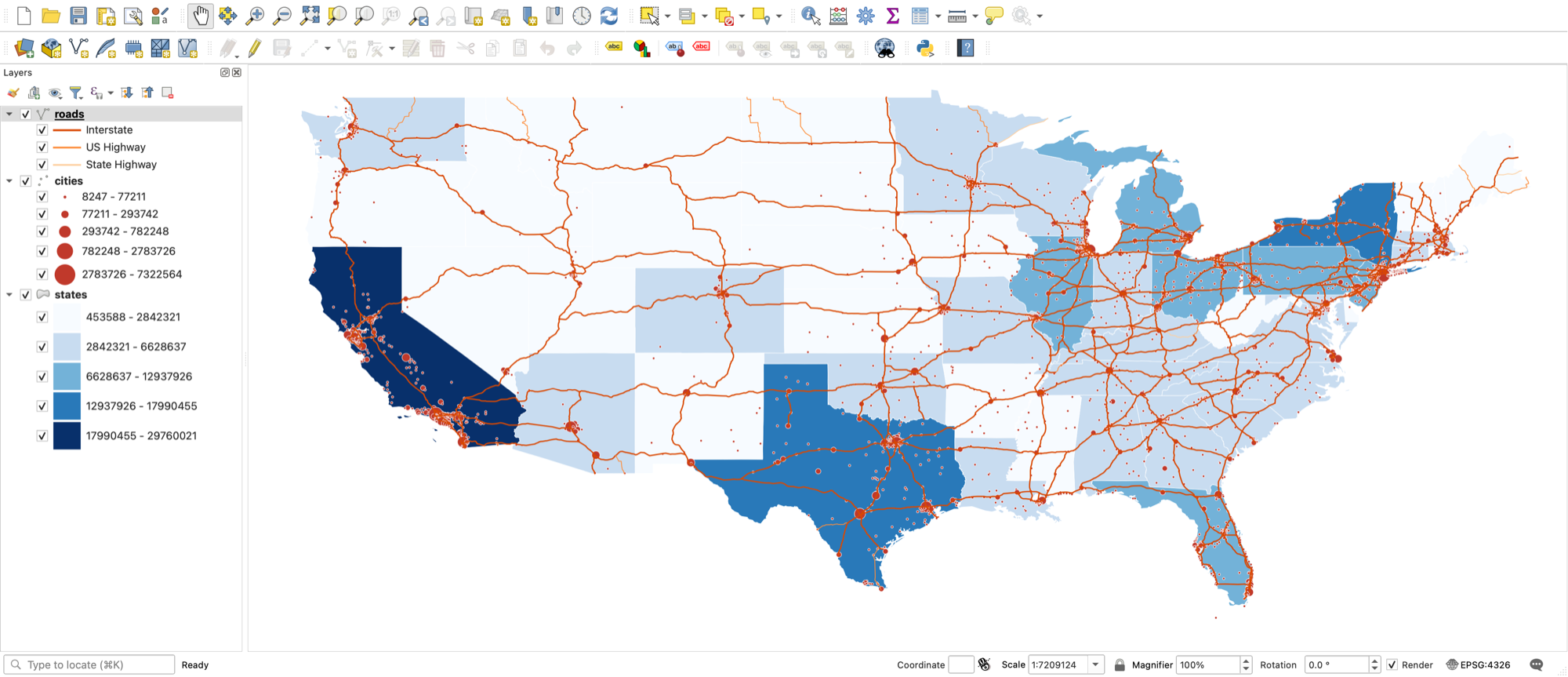
3. Lines and points
- Lines: Categorized on
ADMN_CLASS(Interstate, US Highway, State Highway) is the one that reads well here, or use Symbol layer type > Simple Line with a wider casing underneath (add a second symbol layer, wider and darker, and move it down). - Points: Graduated on
POP1990with Method = Size instead of Color. Cities now scale with population. Set a sensible size range (1 to 6 mm).
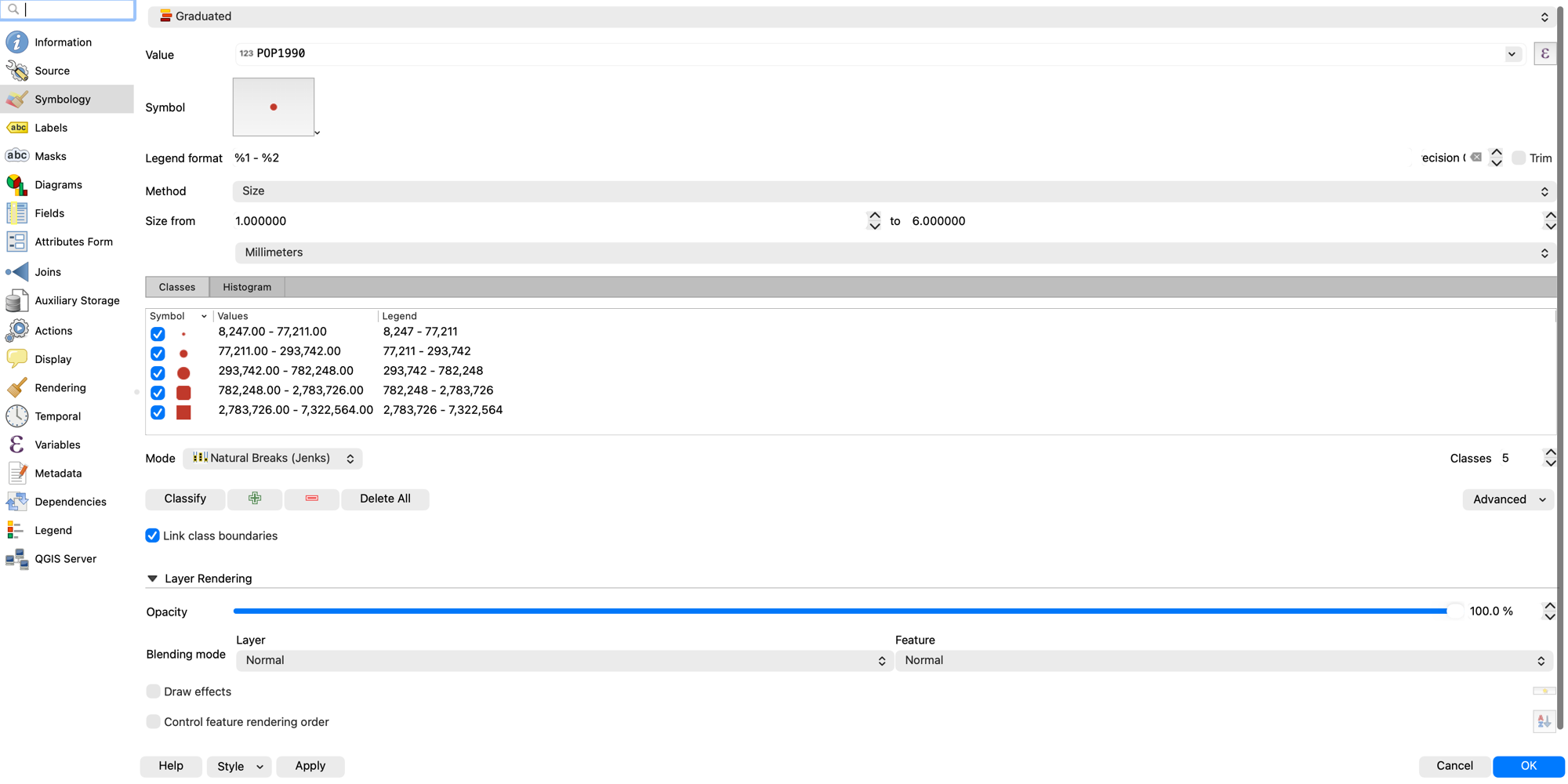
4. Labels
- Properties > Labels > Single Labels, Value =
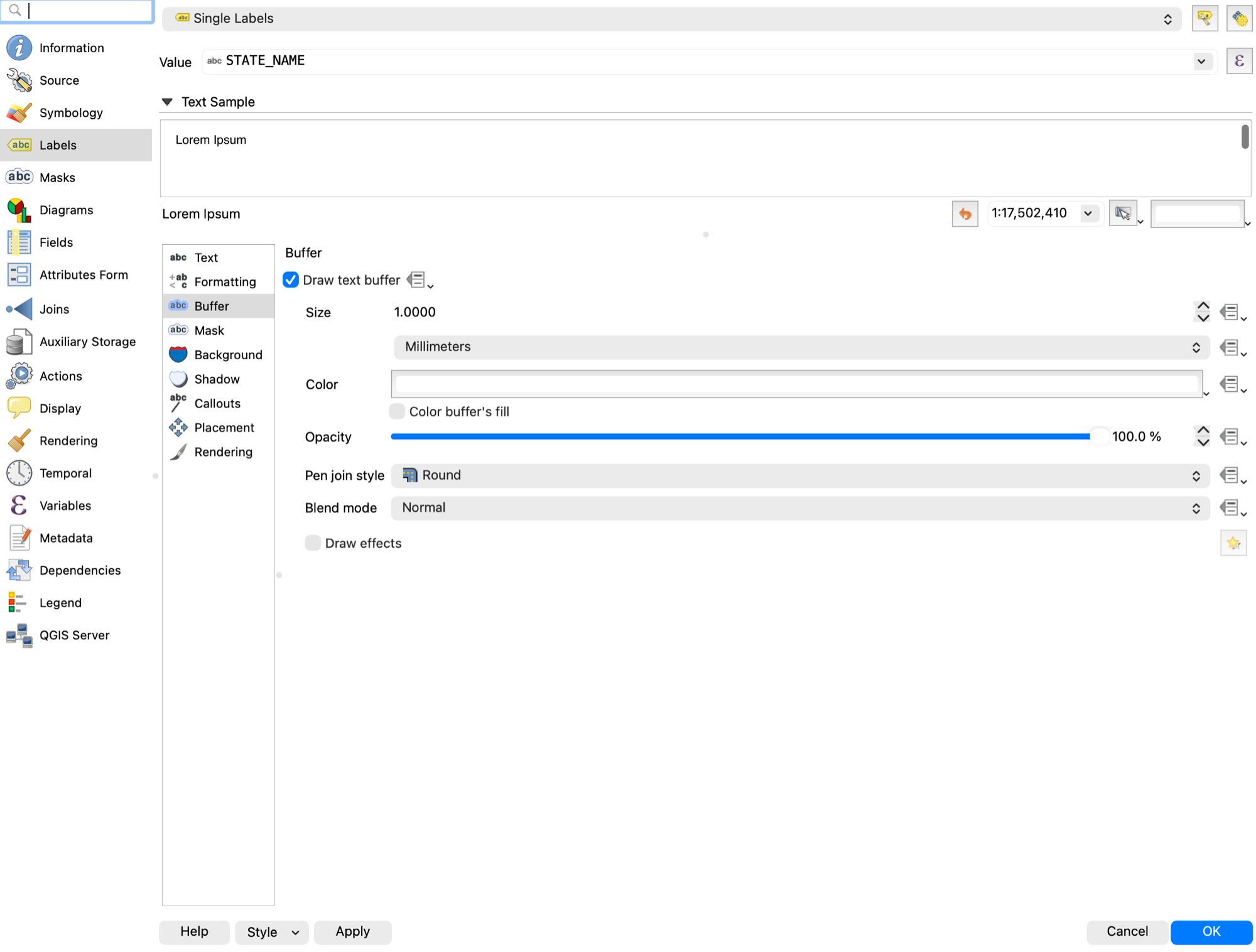
STATE_NAME. Set font size 8, Buffer on (white, 1 mm). Placement for polygons: Horizontal. - For cities, label by name but only the big ones: in the Value box switch to the expression editor and use
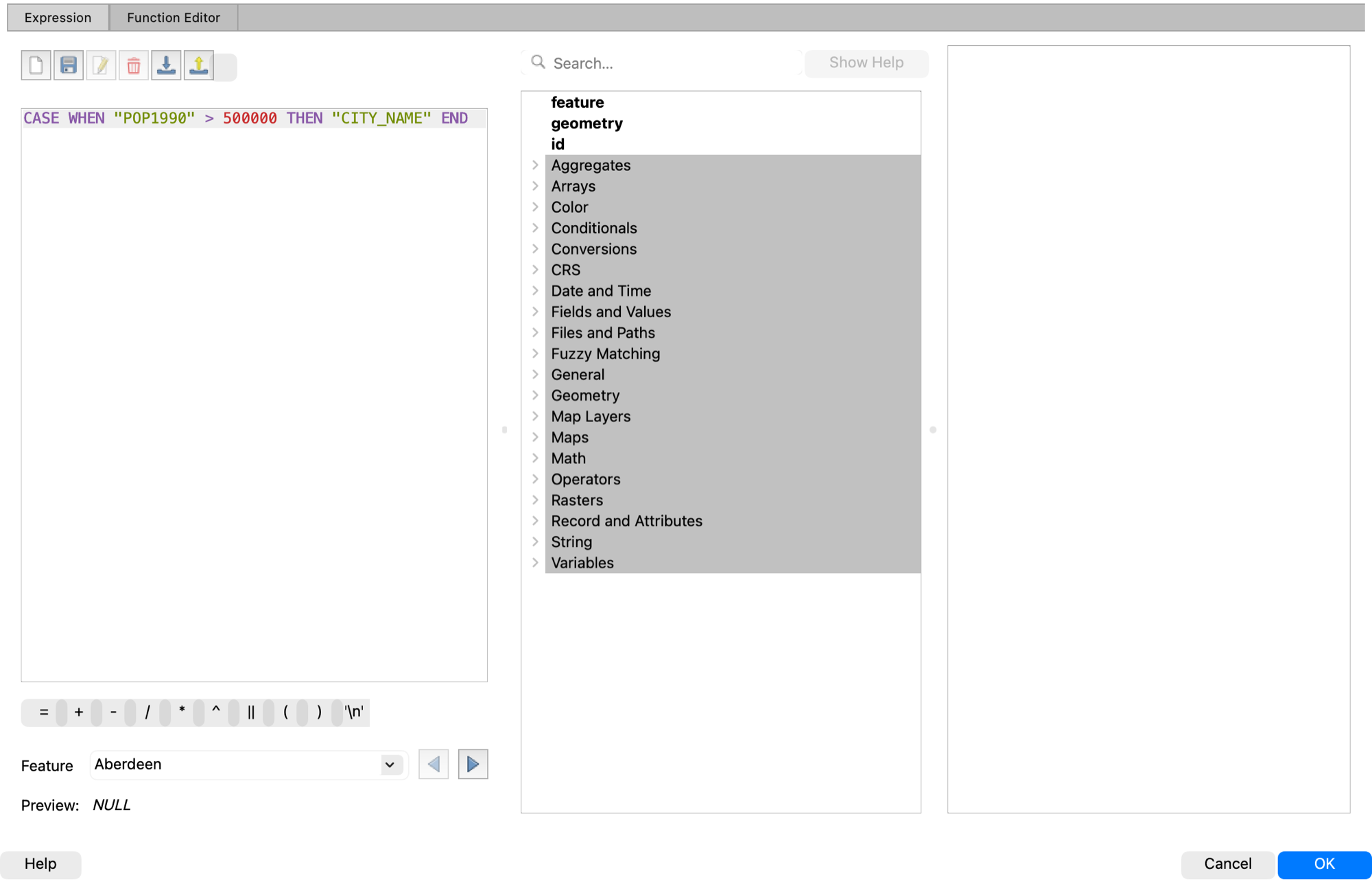
CASE WHEN "POP1990" > 500000 THEN "CITY_NAME" END. Empty results draw no label.
5. The attribute table drives everything
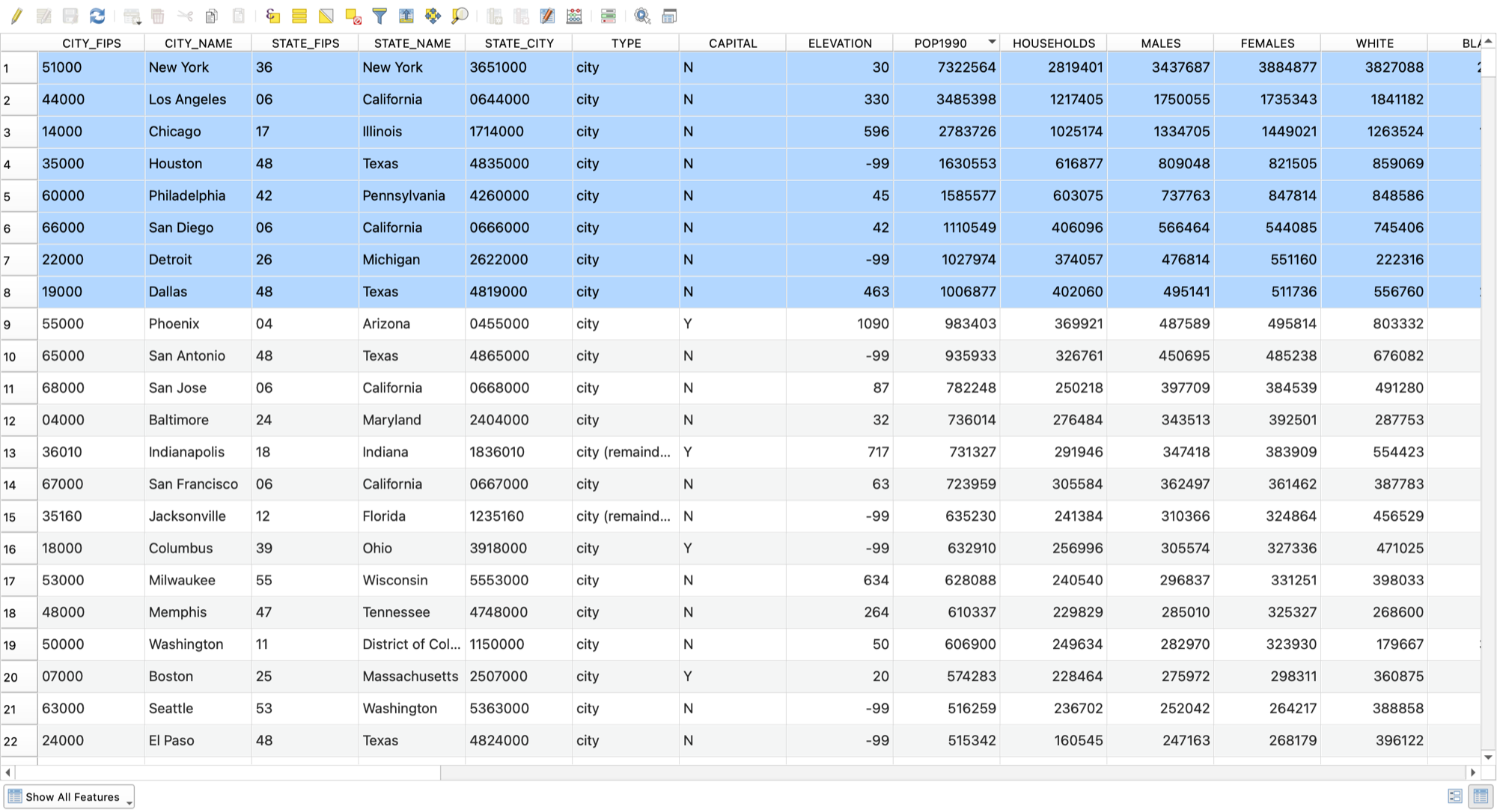
- Open the cities Attribute Table. Click a column header to sort. Selected rows highlight on the map and the reverse.
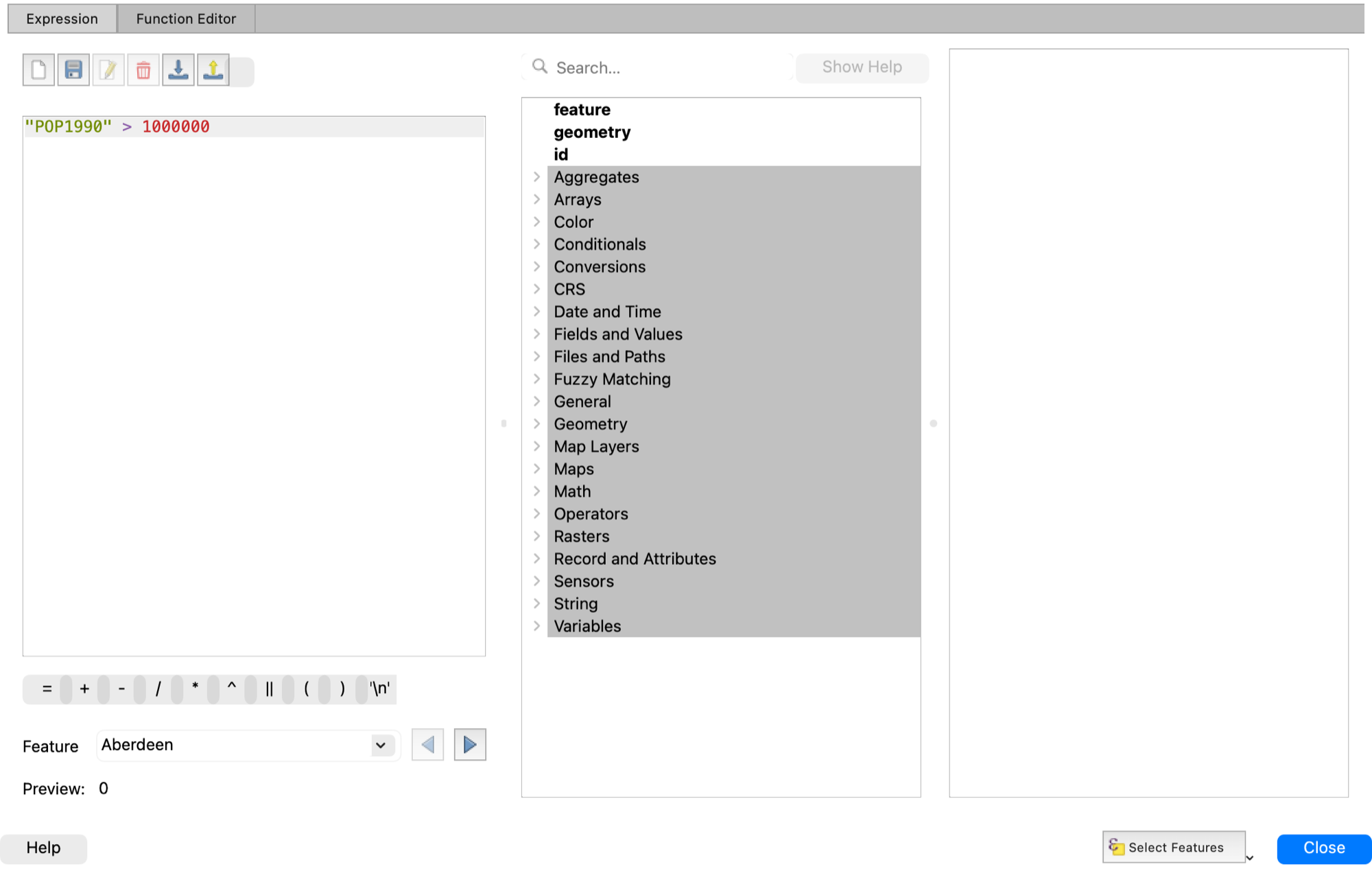
- Select Features by Expression:
"POP1990" > 1000000. Eight cities match; the count shows in the status bar. - Field Calculator: create a new decimal field
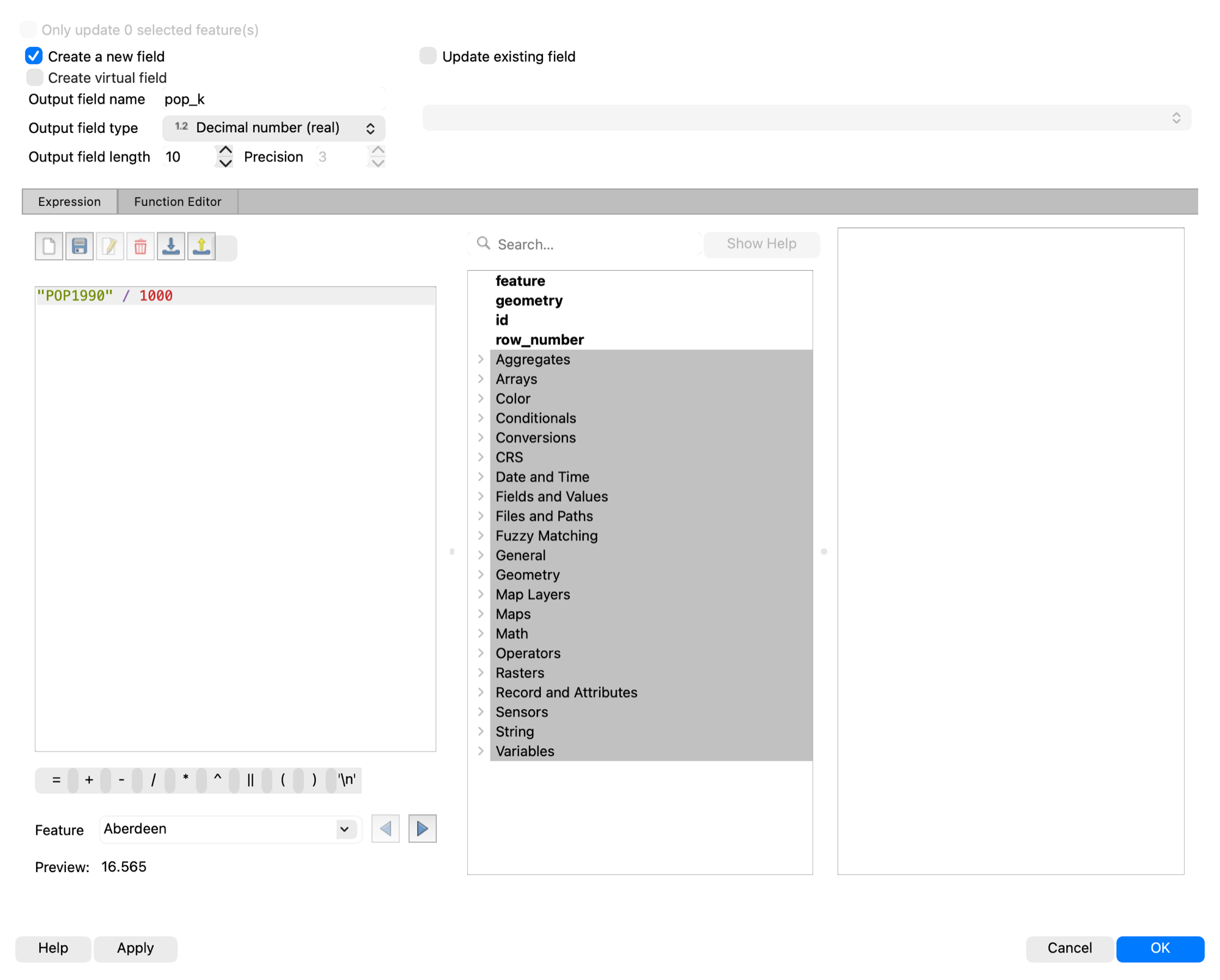
pop_kwith expression"POP1990" / 1000. New fields need editing on; QGIS toggles it for you. Save.
6. A layout with the required elements
- Project > New Print Layout, name it. Add Item > Add Map, drag a rectangle. Set the map scale in the Item Properties panel.
- Add Item > Add Legend. Untick Auto update to rename entries.
- Add Item > Add Scale Bar, Add North Arrow, Add Label for the title, and a small label for author, date, data source, and projection. That is the required list from "What's In A Map."
- Layout > Export as Image (PNG) or Export as PDF.
Now You Do It
Make your own version of this map. It does not have to match the walkthrough — that is the point. Pick your own attribute to categorize or graduate the states on, size the cities by something, label what you think is worth labeling, and build a layout that carries all six required elements.
Then take a screenshot of your map canvas, or use the image you exported from the layout, and upload it to In Class Activity: Playing with Symbology on Learning Suite. It is worth 5 points, and you get full credit for a visibly styled map with labels.
Common snags
- Categorized shows one color for everything. You skipped Classify, or the Value field is not set.
- Labels do not appear. Labels are on but the layer's rendering scale is off, or the font is white on white. Turn the buffer on.
- Legend is a mess. Untick Auto update, then remove or rename entries.
- Export looks nothing like the layout. You exported the map canvas with Project > Import/Export > Export Map to Image instead of exporting from inside the layout window. This is the one that catches people most often.
- Field Calculator is grayed out. The layer is a read-only format or is not in edit mode; tick Create a new field and QGIS starts editing for you.