Week 4 Hands-On Campus Field Trip
Hands-On Practice · Day 7 · Thursday of Week 4 — The Global Positioning System
Topics
- Collect phone GPS readings on campus
- Import them into QGIS and convert to UTM meters
- Compare readings from the same site
Collect GPS readings at three campus sites, map them in QGIS, and compare their spread. This prepares you for Lab 3.
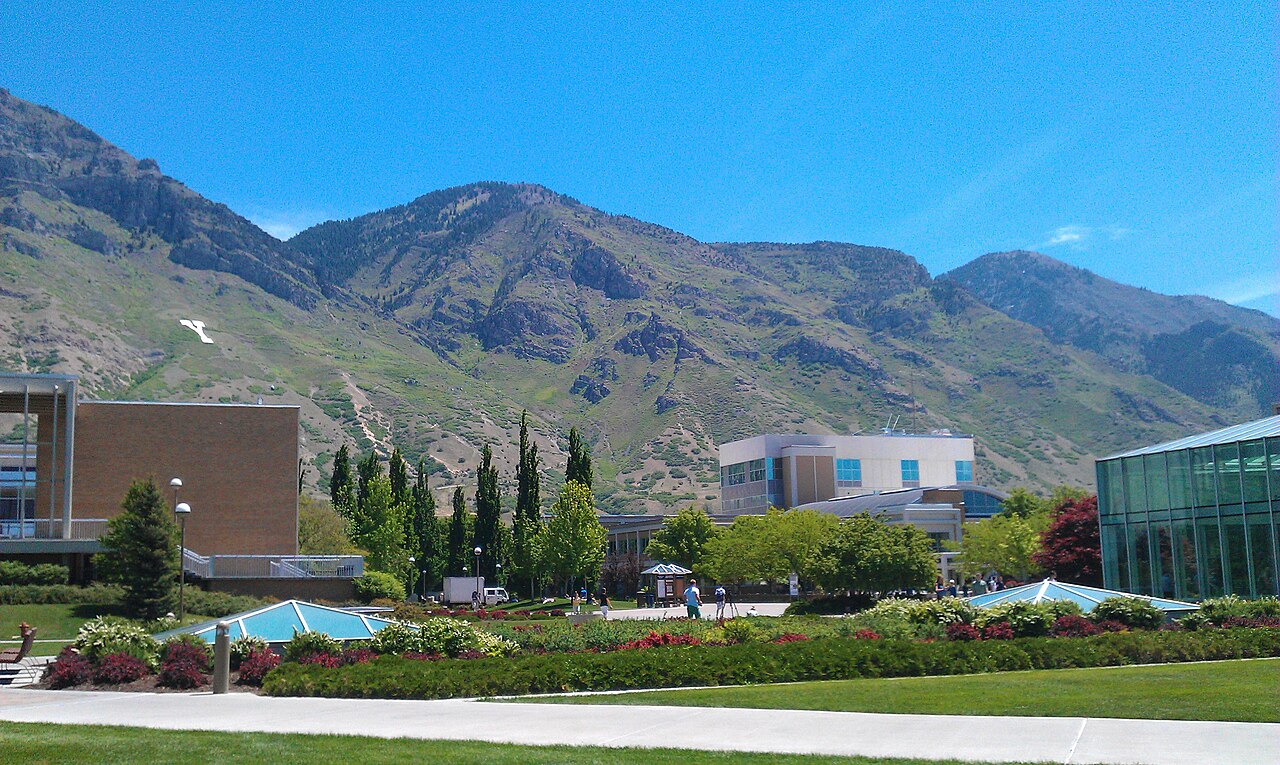
BYU main quad. Photo: Ricardo630 / Wikimedia Commons, CC BY-SA 3.0; resized.

What you need
- QGIS 3.44 LTR and a folder named
Week04_GPS. - A phone app showing latitude and longitude in decimal degrees, preferably five or more decimal places. Keep every digit; more digits do not guarantee better accuracy.
- The GPS activity spreadsheet on Learning Suite and the Lab 3 site list.
Practice files: CSV ·
Completed QGIS project.
These contain nine simulated readings at three demo sites, not real field observations.
Do not submit them as fieldwork. To open the project, unzip it and open week04-practice.qgz;
keep its CSV and GeoPackage beside it. No online basemap is needed.
Use the pictures: pause at each checkpoint. Click a QGIS screenshot to enlarge it. Screenshots show QGIS 3.44 on macOS; Windows borders and shortcuts may differ.
The trip your coordinates take
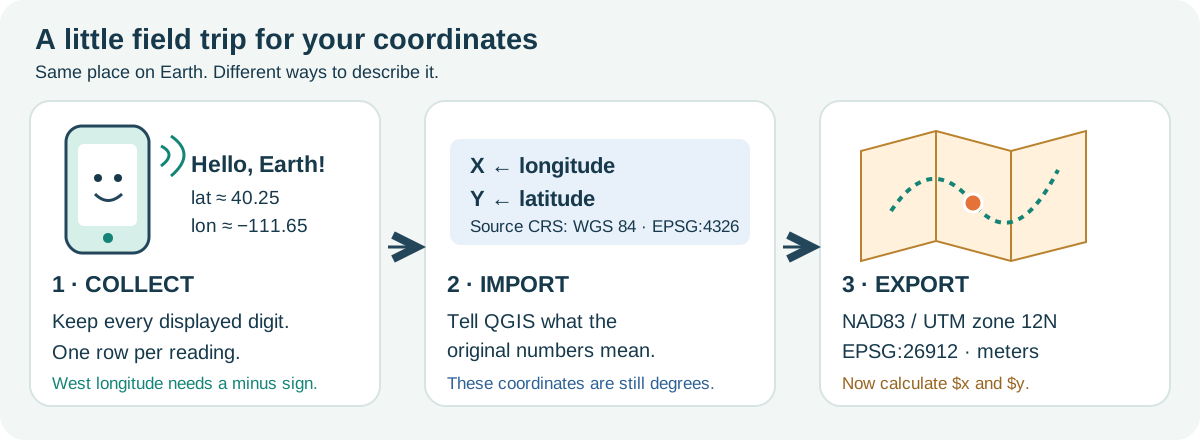
The project CRS controls the map display. The layer CRS describes its stored coordinates. Changing the project badge does not convert degrees to meters; exporting to a new CRS does.
1. Collect three positions outdoors
- Form groups of two or three. Choose three sites from the Lab 3 list and agree on the exact spot at each. Be back at the instructor's return time.
- Each person records their own reading at each site. Arrange a shared device if needed.
- Enter your name, site, latitude, and longitude in the class sheet. Keep every digit.
BYU latitude is about 40.25; longitude is about −111.65. Keep the minus sign;
leave out
N,W, and degree symbols. - Enter all three rows before returning. Note buildings, trees, or indoor locations that may affect reception. Report a missing position rather than inventing one.
Check your sheet: one row per person per site. Use consistent site names and keep your original readings, even when they look surprising.
2. Download and check the CSV
Select the GPS activity sheet tab > File > Download > Comma Separated Values (.csv).
Save as class_gps.csv in Week04_GPS. Or use the practice CSV, which begins:
name,site,lat,lon
A,Demo_A,40.24632328,-111.65018666
B,Demo_A,40.24639575,-111.65011681
C,Demo_A,40.24635004,-111.65023394
Keep the original download. In a working copy, remove blank/example rows and fix formatting
such as W suffixes. Check typos against the original readings; don't move points to tidy the map.
Longer column headings in the class sheet are fine.
3. Import the phone coordinates
- In QGIS, choose Layer > Add Layer > Add Delimited Text Layer….
- Browse to your CSV. Choose CSV (comma separated values) and check First record has field names.
-
Under Geometry Definition, choose Point coordinates:
Setting Practice file Class spreadsheet X field lonLongitude (Decimal Degrees) Y field latLatitude (Decimal Degrees) Geometry CRS EPSG:4326 — WGS 84 EPSG:4326 — WGS 84 -
Leave DMS coordinates unchecked. Check the preview, then click Add and Close.
- Right-click the point layer > Zoom to Layer.
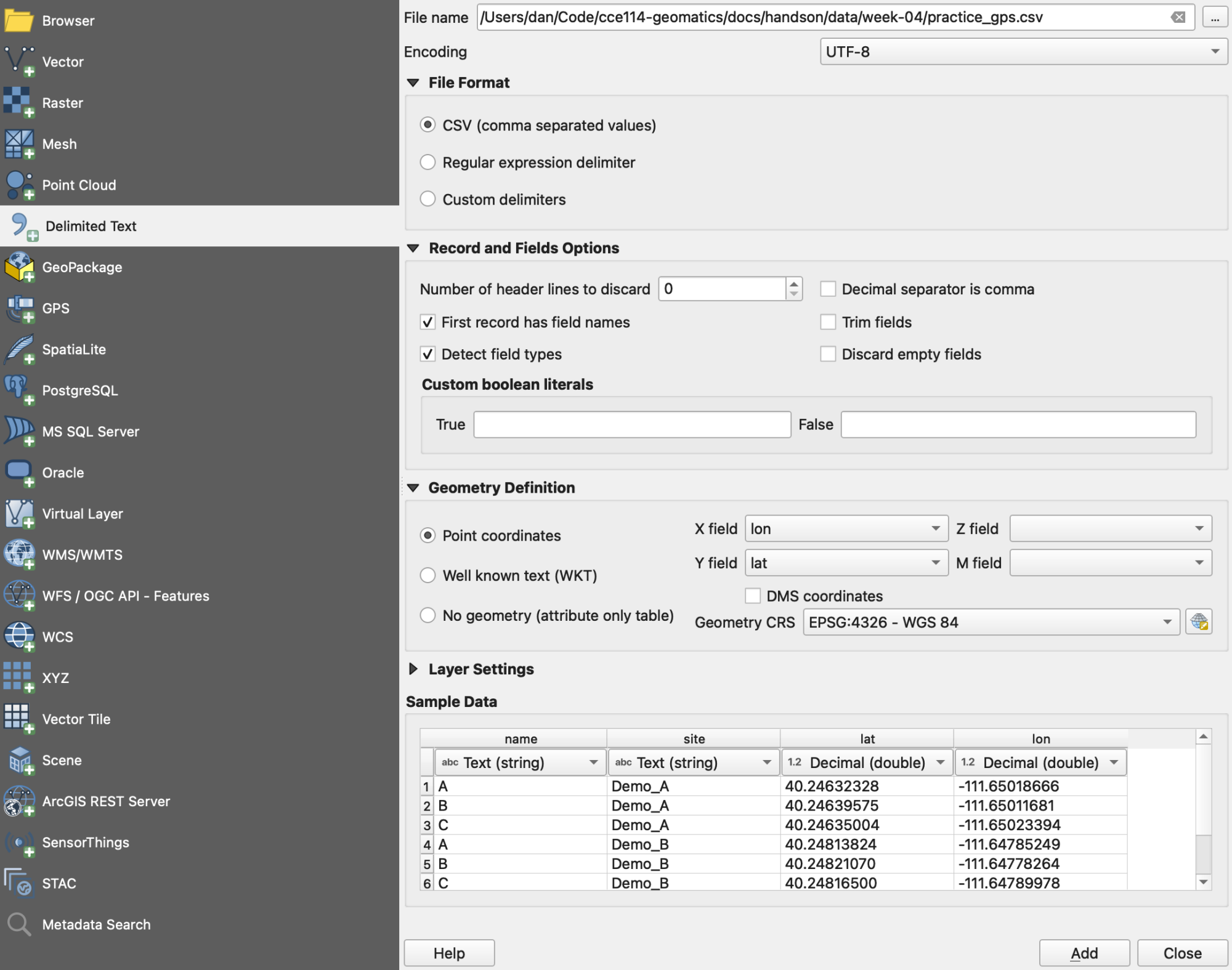
Check your screen: the practice file has nine features in three clusters. Open the attribute table to check the count; zoom in to separate nearby readings.
For campus context, add your satellite basemap below the points. See Lab 1 if you need setup instructions. The coordinate calculations work without a basemap.
Warning
Match the CRS to the file's numbers. Today's raw lat,lon values use EPSG:4326.
Lab 3 Part 2's points.csv already contains UTM meters, so it uses EPSG:26912.
4. Save a new layer in meters
- Click QGIS's bottom-right CRS badge. Search
26912, select NAD83 / UTM zone 12N, and click OK. This sets the display CRS. - Right-click the imported point layer > Export > Save Features As….
- Choose GeoPackage, save as
Week04_GPS/class_gps.gpkg, and name the layerclass_utm. For practice, usepractice_gps.gpkgandpractice_utm. - Set CRS = EPSG:26912 — NAD83 / UTM zone 12N. Check Add saved file to map and leave Save only selected features unchecked. Click OK.
- Uncheck the original CSV layer. Select the new UTM layer, then open Properties > Information to check its CRS.
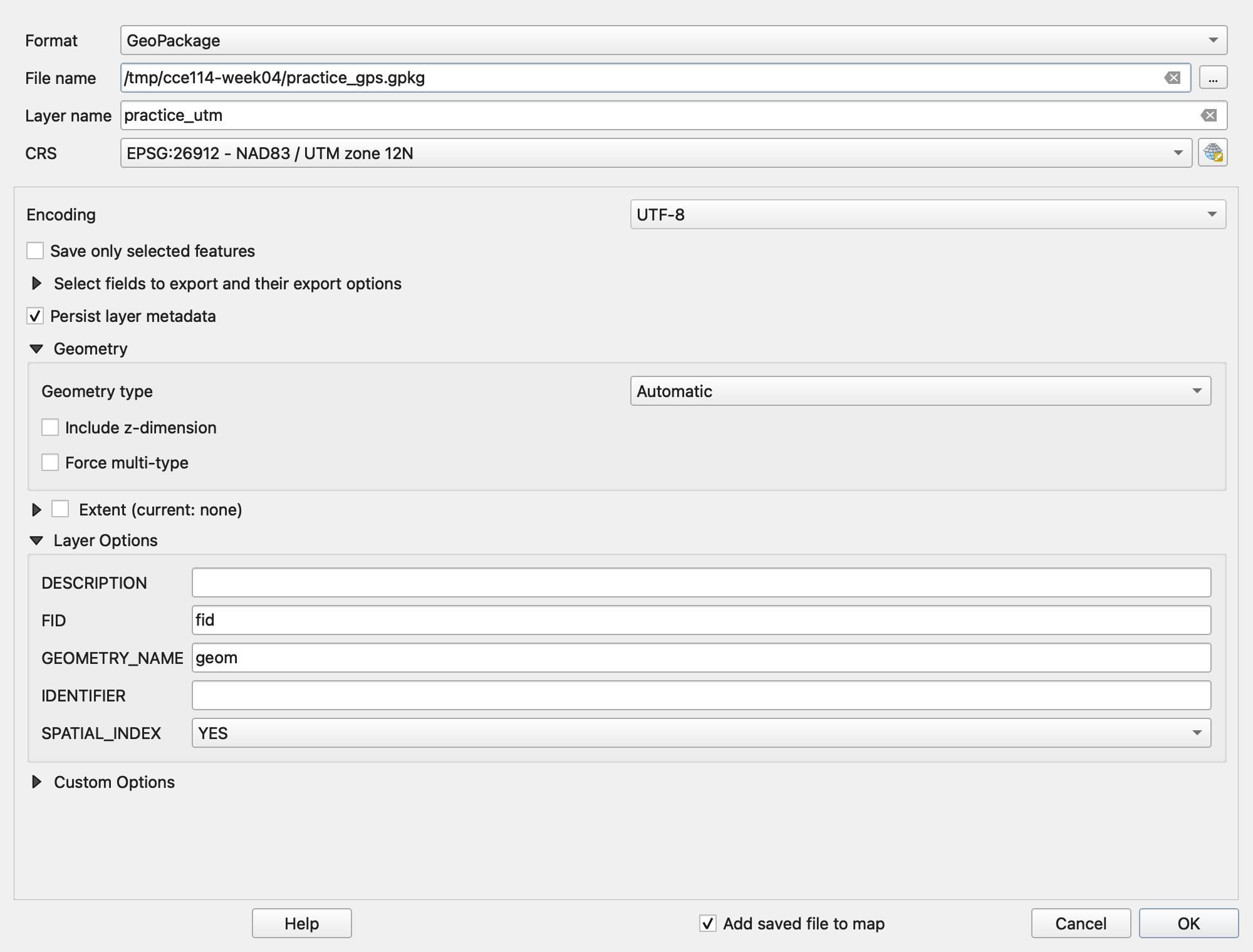
Use Export to convert coordinates. Set Layer CRS only relabels the existing numbers.
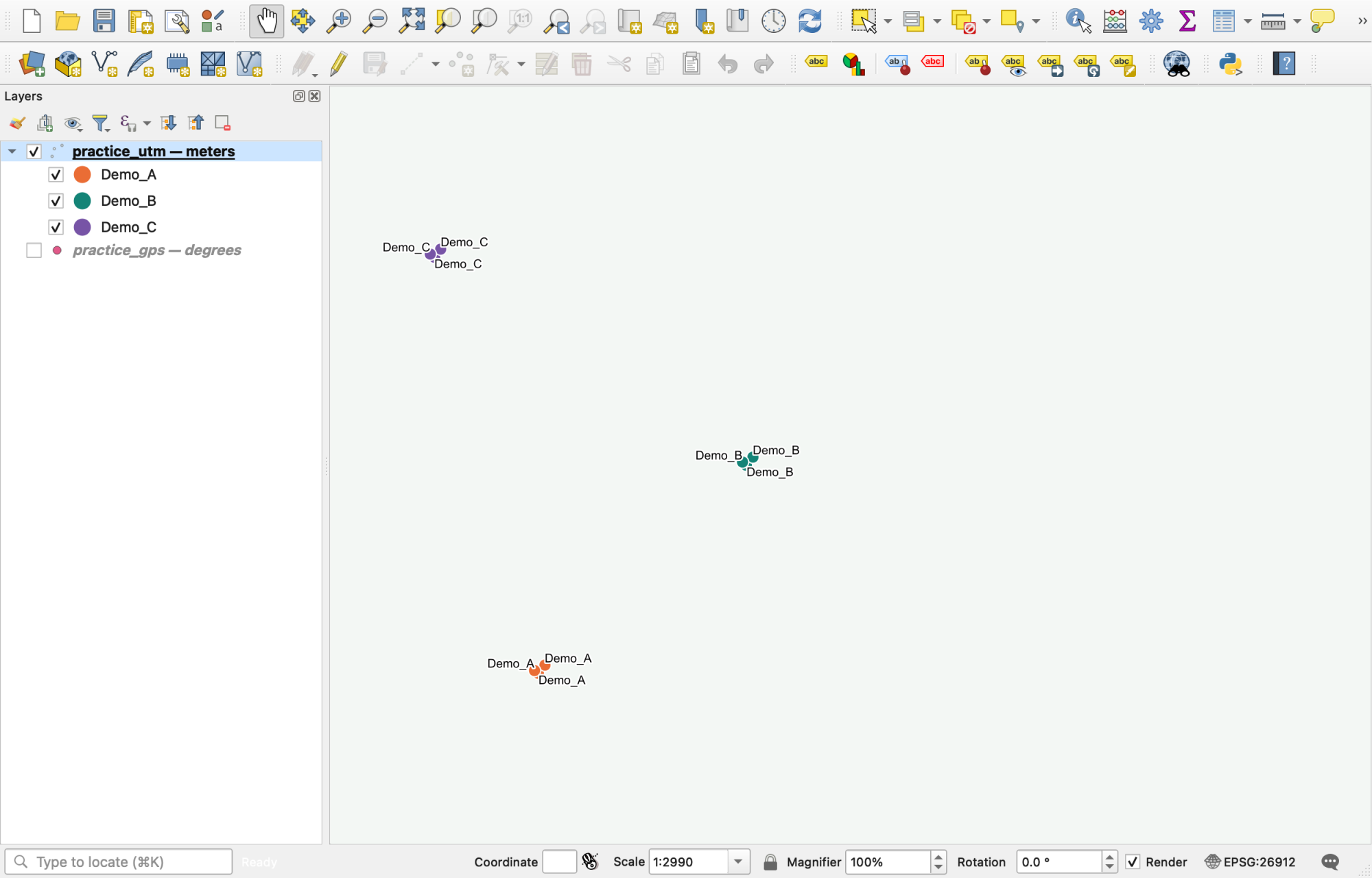
The practice sites use different colors and a plain background. Your default symbol is fine.
Check your screen: the points stay in place, and the new layer says EPSG:26912.
Check Layer Properties, not just the project badge.
5. Add easting and northing
- Right-click the UTM layer > Open Attribute Table. Click the pencil to edit, then Field Calculator (the abacus).
- Check Create a new field. Name it
easting, choose Decimal number (real), and enter$xwithout quotes. If enabled, use length 12 and precision 2. - The preview should be in the hundreds of thousands, not −111.65. Click OK.
- Repeat for
northing, using$y. - Save Edits, turn the pencil off, and scroll right to see the new columns.
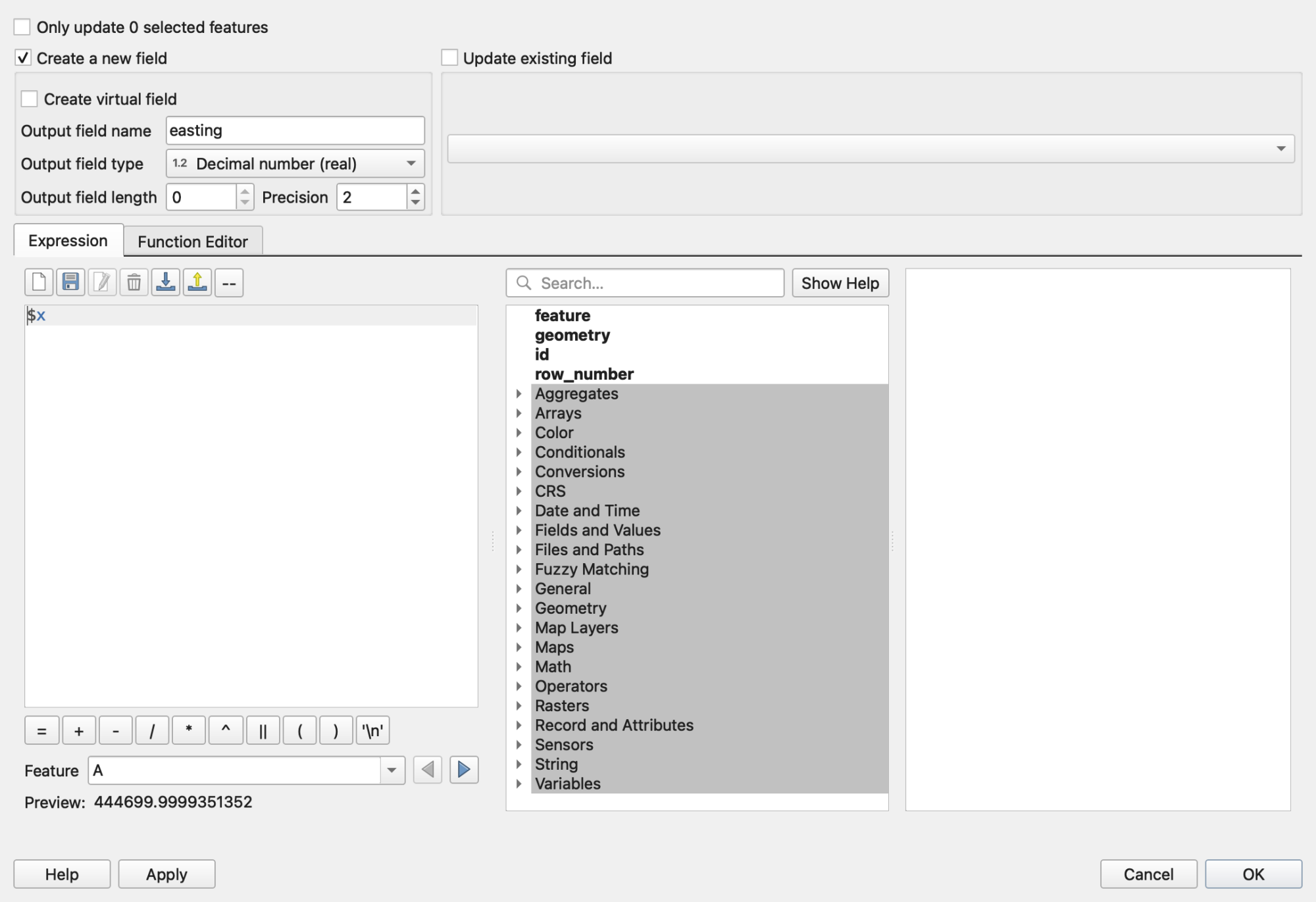
Easting = $x; northing = $y. Both use the layer's stored geometry.
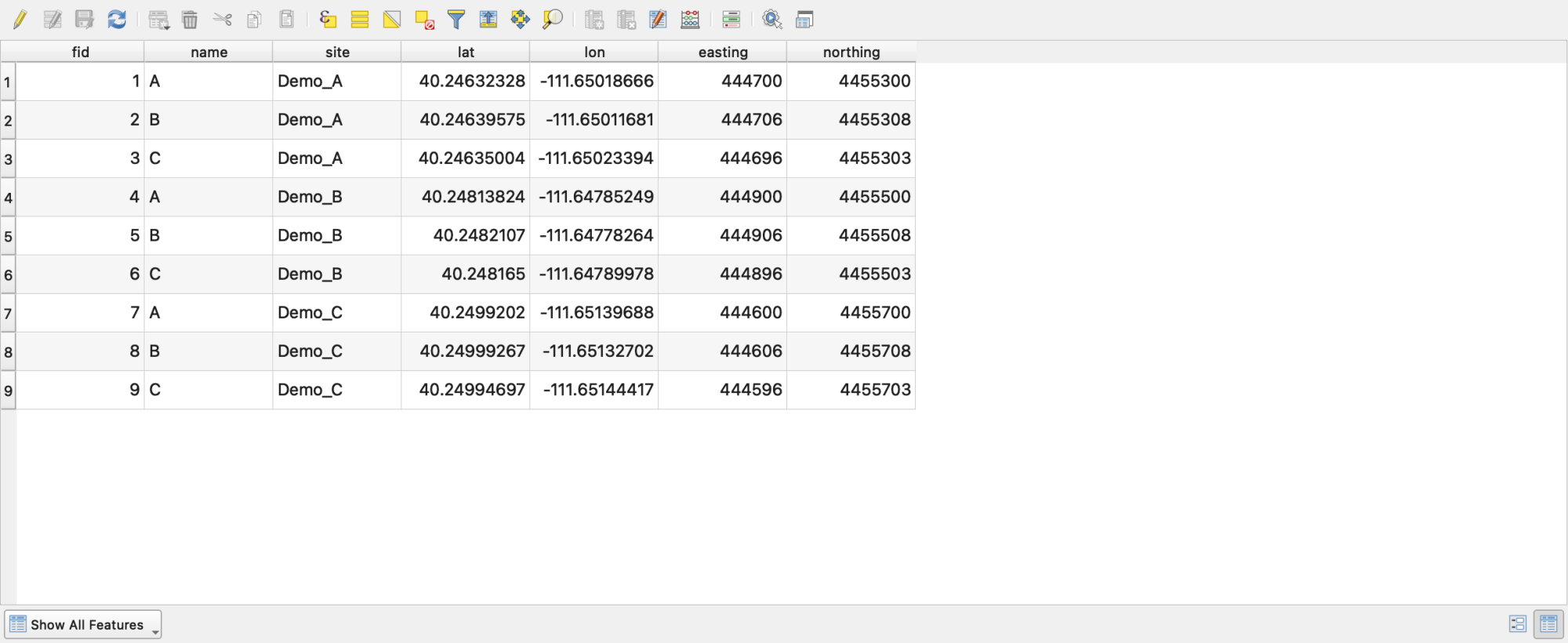
Check your table: at Demo_A, expect these approximate values:
| Receiver | Easting (m) | Northing (m) |
|---|---|---|
| A | 444700.00 | 4455300.00 |
| B | 444706.00 | 4455308.00 |
Tiny rounding differences are fine. Your field readings will differ.
The copied lat and lon columns remain in degrees.
Tip
If $x gives −111.65: select the exported UTM layer and try again.
Changing the project badge won't fix a calculation on the degree layer.
Cross-check: enter one reading in the Lab 3 converter. Input: Lat/Lon WGS 1984. Output: UTM NAD83 Zone 12N, not its Zone 17N default. For large differences, check zone, signs, coordinate order, and units. Datum transformations can affect the last digits; this is a phone-GPS exercise, not a survey-grade conversion.
6. Measure the spread
- Zoom in on readings from one site (
Demo_Ain the practice file). - For labels, open Layer Properties > Labels > Single Labels, set Value = name,
and click OK. The screenshot also uses the layer filter
"site" = 'Demo_A'. - Choose View > Measure > Measure Line, or the ruler button. Set units to meters. Click two point centers; right-click to finish. Zoom closer if needed.
- Practice receivers A and B are about 10 m apart: 6 m east and 8 m north gives √(6² + 8²) = 10 m. QGIS's ellipsoidal measurement may differ slightly from this UTM check.
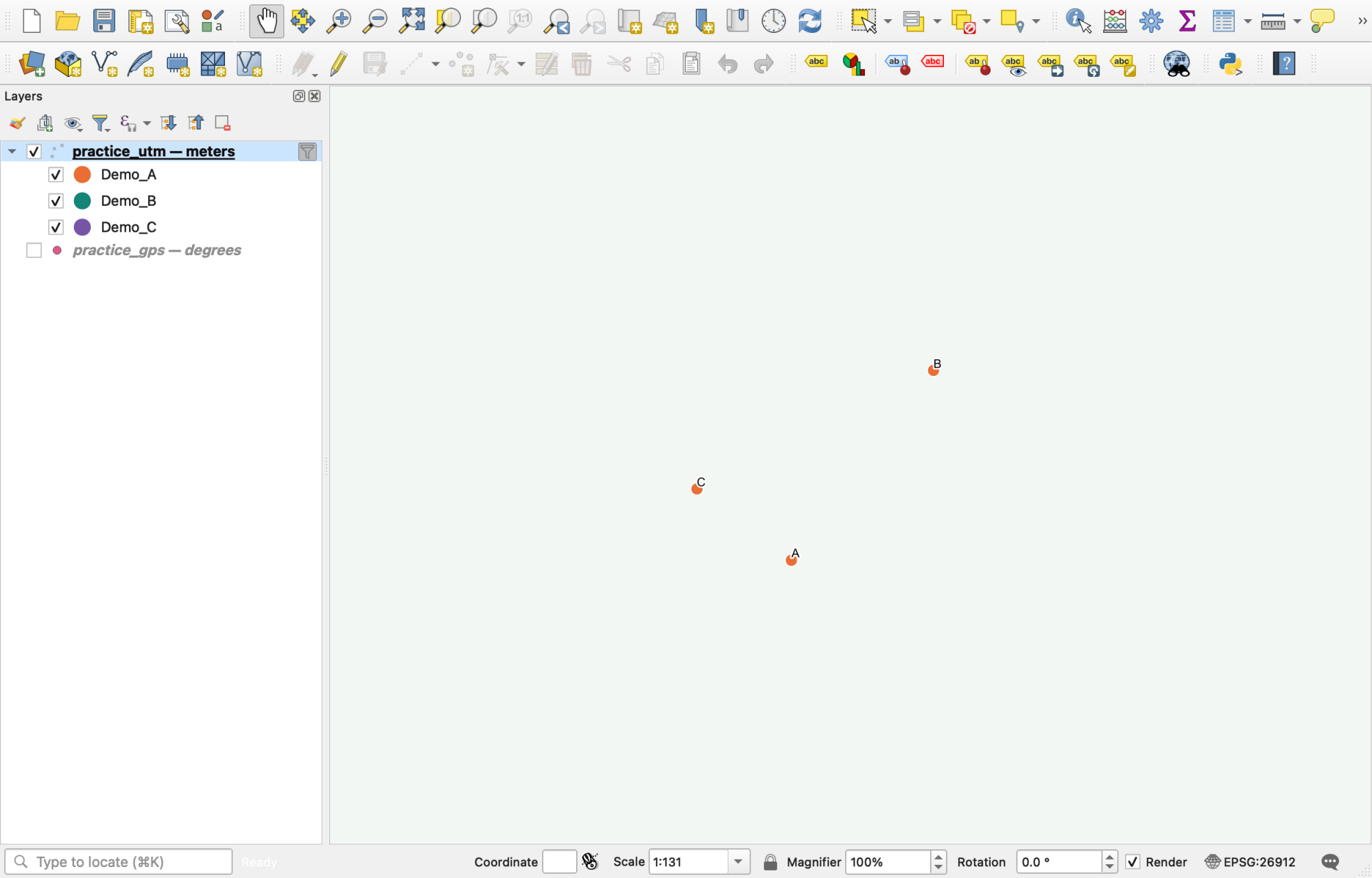
Compare readings taken at the same spot.
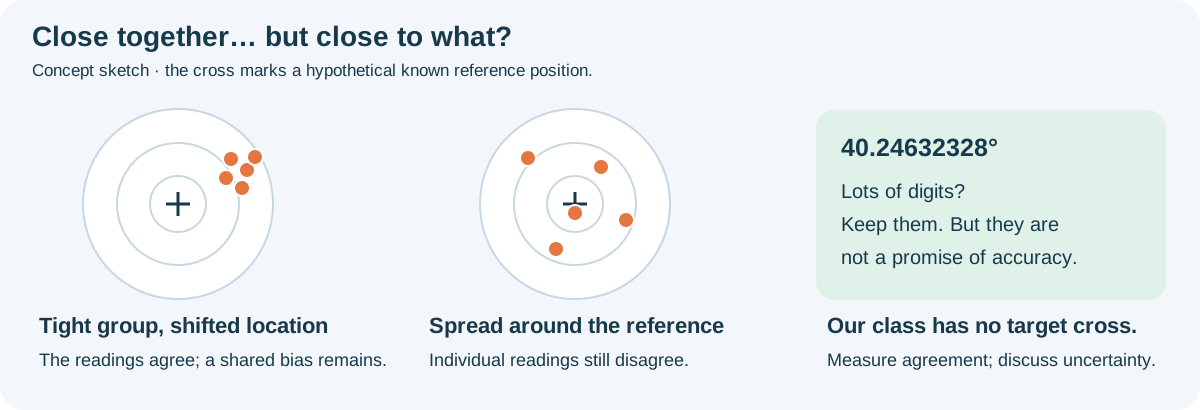
Discuss: How might buildings, reflections, sky view, or slightly different standing positions explain the spread? A tight cluster shows agreement, not necessarily the true position. Satellite imagery is context, not a surveyed reference.
Optional mean: search Mean coordinate(s) in the Processing Toolbox. Input = the UTM layer; Unique ID field = site; leave weights blank. This gives one mean per site. Averaging may reduce random variation, but not a shared bias. Lab 3 instead asks you to average latitude/longitude before converting to UTM.
What to turn in
For 5 points, enter three real readings in the class sheet. On Learning Suite, open In Class Activity: GPS Class Activity, record completion, and enter your three site names. Practice data and screenshots do not replace field readings.
Save your work: Project > Save As… in Week04_GPS. Keep the CSV and GeoPackage there
too; the .qgz does not contain the source data.
Next: Lab 3. Collect its seven sites, calculate group averages, and follow its conversion and mapping steps, including corrected positions, a campus polygon, and a layout. Today's activity is practice, not a substitute for the lab.
If your screen looks different
| Problem | Fix |
|---|---|
| CSV is a table with no points | Use Add Delimited Text Layer > Point coordinates and set X/Y. |
| Add is disabled or rows are missing | Check numeric values, blanks, delimiters, and N/W suffixes. Read the import message. |
| Points are outside Utah or missing | Check X = longitude, Y = latitude, negative longitude, and source CRS 4326. Swapping BYU coordinates can produce an invalid latitude. |
| Three dots instead of nine | Zoom in; each cluster contains three readings. Check the table count. |
$x is around −111 |
Select the exported 26912 layer. |
| Calculations are blank or partial | Clear the selection, calculate all rows, and save edits. |
| Points jump after export | Check the original CRS. Convert with Export > Save Features As, not Set Layer CRS. |
| No satellite imagery | Check internet access and layer order, or continue without it. |
Controls: QGIS 3.44 manual. Screenshots and practice results were produced in QGIS 3.44.