Week 5 Hands-On — Digitize Your Home with Snapping and the Vertex Tool
Hands-On Practice · Day 9 · Thursday of Week 5 — Working with Vector Data
Topics
- Hands-on practice creating, digitizing, and editing vector layers
- Snapping and topology
Feeds Lab 4.
At a glance
| Goal | Students create a GeoPackage with a point, a line, and a polygon layer, digitize their own home over satellite imagery, and use snapping and the Vertex Tool so lines actually meet. |
| Why this week | Tuesday covered creating, digitizing, and editing vector data and the schema behind an attribute table. Lab 4 is topological correction: broken canals and culverts that must be snapped back together. Today is the same tools on a place they care about. |
| Students bring | Laptop with QGIS 3.44. An idea of which home they will map (their family home or their apartment). |
| Graded item | In Class Activity: Creating and Editing Vector Data (10 points). Upload a screenshot or PDF of the digitized home with snapped lines. |
| Feeds | Lab 4: Changing, Editing, and Fixing GIS Data. Due Saturday. |
Practice run before class
Tip
Twenty minutes and no downloads. Everything in this session is drawn by hand over imagery.
What you need. QGIS 3.44 LTR and an internet connection for the basemap. Pick a neighborhood you are willing to show on the projector; a campus block works if you would rather not use your own house.
Do this, in order.
- Add the Google satellite basemap from XYZ Tiles and zoom to the block.
- Layer > Create Layer > New GeoPackage Layer..., database
home.gpkg, tablebuildings, geometry Polygon, CRS EPSG:26912, fieldsname(text),floors(integer),year_built(integer). - Repeat twice against the same database file, saying yes when QGIS offers to add a table:
pathsas LineString withnameandsurface, thendoorsas Point withnameandkind. - Digitize a house polygon, a street line and a driveway line. Stop the driveway deliberately short of both the street and the house so there is a gap to fix in front of the class.
- View > Toolbars > Snapping Toolbar, click the magnet, open Advanced Configuration,
enable all three layers, snap to Vertex and Segment, tolerance 12 px, tick
Topological Editing, and tick Avoid Overlap for
buildings. - Delete the gappy driveway and draw it again. Watch for the pink snap marker. Zoom right in and confirm the gap is gone.
- Draw a garage sharing a wall with the house, then use the Vertex Tool to drag the shared vertex. With topological editing on both shapes move together. Turn it off and repeat to see the sliver appear.
- Save Layer Edits on all three layers, toggle editing off, then Project > Save.
You are ready when you have one .gpkg holding three tables, a driveway with no gap at either
end, and you have watched the sliver appear and disappear.
The one that bites. Closing QGIS after Project > Save loses the digitizing. Saving the project is not the same as Save Layer Edits, and students hit this every year.
Before class
- [ ] QGIS open with the Google satellite XYZ basemap, zoomed to a neighborhood you are willing to digitize on the projector (a campus block works if you would rather not use your own home).
- [ ] Project > Snapping Options panel already visible (View > Toolbars > Snapping Toolbar).
- [ ] Learning Suite open to the Creating and Editing Vector Data activity.
- [ ] Optional: the hidden Learning Suite page In Class Activity: Creating and Editing Data for a Park Design has a longer version of this outline with a park theme, if you ever want a second exercise.
Plan (50 minutes)
| Time | Segment |
|---|---|
| 0:00 | Mini-devotional |
| 0:03 | Five ways to lose an afternoon (say them out loud), then one GeoPackage, three layers, a schema each |
| 0:10 | Digitize: polygon (house), line (street or driveway), point (front door) |
| 0:18 | Snapping on; redo the driveway so it meets the street and the house exactly |
| 0:25 | Vertex Tool: move, add, delete; attribute edits; save |
| 0:31 | Students digitize their own home |
| 0:44 | Screenshot or export; upload; Lab 4 pointer |
Five ways to lose an afternoon
Read these out before anyone opens a dialog. Every one has happened in this class, and most of them will happen today if nobody says them first.
- Digitizing into a temporary scratch layer, then closing QGIS. It never had a file.
- Never clicking the … next to File name, so the layer has no home on disk.
- Typing a field name and clicking OK without Add to Fields List, so the field was never created.
- Saving the project and assuming the layer edits were saved too. The
.qgzholds where layers are and how they are drawn, not the features. - Drawing forty features with snapping off, then discovering nothing connects.
Walkthrough
1. One GeoPackage, three layers
Tour the dialog once before the first layer, field by field:
- File name: click the … and save into your own folder. This is the actual file on disk; skip it and the layer has no home.
- Table name: the layer name inside that file.
- Geometry type: Point, LineString, or Polygon. It cannot be changed later.
- CRS: leave it on Project CRS.
- New Field: name, type, then Add to Fields List. Only what is in the Fields List becomes a column.
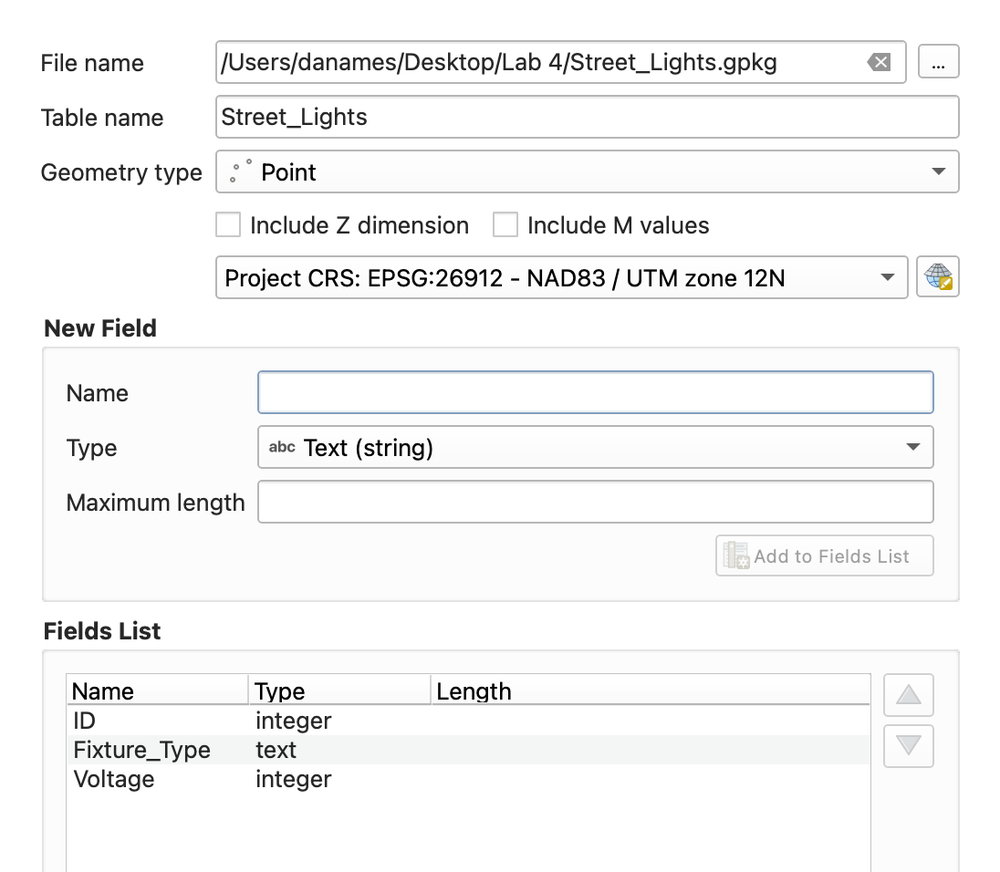
- Layer > Create Layer > New GeoPackage Layer... Database: a new file
home.gpkg. Tablebuildings, geometry Polygon, CRS EPSG:26912. Fields:name(text),floors(integer),year_built(integer). OK. - Repeat, choosing the same database file (QGIS asks whether to add a table to it; say yes): table
paths, geometry LineString, fieldsname(text),surface(text). - Repeat: table
doors, geometry Point, fieldsname(text),kind(text). - Show the Browser panel: one
.gpkgfile, three tables inside. Compare with a shapefile, which is four to seven files per layer. This is why the course uses GeoPackages.
Say why the schema comes first: you decide what you will record about a feature before you draw the first one, exactly like designing a spreadsheet before entering data.
2. Digitize
- Select
buildings, Toggle Editing, Add Polygon Feature. Left-click each corner of the house; right-click to finish. Fill in the attribute form. - Select
paths, toggle editing, Add Line Feature. Click along the street centerline in front of the house; right-click to finish. Draw a second line for the driveway from the street to the house, deliberately stopping short of both so there is a gap to fix. - Select
doors, toggle editing, Add Point Feature at the front door. - Save Layer Edits on all three (the yellow disk) but leave editing on.
3. Snapping makes it real
- On the Snapping toolbar click the magnet. Open its dropdown: Advanced Configuration, enable all three layers, snap to Vertex and Segment, tolerance 12 px. Tick Topological Editing and, for
buildings, Avoid Overlap. - Delete the gappy driveway (select it, press Delete) and draw it again. As the cursor approaches the street line it jumps to the segment and a pink marker appears; the same at the house wall. Right-click to finish. Zoom in to prove there is no gap.
- Draw a garage polygon that shares a wall with the house. With Avoid Overlap on, the new polygon cannot cross the existing one; the shared edge is exact.
4. The Vertex Tool
- Vertex Tool (Current Layer). Hover the house polygon: vertices light up. Drag one corner to fix it. Double-click on an edge to add a vertex. Select a vertex and press Delete to remove it.
- Because Topological Editing is on, moving the shared wall vertex moves both the house and the garage. Toggle it off and repeat to show the sliver that appears.
- Open the
buildingsattribute table, click a cell, changefloors. Attribute edits are edits too; they need saving. - Save Layer Edits on all layers, toggle editing off, Project > Save.
Student activity
Students zoom to their own home, create home.gpkg with the three layers, digitize the house, the street and driveway with snapping on, and the front door, and fill in attributes. They upload a screenshot of the canvas zoomed in so the snapped junctions are visible, or a PDF from a quick layout, to In Class Activity: Creating and Editing Vector Data. Full credit for three layers with snapped lines; partial credit for three layers with gaps.
Lab 4 pointer
Lab 4 hands them a canals layer with breaks and a culvert layer that does not meet the rivers, and asks for exactly today's moves: Snapping Options, Vertex Tool, Avoid Overlap, and a layout of the fixed data. Point at the "Finding the mistakes" and "Fixing the lines with the Vertex Tool" sections.
Common snags
- "This layer is not editable." The pencil is off, or a different layer is highlighted in the Layers panel.
- Snapping does nothing. The magnet is on but the layer is unticked in Advanced Configuration, or the tolerance is in map units and tiny. Use pixels.
- Polygons with a hole or a twist. They clicked corners in a crossing order. Delete and redraw; or Vertex Tool the offending vertex.
- Cannot find their house. Have them type the address in Google Maps, read the coordinates, and use View > Panels > Advanced Digitizing or just the coordinate box in the status bar (type
-111.65,40.25style coordinates and press Enter). - Edits vanished after closing QGIS. They never clicked Save Layer Edits. Saving the project does not save layer edits.