Lab 1: Walmart Site Selection
Civil Engineering 414 — Engineering Applications of GIS
Fall 2026 · Dr. Dan Ames
Tip
Start from the report template. lab01-report-template.docx
has the title block, a section for every deliverable, the tables already set up with the columns
the rubric asks for (including one for what each of the three criteria actually removed), and
the rubric at the end ready to fill in. Open it in Word or upload it to Google Docs, replace
every gray italic prompt, and delete the prompts as you go. You are welcome to write your report
any way you like — the template is a floor, not a ceiling — but if you use it and fill in every
section, you will not have left a graded item out.
Background
GIS is used by major corporations around the world to help manage shipping, inventory, sales, marketing, facilities, and expansion. Specifically, with respect to expansion, GIS is used extensively to help determine the most appropriate placement of new store locations.
This exercise assumes that the Walmart Corporation is interested in building a new store in Utah County. To conduct this analysis you will acquire and create several data layers corresponding to different spatial considerations and criteria. Once you have the data, you will use spatial analysis — several geoprocessing tools, assembled into a single model — to identify the most suitable locations for the new store, and you will recommend a specific site.
You will then do something a real analyst always has to do: find out how much your recommendation depends on the assumptions you were handed. The density threshold and the two distances in this lab are choices, not facts. In the last step you will vary them, see how far your answer moves, and use what moves to sharpen your recommendation rather than simply believe the first map.
Problem Statement
There are over 4,700 Walmart stores in the United States. About 90% of Americans live within 15 miles of a Walmart. Walmart has stated that its goal is to provide inexpensive products to its customers. They provide a large variety of goods, allowing customers to save money without having to price shop (Fishman, 2006). Walmart is likely to continue to expand as population increases and the demand for inexpensive products increases.
Assume that you work for Walmart and have been assigned to select a new location for a store in Utah County. As you might suspect, there are many factors that govern the placement of a new store in a community. Some factors are based on physical requirements, others on political and economic issues.
Suitable development areas can be determined by creating layers based on limiting criteria and combining those layers to find the places that meet all the criteria. For this lab, you are tasked with identifying the most suitable locations in Utah County for the placement of the new Walmart store.
Spatial Considerations
For the purposes of this exercise, the spatial considerations will be limited to the following:
- Proximity to other locations: Find locations at least 2 miles away from any existing Walmart.
- Proximity to major roads: Find locations within 2 miles of I-15 or another major highway.
- Population density: Located in a high-density population area with over 5,000 people per square mile, using the 2020 Census tract data listed below.
- Adequate space: Walmart stores range from 51,000 ft² to 224,000 ft², averaging about 102,000 ft². The datasets in this lab do not include buildings, parcels, or land use, so your model cannot prove that a site is vacant. Treat this as a judgment step: screen your candidate zones visually against imagery, and state in your report what you were not able to verify from the data.
Data
Important
Set up your folder before you download anything. On the lab machines, work on the
D: drive. Make one folder for this class named after you — D:\Smith\ — and one folder per
lab inside it — D:\Smith\Lab01\. Put the project and this lab's data there.
Why not somewhere else? The C: drive is locked by the lab administrators: it holds the software installations and the system files, and you cannot write to it. A network drive — your CAEDM home directory, for example — is technically writable and a worse idea: ArcGIS Pro reads and writes very large files constantly, and doing that across a network connection is slow and will sometimes make ArcGIS Pro hang or crash outright. If you want your work to be portable, a high-speed USB 3.0 external drive is fine, and you can work directly off it. Otherwise work on D: and back your lab folder up at the end of every session to whichever network or cloud storage you prefer — CAEDM, Google Drive, OneDrive or Box. These are public machines: anyone who logs in can edit or delete what is on D:, and it may be wiped between semesters.
Never use a space in a folder or file name you create. Some geoprocessing tools, the raster tools especially, fail on paths containing spaces and do not tell you that the space is why.
The full set of workspace conventions, and the settings that most often produce a wrong answer without an error message, are on the ArcGIS Tips and Reminders page. Read it before you start.
You need four layers for this project, and — deliberately — you will obtain them in four different ways: one is an extract we prepared for you, two are official downloads from the state agency that maintains them, one you will create yourself, and one is a live web service you never download at all. That is not an accident of how the lab was written. Getting data is most of the work in real GIS, it almost never comes from one place, and every source has to be judged before it is used.
Judging a source means reading its metadata — the data about the data — and asking the six questions you met in CCE 114 (Week 9 — Metadata): what the data represent and what each field means; where they cover and in which coordinate system; when they were made and last updated; why they were created; how they were collected and processed; and who maintains them and who to ask when something looks wrong. Then ask the one that decides whether you may use them at all: what does the license allow? UGRC publishes its data under a Creative Commons Attribution license, so you may use it freely as long as you credit the source — and your report will do exactly that. Not every dataset online is that generous. A dataset you are not permitted to use, or cannot date, or whose fields you cannot interpret, is not one you can build an engineering recommendation on, however good it looks on the map.
Reputable sources — the agency that actually maintains the data, rather than someone's re-uploaded copy — make all of those questions easy to answer. That is why this lab sends you to UGRC and not to a search engine.
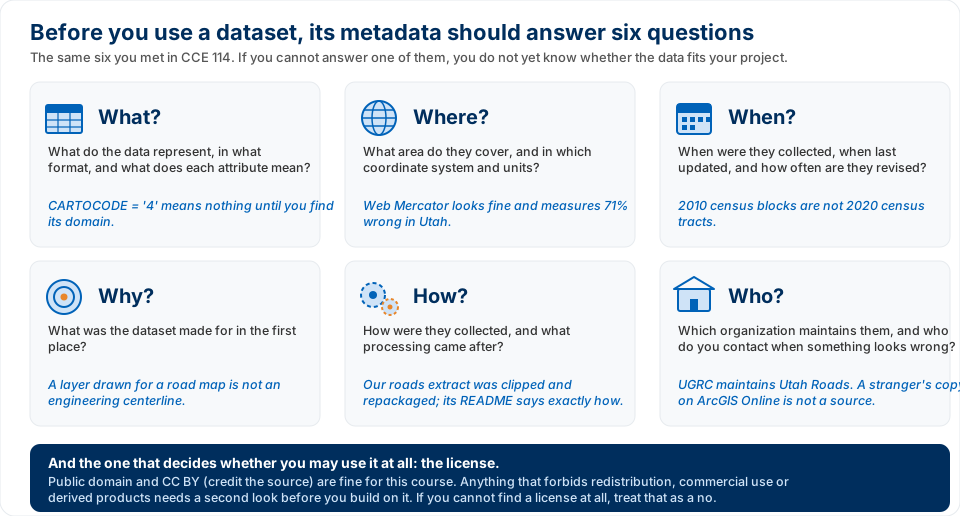
Figure A. The six metadata questions from CCE 114, with a Lab 1 example under each, and the license question that decides whether you may use the data at all.
Here is where this lab's data comes from:
| Layer | Where it comes from |
|---|---|
| Roads | A prepared extract we made for you and host on this site |
| Counties, Census tracts | An official download from the state agency that publishes them |
| Existing Walmarts | Data you create yourself, by finding the stores and placing points |
| Basemap | A live web service you never download at all |
That last one is easy to overlook. The imagery and topographic backdrop in your map are streamed from Esri's servers every time you pan. You are already using a data source you do not own, cannot edit, and did not download — worth noticing, because a lot of professional GIS works exactly that way.
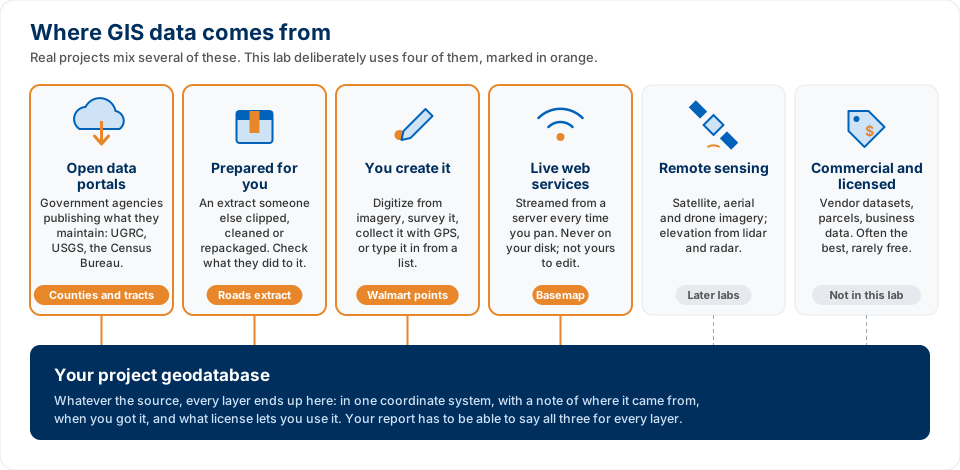
Figure B. Where GIS data comes from. The four sources marked in orange are the ones this lab uses; the other two turn up in later labs and in practice.
Unzip each download into the lab folder you created above.
Tip
Use the UGRC links exactly as given below. They open each dataset's Explore page — the one with the map — and the Download button there (the cloud icon) works right away. The same button on the dataset's About page can sit blank for a long time, or never populate at all; if you land on an About page, switch to Explore. In the Download Options panel pick Shapefile. (File Geodatabase would work just as well for these two layers, and after reading about domains you may prefer it — either is fine.)
- Utah Counties Shapefile: https://opendata.gis.utah.gov/datasets/utah-county-boundaries/explore
- This shapefile represents all the counties in Utah, from which you will select the one you need. Click the Download button, then download the zipped Shapefile. While you are there, click About and read the metadata: who publishes it, when it was last updated, and under what license.
- Utah County Roads — prepared extract:
lab01-utah-county-roads.zip(about 6 MB)- Every road centerline inside Utah County: 38,817 features with all 90 attribute fields, as a file geodatabase. Read the
READ-ME-FIRST.txtinside the zip — it records exactly where the data came from, what we did to it, and what we deliberately did not do. - Why we prepared this one for you. The original is UGRC's statewide Utah Roads layer: 413,311 features, about 135 MB zipped and 600 MB unzipped. Clipping it to one county takes it to 6 MB. More importantly, the statewide download comes as a shapefile, and a shapefile cannot store a coded-value domain — so the road classification codes arrive with no way to look up what they mean. We converted the clip to a file geodatabase and re-attached that domain, so in Step 5 you can read the codes straight from the data. The prepared extract is genuinely more useful than the raw download, not just smaller.
- We filtered nothing by road class. Interstates through driveways are all present; choosing which ones count is your job in Step 5.
- Every road centerline inside Utah County: 38,817 features with all 90 attribute fields, as a file geodatabase. Read the
- 2020 Census Tracts Shapefile: https://opendata.gis.utah.gov/datasets/utah-census-tracts-2020/explore
- This shapefile represents the 2020 Census tract data for Utah. Click the Download button, then download the zipped Shapefile. Read its metadata too, and note which Census fields it carries — you will need two of them in Step 3.
-
Current Walmart locations: You will build this layer yourself. There is no download for it. Walmart's public open-data site has been taken down; the copies of it still floating around ArcGIS Online are unmaintained 2020 snapshots owned by strangers, and you should not build an analysis on them. Instead, create a point feature class in your project geodatabase and place one point on each Walmart store in your county — see Creating a point feature class. Locate the stores using Walmart's own store locator, a search in the map, or by recognising them in imagery. Expect to find somewhere around a dozen stores inside Utah County — the exact number is not fixed, and finding out what it is now is part of the job. Budget about fifteen minutes.
- Decide and state your inclusion rule. Walmart operates more than one store format. Supercenters are the big-box stores this lab's square-footage figures describe; Neighborhood Markets are much smaller grocery-format stores. Whether a Neighborhood Market should count as "an existing Walmart" for a siting analysis is a judgement call, and it changes your answer. Make the call, apply it consistently, and defend it in your report.
- State in your report how you created this layer and why you trust it: where each location came from (Walmart's store finder, a map search, imagery), how many stores you found, and which formats you included. Nobody expects you to drive to every store; "these are the locations Walmart's own store finder lists, and each one sits on a big-box footprint in the imagery" is a perfectly good reason to trust the layer, as long as you say it. Two students with different but well-documented rules can both be right. A student who does not say which rule they used cannot be.
Analysis Tools
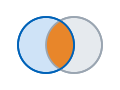
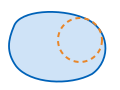
You will use the following new tools in this exercise. The icon beside each one is a reminder of what it does to your data — the orange part is what comes out.
| Tool | What it does |
|---|---|
 Select |
Finds and keeps the features whose attributes match an expression, and writes them to a new feature class. You will use it to pull Utah County out of the counties layer, to keep the census tracts whose density is over 5,000 people per square mile, and to keep the major roads. |
 Intersect |
An overlay operation (Bolstad, pp. 357–358) that keeps only the area where the input layers overlap, and carries the attributes of both inputs into the result. Intersect is not the same as Clip: Clip keeps only the first layer's attributes, while Intersect keeps attributes from every input. |
 Buffer |
A proximity operation that builds a polygon covering everything within a set distance of a feature (Bolstad, p. 343). Around points you get circles; around lines you get a ribbon of constant width. With Dissolve on, the overlapping pieces merge into one zone. |
 Erase |
An overlay operation that removes from the input everything covered by the erase features — the target is "cut out" wherever the other layer lies. Order matters: the first input is what you keep, the second is what gets cut away. |
 Add Field |
Adds a new, empty column to the attribute table of a feature class, layer, or raster. You choose the name and the data type — and the type matters, as Step 3 explains. |
 Calculate Field |
Fills a column for every row in the table from an expression you write, in Python or Arcade. It does the arithmetic once, for thousands of features, so you do not have to. |
Example Model
Your ModelBuilder model might look like the following when it is finished. Note that you are encouraged to make your model "your own" by customizing the layout, the labels on the tools and datasets, etc. Make sure your labels are descriptive so that others can understand what each dataset represents and what each tool is actually doing. Do you see any ways that the following model can be improved? For example, a tool labeled as "Buffer" is much less informative than a tool labeled "Buffer (2 Miles)". Also, in GIS, there are always many ways to accomplish the same thing. For example, you might buffer your data before selection if you think that would work better (though that's a bad example, because it is better to select some data first and only buffer the selected data). Regardless, you might find other ways to improve your model over this example in terms of both the organization and tools you use, as well as the presentation, layout, and labeling.

Figure C. The finished model. This is a vector diagram — click it to open it full size, where every tool and dataset label is readable. Both Buffer distances carry a P, marking them as model parameters (Step 10).
Complete the Lab
For an advanced GIS student, the information up to this point is all you need to complete the assignment and create an output map from the results. Feel free to try conducting the analysis using only the information provided above. If you complete the lab using only the information provided above (without using the step-by-step instructions below), say so in your report.
Step-by-Step Solution
Note
Important Note #1: The following step-by-step solution walks through the analysis of Utah County at the default criteria. In Step 12 you will re-run the same model with different parameter values — so build it once, and build it so it is easy to change.
Note
Important Note #2: My example screenshots in this and future assignments may or may not match your data exactly. So don't just rely on the screenshots. GIS data files, fields, and content names change all the time as data are updated or new data are released. Use my screenshots as a reference but use deductive logic as needed to modify your model based on the actual data you have downloaded.
Step 0 — Set Up the Project
Create the project in your lab folder. Start ArcGIS Pro and choose the Map template. Two things in the New Project dialog catch people out every semester:
- The Location box does not accept a typed path. Click the folder button beside it, and in the browse dialog that opens, type or paste
D:\Smith\Lab01into the Name box at the bottom. - If you have already made that
Lab01folder, uncheck "Create a folder for this local project". Leaving it checked gives youD:\Smith\Lab01\Lab01.
Never save the project to the C: drive, the desktop, or a network drive — the note at the top of the Data section explains why.
Add your data to the map. On the Map ribbon tab click Add Data and add the three layers you downloaded and unzipped. Two are shapefiles; the roads are a feature class inside a geodatabase — in the Add Data browser, open UtahCountyRoads.gdb like a folder and pick UtahCountyRoads from inside it. Do not go looking for a third .shp; there isn't one. You will drag them from the Contents pane onto the model canvas as you build the model, so they need to be in the map first.
Create the model. The quickest route is the Analysis ribbon tab ▸ ModelBuilder, which creates a new model in your project toolbox and opens the ModelBuilder view. (You can also do it from the Catalog pane: expand Toolboxes, right-click your project toolbox — Lab01.atbx — and choose New ▸ Model.) In the ModelBuilder view you drag data in from the Contents pane, and you can add a tool either by dragging it from the Geoprocessing pane or by simply typing its name on the canvas, which opens an Add Tools To Model search box. If you need a tutorial or refresher on ModelBuilder, watch this training video from Esri (the company that makes ArcGIS): https://www.youtube.com/watch?v=fxcAb-xw_zU
Set the coordinate system before you measure anything. On the ModelBuilder ribbon tab click Environments (in the Model group) and set Output Coordinate System to NAD 1983 UTM zone 12N. Search for it in the picker — note that ArcGIS Pro spells "zone" with a lowercase z. All of Utah falls in UTM zone 12. Buffers and area calculations made in geographic (latitude/longitude) coordinates are not measured in miles and will give wrong answers.
Tip
Sanity check. With this environment set, your selected Utah County polygon should come out to about 2,141 square miles. Two failure modes to watch for: about 0.59 means you are still in geographic coordinates and measuring square degrees; about 3,668 means your data is in Web Mercator — and that is exactly what the UGRC shapefile downloads arrive in, so this is the number you will get if you skip this step. The second one is the dangerous one — it is in real units and looks like a believable county area, but it is 71% too big, because Web Mercator distorts badly at Utah's latitude. Either way, the Output Coordinate System is not doing its job. Fix it before you go on.
Step 1 — Select Utah County
Add the Select tool to your ModelBuilder canvas and connect the Counties layer to it as Input Features. Take the Select tool from Analysis Tools — searching for "Select" returns about two dozen tools, and Select Layer By Attribute is not the one you want here because it does not produce an output feature class.
Now build an expression that selects Utah County. There are two ways to do it, and they use different wording:
- In the default clause mode, build the row so it reads
NAME—is Equal to—UTAH. - Or switch on the SQL Editor toggle and type the SQL directly:
NAME = 'UTAH'.
Text comparisons are case sensitive, and in SQL mode the value needs single quotes. The county names in this layer are stored in capitals, so 'Utah' returns nothing. Note also that in ModelBuilder the value box will not offer a pick list of the field's existing values the way it does in a standalone tool — the tool has not run yet, so it cannot know them. You have to type UTAH yourself, which means a typo fails silently. (see Figure 1)
Warning
Click OK on the tool dialog before you click Run. If a tool's dialog is still open, the model runs with the last committed parameters rather than what is on your screen. A Select with no committed expression selects all 29 counties, reports success in about a second, and gives you no error at all. Note that the OK button moves down the dialog when you switch on the SQL Editor, which is exactly when people miss it.
When this step has run, open the output attribute table. It should contain exactly one feature. If it has 29, the expression did not take.
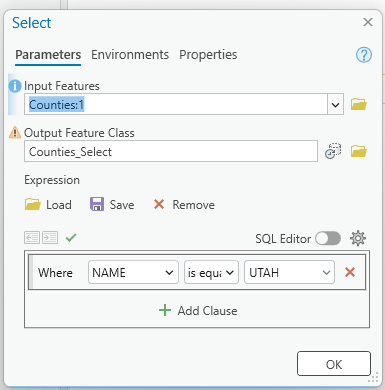

Figure 1. Top: the Select tool in clause mode, with the green check confirming the expression is valid. Bottom: how it sits in the model — input on the left, tool in the middle, output on the right.
Step 2 — Intersect the Tracts
Use the Intersect tool to restrict the Census tract layer to Utah County. This reduces the amount of data being processed and makes the analysis run faster. Intersect keeps only the area where the inputs overlap and carries the attributes of both, so choose the order of the input features deliberately. (see Figure 2)
Note
The roads do not need this step. The extract we gave you is already clipped to Utah County — that is what took it from 413,311 features to 38,817. Figure 2 shows the roads being intersected too, because it was captured when students downloaded the statewide layer themselves. You only need to do the census tracts. If you had downloaded the statewide roads yourself, you would intersect them here exactly the same way.
ArcGIS Pro will show an information banner suggesting the Pairwise Intersect tool instead. Either works for this lab; Intersect is what the rest of these instructions describe.
Note
Watch the feature count, and think about what it means. Utah County contains 156 census tracts, but this Intersect produces 173 features. The extra ones are slivers: the tract layer and the county layer were digitized separately and their boundaries do not line up exactly, so thin fragments of tracts belonging to Salt Lake, Wasatch, Sanpete, Juab, Duchesne, Tooele and Carbon counties get pulled in. Some are smaller than a suburban lot.
Each sliver carries its parent tract's total population and land area, so in the next step it will be assigned that parent tract's density even though only a fragment of it is inside your county. In Utah County this happens to do no harm, because those particular neighbours are rural and none of the slivers pass the density test. It would not necessarily be harmless in another county, or at a different density threshold. Look at your results along the county line, and mention in your report what you found.
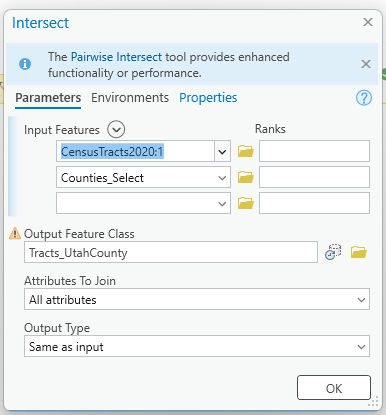
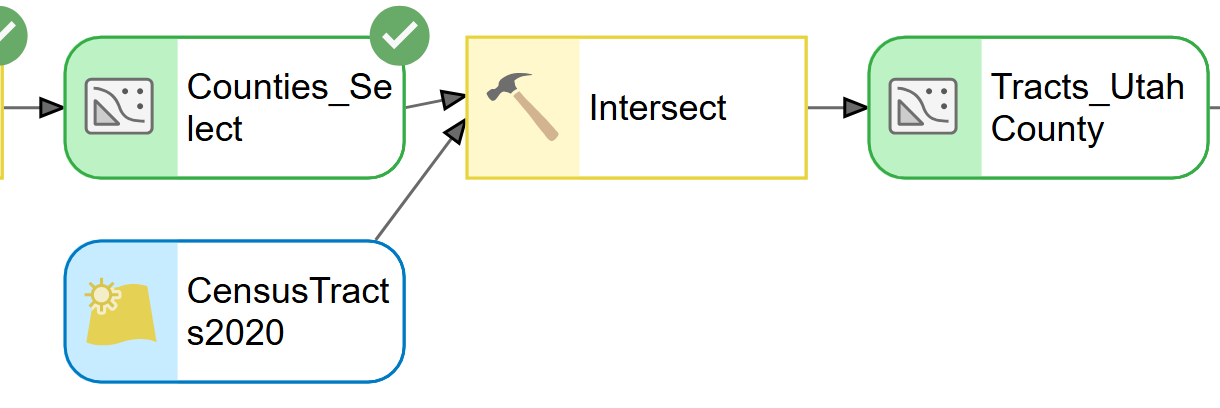
Figure 2. Top: the Intersect tool. Bottom: in the model, two inputs converge on Intersect — the raw census tracts and the county you selected in Step 1.
Step 3 — Calculate Density
Use the Add Field tool to create a new attribute table column called DENSITY in the county census tract layer.
Warning
Set Field Type to Double (64-bit floating point). The default is Long (32-bit integer),
which silently discards the decimal part of every density you calculate. Nothing warns you.
Then use the Calculate Field tool to fill it in. Set Field Name to DENSITY — you will have to type it rather than pick it from the list, because that list is built from the table as it stands and Add Field has not run yet. Leave Expression Type as Python. (Older handouts call this "Python 3"; the label in ArcGIS Pro 3.7 is just "Python", and it is the same thing.) Use this expression to compute the number of people per square mile:
!POP100! / (!ALAND20! / 2589988.110336)
(see Figure 3)
ALAND20 is the tract's land area in square meters, so dividing by 2,589,988.110336 converts it to square miles and gives people per square mile. Before you trust the result, open the attribute table and confirm the field names and their units in the data you actually downloaded — Census field names change between vintages.
Tip
Check the result. Across Utah County the calculated densities should run from 0 up to roughly 32,000 people per square mile. If every value is a whole number, your field is a Long integer rather than a Double; if the column is empty or full of nulls, check that you typed the field name into Calculate Field correctly.
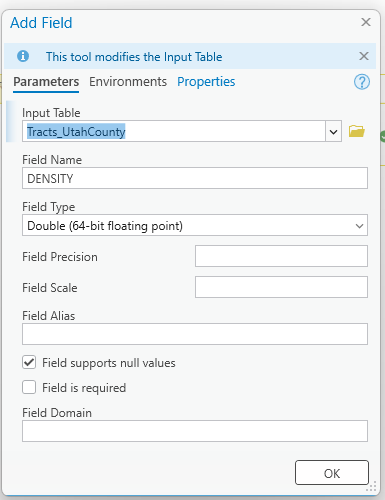
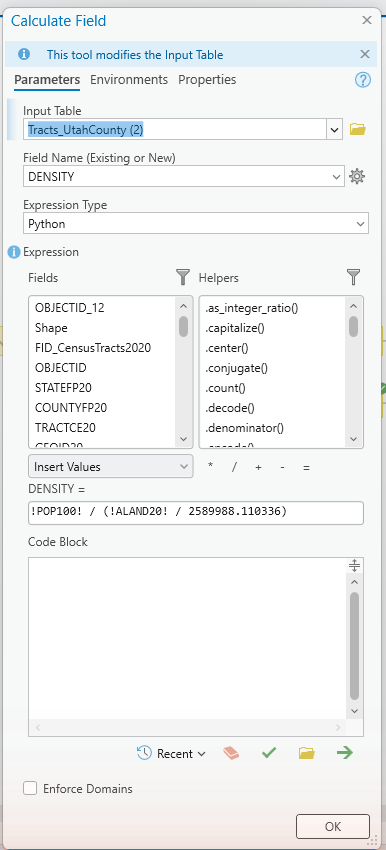

Figure 3. Top: Add Field and Calculate Field. Note Field Type set to Double, and Expression Type reading Python. Bottom: in the model these two tools chain in series. Both modify the table in place, so each green oval is the same layer carried one step forward — ModelBuilder just numbers them (2) and (3).
Step 4 — Select Dense Tracts
Use the Select tool to select the areas where the population density is greater than 5,000, using the expression DENSITY > 5000. Later in the lab you will want to keep the areas inside these polygons. In an SQL expression the field name must match the data exactly, and comparisons against text values are case sensitive.
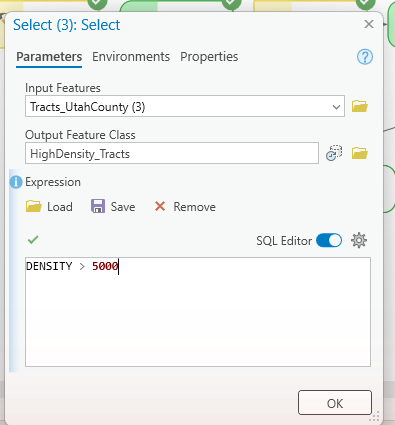

Figure 4. Top: the Select tool with the DENSITY expression in SQL Editor mode. Bottom: it takes the calculated-density layer and produces HighDensity_Tracts.
Step 5 — Select Major Roads
Use the Select tool to keep only I-15 and the other major highways in Utah County.
Open the roads attribute table first and find the field that classifies road type. In the current UGRC Utah Roads layer that field is CARTOCODE (alias CartographicCode). Two things about it matter:
- It is a text field, even though every value looks like a number.
CARTOCODE = 1fails;CARTOCODE = '1'works. - It has a coded-value domain, so each code has a documented meaning you can look up instead of guessing. Because we shipped the extract as a file geodatabase, that domain travels with the data: open the attribute table and you will see each code's description rather than a bare number. The domain is named
CVDomain_CartoCode. To see the full code list, select the layer in the Contents pane and, on the Data ribbon tab, choose Data Design ▸ Domains.
Note
This only works because of how the data was packaged. If you download the statewide layer
from UGRC yourself you get a shapefile, and the shapefile format cannot store a coded-value
domain — you would see 1, 2, 3 with nothing to explain them, and the bundled metadata does
not list the meanings either. The codes would then have to come from UGRC's online documentation.
This is a real and common problem: the file format you choose can silently throw away part of
your data. It is one reason professionals prefer geodatabases to shapefiles.
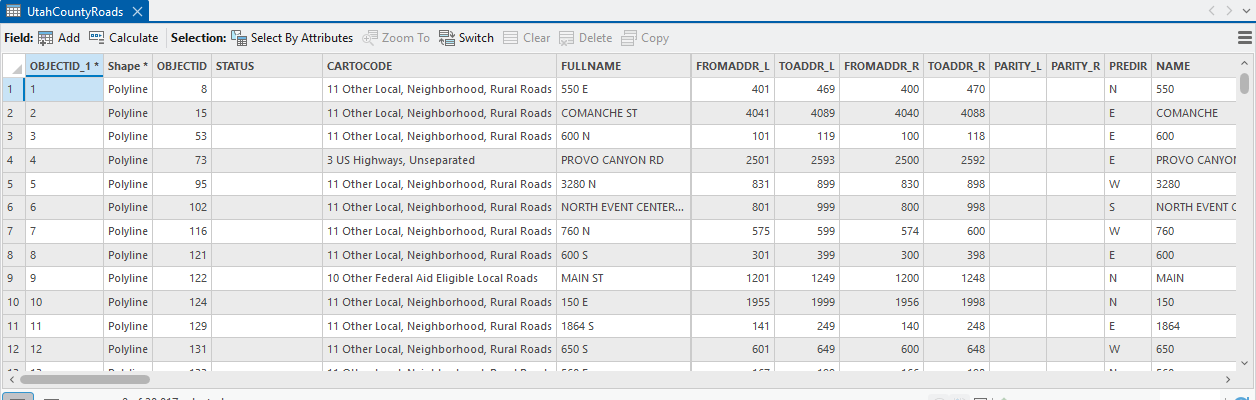
Figure 5a. The attribute table with the domain attached. Because the extract is a geodatabase, CARTOCODE reads as descriptions, not numbers.
For reference, the full domain is:
| Code | Meaning | Code | Meaning |
|---|---|---|---|
| 1 | Interstates | 10 | Other Federal Aid Eligible Local Roads |
| 2 | US Highways, Separated | 11 | Other Local, Neighborhood, Rural Roads |
| 3 | US Highways, Unseparated | 12 | Other |
| 4 | Major State Highways, Separated | 13 | Non-road feature |
| 5 | Major State Highways, Unseparated | 14 | Driveway |
| 6 | Other State Highways (Institutional) | 15 | Proposed |
| 7 | Ramps, Collectors | 16 | 4WD / high clearance may be required |
| 8 | Major Local Roads, Paved | 17 | Service Access Roads |
| 9 | Major Local Roads, Not Paved | 18 | General Access Roads |
Decide which of these count as "major highways" for siting a store, and justify your choice in your report. A defensible answer is codes 1 through 5 — interstates, US highways and major state highways:
CARTOCODE IN ('1','2','3','4','5')
In the extract we gave you that keeps 1,532 of Utah County's 38,817 road segments.
Note
Code 2 (US Highways, Separated) does not occur anywhere in Utah County. A code being absent from your county is not an error. Leaving it in the expression costs nothing and keeps the model honest about what it is asking for.
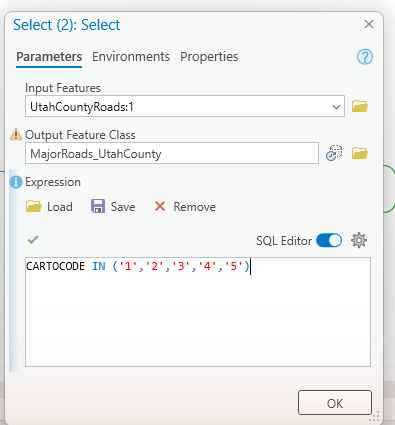

Figure 5b. Top: the Select tool with the CARTOCODE expression. Bottom: the roads branch of the model starts here, from the prepared extract straight into Select — no Intersect needed, because the extract is already clipped to the county.
Note
Figure 5b was captured in ArcGIS Pro 3.7 against the extract you downloaded, so the dialog, the field name and the expression all match what you should see.
Step 6 — Buffer the Roads
Use the Buffer tool to create a 2-mile buffer around the major roads you selected in Step 5. Later in the lab you will keep the areas inside this buffer.
Warning
The Distance row has two boxes, and the second one will betray you. The unit box reads
Unknown until you type a number — and the moment you type one it quietly sets itself to
Meters. Type 2, click OK, and you have built a two-meter buffer instead of a two-mile
one — a radius 1,609 times too small, which is simply the number of meters in a mile. No
error, and a perfectly normal green check mark.
Set the unit yourself. There is no plain "Miles" option in ArcGIS Pro 3.7 — choose Statute Miles — which is what Figure 6 below shows.
Also set Dissolve Type to Dissolve all output features into a single feature. The default, No Dissolve, leaves you with one buffer polygon per road segment — 1,532 overlapping polygons in Utah County — which turns the Step 7 Intersect into a mess of overlapping slivers. Dissolved, you get one clean zone.
Tip
Check the result. The dissolved 2-mile buffer around Utah County's major roads should be a single feature covering roughly 976 square miles, a little under half the county. If you get about 1 square mile instead, the unit box was still set to meters — a two-meter ribbon along 1,500 road segments still adds up to roughly a square mile, so it is not literally zero, but it is obviously wrong next to 976.
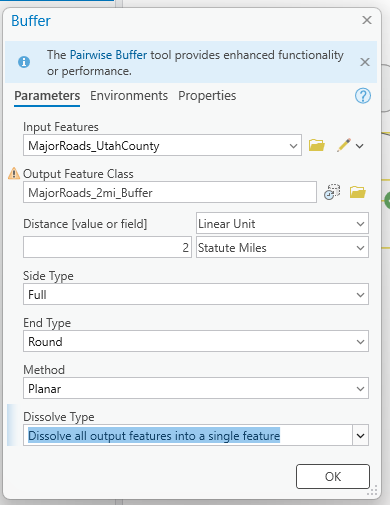

Figure 6. Top: the Buffer tool. Distance is 2 Statute Miles, and Dissolve Type is set to dissolve everything into one feature. Bottom: the selected major roads feed Buffer, producing MajorRoads_2mi_Buffer.
Step 7 — Combine the Criteria
Use the Intersect tool to intersect the I-15/major roads buffer layer with the high-density census district layer to find the areas that contain both.
Note
Did this criterion actually change anything? Compare the feature count and total area before and after. In Utah County the answer is no: all 47 high-density tracts are already within two miles of a major highway, because they are all strung along the I-15 corridor. The layer going into this Intersect and the layer coming out of it are the same — 47 features, about 26.4 square miles — so Steps 5 through 7 do not narrow the result at all.
That is a real analytical finding, not a mistake, and it is worth more in your report than a number copied from the screen. Report which of your criteria actually bound and which did not, and how you know. Check it again in Step 12 as you change the road distance — at some point the answer changes.
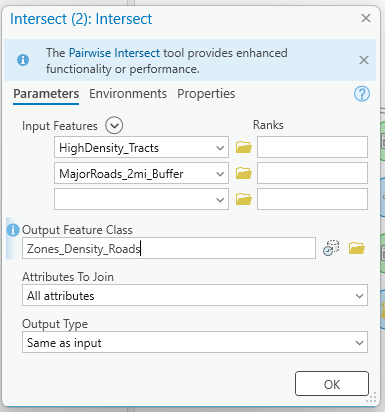
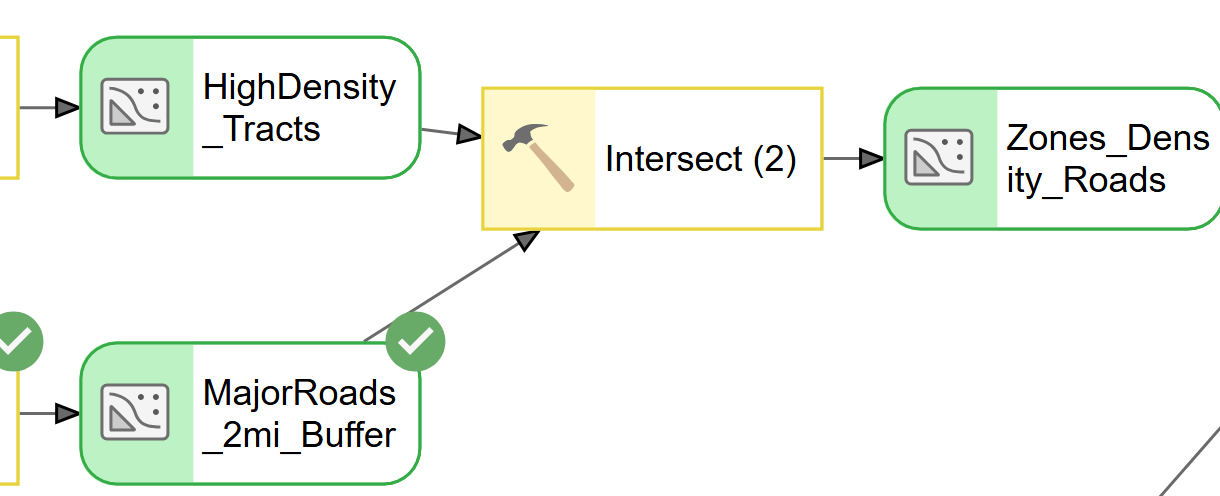
Figure 7. Top: the Intersect tool. Bottom: this is where the two branches of the model meet — the high-density tracts from Step 4 and the roads buffer from Step 6 both feed Intersect (2).
Step 8 — Buffer the Walmarts
Use the Buffer tool to create a 2-mile buffer around the existing Walmarts. Later in this lab you will want to keep the areas outside of this buffer.
This step needs the point layer you built yourself in the Data section — there is no Walmart download. If you have not made it yet, do that now: see Creating a point feature class. Use the same point layer and inclusion rule you documented in the Data section.
As in Step 6, set the distance unit to Statute Miles rather than accepting Meters, and set Dissolve Type to Dissolve all output features into a single feature.
Tip
Check the result — and check it with arithmetic, not just by comparing to a number we give you. One circle of radius 2 miles has area π × 2² ≈ 12.6 sq mi. So n stores can never dissolve to more than 12.6 × n square miles, and overlap only ever pushes the total lower. For a dozen stores strung along the I-15 corridor you should land somewhere around 115–135 sq mi — close to the ceiling, because the stores are far enough apart that their buffers barely overlap. (Ten stores gave us 116; twelve gave a pilot student 131.)
If your figure is far outside that range, you have either miscounted your points or left the distance unit on Meters. This ceiling check works for any buffer in any lab: it is worth remembering.

Figure 8. The Walmart branch: your point layer feeds a second Buffer, set up exactly like Figure 6, producing Walmart_2mi_Buffer.
Step 9 — Erase Served Areas
Use the Erase tool to erase the buffered Walmart layer from the intersected population density with major roads buffer layer. This result will give you the target population that is not served by a Walmart. This is shown in Figure 9.
Tip
Check the result. In Utah County this step is the one that really bites: it cuts the qualifying area roughly in half, from about 26.4 square miles down to about 12.9 square miles, in around 31 separate polygons. Your own numbers will differ a little depending on which stores you digitized and which road codes you chose — that is expected. What matters is that you can explain the change.
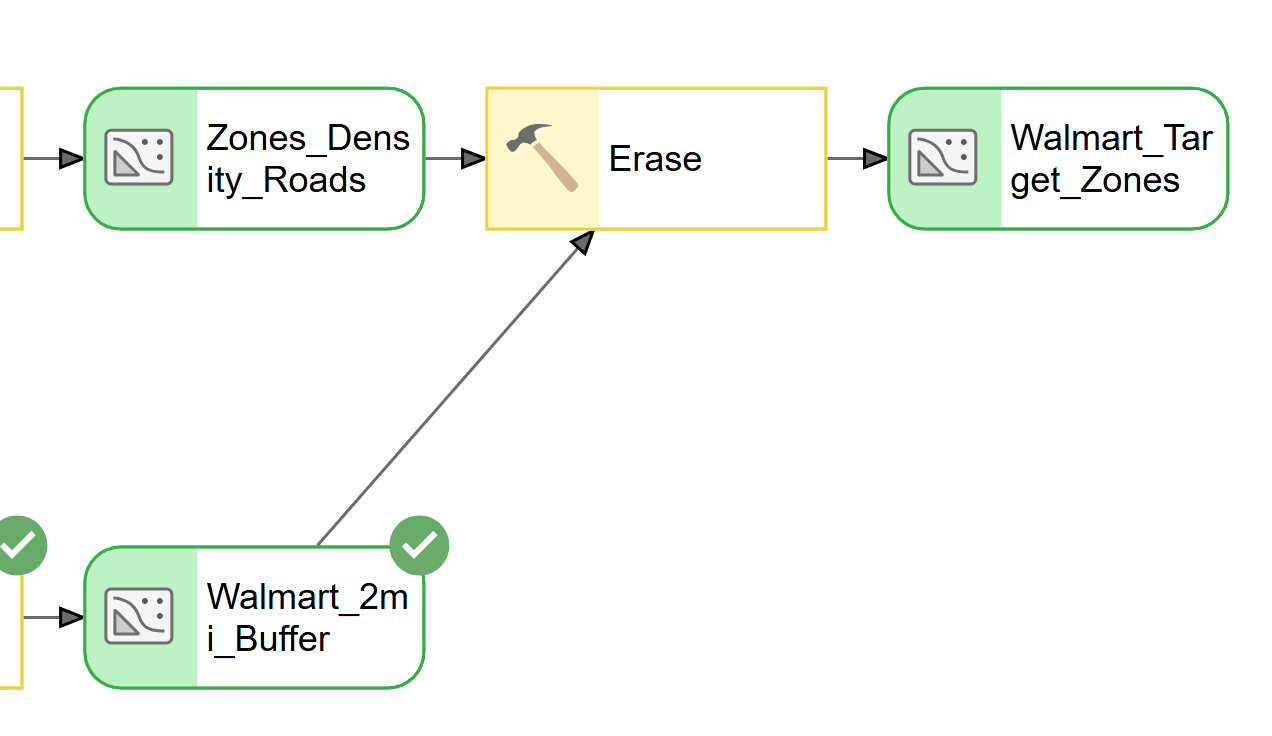
Figure 9. The Erase tool. Order matters here: Zones_Density_Roads is the input (what you keep), and Walmart_2mi_Buffer is the erase feature (what gets cut away). The result is Walmart_Target_Zones.
Step 10 — Set Model Parameters
Right-click the last output oval in your model and choose Add To Display (or select it and press Ctrl+D). The result is now added to your map automatically every time the model runs.
Now expose the two buffer distances so you can change them without opening the tools. A distance typed into a tool is not a variable yet, so this takes two moves:
- Right-click the Buffer tool on the canvas and choose Create Variable ▸ From Parameter ▸ Distance [value or field]. A new blue oval appears, connected to the tool. (see Figure 10)
- Right-click that new oval and choose Parameter — or select it and press
Ctrl+P. A smallPappears beside it.
Repeat for the second Buffer. When you now run the model from the Catalog pane, you get a dialog with those two distances in it.
![The ModelBuilder canvas context menu on a Buffer tool, opened to Create Variable, then From Parameter, showing the list of that tool's parameters: Distance [value or field], Side Type, End Type, Dissolve Type, Dissolve Field(s), and Method.](images/lab01-create-variable-parameter-menu.png)
Figure 10. Right-click the tool ▸ Create Variable ▸ From Parameter ▸ Distance.
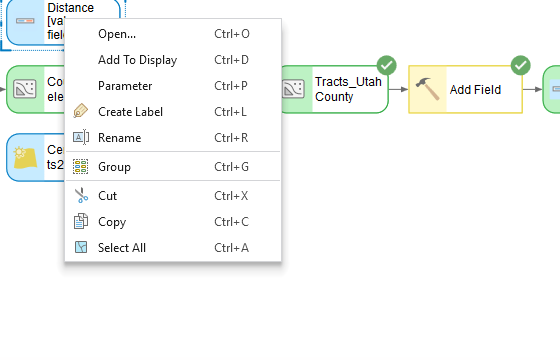
Figure 11. Right-click the variable ▸ Parameter. The same menu carries Add To Display.
Note
Right-clicking the Distance row inside the tool dialog does nothing. It looks like it ought to work, and older instructions say to do exactly that. It does not open a menu in ArcGIS Pro 3.7 — you have to create the variable from the canvas first, as above.
Note
Why bother — and when this feature is not worth it. Model parameters are often oversold. Exposing whole datasets as parameters so that one model can be "reused" on any data sounds appealing and rarely survives contact with a real analysis: the field names differ, the projections differ, and you end up rebuilding the model anyway.
Exposing a number you intend to vary is the case where they genuinely pay off. In Step 12 you will run this model several times with different distances. With parameters that is: type two numbers, click Run. Without them it is: open two tools, edit each one by hand, remember which you already changed, and hope. That is the whole reason we are doing it here — not because parameters are good practice in the abstract.
Step 11 — Choose the Sites
Decide where you think the best locations for a new Walmart would be. After running the ModelBuilder, the resulting polygons represent the ideal population that is not served by an existing Walmart. Ideal locations might be an empty field inside a candidate polygon. Non-ideal locations would be parks, school playgrounds, and cemeteries. Find and select several locations, show them on your map, and justify in your report why these locations are the best. Create a new point feature class to mark these points on your final map — the same technique you used for the Walmart locations in the Data section; see Creating a point feature class if you need the steps again.
Step 12 — Test the Assumptions
Everything you have produced so far rests on three numbers that somebody simply chose: 5,000 people per square mile, 2 miles from a major road, 2 miles from an existing Walmart. None of them is a law of nature, and the map the model drew at those values is an answer, not the answer. This step is about not simply believing it.
Vary the numbers and two things happen. First, you find out how much of your result is real and how much is an artifact of the defaults: a recommendation that collapses the moment one of them shifts is a weak recommendation, and you cannot know whether yours does until you test it. Second, you get a tool for narrowing the result. With dozens of candidate polygons at the defaults, tightening a criterion a little is how you learn which candidates are robust and which were only just scraping in — and that is a far better basis for picking one site than eyeballing the map.
Run your model at least three more times, each with a different combination of those numbers, and record what happens. You decide which to vary and by how much, but decide deliberately and say why in your report. Some places to start:
- Tighten the Walmart exclusion to 3 miles, or 5. How much candidate area survives?
- Change the road buffer in either direction. Does that criterion change your answer at all?
- Raise the density threshold to 8,000 or 10,000. Which neighborhoods drop out first, and does that match where you would actually put a store?
For every run, record the run's parameter values, the number of candidate polygons, and their total area. Put it in a table — that table is a required deliverable.
Then answer these three questions in your report:
- Which parameter does your answer depend on most, and which barely matters? Support it with the numbers from your table, not an impression.
- Is there a setting at which no suitable site exists at all? If so, what does that tell you about the criteria — or about Utah County?
- Does your recommended site survive every scenario you ran, or only some? If only some, is it still your recommendation? Defend your answer either way.
Tip
Two things worth knowing before you start. One of these three criteria does almost nothing at its default value in Utah County — applying it leaves the result unchanged. And one of them can wipe out every candidate site completely if you push it far enough. Finding out which is which, and being able to show it, is the whole point of this step.
Deliverables
Make two professional map layouts:
- Your baseline result — the target zones produced by the criteria as given (density over 5,000 per square mile, within 2 miles of a major road, more than 2 miles from an existing Walmart), with your recommended site or sites marked.
- One scenario from Step 12 — whichever of your runs most changes the decision. Say why you chose that one to show.
In each case include close-up data frames and an inset map of the specific spots you selected.
Write a brief report (2–3 pages) covering:
- the requirements of the project and your approach to solving it
- one screen capture of your model — only one is needed, since it is the same model throughout
- your sensitivity table from Step 12, and your answers to its three questions
- your specific recommendation for the site of the new Walmart, and a justification for why you chose those locations
- how you created your Walmart point data and why you trust it — which store finder or map you used, how many stores you found, and which formats you included
- which of the three spatial criteria actually narrowed your result and which did not, with the counts and areas that show it
- a copy of the rubric below with your self-assessment filled in — a score in every row, honestly arrived at. The grader will compare it with theirs.
The rubric at the end of this lab gives the point value of every item above, so read it before you write.
Important
Peer review before you submit. Have another student in the class read your report against the rubric and give you feedback, then act on that feedback before the deadline. Name your reviewer in the report and say in a sentence what you changed because of them. A report nobody else has read is a draft, not a submission.
References
Bolstad, P. (2008) GIS Fundamentals: A First Text on Geographic Information Systems. 3rd Edition. Esri Publishing.
Fishman, C. (2006) The Walmart Effect: How the World's Most Powerful Company Really Works – and How It's Transforming the American Economy. Penguin Books.
Example Maps
Two example layouts follow, one for each map the Deliverables ask for. They are examples, not templates: your maps will and must look different, because they will be based on your own analysis, your own store points, your own cartographic choices and your own layout. Your maps must include your name.
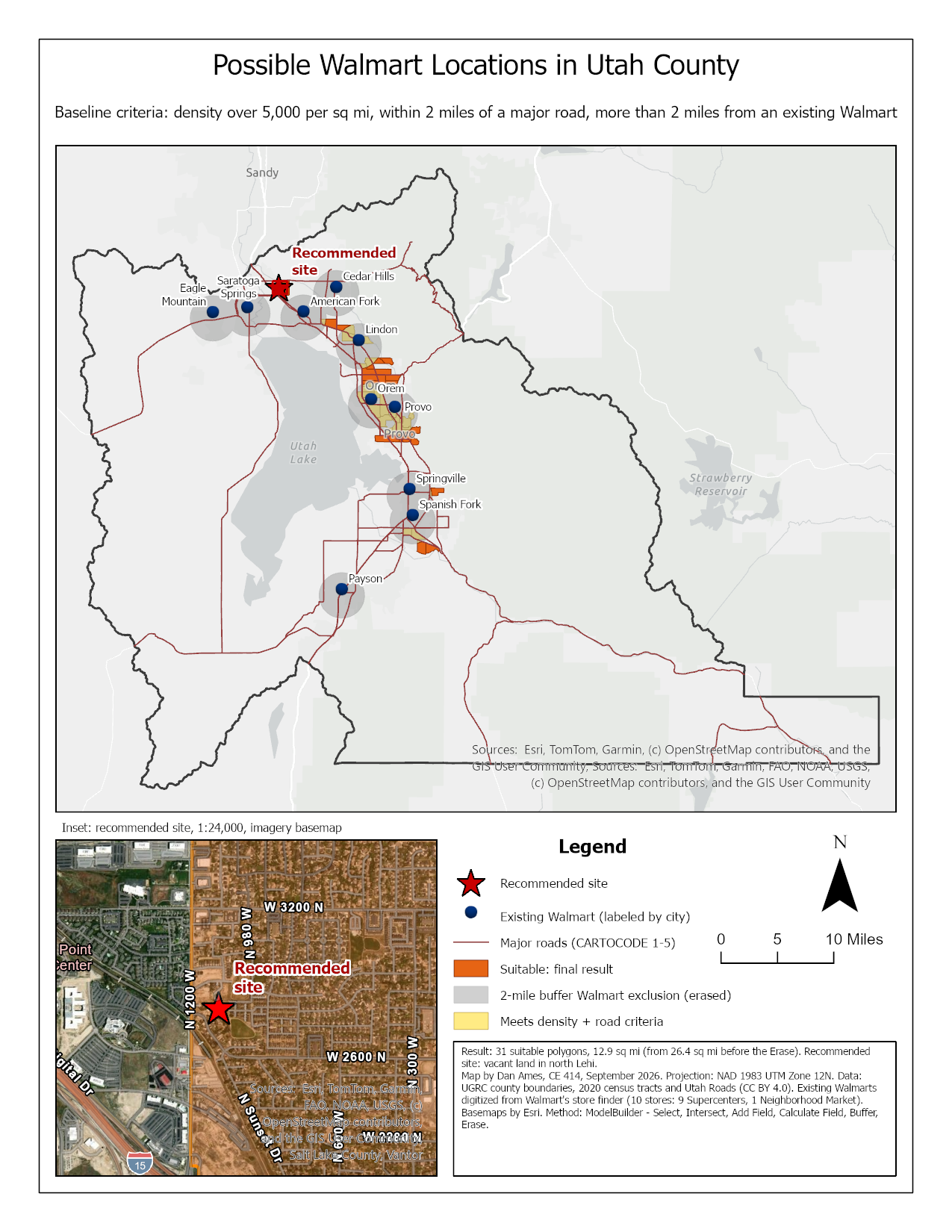
Figure 12. The baseline map. Notice that it shows the layer before the Erase in yellow as well as the final result in orange, with the exclusion buffers drawn over the top — that is what lets a reader see that the intersection and the erase actually happened, which the rubric asks for.
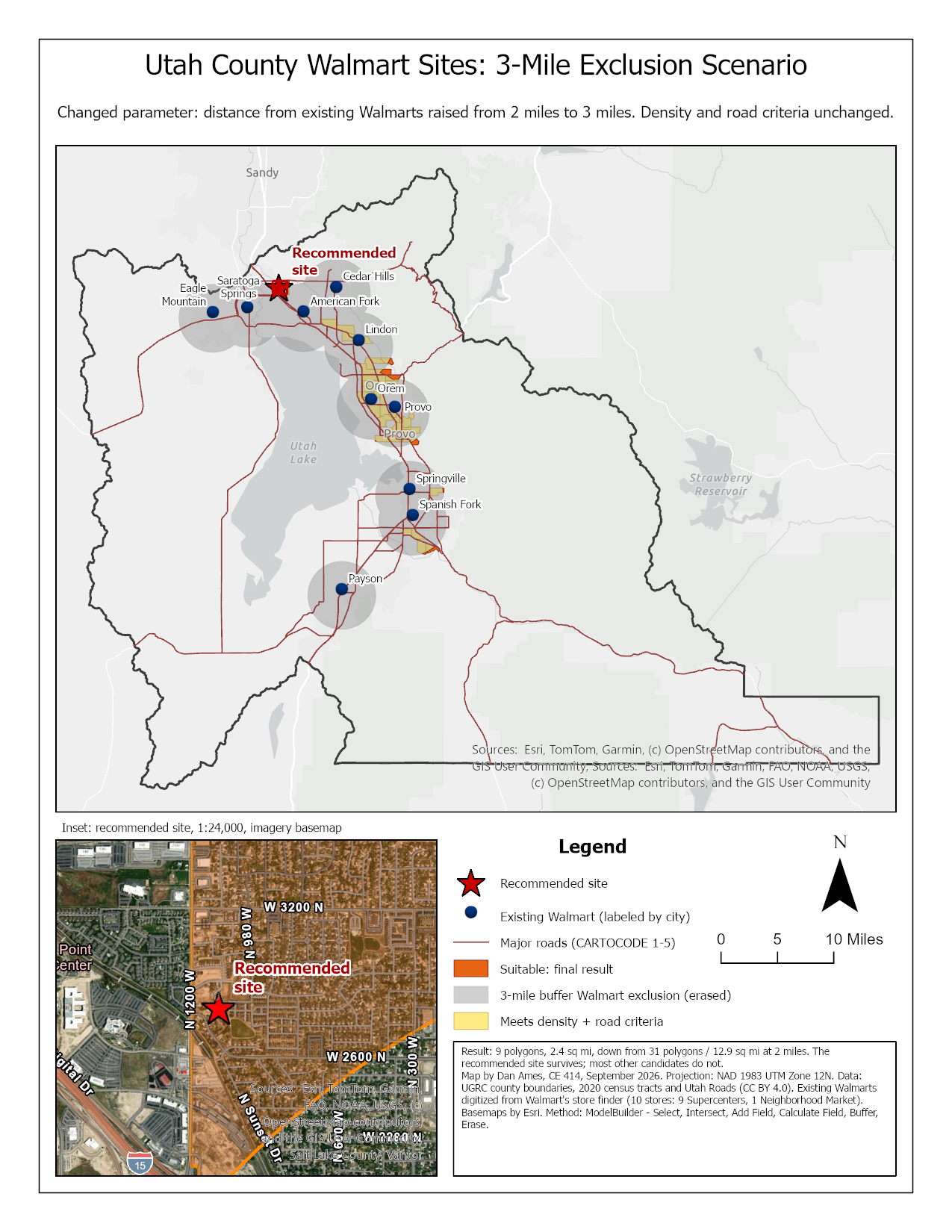
Figure 13. One Step 12 scenario: the Walmart exclusion raised from 2 miles to 3, everything else unchanged. Twenty-two of the thirty-one candidate polygons vanish and the suitable area falls from about 12.9 to about 2.4 square miles, but the recommended site survives — which is part of the argument for recommending it. The map says in its subtitle and its text box exactly what was changed, as the rubric requires.
Rubric for Walmart Site Selection Project Report
Fifty points in five parts of ten. The bullets say what each part is worth, so you know exactly what to submit.
This rubric is already laid out as a fillable table at the end of
lab01-report-template.docx, so you do not have to copy it
out of this page.
| Item | Points |
|---|---|
| Write-up (2–3 pages) • Assignment title, your name, date and course; your peer reviewer named, with a sentence on what you changed because of them (1) • The requirements of the project and your approach to solving it, in your own words (2) • Where the best locations for a new Walmart are, which one site you recommend, and why you selected it (3) • How you created your Walmart point data and why you trust it: the store finder or map you used, how many stores you found, and which formats you included (2) • Which of the three spatial criteria actually narrowed your result and which did not, with the counts and areas that show it (1) • Clear, organized writing: figures numbered and referred to in the text, sources credited, and this rubric pasted in with your self-assessment in every row (1) |
/10 |
| ModelBuilder model — correct and working • The model runs end to end from its tool dialog and produces the final suitability layer; your counts and areas match the check values given in the steps (4) • A full-page (8.5 × 11) figure of the model: every tool and dataset shown, labels informative, all text readable at 10 pt or larger (2) • A screen capture of the toolbox interface with the two buffer distances exposed as parameters, showing the input and output parameters (2) • A description of the model a reader could repeat from: each tool, its settings, and every input, intermediate and output dataset with its type (point, line, polygon, raster) and source (2) |
/10 |
| Map 1 — your baseline (full page, 8.5 × 11) • Title, neat line, north arrow and scale bar (1) • Text box with author, date and map projection (1) • Existing Walmarts marked with an appropriate symbol, and every existing and proposed location labeled (2) • The final suitability layer shown, so a reader can see the effect of your intersection and erase — the yellow and orange areas in the example map (2) • Your recommended site or sites clearly marked (1) • Close-up data frames or an inset of the spots you selected (1) • Basemap visible, zoomed to an appropriate scale, and all text legible when printed (2) |
/10 |
| Map 2 — one Step 12 scenario (full page, 8.5 × 11) • Title, neat line, north arrow and scale bar (1) • Text box with author, date and map projection (1) • Existing Walmarts marked with an appropriate symbol, and every existing and proposed location labeled (2) • The final suitability layer for this scenario shown the same way as on Map 1 (2) • Basemap visible, zoomed to an appropriate scale, and all text legible when printed (2) • The title and text box say which parameters were changed, to what, and why you chose this run to show (2) |
/10 |
| Sensitivity analysis (Step 12) • A table of at least three additional runs, giving the parameter values, the number of candidate polygons and the total area for each (4) • Which parameter matters most and which barely matters, supported by those numbers (2) • Whether any setting eliminates every candidate site, and what that means (2) • Whether your recommended site survives every scenario, and whether it is still your recommendation (2) |
/10 |
| Total | /50 |
Note
Using AI on this lab. Use AI freely to understand a tool, work out an error, or tighten your write-up, and add one line at the end of your report saying what you used it for. Do not take a field name, an expression, a coordinate system, or a number from it — those come from your own data, and the rubric asks you to defend every one. See the AI Use Policy for the full policy.