Lab 3: Georectifying and Digitizing Historic Maps
Civil Engineering 414 — Engineering Applications of GIS
Fall 2026 · Dr. Dan Ames
Tip
Start from the report template. lab03-report-template.docx
has the title block, a section for every deliverable, the tables already set up with the columns
the rubric asks for (including the six metadata questions and the transformation sensitivity
table), and the rubric at the end ready to fill in. Open it in Word or upload it to Google Docs,
replace every gray italic prompt, and delete the prompts as you go. You are welcome to write
your report any way you like — the template is a floor, not a ceiling — but if you use it and
fill in every section, you will not have left a graded item out.
Background
Old maps and aerial photographs are an unreasonably good source of information for civil, environmental and construction engineers. There are thousands of filing cabinets, in government agencies and engineering consulting firms, filled with mapping data that exists only on paper. That data can tell you:
- how cities and landscapes have changed over time
- how growth followed, or ignored, natural and manmade features
- what a river, coastline or wetland looked like before it was engineered
- what was on a site before the building that is on it now

Figure A. The lab in one picture. Agencies and consulting firms hold thousands of drawers of mapping that exists only on paper. Scan it, georeference it, and digitize what it shows, and it becomes data you can overlay, measure and map alongside everything else in your project.
Libraries and agencies have scanned a great deal of it, so more of this material is online now than ever before. A scan, though, is just a picture. It has rows and columns of pixels and no idea where on Earth it belongs. Georeferencing is the act of telling it: you match points you can identify on the scan to the same points on a map that already knows where it is, and ArcGIS Pro solves for a transformation that moves every other pixel accordingly.
That last part is the whole lab. You do not place the image; you place a handful of points and let a mathematical transformation place the image. Which transformation you choose, how many points you give it, and where you put them decide how much of the sheet ends up where it belongs — and the number ArcGIS Pro reports to tell you how well it fits is measured on the very points you fitted, so it can be made to look perfect while the map is wrong everywhere else. In Step 8 you will re-solve the same points three ways, see how far the answer moves, and use what moves to decide which result you would put your name on.
Important
Your job — see the deliverables below. Georeference one scanned historic map, digitize the features on it that are no longer on a modern map, test how much your result depends on the transformation you chose, and make two map layouts.
Problem Statement
You need to find things that used to be somewhere and are not there now: a town that emptied out, a rail spur that was pulled up, a street grid that was replaced, a channel that was straightened. Nobody has this in a GIS. It exists on a sheet of paper that somebody scanned.
Your job is to turn the features on that sheet into a vector feature class, correctly located, so they can be measured, overlaid and mapped alongside modern data. That takes two operations, in this order:
- Georeference the scan, so that its pixels sit in real-world coordinates.
- Digitize the features from it, by drawing them on a new feature class while the georeferenced scan is underneath.
The order matters. Digitize first and every feature you draw is in the wrong place, permanently.

Figure B. The two operations, in the only order that works. Georeferencing pins the scan to real-world coordinates without changing its pixels; digitizing then draws new vector features off it. Digitize first and every feature you draw is in the wrong place, permanently.
Spatial Considerations
Every one of these is a decision you make, and every one of them changes your answer. Say in your report what you chose and why.
- Which sheet. Age, scale and legibility trade against each other. An 1885 county atlas plate is full of vanished detail and drawn loosely; a 1950 USGS quadrangle is accurate and shows less change. Older is not automatically better.
- Which basemap you georeference against. Imagery shows what is there now; a topographic basemap shows named features and section lines that are easier to match on an old sheet. The basemap is your control, so its accuracy is a ceiling on yours.
- How many control points, and where. Three is the minimum for the default transformation and it is not enough. Points bunched in the middle of the sheet leave the corners free to wander (Figure C).
- Which transformation. A first-order (affine) transformation can shift, scale, rotate and skew the whole sheet but keeps straight lines straight. Higher orders bend it. A spline forces the control points to match exactly and rubber-sheets everything between them.
- The coordinate system of your map. Set it before you digitize. Your new feature class inherits it, and lengths and areas you measure later depend on it.
- What counts as "gone". A road that moved fifty meters, a town that shrank, a lake that is smaller: you decide what qualifies, and you defend it.
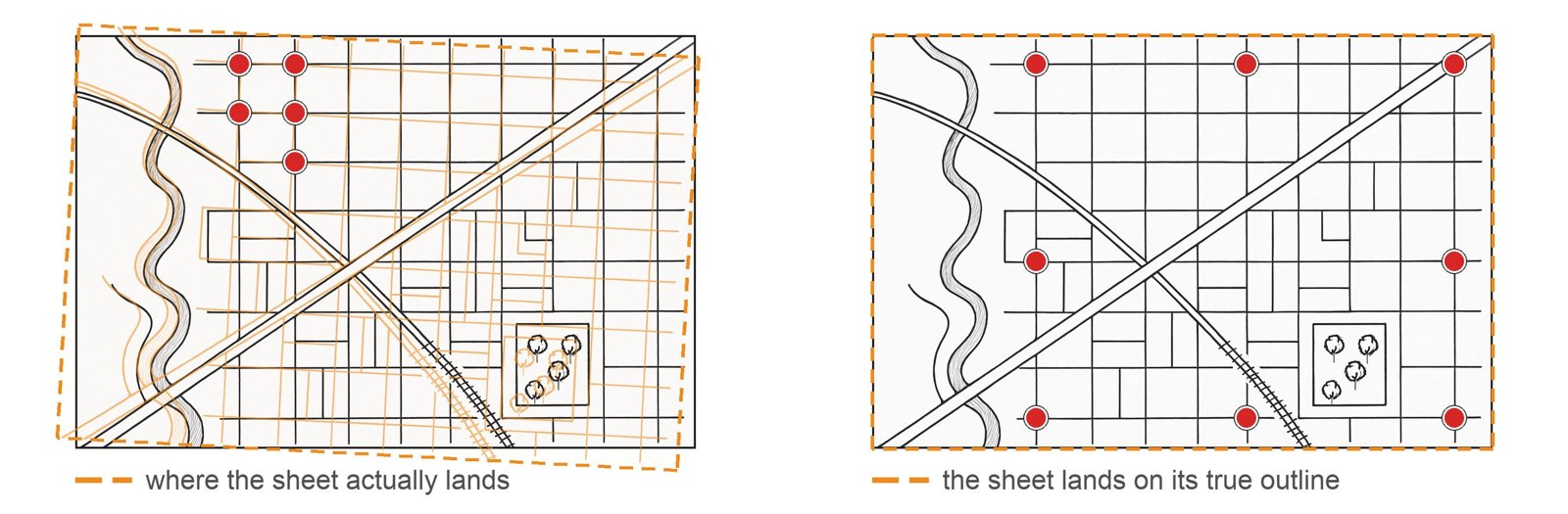
Figure C. Where the control points go matters more than how many there are. On the left, five points crowded into one corner pin that corner and leave the rest of the sheet free to swing; on the right, eight points spread to the corners and edges hold the whole sheet in place.
Data
Important
Set up your folder before you download anything. On the lab machines, work on the
D: drive, in a folder named after you with one folder per lab inside it — D:\Smith\Lab03\.
Put the project, the scan and everything you make there. The C: drive is locked, network drives
make ArcGIS Pro slow on large scans, and a USB 3.0 external drive is a legitimate alternative.
Never use a space in a folder or file name. The full set of workspace conventions is on the
ArcGIS Tips and Reminders page.
Unlike Labs 1 and 2, nothing here is prepared for you. You find the data, and you defend it. That is the point: the judgment you exercised in Lab 1 choosing which Walmart stores counted, you exercise here choosing a sheet and a basemap.
| Layer | Where it comes from | What you must record |
|---|---|---|
| Historic map scan | You find and download it | Repository, title, date, scale, and the URL you got it from |
| Modern basemap | ArcGIS Pro basemap gallery | Which basemap, and why that one |
| Digitized features | You create it | Coordinate system, geometry type, and what you chose to include |
Judging the source
Apply the six metadata questions from the introductory course to your sheet before you use it — what, where, when, why, how, who — and put the answers in your report:
- What does the sheet show, and at what scale? A scale printed on the sheet tells you how much detail to trust.
- Where does it cover, and does its coverage actually contain features you can match?
- When was it surveyed, which is often years before it was published? Both dates matter, and they are not the same date.
- Why was it made? A railroad promotional map, a fire insurance plan and a topographic survey are drawn to different standards and lie in different directions.
- How was it surveyed and drawn, and how was it scanned? A folded sheet flattened on a scanner bed has distortion no transformation will fully remove.
- Who made it, and are you allowed to use it? Anything published in the United States before 1930 is in the public domain; a library's scan of it may still carry the library's own terms.
Warning
A pictorial or "bird's eye" view is not a map. Panoramic city views, common in the 1880s, are drawn in perspective from an imagined viewpoint, so no transformation will make them fit. They are wonderful documents and they will waste your afternoon. Use a plan view, drawn looking straight down.
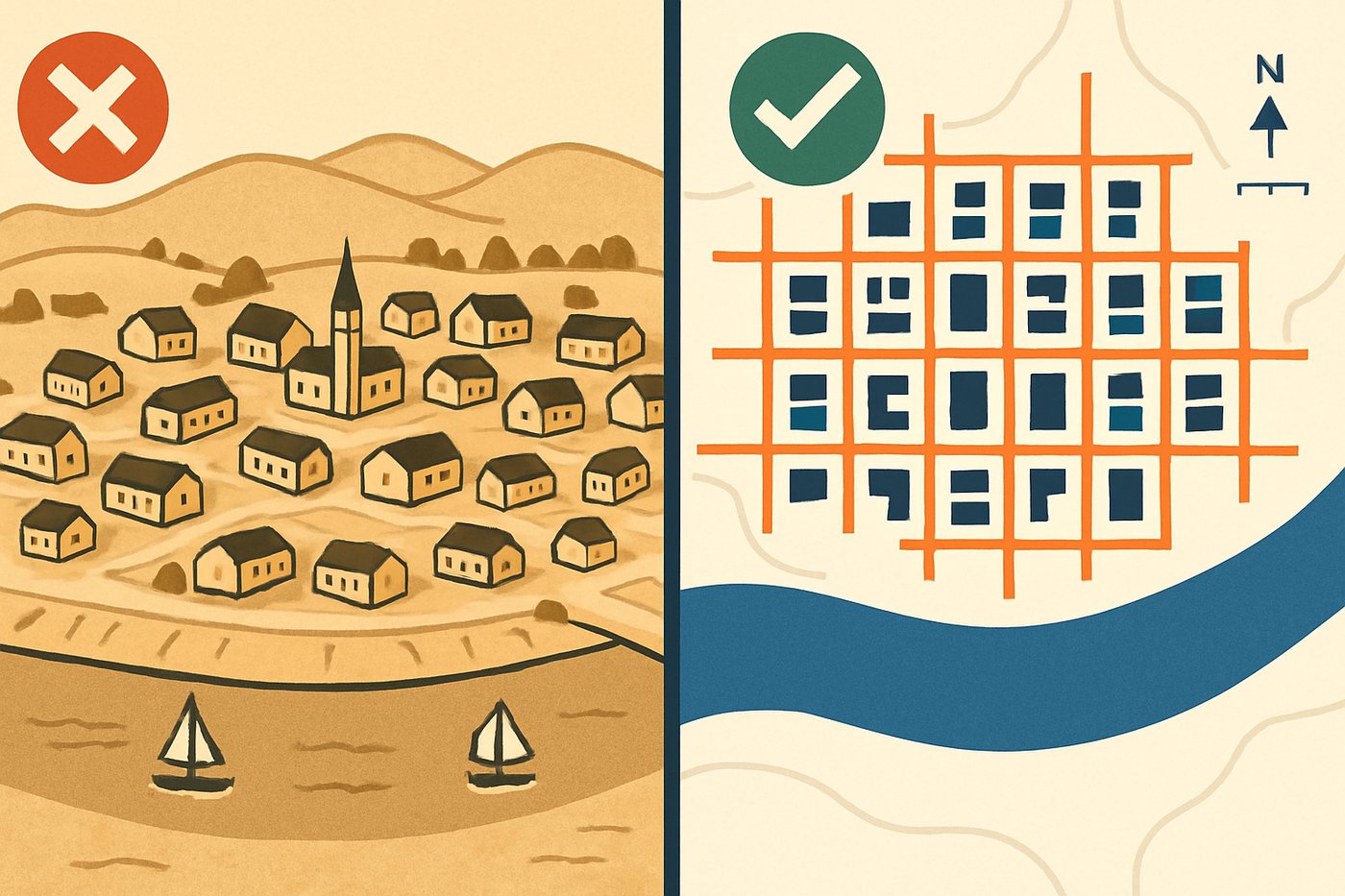
Figure D. The same town, drawn two ways. The bird's-eye view on the left is in perspective, so its scale changes from the front of the picture to the back and no transformation can make it fit a map. The plan view on the right looks straight down at one scale, which is what georeferencing needs. Pick a sheet like the one on the right.
Where to find a sheet
Your sheet should be older than 1900 if you can find one that covers ground you can match. The further back it goes, the more change there is to find.
| Source | What is there |
|---|---|
| USGS topoView | Every USGS topographic sheet ever published, back to 1884, free. The most reliable starting point. Take the JPEG download, not the GeoTIFF — see the warning below |
| USGS Historical Topographic Map Collection | The program behind topoView, with an explanation of what was scanned and how |
| David Rumsey Map Collection | Over 100,000 scanned historic maps, strong on the nineteenth century and on city plans |
| Library of Congress map collections | Fire insurance plans, city plans, railroad maps. May show a bot check before it loads |
Warning
Take the plain image, not the georeferenced one. Where a repository offers a choice of formats, some of them already carry a spatial reference: USGS describes its GeoTIFF download as having "embedded georeferencing information so that the map can be used directly in a GIS", and a GeoPDF carries one too. Download one of those and ArcGIS Pro drops the sheet straight onto the basemap, correctly placed, with nothing for you to solve — somebody else did this lab for you. Take the JPEG, or any plain image format, so that the placement is yours.
Tip
Check the result. Before you commit to a sheet, ask yourself: can you name at least six features on it that you could also point to on a modern basemap? Section corners, road intersections, river confluences, a courthouse, a rail crossing. If you cannot find six, you cannot georeference it well, and you should find another sheet.
If your download is a PDF
Many scans, including USGS GeoPDFs, arrive as PDF. ArcGIS Pro will not add a PDF to a map directly. Convert it:
- In ArcGIS Pro, search the Geoprocessing pane for PDF To TIFF (Conversion Tools ▸ To
Raster). Set the input PDF, an output
.tifin your lab folder, and a resolution — 250 to 300 dpi is enough for a topographic sheet and keeps the file manageable. - Or take a screen capture of the PDF opened at full size and save it as a
.jpgor.png. This is fine and it is what most people do; you lose whatever resolution the screen does not show.
Do not upload the file to a third-party conversion website. You have the tool on your desk.
Analysis Tools
There is no ModelBuilder model in this lab. Georeferencing is interactive by nature: you are looking at two images and deciding that this corner is that corner, which is not something a model can do for you. These are the tools you will use for the first time in this course. The icon beside each one is a reminder of what it does to your data: the orange part is what comes out.
| Tool | What it does |
|---|---|
 Georeference (Imagery tab, Alignment group) |
Opens the Georeference tab for the selected raster layer. Everything below lives on that tab |
 Fit to Display (Prepare group) |
Drops the scan into the current map view at roughly the right size and place, so you have something to drag points from. A first guess, not a result |
 Add Control Points (Adjust group) |
The core tool. Click a point on the scan, then the same point on the basemap. Each pair is one link |
 Transformation (Adjust group) |
Chooses the equation fitted to your control points. The menu states the minimum number of points each one needs |
 Control Point Table (Review group) |
Lists every link with its residual, and the total RMS error. Where you find out what your points are actually doing |
 Create Feature Class (Catalog pane, right-click a geodatabase ▸ New) |
Makes the empty point, line or polygon layer you are about to draw into |
 Create Features (Edit tab, Features group) |
The editing pane you draw in |
 Add (attribute table, Field group) |
Adds a field, so your features can carry a name |
 Label (Labeling tab) |
Draws the values of a field on the map |
Complete the Lab
If you would rather work it out than be walked through it, everything you need is above: find a plan-view sheet older than 1900, georeference it against a basemap you choose, digitize what is gone, and do the Step 8 comparison. The step-by-step solution below is there when you want it.
Tip
If you complete the lab without the step-by-step solution, say so in your report. There is no extra credit for it; it is worth knowing about yourself.
Step-by-Step Solution
Note
Important Note #1. These steps walk through one sheet with one set of control points. Step 8 re-solves the same control points under different transformations, so collect them carefully the first time — you will use them three times.
Note
Important Note #2. The figures were captured in ArcGIS Pro 3.7.1 against a different sheet
than yours, so your screen will not match exactly; the ribbon, the panes and the button names are
what to follow. Paths in the figures start with C:\ because they were captured on an instructor
machine. Yours should be on D:\.
Step 0 — Set Up the Project
- Start ArcGIS Pro and create a new project using the Map template. Name it
Lab03. In the Location box, browse to your lab folder; the box does not take a typed path. - Confirm that the project geodatabase is
Lab03.gdb, in your lab folder. Everything you create goes in it. - On the Map tab, in the Layer group, click Basemap and choose one. Start with Imagery Hybrid: it shows what is on the ground now and labels the roads, which is what you need to match against.
- Decide your coordinate system now, before you digitize anything. On the View tab, open Map Properties ▸ Coordinate Systems and set a projected system appropriate to your area — a UTM zone or a State Plane zone, in meters or feet. Record what you chose; it goes on your maps.
Warning
If you leave the map in the basemap's Web Mercator, every distance and area you measure later is wrong by a factor that grows with latitude. Lab 1 made this mistake deliberately so you would recognize it. Set a projected coordinate system.
Step 1 — Find a Historic Map
Work through Where to find a sheet above and download one. Save it in your lab folder, as an image, with no spaces in the file name. Convert it from PDF first if you need to.
Record the repository, the sheet title, the survey date, the publication date, the scale and the URL. You need all six in your report.
Step 2 — Add the Scan
- In the Catalog pane, right-click Folders and add a folder connection to your lab folder.
- Find your image and drag it into the map.
- If ArcGIS Pro offers to build pyramids or calculate statistics, let it.
- Right-click the layer in the Contents pane and choose Zoom To Layer.
The scan will be somewhere absurd — a speck in the Gulf of Guinea off West Africa is the classic, because an image with no spatial reference is placed at coordinates near zero, and zero longitude and zero latitude is in the ocean south of Ghana.
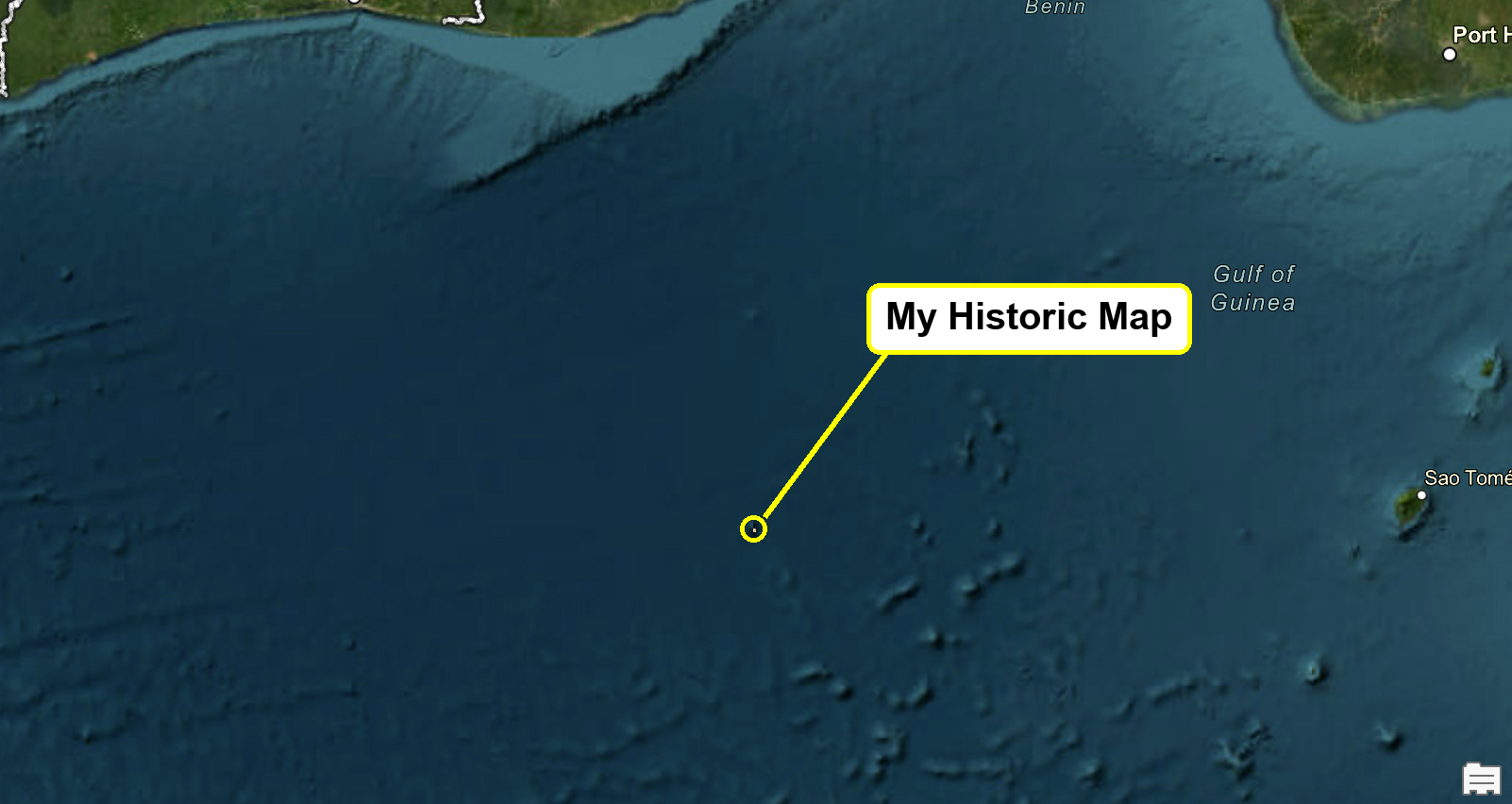
Figure 1. An image with no spatial reference, drawn at the origin of the coordinate system.
Tip
Check the result. If your scan appears in roughly the right place without any work from you, it already carries spatial reference information — a GeoTIFF or GeoPDF often does. That is not a problem, but it means the software has already made the choices this lab is about. Say so in your report, and georeference it anyway to see how your solution compares.
Step 3 — Fit to Display
- Navigate the map to the area your sheet covers, at a scale where you can see the whole of it.
- Select the scan in the Contents pane.
- On the Imagery tab, in the Alignment group, click Georeference. The Georeference tab opens.
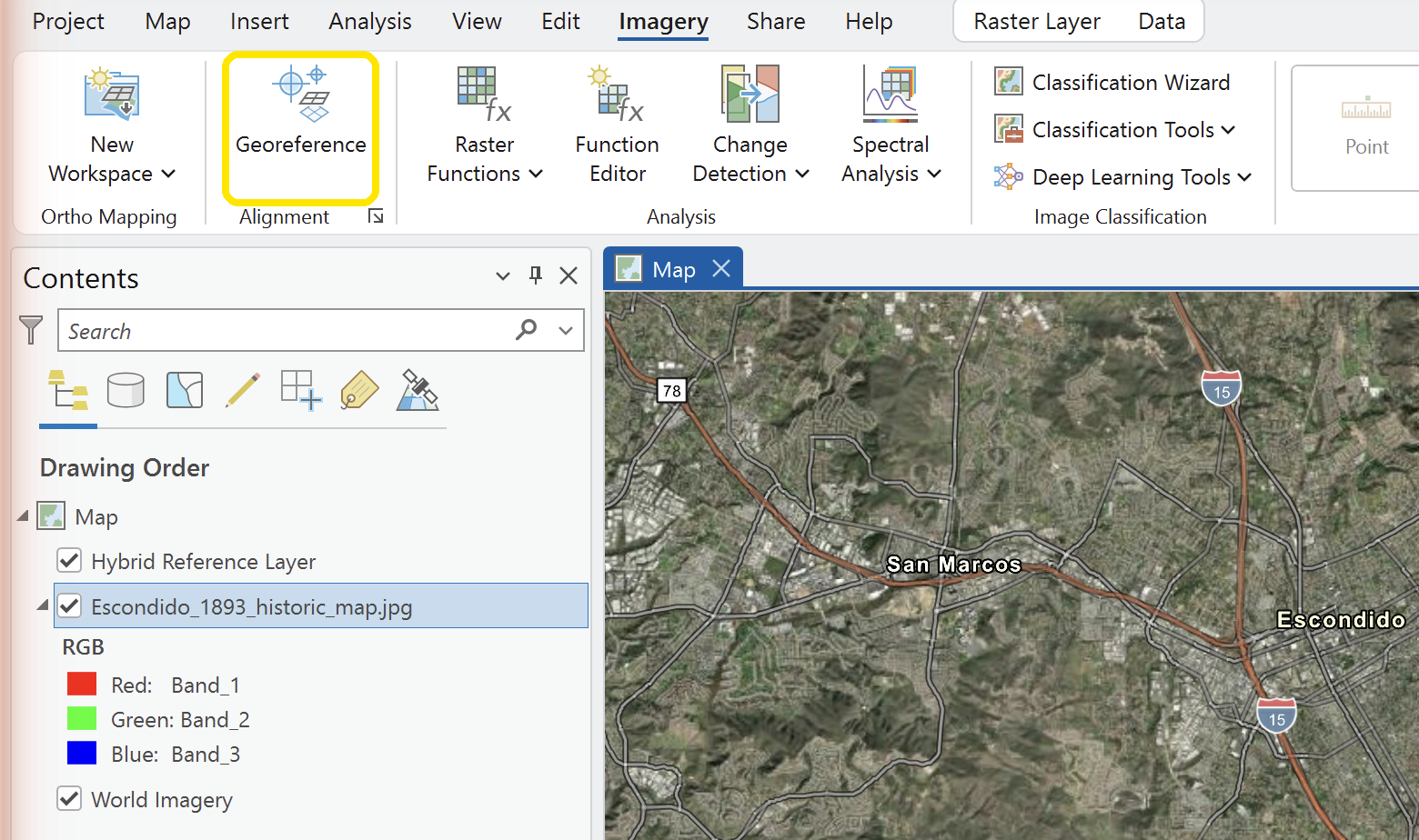
Figure 2. Where to find the Georeference button.
- In the Prepare group, click Fit to Display. The scan jumps into the current view.
- Make it semi-transparent so you can see the basemap through it. With the layer selected, go to the contextual Raster Layer tab, Effects group, and set Transparency to about 50 %.
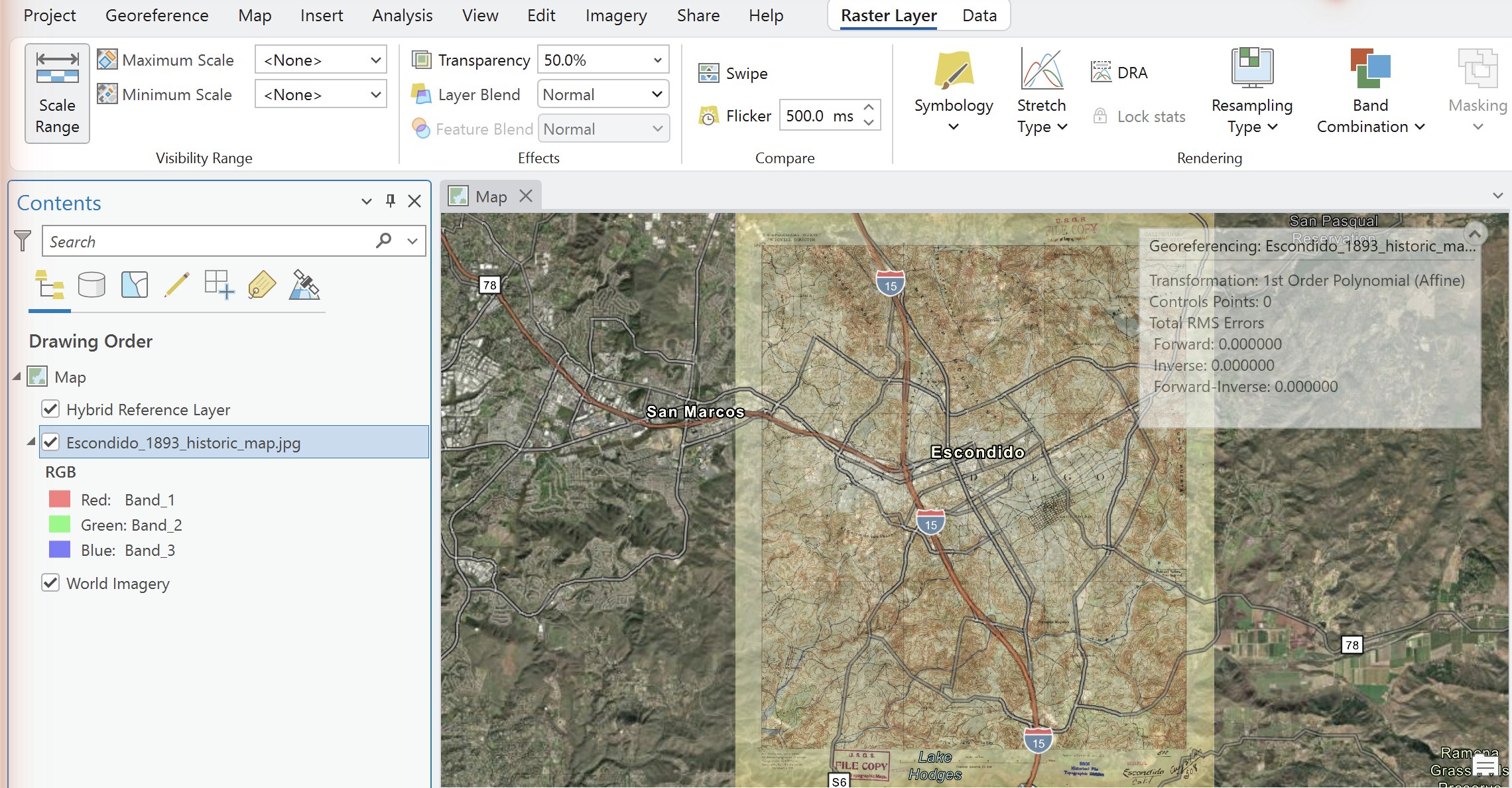
Figure 3. After Fit to Display, with transparency turned up.

Figure 4. The Georeference tab in ArcGIS Pro 3.7.1. Everything in this lab is on it: Fit to Display in Prepare, Add Control Points and Transformation in Adjust, Control Point Table in Review, and Save — which you must click before you close.
Step 4 — Add Control Points
In the Adjust group, click Add Control Points. Then, for each point:
- Click a feature on the scan.
- Click the same feature on the basemap.
The scan moves as soon as you have enough points for the current transformation. It will keep moving, and settling, as you add more.
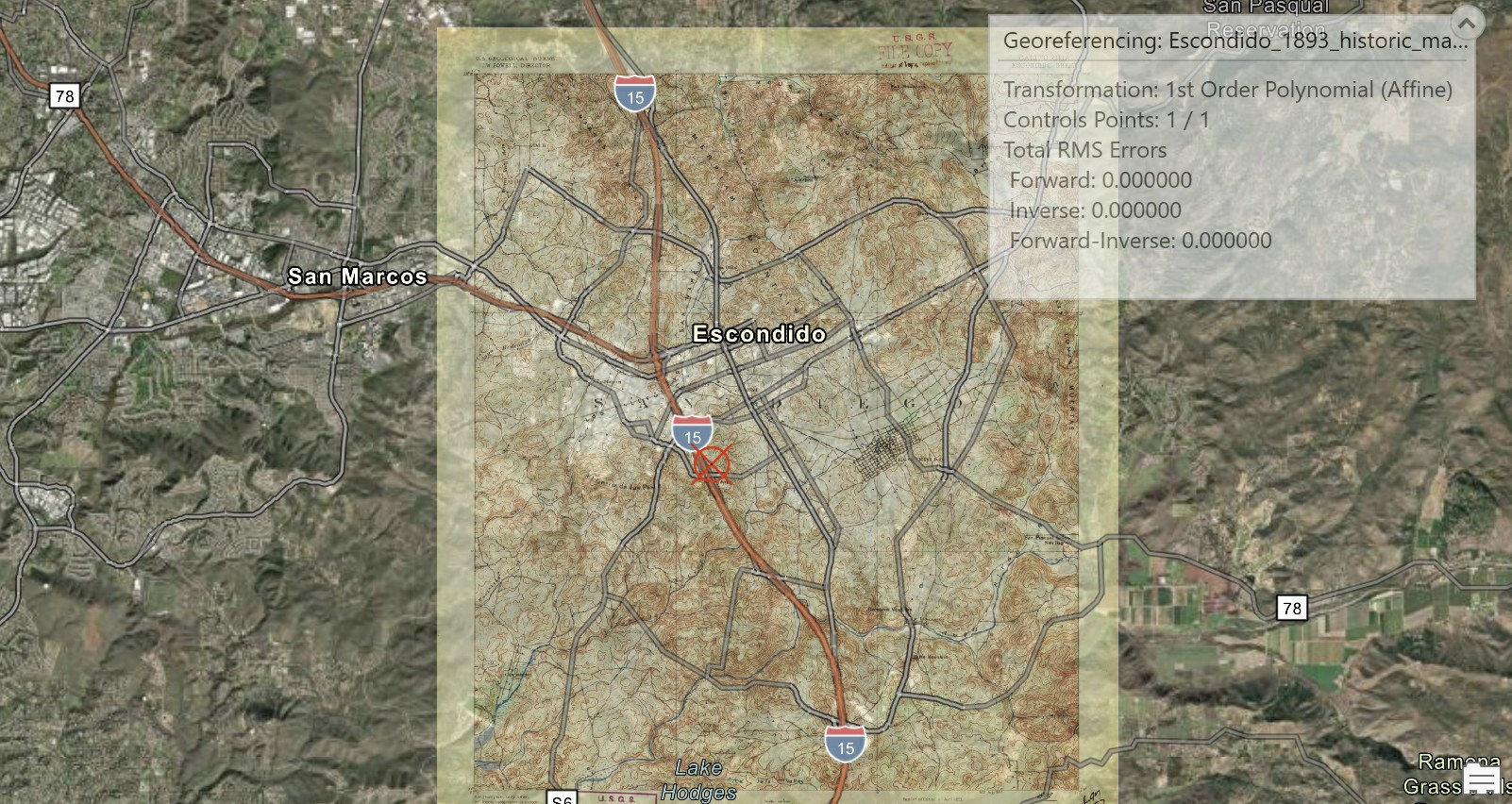
Figure 5. The very first control point, matched from the scan to the basemap. Read the status panel in the top right: one point, and a total RMS error of 0.000000. The sheet is plainly still in the wrong place, so that zero is telling you nothing — which is the whole point of the TIP below. This is where you start, not where you stop; keep going until you have eight, spread to the corners.
How many, and where. Collect at least eight, and spread them out:
- Put points near all four corners of the sheet, not only in the middle. A transformation is only constrained where you constrain it; corners left free will wander.
- Use features that have not moved: road intersections, section corners, rail crossings, river confluences, building corners on old buildings. Do not use a river bank, a shoreline, a field edge or a tree.
- Avoid clusters. Four points within one town tell the transformation almost as little as one point. Figure C shows why.
The minimum is not the target. Each transformation needs a minimum number of points, and if you give it exactly that many it fits them perfectly and tells you nothing:
| Transformation | Minimum control points |
|---|---|
| Zero Order Polynomial (Only Shift) | 1 |
| Similarity Polynomial | 3 |
| 1st Order Polynomial (Affine) | 3 |
| 2nd Order Polynomial | 6 |
| 3rd Order Polynomial | 10 |
| Adjust | 3 |
| Projective | 4 |
| Spline | 10 |
Warning
Do not click Save and close the Georeference tab until you have finished Step 8. Saving writes the transformation to the image and you want to try three of them first. If you must stop, leave ArcGIS Pro open, or save and be prepared to re-collect your points.
Tip
Check the result. With the default 1st Order Polynomial and exactly three points, your total RMS error will be 0.000000. That is not a good fit; it is an exact fit of three points by a transformation with exactly enough freedom to pass through three points. When the number stops being zero, you have started to learn something.
Step 5 — Read the Residuals
In the Review group, click Control Point Table. Each row is one link, with its residual: how far that point ended up from where you put it, in map units.
The table also reports a total RMS error, the root-mean-square of those residuals. Read it, and then be careful with it.
Warning
The RMS error is measured on the points you fitted. Every control point in the table contributed to solving the transformation, so the residuals describe how well the equation reproduces its own inputs. It says nothing about the rest of the sheet. A high-order polynomial or a spline can drive the total RMS to zero and distort the map badly everywhere in between. A small number here is not a good result. It is a small number.
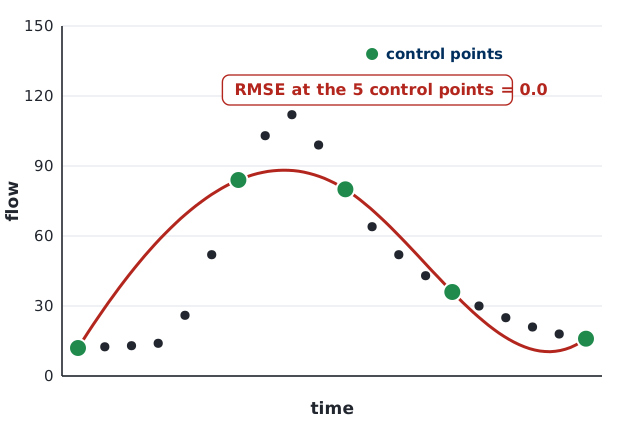
Figure E. What a zero RMS error can hide. Twenty observations, five chosen as control points, and a spline fitted through those five. The fit is exact at every control point, so the reported error is zero, and it misses most of the other fifteen. A georeferenced sheet behaves the same way: the error is measured only where you put the points.
Work through the table once:
- If one point has a residual several times larger than the rest, look at it. You have probably matched the wrong intersection, or clicked a feature that moved. Delete it and re-collect it.
- If the residuals are all about the same size, that size is roughly the accuracy of your georeferencing at the points, which is the best case for the sheet as a whole.
- Record the total RMS error and the number of points. Both go in your report and in Step 8's table.
Then check it somewhere you did not fit. Find one feature on the scan that you did not use as a control point and that still exists — a road intersection on the far side of the sheet, a bridge, a section corner. Look at how far the scan puts it from where the basemap puts it. That distance is a real measure of your georeferencing. The RMS error is not.
Step 6 — Digitize the Features
Now find what is gone. Turn the transparency up and down, switch basemaps, and look for features on the scan with nothing under them: a town site, a road that stops, a rail grade, a channel that has moved.
- In the Catalog pane, under Databases, right-click
Lab03.gdb, then New ▸ Feature Class. - Name it, choose Point or Line depending on what you are capturing, and give it the coordinate system of your map.
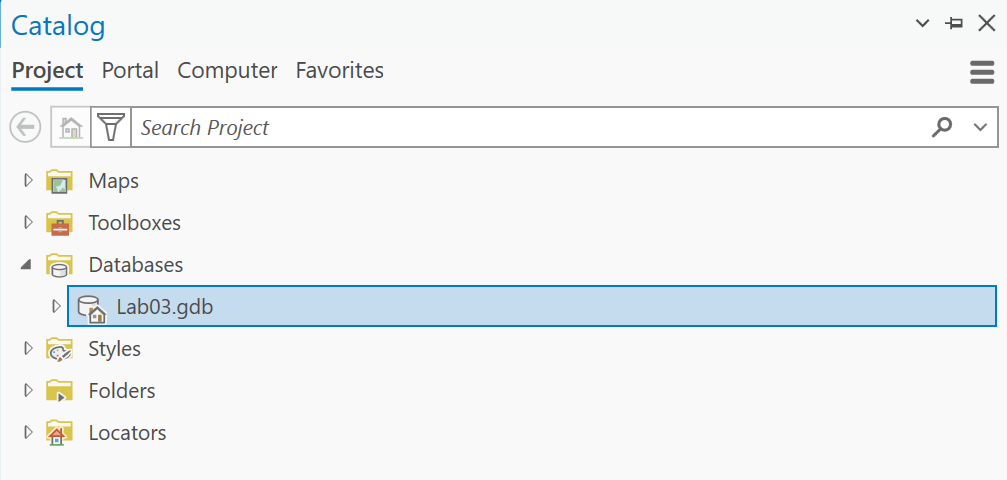
Figure 6a. The project geodatabase in the Catalog pane. There is one, it is named for the lab, and everything you create in this lab goes in it.
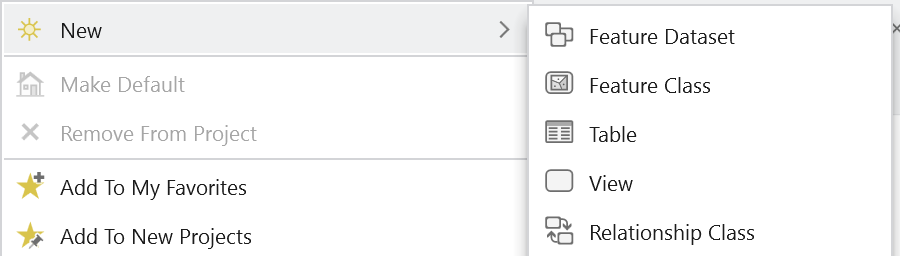
Figure 6b. Right-click the geodatabase and choose New ▸ Feature Class.
- Select the new layer in the Contents pane, open the Edit tab, and click Create in the Features group.
- In the Create Features pane, click your feature class and draw. Click once for a point; click along a line and double-click to finish it.
- Click Save in the Manage Edits group when you are done. Edits are not saved until you say so.
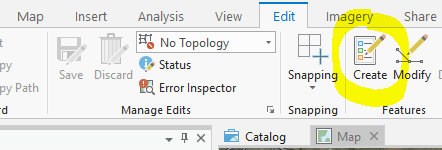
Figure 7. Starting an edit session.
Capture at least six features. Six is enough to say something; two is an anecdote.
Tip
Check the result. Turn the historic scan off. Your digitized features should still be in sensible places relative to the modern basemap — a vanished road should still connect to roads that exist. If a feature lands in the middle of a lake, either you drew it wrong or your georeferencing is worse than the RMS error suggested.
Step 7 — Name and Label
- Right-click your feature layer and open the Attribute Table.
- In the Field group, click Add. Add a field named
Location_Name, data type Text. Save the field definition.

Figure 8. Adding a field from the attribute table.
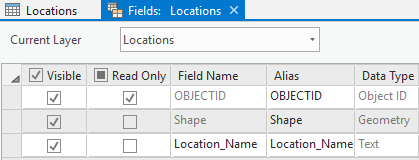
Figure 9. The new field in the Fields view.
- Back in the attribute table, type a name for each feature. Use the name from the historic sheet where it has one; that name is part of what you found.
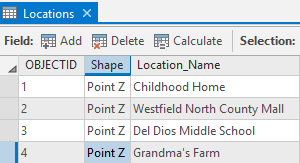
Figure 10. Naming the digitized features.
- With the layer selected, open the Labeling tab, check Label Features In This Class, and
set the Field to
Location_Name.
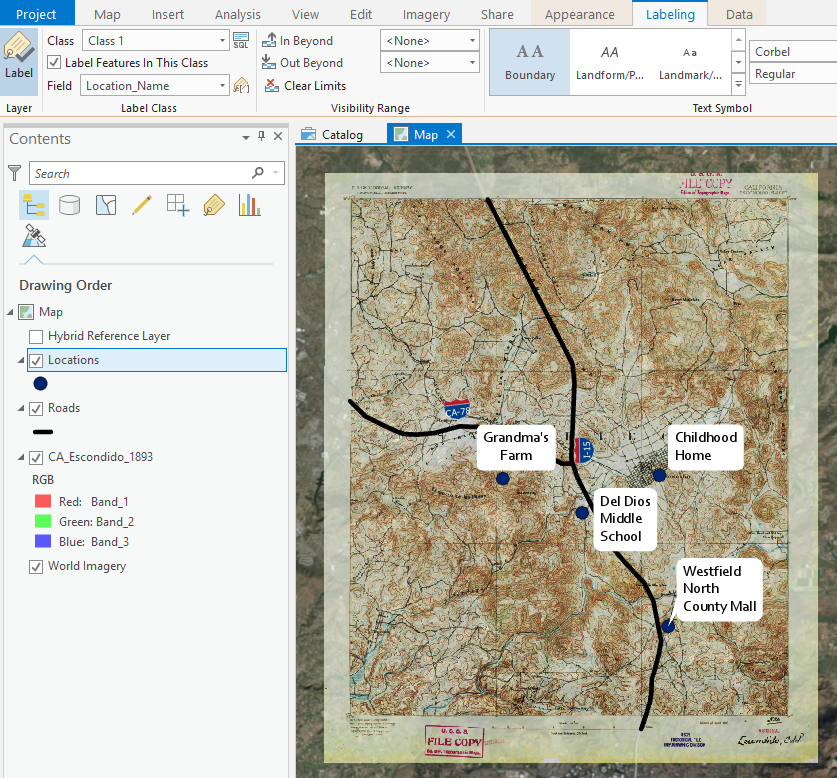
Figure 11. Labeling the features.
Step 8 — Test the Transformation
Your georeferenced sheet is an answer. It is the answer that one transformation gives for the points you happened to collect. Before you put your name on it, find out how much of it is the sheet and how much of it is your choice.
Using the same control points, re-solve with a different transformation from the Transformation menu in the Adjust group. Run at least three in total: the default 1st Order Polynomial (Affine), one higher-order polynomial (2nd Order if you have six or more points, 3rd Order if you have ten or more), and Spline if you have ten or more.
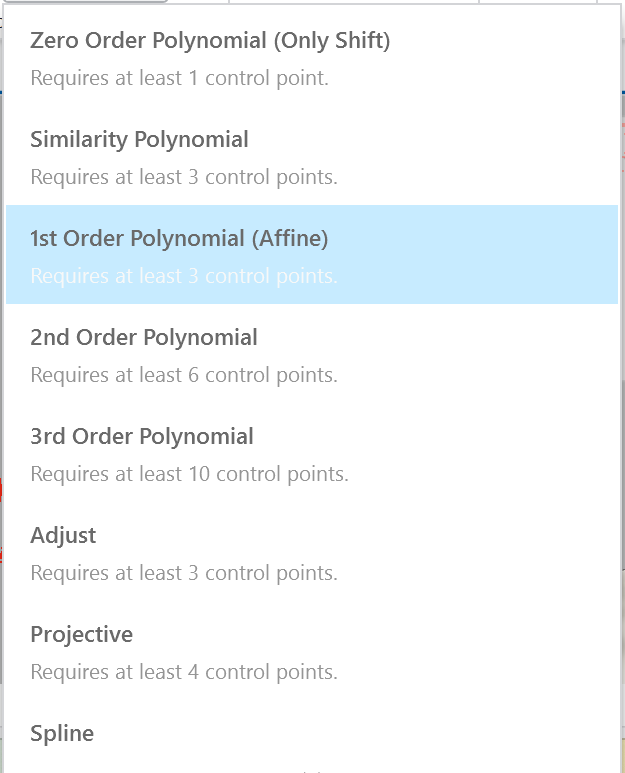
Figure 12. The Transformation menu, with the minimum control points each one needs.
For each run, record:
| Transformation | Control points | Total RMS error | Error at your check feature | What the sheet looks like |
|---|---|---|---|---|
| 1st Order Polynomial (Affine) | ||||
"What the sheet looks like" is a sentence: is it straight, is it bowed, do the edges curl, does the lettering stretch, does a straight section line on the sheet still look straight?
Then answer these three questions in your report, in bold, in this order:
- Which transformation gave the lowest total RMS error, and is that the one you would use? Explain the difference between the two answers if there is one.
- What happened at your check feature — the one you did not use as a control point — as you changed transformations? Did it track the RMS error, or move the other way?
- Which transformation would you defend to a client, and what would you tell them your georeferencing is good to? Give a distance, and say how you know.
Finally, pick one run other than your baseline for Map 2, and say on the map what you changed and why you chose that run to show.
Tip
Watch what the spline does. It is the transformation that will give you the best-looking number.
Deliverables
Make two professional map layouts, each a full page (8.5 × 11):
- Map 1 — your baseline. The transformation you would defend. Show three things: the modern basemap, the georeferenced historic sheet, and your digitized features, labeled. Show your control points as well.
- Map 2 — one alternative transformation. The same area under a different transformation from Step 8, with the title and text box saying which one and why you chose to show it.
Write a brief report (2–3 pages of text, plus your figures and maps) covering:
- your name, the date, the course, and the name of your peer reviewer, with a sentence on what you changed because of them
- the requirements of the project and your approach, in your own words
- the source of your historic map: repository, title, survey date, publication date, scale and URL
- the six metadata answers from Judging the source, and what they mean for your result
- which basemap you georeferenced against and why, and the coordinate system your map is in
- how many control points you used, how you distributed them, and which transformation you chose
- your total RMS error, and what you did about any point whose residual stood out from the rest
- the error at your check feature — the one you did not use as a control point — given as a distance on the ground, with a sentence on how you measured it
- your Step 8 table and the answers to its three questions
- where your result is wrong and why, and what would fix it
- a description of your digitized features: what they are, what they were called, and what is there now
- this rubric pasted in, with your self-assessment in every row
Important
Peer review before you submit. Have another student in the class read your report against the rubric and give you feedback, then act on that feedback before the deadline. Name your reviewer in the report and say in a sentence what you changed because of them. A report nobody else has read is a draft, not a submission.
References
Esri. Overview of georeferencing. ArcGIS Pro documentation. https://pro.arcgis.com/en/pro-app/latest/help/data/imagery/overview-of-georeferencing.htm
Esri. PDF To TIFF. ArcGIS Pro tool reference. https://pro.arcgis.com/en/pro-app/latest/tool-reference/conversion/pdf-to-tiff.htm
U.S. Geological Survey. Historical Topographic Map Collection. https://www.usgs.gov/programs/national-geospatial-program/historical-topographic-maps-preserving-past
Example Maps
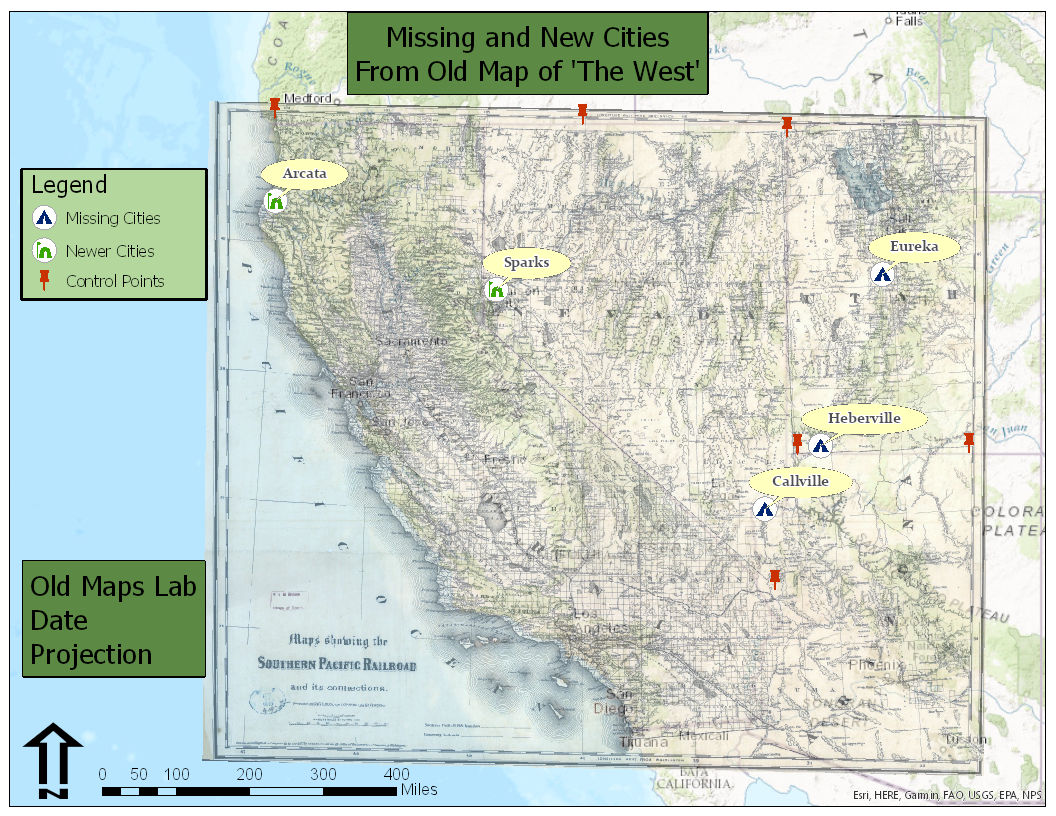
Figure 13. A finished layout showing towns on an 1876 sheet that are no longer populated places. Note that the control points are on the map, the digitized features are labeled, and the historic sheet is transparent enough to see the basemap through it.
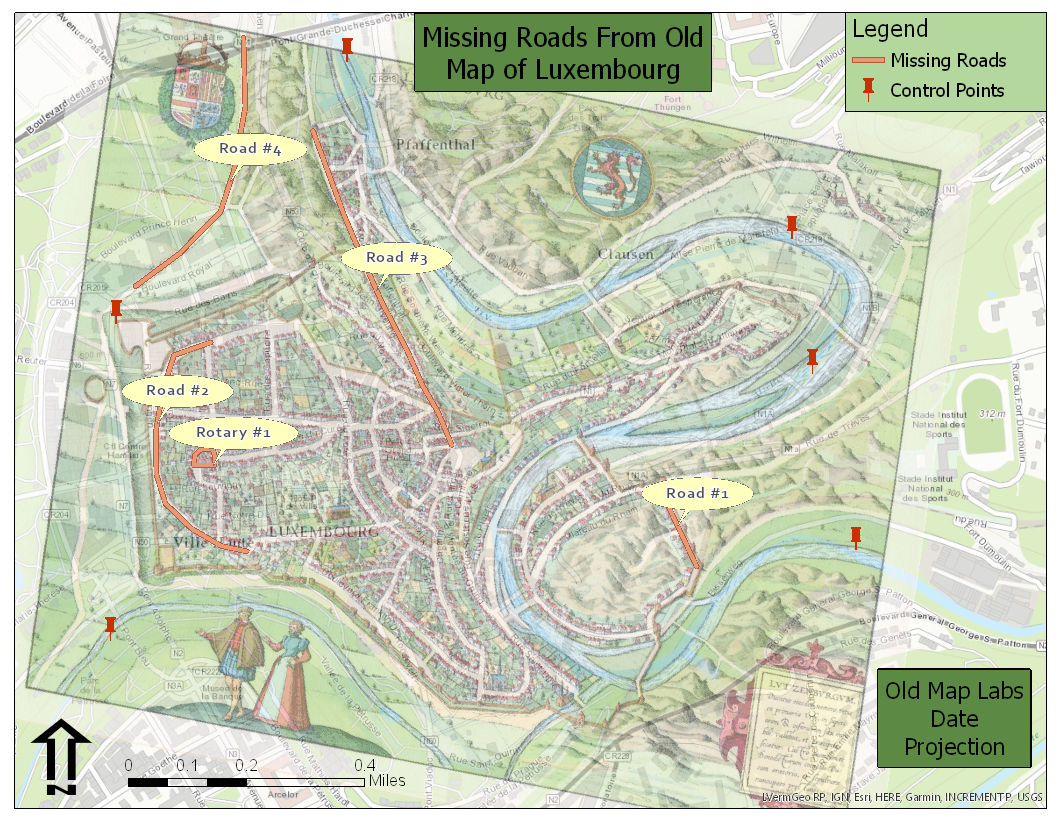
Figure 14. A second finished layout, this one digitizing streets rather than places.
Note
These are examples, not templates. Your maps should be better than these: your name must be on them, and your symbology should suit the features you actually digitized.
Rubric for Georectifying and Digitizing Historic Maps
Fifty points in five parts of ten. The bullets say what each part is worth, so you know exactly what to submit.
This rubric is already laid out as a fillable table at the end of
lab03-report-template.docx, so you do not have to copy it out
of this page.
| Item | Points |
|---|---|
| Write-up (2–3 pages) • Assignment title, your name, date and course; your peer reviewer named, with a sentence on what you changed because of them (1) • The requirements of the project and your approach, in your own words (2) • The source of your sheet — repository, title, survey and publication dates, scale and URL — and the six metadata answers, with what they mean for your result (3) • Where your result is wrong and why, and what data would fix it (2) • Clear, organized writing: figures numbered and referred to in the text, sources credited, and this rubric pasted in with your self-assessment in every row (2) |
/10 |
| Georeferencing — correct and defensible • At least eight control points, distributed across the whole sheet rather than clustered, with the count reported (3) • The Control Point Table read: total RMS error reported, and any outlying residual investigated and explained (2) • A check made at one feature that was not used as a control point, with the error at that feature reported as a distance (3) • Which basemap you georeferenced against and why, and which coordinate system your map is in (2) |
/10 |
| Digitizing • At least six features digitized from the historic sheet that are not on the modern basemap (3) • A feature class in the project geodatabase, correct geometry type, in the map's coordinate system (2) • A Location_Name field populated and labeled on the map (2)• A description of what you captured: what each feature is, what it was called, and what is there now (3) |
/10 |
| Map 1 — your baseline (full page, 8.5 × 11) • Title stating the transformation used (1) • Neat line, north arrow and scale bar (1) • Text box with author, date, map projection, and the sheet's title and date (1) • All three layers shown: basemap, georeferenced sheet, digitized features (2) • Digitized features clearly symbolized and labeled, with a legend (2) • Control points shown (1) • Zoomed to an appropriate scale, and all text legible when printed (2) |
/10 |
| Transformation sensitivity (Step 8) • The table, at least three transformations, with control points, total RMS error, check-feature error and a description for each (4) • Which transformation gave the lowest RMS and whether that is the one you would use (2) • What happened at the check feature as the transformation changed (2) • Which transformation you would defend, and what accuracy you would claim (2) |
/10 |
| Total | /50 |
Map 2 is graded inside the sensitivity row: the run you chose to show, and the title and text box saying what changed and why.
Note
Using AI on this lab. Use AI freely to understand a tool, work out an error, or tighten your write-up, and add one line at the end of your report saying what you used it for. Do not take a field name, an expression, a coordinate system, or a number from it — those come from your own data, and the rubric asks you to defend every one. See the AI Use Policy for the full policy.