Lab 4: Cell Phone Tower Placement
Civil Engineering 414 — Engineering Applications of GIS
Fall 2026 · Dr. Dan Ames
Tip
Start from the report template. lab04-report-template.docx
has the title block, a section for every deliverable, the tables already set up with the columns
the rubric asks for (including the sensitivity table with all four parameters), and the rubric
at the end ready to fill in. Open it in Word or upload it to Google Docs, replace every gray
italic prompt, and delete the prompts as you go. You are welcome to write your report any way
you like — the template is a floor, not a ceiling — but if you use it and fill in every section,
you will not have left a graded item out.
Background
GIS is used regularly in industry and government to determine the most appropriate placement of physical infrastructure, such as cell phone towers. As cell phone use increases, the number of cell phone towers must also increase to carry the demand. As with most site selection problems, geographic constraints on site selection, including proximity and terrain constraints, can be combined in a geoprocessing model to identify potential locations for towers. In this lab you will build a model in ArcGIS Pro ModelBuilder that produces a map of candidate locations for new cell phone towers in Utah County, Utah.
The model is a screening method, not a design. It finds ground that passes three tests — flat enough, close to a highway, far from existing towers — and says nothing about land ownership, zoning, line of sight, radio coverage, or power and fiber, all of which a carrier would check before building anything. Three of the four numbers it rests on are thresholds somebody chose, and the fourth, the search radius of the density surface, changes what "far from existing towers" even means. The tower data is also far from complete. So the map your model draws is an answer, not the answer. In Step 14 you will vary those numbers, see how far the answer moves, and use what moves to decide which candidate site you can actually defend.
Important
Your job — see the deliverables below. Build one model, run it on Utah County at the criteria given, check the result against imagery, test the four numbers it depends on, and make two maps.
Problem Statement
People expect to be able to connect wherever they are — to share an experience instantly, or to call for help when the car breaks down. Cell phone companies compete for coverage by building towers in both populated and rural areas, and much of the rural West still has gaps. At the same time, carriers are for-profit companies whose shareholders expect careful planning: build too few towers and customers leave; build too many and the money is wasted.
Assume that you work for a cellular company that is expanding its coverage in Utah County. Several factors govern where a tower can go. Some are physical, others political and economic. For background on the practical side, see this installer's page of cellular antenna installation guidelines.
Your task is to build an ArcGIS Pro ModelBuilder model that identifies the most suitable locations in Utah County for new towers using the three spatial considerations below, check its result, and find out how much that result depends on the numbers you were given.
Spatial Considerations
For this exercise, the spatial considerations are limited to the following. Each is a decision somebody made, and each reappears in Step 14.
- Distance from existing towers: find locations where the density of existing towers is less than 20 per 10,000 square kilometers (20 in a 100 km × 100 km square), measured with the Kernel Density tool using a search radius of 20 km. The radius is as much a choice as the threshold: Figure B shows what the two together mean around a single tower.
- Proximity to major roads: find locations within 1 km of I-15 or another Interstate, US or state highway in Utah County. A crew and a crane need a road.
- Terrain slope: towers can be built on a variety of slopes, but flatter ground is cheaper to build on and needs less site work. Find locations with a slope of less than 5 degrees.
And the choices ArcGIS Pro would otherwise make for you:
- Coordinate system: NAD 1983 UTM zone 12N for every output, set once in Step 0. Distances in meters, areas in square meters.
- Cell size: 30 meters, the resolution of the elevation data, for every raster in the model.
- Edge buffer: towers up to 50 km outside the county are counted, so that the density near the county line is not biased low by towers you left out (Step 8).
- Tower data: one record per FCC license site, not one per tower, as downloaded — Step 13 asks what that does.
Data
Important
Set up your folder before you download anything. On the lab machines, work on the
D: drive. Make one folder for this class named after you — D:\Smith\ — and one folder per
lab inside it — D:\Smith\Lab04\. Put the project and this lab's data there.
The C: drive is locked, and a network drive is slow enough to make ArcGIS Pro hang. A high-speed USB 3.0 external drive is fine. Back up your lab folder at the end of every session: anyone can edit or delete what is on D:. And never use a space in a folder or file name you create — raster tools in particular fail on them without saying why. The full set of conventions is on the ArcGIS Tips and Reminders page.
You need five layers, and you will get them four different ways: an extract we prepared, two official state downloads, a set of federal elevation tiles, and a live basemap.
| Layer | Where it comes from |
|---|---|
| Existing cell towers | A prepared extract we made for you from a federal archive and host on this site |
| Counties, UDOT highways | An official download from the Utah Geospatial Resource Center (UGRC) |
| Elevation | An official download of four tiles from the U.S. Geological Survey's National Map |
| Basemap | A live web service you never download |
As in Lab 1, every source has to be judged before it is used, by asking the six metadata questions from CCE 114 (Week 9 — Metadata): what, where, when, why, how and who — and whether the license lets you use it. In this lab one source fails several of those questions badly, and the lab is designed around finding that out rather than hiding it.
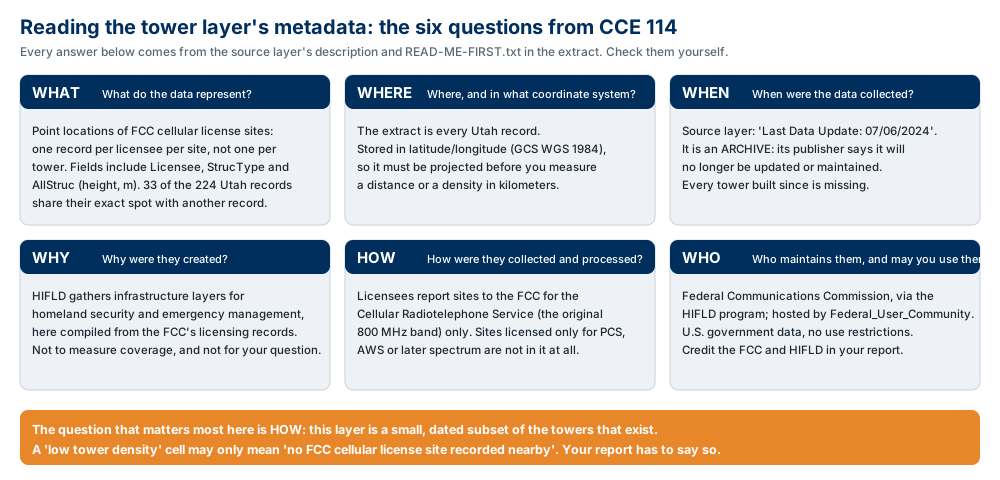
Figure A. The six metadata questions, applied to the tower layer. Confirm three of these values yourself from READ-ME-FIRST.txt and the source item's page — the last-update date, the licensing service the layer covers, and how many records share a location — copy them into your report, and say what each one does to your result.
Unzip each download into your lab folder.
- Cell towers — prepared extract:
lab04-utah-cell-towers.zip(35 kB)UtahCellTowers.shp: 224 points, every Utah record of the federal layer Cellular Towers in the United States (Archive), compiled by the Homeland Infrastructure Foundation-Level Data (HIFLD) program from the Federal Communications Commission's license records. ReadREAD-ME-FIRST.txtinside the zip.- It is stored in latitude/longitude (GCS WGS 1984). Nothing was filtered, merged or de-duplicated.
- Why we prepared it: the source is an archive — its publisher says it will no longer be updated or maintained — and archived services disappear. A copy we host means everyone in the class starts from the same 224 points, and the numbers in the steps below match yours.
- What it is not: a list of every tower. It covers only the FCC's Cellular Radiotelephone Service, the original 800 MHz cellular band. Sites licensed only for later spectrum are not in it. Utah County has 15 records — far fewer than the towers you can see from I-15.
- Utah Counties: https://opendata.gis.utah.gov/datasets/utah-county-boundaries/explore
- The same layer as Lab 1; if you still have that download, reuse it. Otherwise click Download (the cloud icon) and choose Shapefile.
- UDOT Routes ALRS: https://opendata.gis.utah.gov/datasets/uplan::udot-routes-alrs/explore
- Every Interstate, US and state route in Utah, plus ramps, collectors and federal-aid local routes, maintained by the Utah Department of Transportation. Click Download and choose Shapefile. Then read UGRC's description of the layer: it lists what each
CARTO_CODEvalue means, and you need that in Step 5.
- Every Interstate, US and state route in Utah, plus ramps, collectors and federal-aid local routes, maintained by the Utah Department of Transportation. Click Download and choose Shapefile. Then read UGRC's description of the layer: it lists what each
- Elevation — four USGS 1 arc-second DEM tiles (about 30 m cells, 192 MB together). Utah County straddles four one-degree tiles, so you need all four. Download them directly:
USGS_1_n40w112.tif(52 MB) ·USGS_1_n40w113.tif(47 MB) ·USGS_1_n41w112.tif(50 MB) ·USGS_1_n41w113.tif(43 MB)- These are the same files the National Map Downloader gives you if you draw a box over Utah County and ask for the 1 arc-second DEM — the Week 5 lecture shows how. A tile's name is its northwest corner:
n40w112covers 39° to 40° N and 112° to 111° W. - Take the 1 arc-second tiles, not the 1/3 arc-second (10 m) ones: those are about 400 MB each, and 10 m cells mean nine times as many cells for every raster tool to process, for a screening analysis that does not need them.
- These are the same files the National Map Downloader gives you if you draw a box over Utah County and ask for the 1 arc-second DEM — the Week 5 lecture shows how. A tile's name is its northwest corner:
ModelBuilder Tools
You will use the following new tools, along with Select, Buffer and Raster Calculator from earlier labs. The orange part of each icon is what comes out.
| Tool | What it does |
|---|---|
 Mosaic To New Raster |
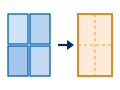
Joins several rasters that sit side by side into one new raster. You will use it to join the four DEM tiles. |
 Project Raster |
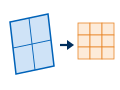
Moves a raster into another coordinate system and resamples it — every output cell gets a new value computed from the input cells nearest to it. You choose the method and the cell size. |
 Slope |
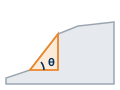
Computes the steepness of every cell of an elevation surface from its eight neighbors, in degrees or percent rise (this week's reading in Bolstad). |
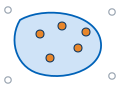 Clip |
An overlay operation that cuts the input to the shape of another layer and keeps only the input's attributes. |
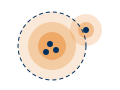 Kernel Density |
Spreads every point over a circle of the search radius and adds the spreads up, giving a smooth surface of how many points lie near each cell, per unit area. Figure B shows what that means for one tower. |
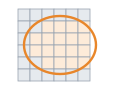 Extract by Mask |
Keeps the cells of a raster that fall inside a mask — a polygon layer or another raster — and sets every other cell to NoData. |
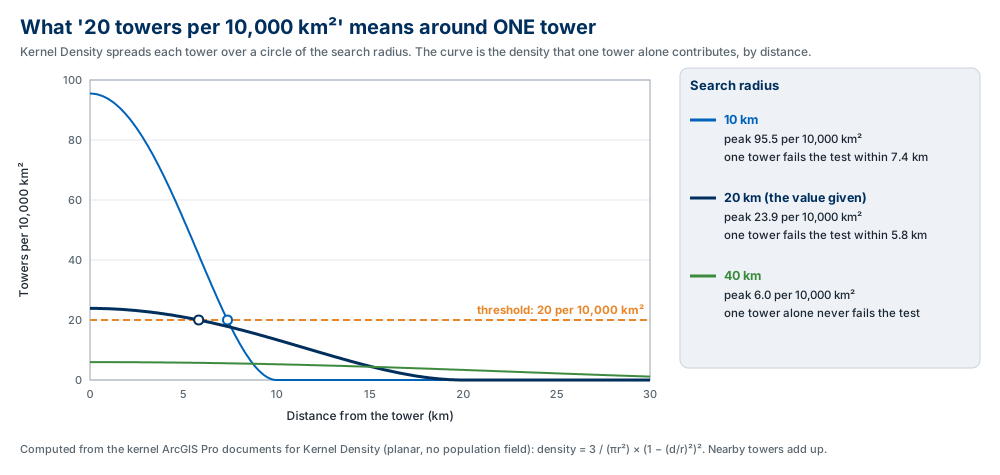
Figure B. What the density criterion means around one tower. At the given radius of 20 km, a single tower on its own is enough to fail the test anywhere within 5.8 km of it. At 40 km it takes several towers close together. Keep this figure in mind in Step 14.
Example Model
Your finished model has four branches — roads, county, terrain and towers. The county branch feeds the other two vector branches, and the raster branches meet in two overlays. The terrain branch starts from DEM_UTM, an elevation raster you build once, before the model, in Steps 2 and 3. Make your model "your own": lay it out so it reads left to right, and give every tool and dataset a name that says what it holds. Flat_Near_Road tells a reader something; ExtractB_Rast1 does not.
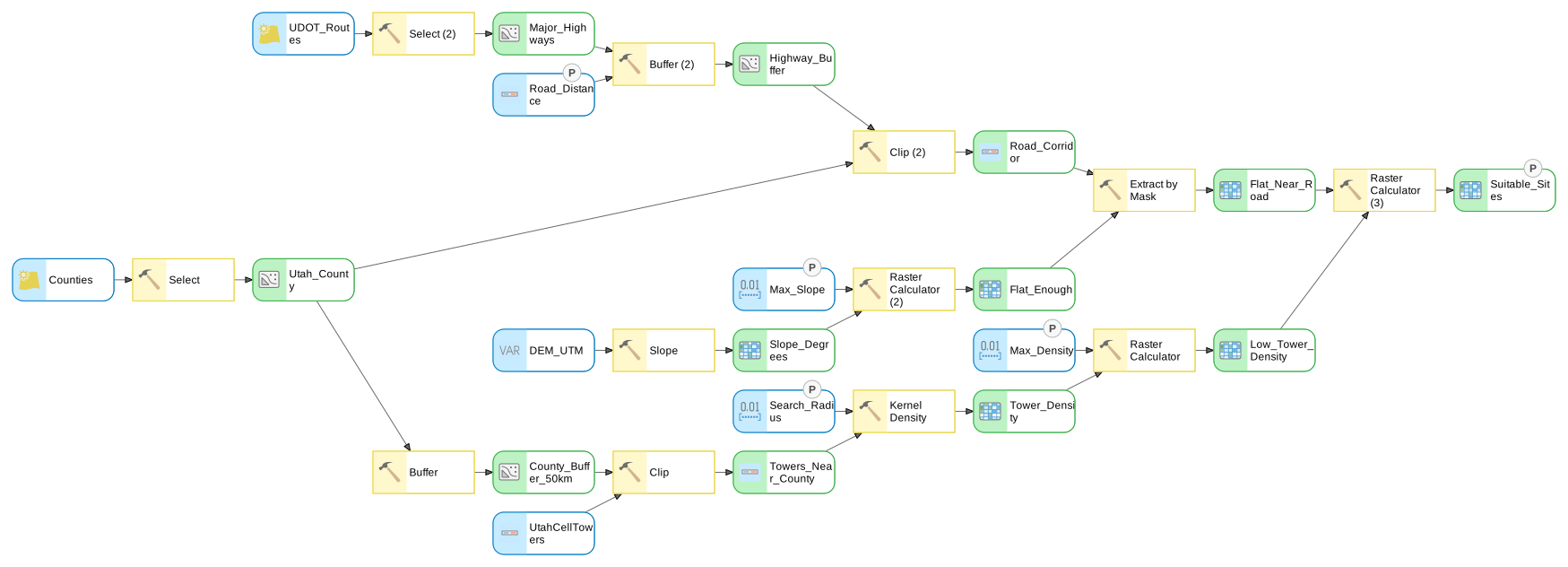
Figure C. The finished model, exported from ModelBuilder. This is a vector diagram — click it to open it full size, where every label is readable. The five elements marked P are the model parameters of Step 12; they appear in the tool dialog you build there.
Complete the Lab
For an advanced GIS student, the information up to this point is all you need to complete the assignment. Feel free to try the analysis using only the information above. If you complete the lab without the step-by-step instructions below, say so in your report.
Step-by-Step Solution
Note
Important Note #1: The steps walk through Utah County at the criteria given. In Step 14 you will re-run the same model with different numbers, so build it once, and build it to be changed.
Note
Important Note #2: Every expected number on this page was measured in ArcGIS Pro 3.7.1 on the data you download. Two of your downloads are live and change weekly (the UDOT routes and, less often, the DEM tiles), so a count may differ from ours by a little. A result that differs by a lot means a step went wrong; each step says what the common wrong numbers mean. The dialog figures were captured in ArcGIS Pro 3.7.1 while building this model, on an instructor machine with a larger display scale, so your dialogs may be laid out a little differently.
Step 0 — Set Up the Project
Create the project in your lab folder. Start ArcGIS Pro and choose the Map template. In the New Project dialog, the Location box does not accept a typed path: click the folder button beside it and browse to D:\Smith\Lab04. If you already made that folder, uncheck "Create a folder for this local project", or you will get D:\Smith\Lab04\Lab04.
Check the license. Slope, Kernel Density, Extract by Mask and Raster Calculator are Spatial Analyst tools. On the Project tab choose Licensing and confirm that Spatial Analyst is listed as licensed. It is on the lab machines.
Add your data to the map: Counties.shp, UDOT_Routes.shp (the file name may differ slightly), UtahCellTowers.shp, and the four USGS_1_…tif tiles. When ArcGIS Pro offers to calculate statistics or build pyramids for the tiles, say Yes — it takes a few seconds per tile and makes them draw properly.
Create the model. On the Analysis tab click ModelBuilder. In the Catalog pane, under Toolboxes, right-click the new model in Lab04.atbx, choose Rename, and call it CellTowers.
Set the coordinate system for the whole model. On the ModelBuilder tab click Environments and set Output Coordinate System to NAD 1983 UTM zone 12N (search for it; ArcGIS Pro spells zone with a lowercase z) (Figure 0). Every tool in the model now writes its output in UTM meters, so you do not need a single Project tool for the vector layers. You do need the environment: your five layers arrive in at least three coordinate systems — the counties in Web Mercator, the towers in latitude/longitude on WGS 1984, the DEM tiles in latitude/longitude on NAD 1983, and the UDOT routes in whatever UGRC's export uses that week. Leave Cell Size empty; each raster tool gets its cell size in its own step.
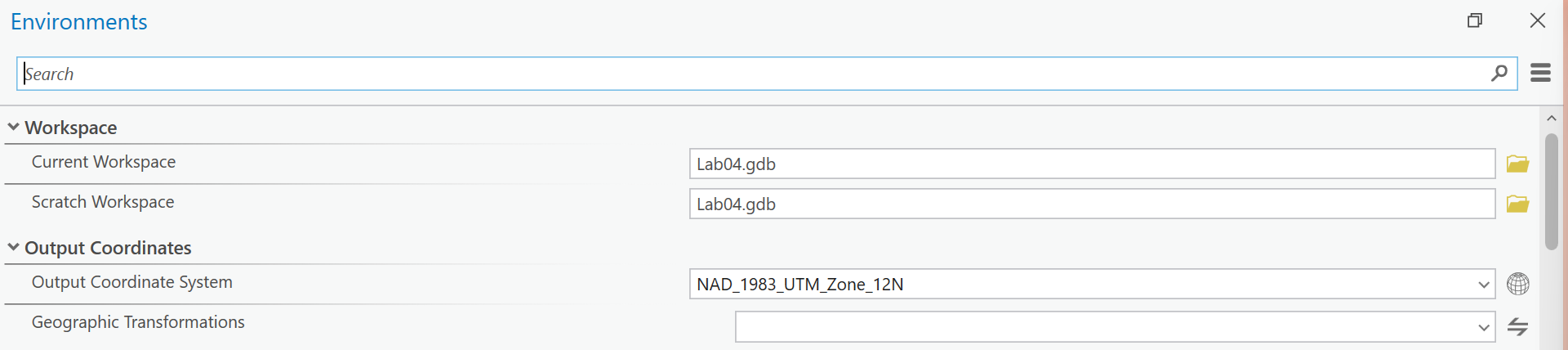
Figure 0. ModelBuilder ▸ Environments with the Output Coordinate System set. The dialog opens small; maximize it to see the whole name.
The first check value is in Step 1.
Step 1 — Select Utah County
Add the Select tool (Analysis Tools) to the model with Counties as the input and build the expression NAME = 'UTAH' — in clause mode, NAME is Equal to UTAH. County names in this layer are stored in capitals, so 'Utah' selects nothing. Name the output Utah_County.
Warning
Click OK on the tool dialog before you click Run. A dialog that is still open runs with its last committed parameters; a Select with no committed expression selects all 29 counties and reports success.
Tip
Check the result: exactly one feature of about 5,545 km² (2,141 square miles): the
Shape_Area field reads about 5,544,870,000 square meters. That number also proves the Step 0
environment is working. About 9,500 km² means the output is still in Web Mercator, which
inflates areas by about 70 % at Utah's latitude; a number smaller than 1 means degrees.
Step 2 — Mosaic the DEM
The next two steps build one 30 m elevation raster from the four tiles. Run them once, from the Geoprocessing pane, not inside your model. The model starts from their result in Step 4.
Note
Why outside the model? Two reasons, one practical and one general. The practical one:
Mosaic To New Raster will not replace its own output. Inside a model that you run a second time
from its tool dialog — which is exactly what Step 14 asks you to do — it stops with
ERROR 002869: Output file …\DEM_Mosaic already exists, even with overwriting switched on in
ArcGIS Pro's options. The general one: the four tiles never change between runs, so rebuilding
an identical DEM every time only costs you about fifty seconds per run. Keep one-time data
preparation out of a model you mean to run repeatedly.
On the Analysis tab click Tools, search for Mosaic To New Raster (Data Management Tools), and set (Figure 2):
- Input Rasters: all four DEM tiles — pick them one at a time; a new empty row appears each time.
- Output Location: your project geodatabase,
Lab04.gdb. - Raster Dataset Name with Extension:
DEM_Mosaic(no extension inside a geodatabase). - Spatial Reference for Raster: NAD 1983 UTM zone 12N. It may already be filled in from your project's settings.
- Pixel Type:
32 bit float. The default is 8 bit unsigned, which can only hold whole numbers from 0 to 255 — every elevation in the county is above that. - Cellsize: leave it empty.
- Number of Bands:
1.
Warning
Do not type a cell size into Mosaic To New Raster. It looks like the obvious place to ask for
30 m cells, and it is the worst mistake available in this lab. With the spatial reference set to
UTM, typing 30 there produced a raster 117,789 columns by 128,657 rows — 15 billion
cells, almost all of them empty — and the tool ran for 38 minutes. Typing 100 gave
58,435 × 131,613 cells and 15 minutes; 300 or 3000 fail at once with an error that all
geometries "must have the same spatial reference". Left empty, the same step takes about
30 seconds. You set the cell size properly in Step 3.
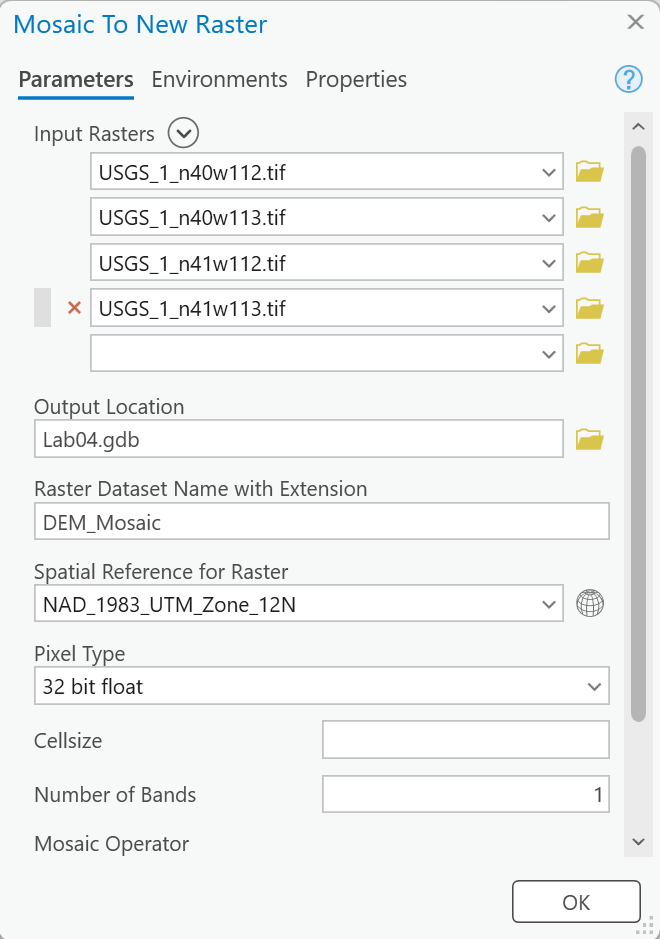
Figure 2. Mosaic To New Raster. Note the empty Cellsize and the 32 bit float pixel type.
Tip
Check the result: DEM_Mosaic should be 7,212 columns × 7,244 rows (right-click it ▸
Properties ▸ Source ▸ Raster Information), in NAD 1983 UTM zone 12N — and its cells are
24.05 m wide and 30.96 m tall. They are not square, because a one-arc-second cell is shorter
east–west than north–south at 40° N. That is why the next step exists. (If you left the spatial
reference empty and your project has no output coordinate system, the mosaic stays in latitude
and longitude. That is fine too: Step 3 projects it either way.)
Step 3 — Project the DEM
Still in the Geoprocessing pane, open Project Raster (Data Management Tools) with DEM_Mosaic as the input. Name the output DEM_UTM, set the Output Coordinate System to NAD 1983 UTM zone 12N, Resampling Technique to Bilinear interpolation, and Output Cell Size to 30 in both the X and Y boxes (Figure 3a). The tool proposes the mosaic's own cell size, 24.05 × 30.96 (Figure 3b) — which is how you can see the non-square cells for yourself.
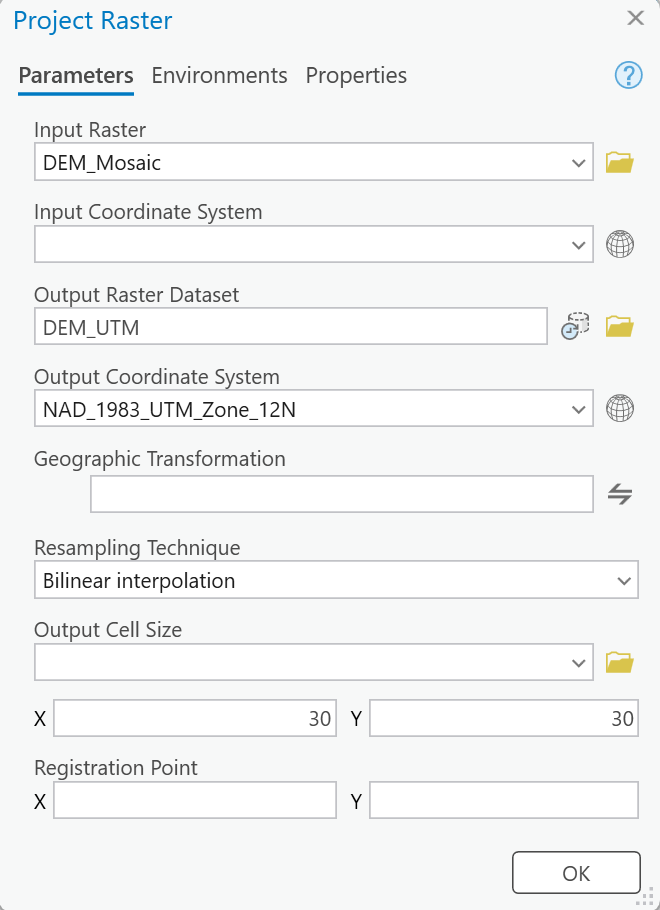
Figure 3a. Project Raster with bilinear resampling to square 30 m cells.
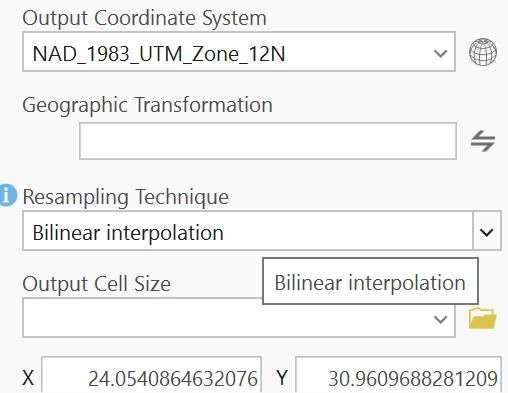
Figure 3b. What the tool proposes before you type 30: the mosaic's non-square cells.
Note
Why Bilinear? Elevation is continuous: a new cell that falls between four old ones should get a value in between, and bilinear interpolation gives it one. Nearest neighbor copies the single nearest value and leaves little steps in the surface — and the Slope tool would read those steps as slope. Use Nearest for categories (land cover, a 1/0 result), never for elevation.
Tip
Check the result: DEM_UTM is 5,783 columns × 7,477 rows of 30 m cells (one row fewer
if your mosaic stayed in latitude and longitude), with elevations
from about 1,265 m to about 3,628 m. It takes about 15 seconds. If the cell size reads
anything but 30, the X and Y boxes were left at their proposed values.
Step 4 — Find Flat Ground
Back in your model: add the Slope tool (Spatial Analyst) and pick the DEM_UTM layer as its Input raster — the layer went into your map when Step 3 finished, and it now becomes a blue input on the canvas. Output measurement is Degree and Method is Planar by default; leave the Z factor at 1, because the elevations and the cell size are both in meters. Name the output Slope_Degrees (Figure 4a).
Then add a Raster Calculator (the Spatial Analyst one — typing its name on the canvas offers an Image Analyst tool of the same name first) and type:
Con("%Slope_Degrees%" < 5, 1, 0)
Name the output Flat_Enough (Figure 4b). Con means "if the condition is true, 1, otherwise 0", so the result is a two-value raster: 1 where the slope is under 5 degrees.
Warning
Type the output name last. When you type an expression, the Raster Calculator replaces
whatever is in Output raster with a default such as RasterC_1. Enter the expression first,
then the name, and look at it before you click OK. Extract by Mask does the same thing in Step 7.
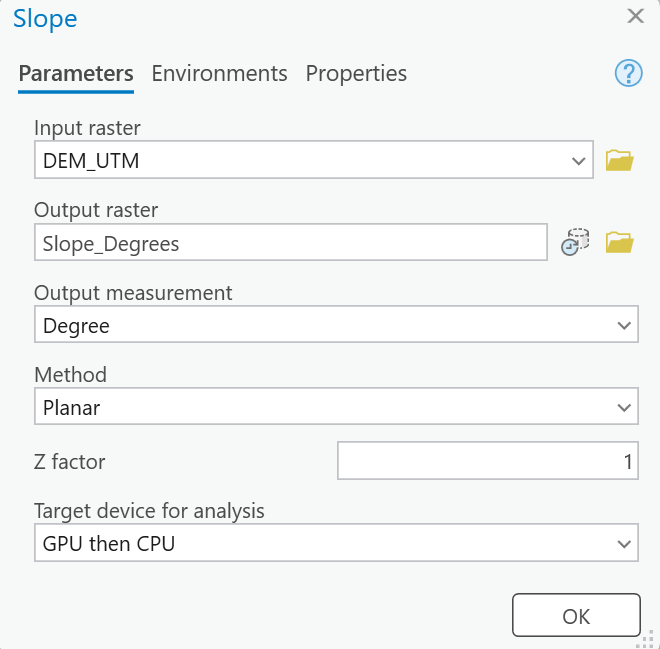
Figure 4a. Slope: Degree and Planar are the defaults.
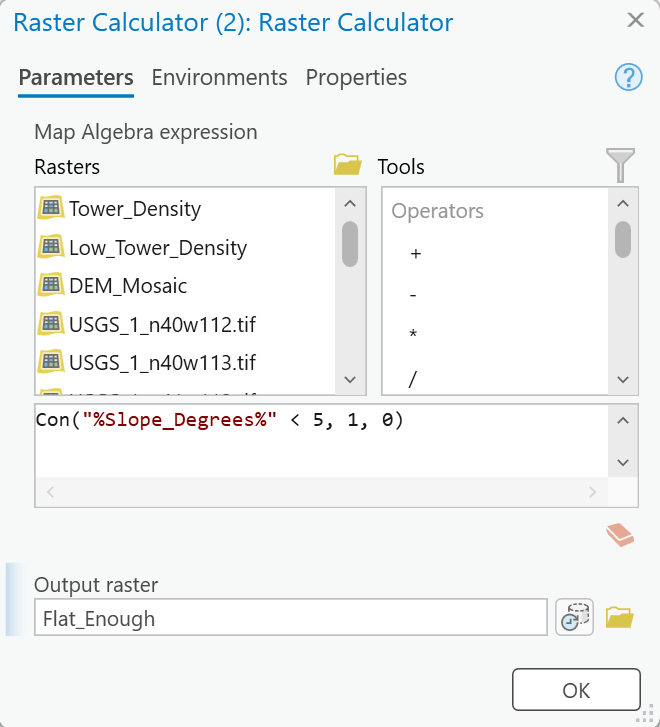
Figure 4b. The slope test. In Step 12 the 5 becomes a model parameter.
Warning
Degree, not Percent rise. A 5 percent slope is only 2.9 degrees. If you leave the
measurement on Percent rise, < 5 quietly becomes a stricter test: the county's flat ground
shrinks from about 2,017 to about 1,691 km², with no error. Check that the Slope output's values
run up to about 72, not about 300.
Tip
Check the result: Slope_Degrees runs from 0 to about 71.6°, and inside Utah County it
averages 12.9°. Of the county's area, about 2,017 km² (36 %) comes out as 1 in
Flat_Enough — the valley floor, Goshen and Cedar valleys, and the surface of Utah Lake (Figure
4c). Hold that last thought until Step 13.
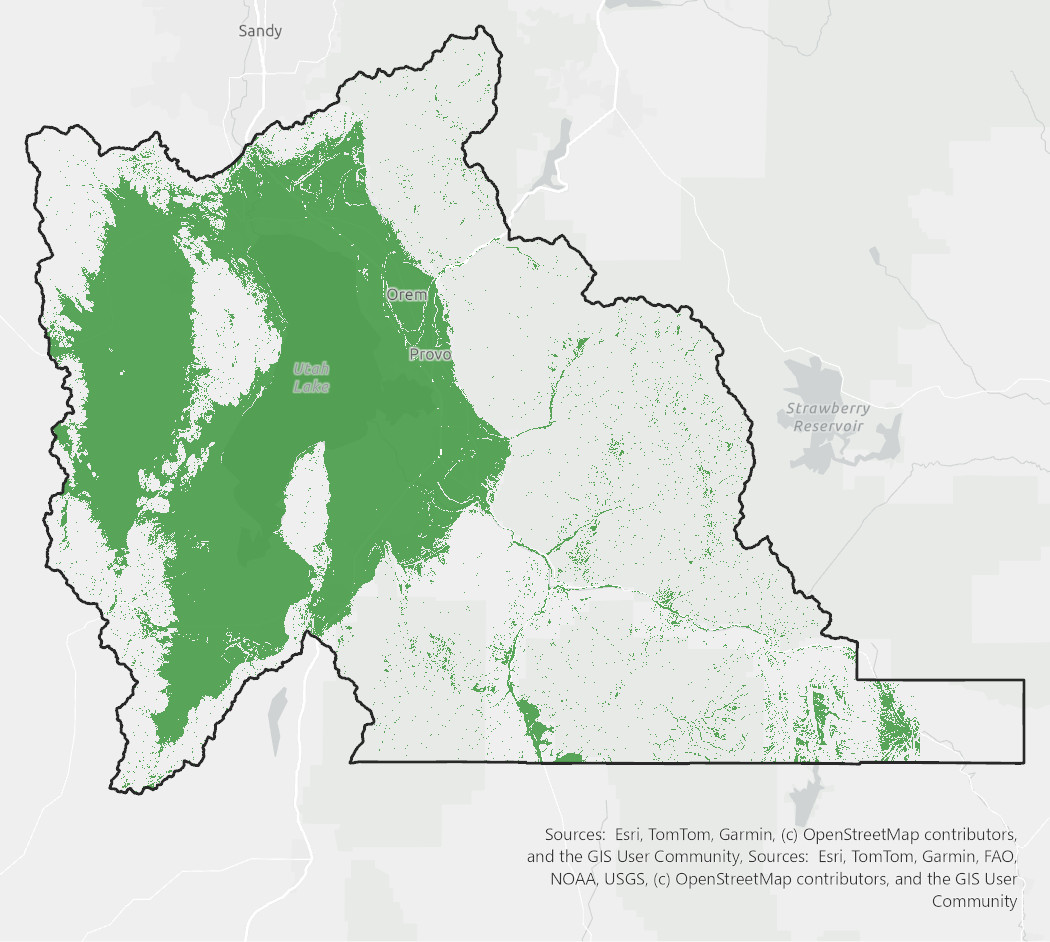
Figure 4c. Flat_Enough inside Utah County: green is slope under 5 degrees. Your map should match this one.
Step 5 — Select Major Highways
The UDOT layer is more than highways. Open its attribute table and look at the CARTO_CODE field. UGRC's page for the layer documents the codes:
CARTO_CODE |
Meaning |
|---|---|
| 1 | Interstate highways |
| 2 | US highways |
| 3 | State highways |
| 5 | Miscellaneous routes associated with interchanges |
| 6, 7, 8 | Ramps on Interstates, US highways and state highways |
| 9 | Local routes, federal aid |
| I | Institutional roads designated as state highways |
"I-15 or any other Interstate, US or state highway" is codes 1, 2 and 3. Add a Select tool with UDOT_Routes as input, switch on the SQL Editor, and type:
CARTO_CODE IN ('1', '2', '3')
Name the output Major_Highways. CARTO_CODE is a text field even though its values look like numbers — code I is why — so the quotes are required.
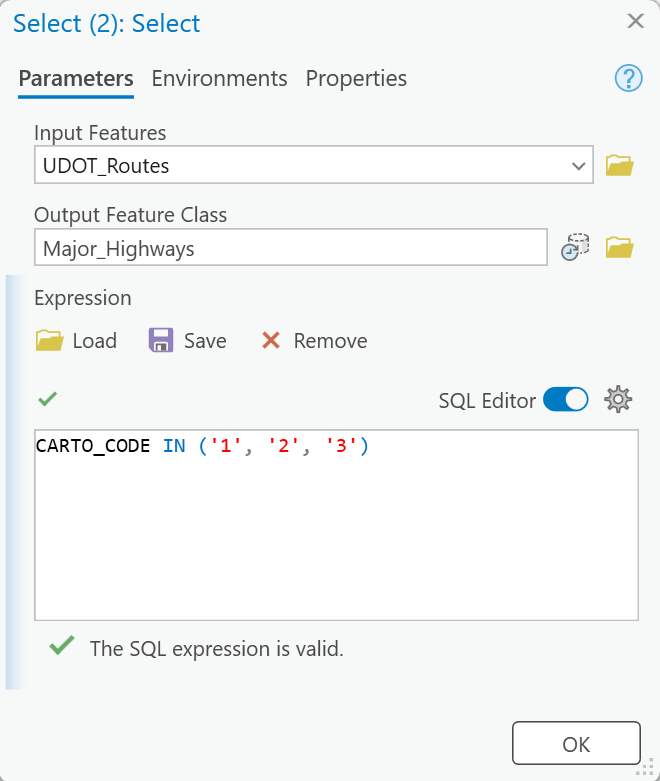
Figure 5. Select with the SQL Editor on. The green check means the syntax is valid, not that the codes are the ones you meant.
Tip
Check the result: about 251 features statewide (10 Interstate, 15 US and 226 state highway records) out of about 3,650. If you get about 1,800, your expression also caught the federal-aid local routes. Divided highways appear twice — once per direction — which does no harm to a buffer.
Step 6 — Build Road Corridor
Add a Buffer with Major_Highways as input. Set Distance to 1 and the unit to Kilometers, and Dissolve Type to Dissolve all output features into a single feature. Name the output Highway_Buffer (Figure 6a).
Warning
Set the unit yourself. The unit box sets itself to Meters the moment you type a number. A 1-meter buffer is a thousand times too narrow and still produces a green check mark. Kilometers sits just above Meters in the list.
The buffer covers the whole state. Add a Clip (Analysis Tools) with Highway_Buffer as the input features and Utah_County as the clip features, and name the output Road_Corridor (Figure 6b). This is what keeps the final result inside the county. ArcGIS Pro suggests Pairwise Buffer and Pairwise Clip in a banner on both tools; either works.
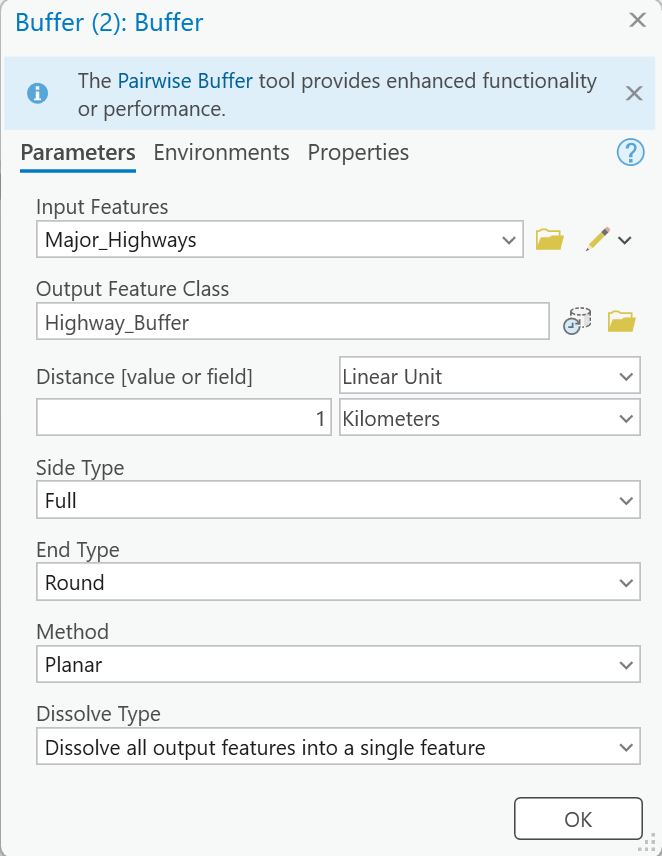
Figure 6a. Buffer: 1 Kilometers, dissolved into one feature.
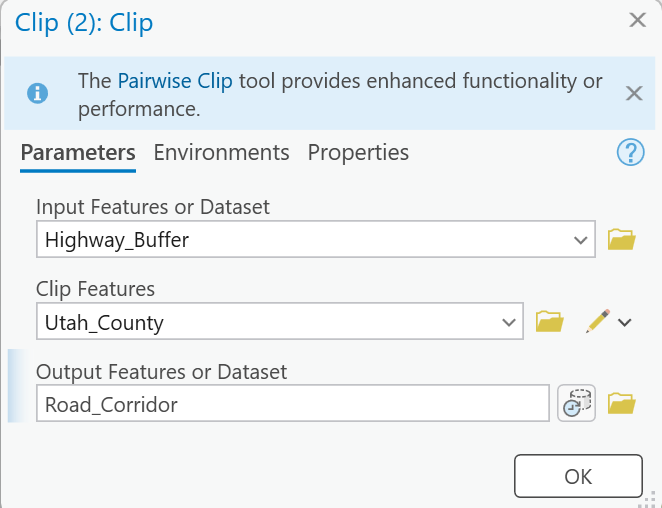
Figure 6b. Clip the statewide buffer to the county.
Tip
Check the result: Road_Corridor is one feature of about 974 km², about 18 % of the
county. A few square kilometers means the unit was meters; a corridor with hundreds of features
means Dissolve was left off.
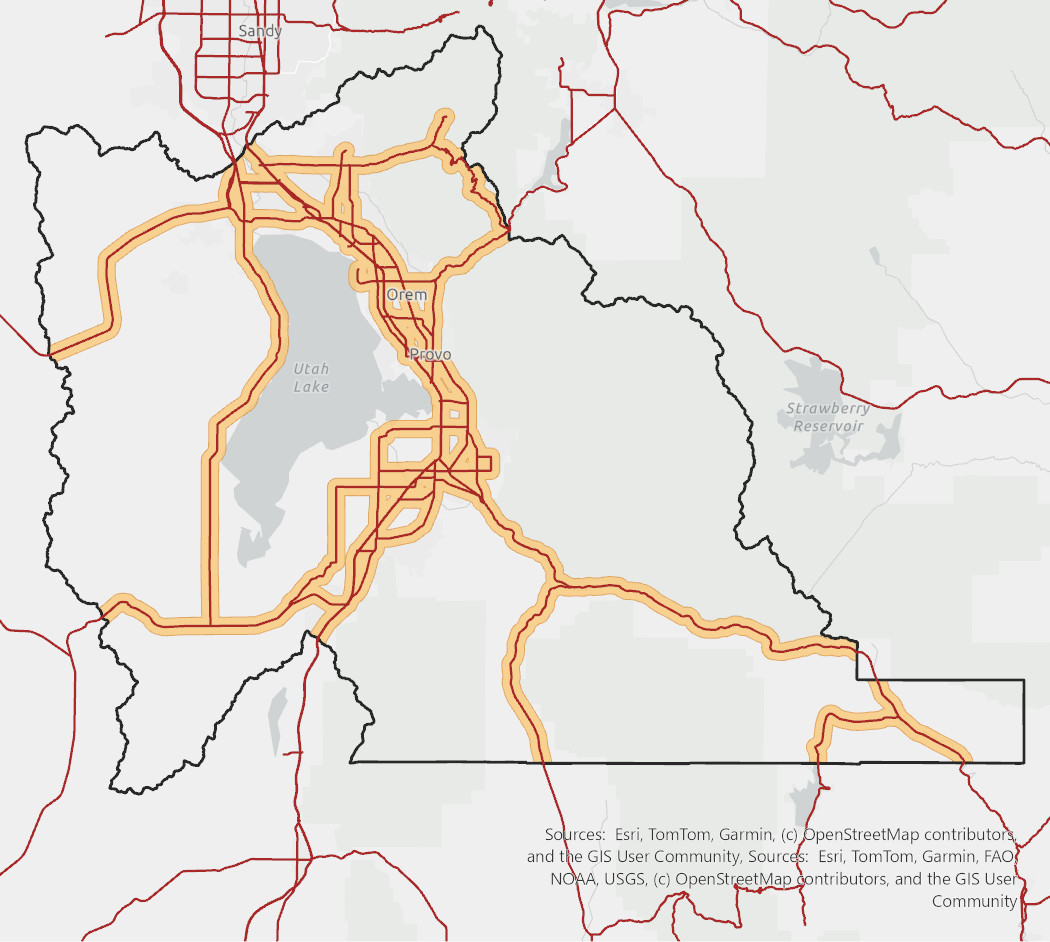
Figure 6c. Road_Corridor and the highways it is built from.
Step 7 — Mask Flat Ground
Add Extract by Mask (Spatial Analyst). Set Input raster to Flat_Enough and Input raster or feature mask data to Road_Corridor, and name the output Flat_Near_Road (Figure 7). Every cell outside the corridor becomes NoData; inside it, the 1s and 0s of Flat_Enough survive.
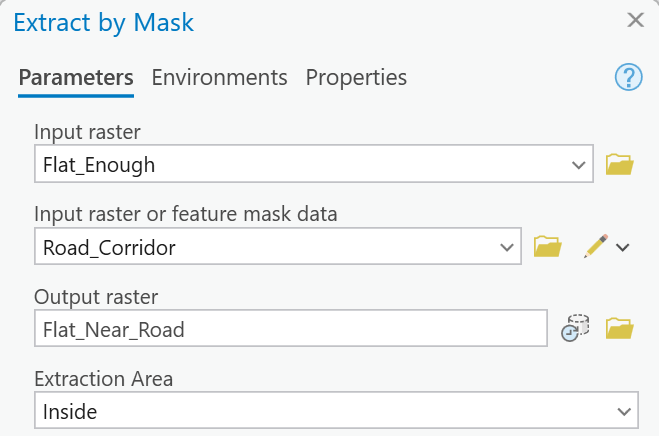
Figure 7. Extract by Mask, with the corridor as the mask.
Note
The Analysis Extent fills itself in. Below Extraction Area the dialog shows an Analysis
Extent with four numbers already in it — the rectangle around every layer in your map, which is
most of Utah. Leave it: the values in your result are the same, but Flat_Near_Road comes out as
a statewide rectangle of about 15,000 × 19,000 cells, nearly all NoData. Emptying the four boxes
is not an option (the dialog flags them as invalid). The final result is unaffected, because the
last step takes its extent from the density raster.
Tip
Check the result: Flat_Near_Road has about 1,067,500 cells with values (the corridor),
of which about 734,400 are 1 — about 661 km² of flat ground within a kilometer of a highway.
Open its attribute table to see the two counts.
Step 8 — Clip the Towers
A density near the county line depends on towers just outside it. Add a Buffer with Utah_County as input and a distance of 50 Kilometers, and name it County_Buffer_50km. Then add a Clip with UtahCellTowers as the input features and County_Buffer_50km as the clip features, and name the output Towers_Near_County.
Note
Why 50 km? Kernel Density counts every tower within the search radius of a cell. A cell on the county line at a 20 km radius can "see" towers up to 20 km outside the county, so the buffer must be at least as wide as the largest search radius you will try in Step 14. Fifty kilometers covers radii up to 50 km. The towers are also where the model's output stops: the density raster covers only the rectangle around the towers you give it.
Tip
Check the result: 71 towers in Towers_Near_County, of which 15 are inside Utah
County itself. If you get 224, the Clip used the wrong layer; if you get 15, you clipped to the
county instead of the buffer.
Step 9 — Map Tower Density
Add Kernel Density (Spatial Analyst) with Towers_Near_County as the input. As soon as the input is set, the dialog fills in several boxes for you; check each one (Figure 9a):
- Population field:
NONE— each tower counts once. (Filled in for you.) - Output cell size: type
30, to match the DEM. The tool proposes about 1,772 m, which would turn the whole county into a few thousand coarse cells. - Search radius:
20000. It is empty until you type it, and it is in the linear unit of the output coordinate system: meters, so 20 km. - Area units: Square kilometers. It reads Square map units until the input is set, then switches itself to Square kilometers because the output is in meters.
- Output cell values: Densities; Method: Planar.
Name the output Tower_Density. Its values are towers per square kilometer — small numbers like 0.0024. The criterion is in towers per 10,000 km², so multiply by 10,000 before you compare (next step).
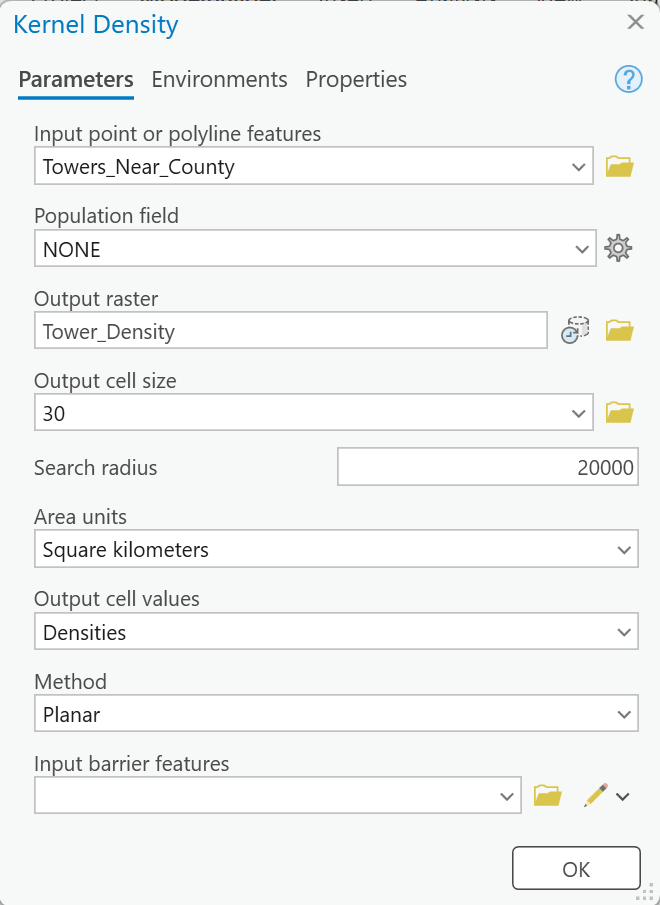
Figure 9a. Kernel Density, set up. Only the cell size, the radius and the output name were typed; the rest filled itself in.
Tip
Check the result: multiplied by 10,000, the density runs from 0 to about 166 towers per
10,000 km² over the whole buffered area; inside the county itself the highest value is about
115. About 429 means the area units were square miles (a square mile is 2.59 km²). Values
in the millions mean the search radius was typed as 20, thinking kilometers: the tool reads
it as 20 meters, and every tower becomes a spike.
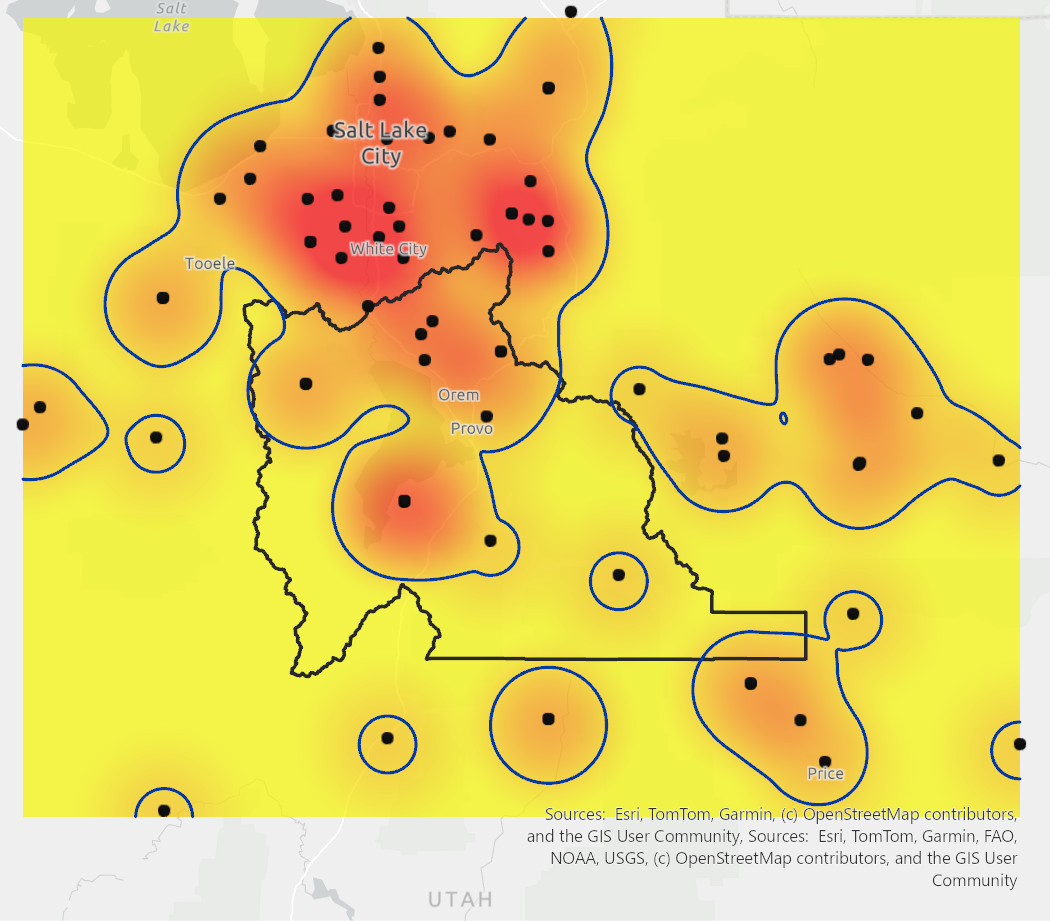
Figure 9b. Tower_Density × 10,000, with the towers you clipped and the 20-per-10,000-km² contour in blue. Everything outside the blue line passes the density test.
Step 10 — Find Low Density
Add a Raster Calculator and type:
Con(10000 * "%Tower_Density%" < 20, 1, 0)
Name the output Low_Tower_Density (Figure 10). It is 1 wherever there are fewer than 20 towers per 10,000 km².
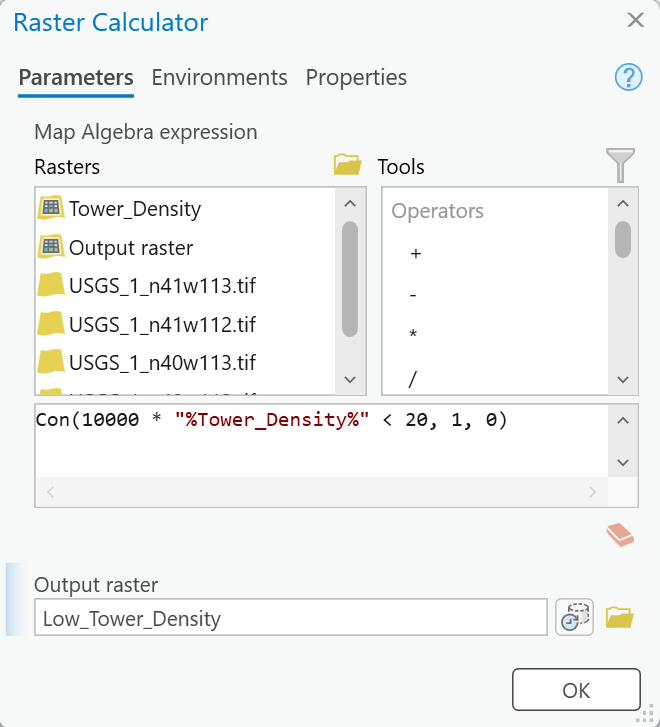
Figure 10. The density test, with the units converted inside the expression.
Tip
Check the result: about 2,858 km² of the county — just over half — is 1. The 1s are the west and south of the county and the high country; the 0s are the valley.
Step 11 — Combine the Criteria
Add a final Raster Calculator:
"%Flat_Near_Road%" * "%Low_Tower_Density%"
Name the output Suitable_Sites (Figure 11a). A cell is 1 only where both inputs are 1: flat, near a highway, and far from existing towers. It is NoData outside the road corridor.
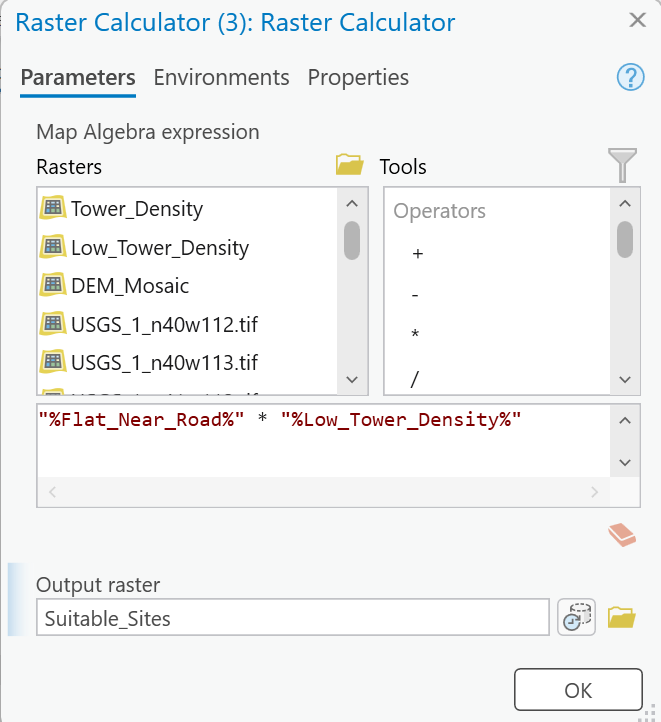
Figure 11a. Multiplying two 1/0 rasters is an AND.
Right-click Suitable_Sites and choose Add To Display, save the model (Save on the ModelBuilder tab), and click Run. The whole model takes about a minute and a half. A later lab reopens it.
Tip
Check the result: open the attribute table of Suitable_Sites. Value 1 should have about
129,800 cells, which at 900 m² each is 116.8 km² (45.1 square miles) — 2.1 % of the
county. Figure 11b shows where.
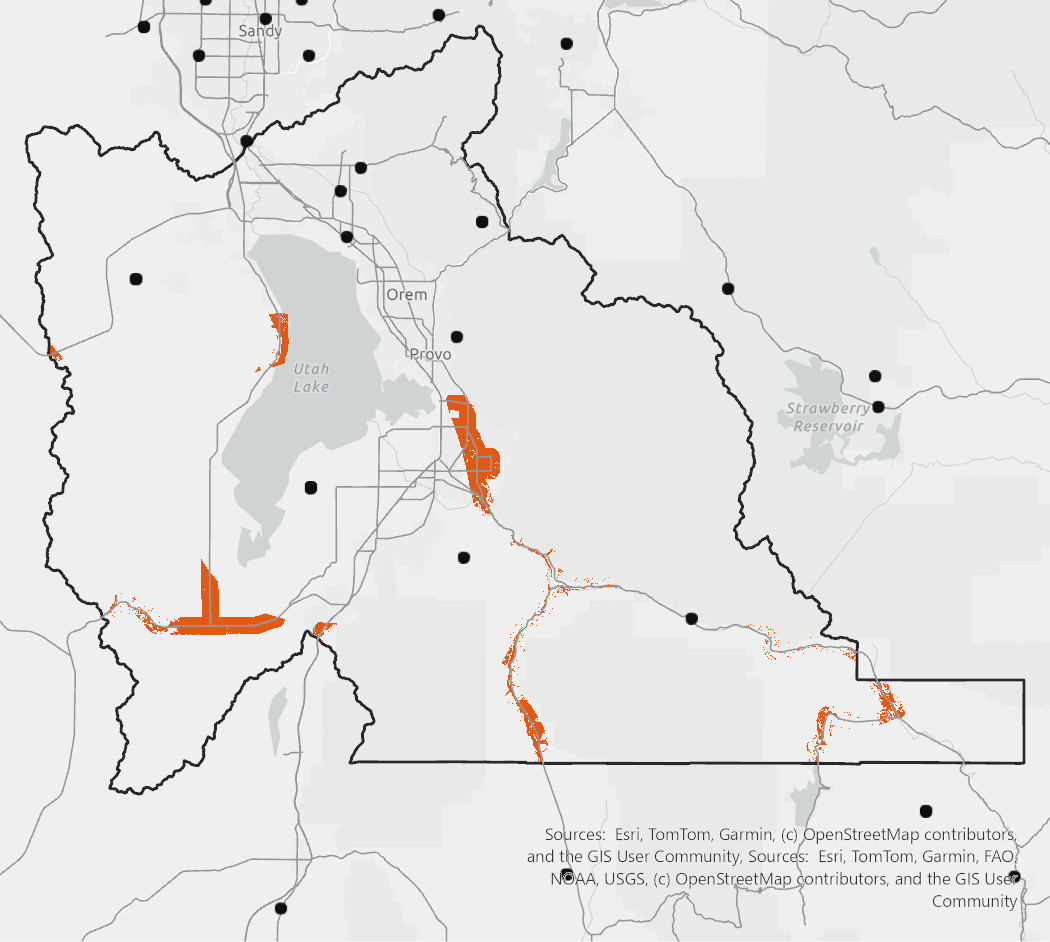
Figure 11b. Suitable_Sites at the criteria given. Yours should look like this.
Step 12 — Set Model Parameters
You are about to run this model several times with different numbers. Expose the four numbers as model parameters now, so each run is "type a number, click Run". Two of them are tool parameters and two are inside expressions:
- Road distance. Right-click the Buffer tool on the roads branch ▸ Create Variable ▸ From Parameter ▸ Distance [value or field]. Right-click the new oval ▸ Rename ▸
Road_Distance, then right-click it ▸ Parameter (or select it and pressCtrl+P). APappears beside it. - Search radius. Right-click Kernel Density ▸ Create Variable ▸ From Parameter ▸ Search radius (Figure 12a), rename it
Search_Radius, and make it a parameter. - Maximum slope. On the ModelBuilder tab, click Variable (the VAR button), type
Doubleinto the data-type box and press Enter, and click OK. Rename the new ovalMax_Slope, double-click it and type5, and make it a parameter. Then open the slope Raster Calculator and change the expression toCon("%Slope_Degrees%" < %Max_Slope%, 1, 0). The%name%syntax means "put this variable's current value here"; the connector draws itself when you click OK. - Maximum density. The same again: a Double named
Max_Density, value20, a parameter, and the density expression becomesCon(10000 * "%Tower_Density%" < %Max_Density%, 1, 0)(Figure 12b).
Warning
Rename the right oval. A variable made with Create Variable ▸ From Parameter lands on top of
another element, and the tool you right-clicked is still the selected one — so pressing Ctrl+R
straight away renames the tool. Right-click the new oval itself and choose Rename. The same
goes for Parameter: use the oval's own right-click menu, and check that a P appears.
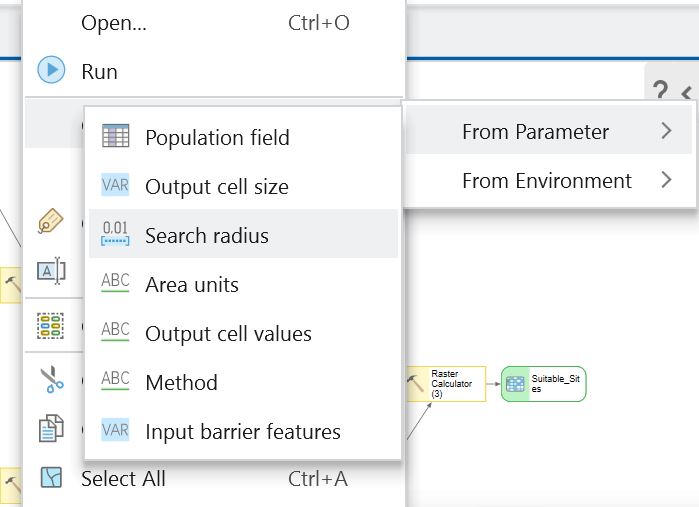
Figure 12a. Kernel Density ▸ Create Variable ▸ From Parameter ▸ Search radius.
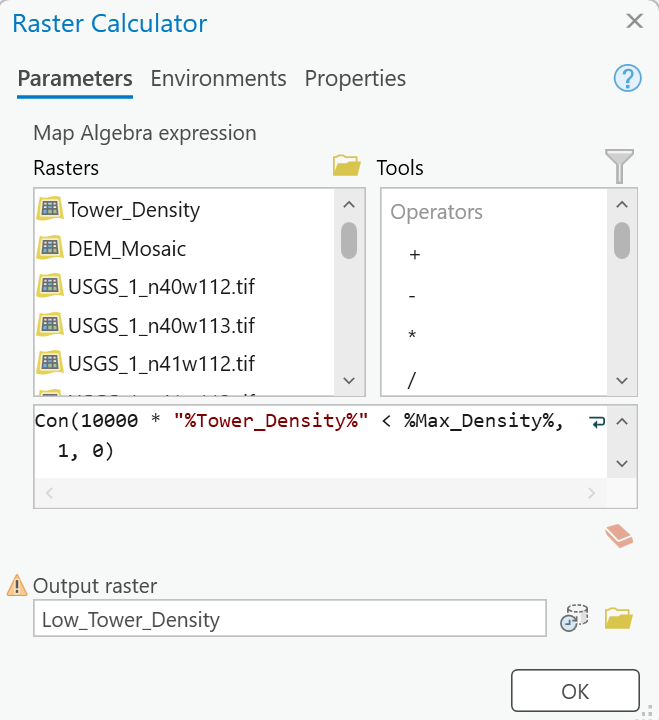
Figure 12b. The threshold as an inline variable.
Make Suitable_Sites a parameter too, so you can name each run's output. Click Properties on the ModelBuilder tab: on General, give the model a Name (CellTowers, no spaces) and a Label; on Parameters, drag the rows by their numbers into a sensible order. Click Save. Then in the Catalog pane, double-click the model in Lab04.atbx: the Geoprocessing pane shows a dialog with your four numbers and the output (Figure 12c). Screen capture it for your report.
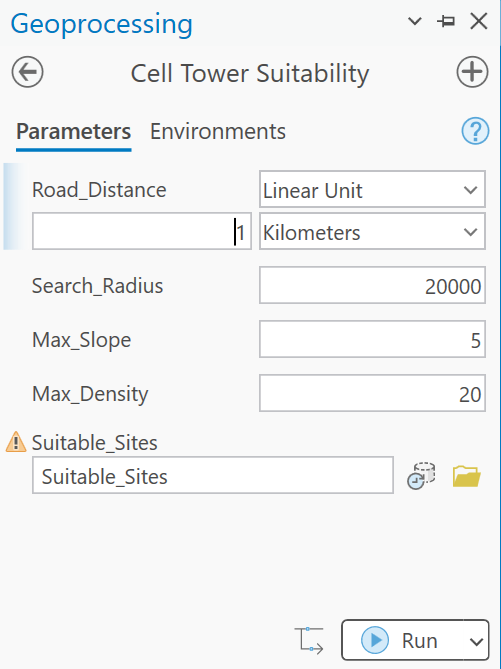
Figure 12c. The model as a tool: four numbers and an output name.
Warning
Running from the dialog deletes intermediate data. Everything that is not a parameter or an
input — Slope_Degrees, Major_Highways, Towers_Near_County, Tower_Density and the rest —
is deleted when the model finishes running from its dialog. Clicking Run inside
ModelBuilder keeps all of it. So do Step 13 and your first map from the run you just made
inside ModelBuilder, and whenever you need those layers again, run the model once more inside
ModelBuilder. Do not look for a fix on the canvas toolbar: its ✗ Intermediate button is
Delete Intermediate Data, which deletes them immediately.
ArcGIS Pro also has a per-dataset Intermediate Data flag meant for exactly this: select the
oval and press Ctrl+I (or search for Intermediate Data in the Command Search box). We could
not confirm that it keeps the data when the model runs from its dialog — you may have to save
the model and reopen the tool from the Catalog pane before it takes effect. If the layers still
disappear, re-run the model inside ModelBuilder as above.
Step 13 — Check the Result
Before you recommend anything, look at what the model found. A screening model does exactly what you told it, including the things you did not mean.
- Turn on an imagery basemap (Map tab ▸ Basemap ▸ Imagery Hybrid) and pan along the orange areas of
Suitable_Sites. For each of the larger patches, ask whether a tower could actually go there. - Find the zone on Utah Lake. One candidate area of about 7 km² lies between SR 68 and the lake off the west shore (Figure 13), and part of it is on the lake itself. Use the Explore tool on
DEM_UTM, first out on open water and then inside that zone, and then onSlope_Degrees(from a run inside ModelBuilder — see the warning in Step 12): the lake surface in the elevation data is a single flat value, so its slope is exactly zero, it is within a kilometer of the highway, and there are no towers on it. Every criterion passes. You might expect the road rule to rule this out, but it does not: SR 68 runs within a kilometer of the shoreline, so the 1 km corridor reaches out over the water — about 5 km² of the corridor is lake surface, and about 1 km² of it survives intoSuitable_Sites. Nothing in the model knows what water is — or a marshy shoreline a meter above it. - Find the zone in Springville. The second-largest candidate area, about 34 km², is in and around Springville along SR 77 — a populated valley that obviously has cell service. The tower layer simply has no license site recorded nearby (Figure A). This is the data, not the terrain.
- Count the duplicates. Run Find Identical (Data Management Tools) on
Towers_Near_CountywithShapeas the field, and open its output table: records that share a location share aFEAT_SEQvalue. How many of the 71 records share a location with another, at how many places? A site with three records counts three times in the density.
Then choose one site you would recommend, and mark it with a point in a new point feature class, as you did for the Walmarts in Lab 1 (Creating a point feature class). Justify it in your report: why this patch, and why you trust it more than the lake or Springville.
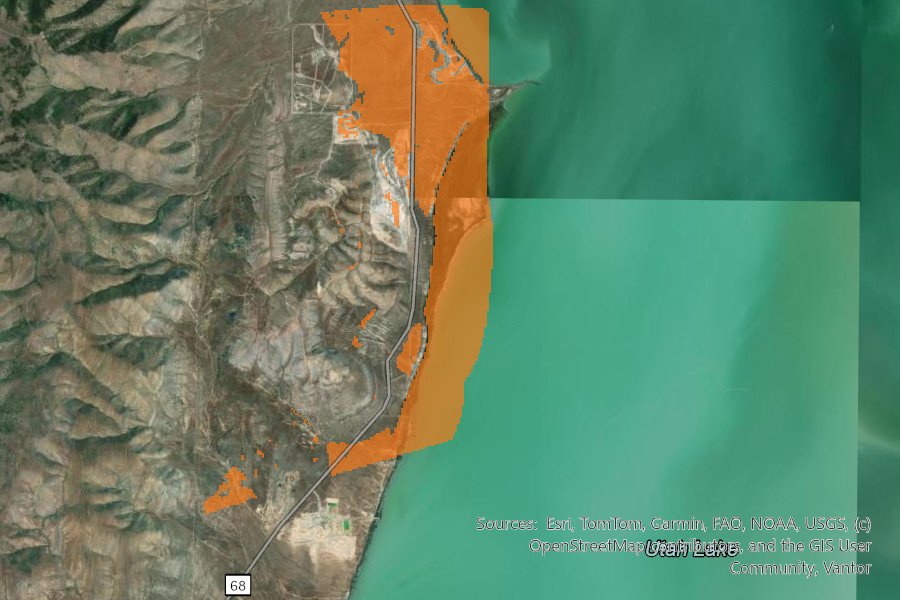
Figure 13. One of the model's candidate zones, on imagery. Its straight east edge is the 1 km road corridor; what lies under the orange is shoreline and, in part, the lake.
Note
What to do about it is your call, and your report should say what you did. You could remove the lake with a water layer, erase built-up areas, or de-duplicate the towers. You do not have to change the model — but you must say in your report which candidate zones you do not believe, why, and what data would fix each problem.
Step 14 — Test the Assumptions
Everything so far rests on four numbers: a 5-degree slope, a 1 km road distance, a threshold of 20 towers per 10,000 km², and a 20 km search radius. None is a law of nature, and one of them — the radius — changes what the density test means (Figure B). The map from Step 11 is an answer. This step is about how much of it survives when those numbers move.
Run the model from its tool dialog at least three more times, each with a different set of values, and record what happens. Choose deliberately and say why. Places to start:
- The density threshold: halve it to 10 or quarter it to 5; double it to 40 or quadruple it to 80.
- The search radius:
10000or40000— it is in meters, so type the zeros — with the threshold left at 20. Reread Figure B first. - The slope limit: 3 degrees, or 10.
- The road distance: 0.5 km or 2 km. Check the unit box beside the number every time.
Give each run's output a name that says what changed (Suitable_D40, Suitable_R10km). Each run takes about a minute and a half (Figure 14).
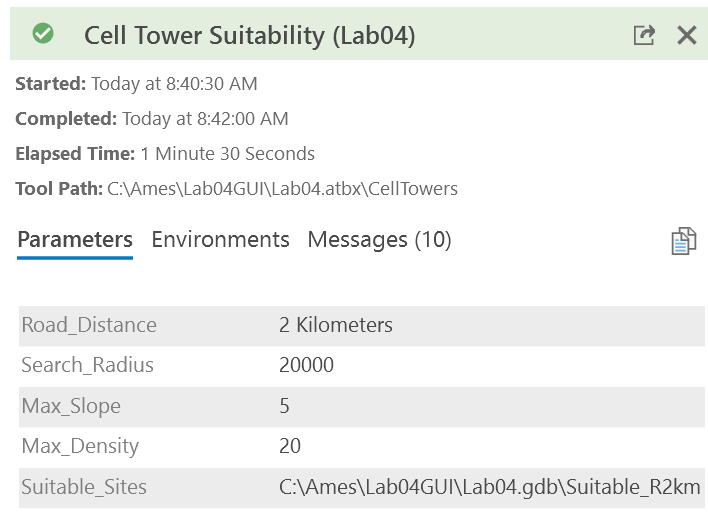
Figure 14. A scenario run from the dialog: road distance 2 km, a new output name, a minute and a half. The path starts with C:\ because it was captured on an instructor machine.
Record, for the baseline and every run, in one table: the four parameter values, the number of cells with value 1, the suitable area in km² (cells × 900 ÷ 1,000,000), the percentage of the county (÷ 5,545), and whether your recommended site is still suitable (with the Explore tool, click your site's point on that run's output). That table is a required deliverable, and the baseline row is part of it.
Then answer these three questions in your report:
- Which number does your answer depend on most, and which least? Support it with your table, not an impression.
- Does your recommended site survive every run? If not, which change removed it, and is it still your recommendation?
- How much of what you see is the tower data rather than the terrain or the roads? Use Step 13 and Figure A: what would a complete tower layer change, and what data would you want before a carrier spent money on your site?
Finally, pick one run for your second map — whichever most changes what a reader would conclude — and say on the map, in its title and its text box, what changed and why you chose it.
Tip
Two things worth knowing before you start. Across the values suggested above, one of the four numbers moves the suitable area by a factor of about twenty, and none of the others comes close. And one of them moves the answer in the opposite direction from what Figure B shows for a single tower. Finding out which is which, and being able to explain why, is the point of this step.
Deliverables
Make two professional map layouts:
- Your baseline result —
Suitable_Sitesat the criteria given (slope under 5°, within 1 km of an Interstate, US or state highway, under 20 towers per 10,000 km² at a 20 km radius), with the existing towers, the highways, and your recommended site marked, and an inset of that site on imagery. - One scenario from Step 14 — whichever of your runs most changes the picture, saying in its title and text box what changed and why you chose it.
Write a brief report (2–3 pages of text, plus your figures and maps) covering:
- a title block — assignment title, your name, the date and the course — and the name of your peer reviewer
- the requirements of the project and your approach to solving it
- a description of your model a reader could repeat from: each tool and its settings, and every input, intermediate and output dataset with its type (point, line, polygon, raster) and source
- one full-page figure of your model — export it from ModelBuilder (Export ▸ Export To Graphic) rather than screen-capturing it — and one screen capture of its tool dialog with the four parameters
- the three metadata values from Figure A and what each means for your result
- your recommended site and why, and which candidate zones you do not believe and why (Step 13)
- your sensitivity table from Step 14, baseline included, and your answers to its three questions
- a copy of the rubric below with your self-assessment filled in — a score in every row, honestly arrived at. The grader will compare it with theirs.
The rubric at the end of this lab gives the point value of every item above, so read it before you write.
Important
Peer review before you submit. Have another student in the class read your report against the rubric and give you feedback, then act on that feedback before the deadline. Name your reviewer in the report and say in a sentence what you changed because of them. A report nobody else has read is a draft, not a submission.
References
Bolstad, P. (2008) GIS Fundamentals: A First Text on Geographic Information Systems. 3rd Edition. Esri Publishing.
Esri. How Kernel Density works. ArcGIS Pro documentation. https://pro.arcgis.com/en/pro-app/latest/tool-reference/spatial-analyst/how-kernel-density-works.htm
Homeland Infrastructure Foundation-Level Data (HIFLD). Cellular Towers in the United States (Archive). Federal Communications Commission data, last updated July 6, 2024. Utah extract prepared for BYU CE 414, 2026.
U.S. Geological Survey. 1 Arc-second Digital Elevation Models (DEMs), 3D Elevation Program, tiles n40w112, n40w113, n41w112, n41w113. The National Map.
Utah Department of Transportation. UDOT Routes ALRS. Distributed by the Utah Geospatial Resource Center.
Example Maps
Two example layouts follow, one for each map the Deliverables ask for. They were laid out and exported by ArcGIS Pro against the run described on this page. They are examples, not templates: your maps will and must look different, and they must carry your name.
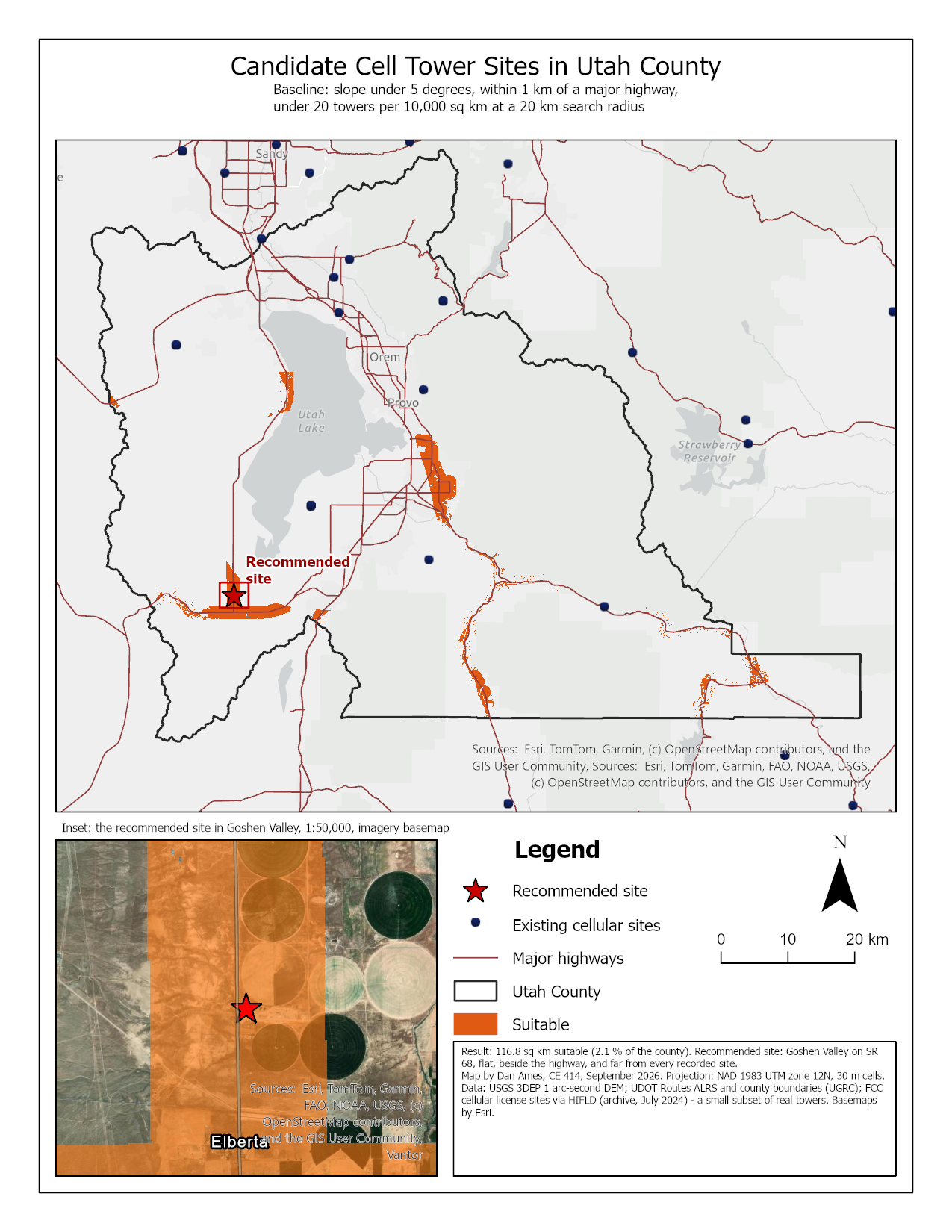
Figure 15. The baseline map. Two things to do better than this example: label the places you talk about in your report (Springville, Utah Lake, Goshen), and show the zones you reject differently from the ones you accept.
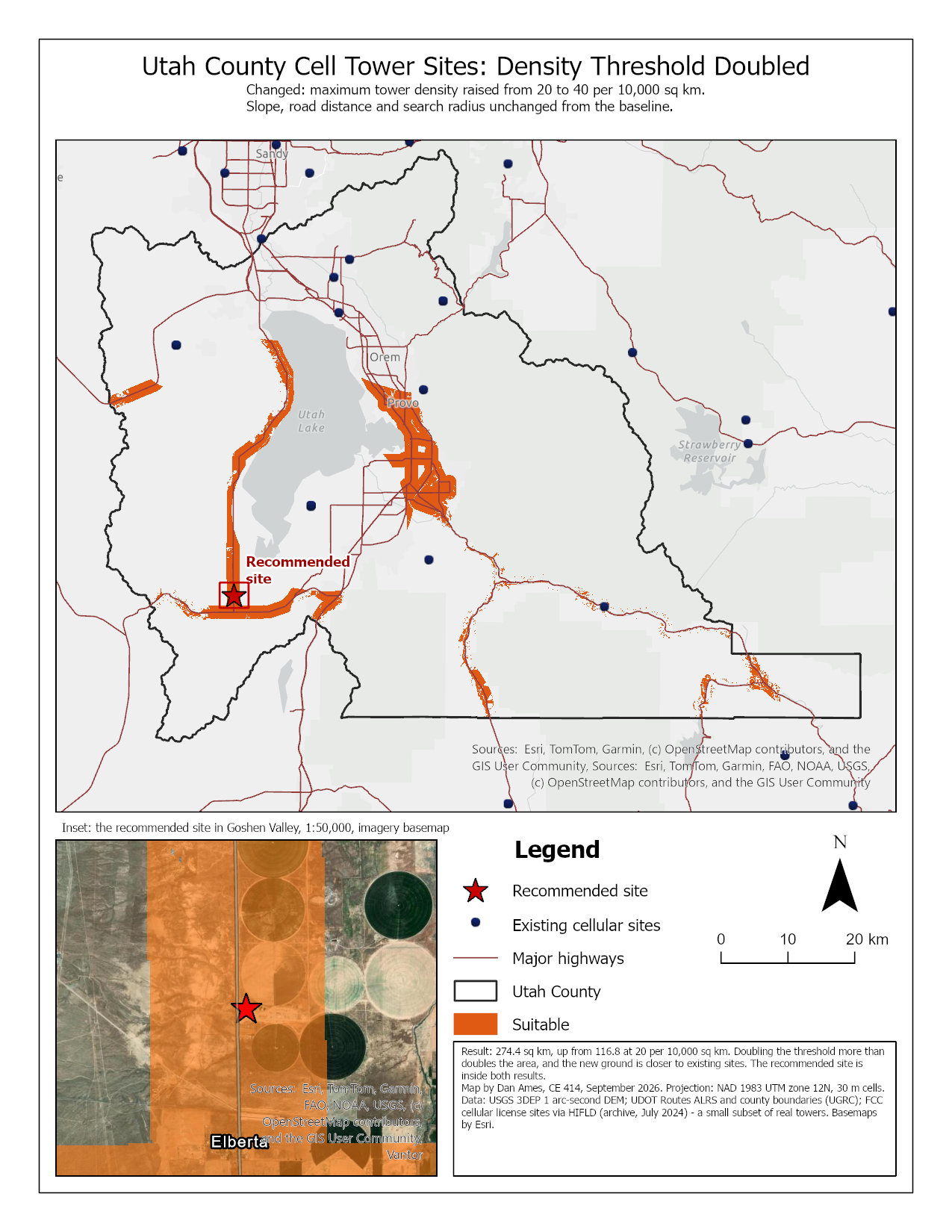
Figure 16. The kind of second map Step 14 asks for: the density threshold doubled from 20 to 40, everything else unchanged. The title and text box say exactly what was changed.
Rubric for Cell Phone Tower Placement
Fifty points in five parts of ten. The bullets say what each part is worth, so you know exactly what to submit.
This rubric is already laid out as a fillable table at the end of
lab04-report-template.docx, so you do not have to copy it out
of this page.
| Item | Points |
|---|---|
| Write-up (2–3 pages) • Assignment title, your name, date and course; your peer reviewer named, with a sentence on what you changed because of them (1) • The requirements of the project and your approach to solving it, in your own words (2) • Your recommended site and why you chose it (2) • The candidate zones you do not believe, why, and what data would fix each problem (Step 13) (2) • The three metadata values from Figure A and what each one means for your result (2) • Clear, organized writing: figures numbered and referred to in the text, sources credited, and this rubric pasted in with your self-assessment in every row (1) |
/10 |
| ModelBuilder model — correct and working • The model runs end to end from its tool dialog and produces Suitable_Sites; your baseline cell count and area match the Step 11 check value, within the small differences a week's newer download can make (4)• A full-page (8.5 × 11) figure of the model, exported from ModelBuilder: every tool and dataset shown, labels informative, all text readable at 10 pt or larger (2) • A screen capture of the tool dialog with the four parameters exposed (2) • A description of the model a reader could repeat from: each tool, its settings, and every input, intermediate and output dataset with its type and source (2) |
/10 |
| Map 1 — your baseline (full page, 8.5 × 11) • Title, neat line, north arrow and scale bar (1) • Text box with author, date, map projection and data sources (1) • Suitable areas clearly symbolized, with a legend (2) • Existing towers and the highways shown and symbolized (2) • Your recommended site marked and labeled, with an inset of it on imagery (2) • Basemap visible, zoomed to an appropriate scale, and all text legible when printed (2) |
/10 |
| Map 2 — one Step 14 scenario (full page, 8.5 × 11) • Title, neat line, north arrow and scale bar (1) • Text box with author, date, map projection and data sources (1) • Suitable areas for this scenario symbolized the same way as on Map 1, with a legend (2) • Existing towers, highways and your recommended site shown (2) • Basemap visible, zoomed to an appropriate scale, and all text legible when printed (2) • The title and text box say which number was changed, to what, and why you chose this run to show (2) |
/10 |
| Sensitivity analysis (Step 14) • One table with the baseline and at least three more runs, giving for each the four parameter values, the cells and area in km², the percentage of the county, and whether your site survives (4) • Which number the answer depends on most and least, supported by the table (2) • Whether your recommended site survives every run, and whether it is still your recommendation (2) • How much of the result is the tower data, and what data you would want before building (2) |
/10 |
| Total | /50 |
Note
Using AI on this lab. Use AI freely to understand a tool, work out an error, or tighten your write-up, and add one line at the end of your report saying what you used it for. Do not take a field name, an expression, a coordinate system, or a number from it — those come from your own data, and the rubric asks you to defend every one. See the AI Use Policy for the full policy.