Lab 5: Watershed Delineation
Civil Engineering 414 — Engineering Applications of GIS
Fall 2026 · Dr. Dan Ames
Extracting streams and watersheds from a DEM
Tip
Start from the report template. lab05-report-template.docx
has the title block, a section for every deliverable, the tables already set up with the columns
the rubric asks for (including the two checks and the sensitivity table with the NHD reference
row), and the rubric at the end ready to fill in. Open it in Word or upload it to Google Docs,
replace every gray italic prompt, and delete the prompts as you go. You are welcome to write your
report any way you like — the template is a floor, not a ceiling — but if you use it and fill in
every section, you will not have left a graded item out.
Background
The extraction of hydrographic features, such as watersheds and stream networks, from digital elevation models is a common first step in geomorphic and hydrologic studies. A watershed boundary and a stream network are what you need before you can estimate flow velocity, discharge or sediment load, route a design storm, or size a culvert. The purpose of this lab is to identify a watershed, its sub-watersheds and its stream network directly from terrain data.
The method is simple to state. Fill the pits in the elevation surface, send each cell's water to its steepest downhill neighbor, count how many cells drain through every cell, and call a cell a stream when that count passes a threshold. Everything upstream of a point is its watershed. Every step is automatic except one: the threshold is a number you choose. Nothing in the terrain says where a stream begins. A low threshold draws a dense network of small channels and cuts the basin into many small subwatersheds; a high one keeps only the main channels. So the map your model draws is an answer, not the answer. In Step 14 you will vary the threshold, see how far the answer moves, and use what moves to decide which network you can defend — and against what.
Important
Your job — see the deliverables below. Build one model, delineate the Rock Canyon basin and its streams and subwatersheds at the threshold given, check the result against two independent sources, test the threshold, and make two maps.
Problem Statement
Hydrology is central to Earth science and engineering because water shapes nearly everything on the land surface: it weathers rock, carries sediment, nutrients and pollutants, and floods the places people build. Maguire et al. (2005) describe how hydrologic models inside a GIS simulate water velocity, depth, discharge and quality across a domain such as a watershed, a river channel or an aquifer. Those models combine continuous data (elevation, rainfall) with discrete features (streams, gages), and all of them start from the same place: the area that drains to the point you care about.
The U.S. Geological Survey defines a watershed as an area of land that drains all the streams and rainfall to a common outlet (USGS Water Science School). Watersheds nest: each can be divided into smaller subwatersheds, one for every tributary, or lumped into a larger basin. When you delineate them with GIS, their shape and size depend on the elevation data — its resolution, its age, and what it leaves out.
Assume you need the drainage basin above a specific location, the mouth of Rock Canyon on the east side of Provo, to build a runoff model of that basin. The model needs the basin boundary, a stream network, and a set of subwatersheds — about 20 to 40 of them — each small enough to be treated as one unit. Your task is to build an ArcGIS Pro ModelBuilder model that produces all three from a DEM and an outlet point, check the result against the USGS's own delineation and the National Hydrography Dataset, and find out how much the result depends on the one number you chose.
Analysis Considerations
Each of these is a decision somebody made, and each reappears in a check value or in Step 14.
- Stream threshold: a cell is a stream when more than 5,000 cells drain through it. At 10 m cells that is more than 0.5 km² of contributing area. The value was chosen to give 20–40 subwatersheds in Rock Canyon; it is the number Step 14 varies.
- Outlet: the Rock Canyon trailhead, where the creek leaves the canyon. You place it yourself (Step 2), and the model moves it onto the channel with a snap distance of 50 m (Step 6).
- Flow model: D8 — each cell drains to exactly one of its eight neighbors, the steepest one downhill. It cannot split flow, and it only knows the ground surface.
- Pits: every pit is filled before flow is routed (Step 3). A real closed depression is filled like an error.
And the choices ArcGIS Pro would otherwise make for you:
- Coordinate system: NAD 1983 UTM zone 12N for every output, set once in Step 0. Distances in meters, areas in square meters.
- Cell size: 10 m, close to the DEM's own spacing, about 10.3 m north–south, set when you project it (Step 1). The threshold is a cell count, so it only means an area once the cell size is fixed.
- Polygon parts: one polygon per subwatershed, not one per patch of cells (Step 10).
Data
Important
Set up your folder before you download anything. On the lab machines, work on the
D: drive. Make one folder for this class named after you — D:\Smith\ — and one folder per
lab inside it — D:\Smith\Lab05\. Put the project and this lab's data there.
The C: drive is locked, and a network drive is slow enough to make ArcGIS Pro hang. A high-speed USB 3.0 external drive is fine. Back up your lab folder at the end of every session: anyone can edit or delete what is on D:. And never use a space in a folder or file name you create — raster tools in particular fail on them without saying why. The full set of conventions is on the ArcGIS Tips and Reminders page.
You need five things, and you will get them five different ways: an extract we prepared, a live feature service, a point you create, a live web application, and a live basemap.
| Layer | Where it comes from |
|---|---|
| Elevation (DEM) | A prepared extract of a U.S. Geological Survey tile, hosted on this site |
| NHD streams | A live feature service from the Utah Geospatial Resource Center (UGRC), added by its URL; you export only the lines around your basin |
| The outlet | A point you create at the Rock Canyon trailhead |
| USGS StreamStats basin | A live web application you use as an independent check |
| Imagery | A live basemap |
As in Labs 1 and 4, every source has to be judged before it is used, by asking the six metadata questions from CCE 114 (Week 9 — Metadata): what, where, when, why, how and who. For a watershed model the question that matters most is how: a DEM records the ground surface and nothing under it.
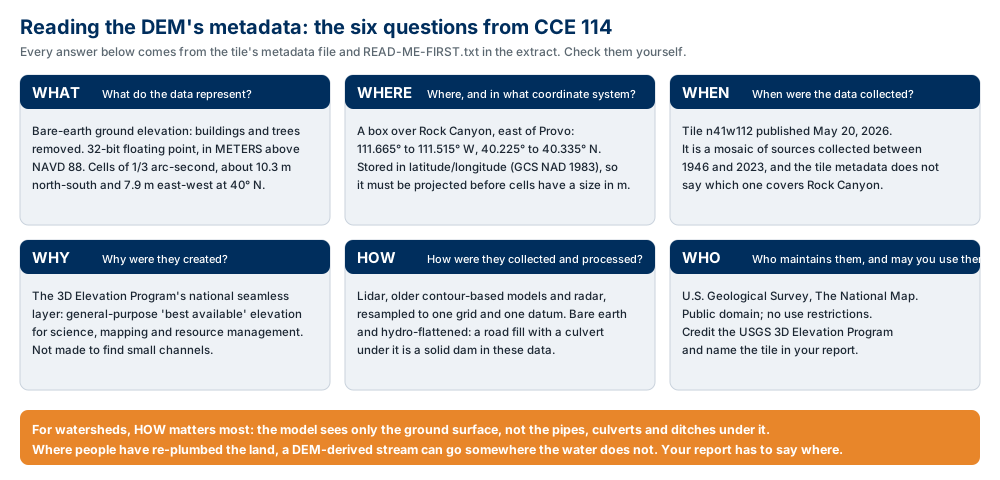
Figure A. The six metadata questions, applied to the DEM. Confirm three values yourself from READ-ME-FIRST.txt and the tile's metadata file — the publication date, the range of source dates, and the vertical datum — and add a fourth from the NHD: its last update (on the UGRC page). Copy them into your report and say what each one does to your result.
The Rock Canyon DEM (prepared for you)
- Download:
lab05-rock-canyon-dem.zip(4.2 MB). Unzip it into your lab folder; it unpacks into a subfolder,lab05-rock-canyon-dem\. ReadREAD-ME-FIRST.txtthere. RockCanyon_DEM.tif: 1,620 columns × 1,188 rows of bare-earth elevation in meters, from about 1,376 m on the east bench of Provo (1,377 m after projecting) to about 3,371 m at Provo Peak. It covers 111.665° to 111.515° W and 40.225° to 40.335° N.- It is stored in latitude/longitude (GCS North American 1983), exactly as the USGS distributes it. Its cells are 1/3 arc-second: about 10.3 m north–south but only 7.9 m east–west at this latitude. You project it to square 10 m cells in Step 1.
- What we did to it: cut this rectangle out of the USGS 1/3 arc-second tile
n41w112and nothing else — no filling, smoothing, projecting or resampling. - Why we prepared it: the whole one-degree tile is about 380 MB, and you need less than 1 % of it. If you want the whole tile, the National Map Downloader gives it to you as 1/3 arc-second DEM, n41w112; the Week 5 lecture shows how.
NHD streams (a live service)
The Utah Geospatial Resource Center's Utah Streams NHD layer is the state's copy of the USGS National Hydrography Dataset: every mapped stream, canal and ditch in Utah. You will not download the whole thing (the statewide file is large). In Step 13 you add it to your map straight from its feature service URL, then export just the lines around your basin:
https://services1.arcgis.com/99lidPhWCzftIe9K/ArcGIS/rest/services/UtahStreamsNHD/FeatureServer/0
Read UGRC's page for the layer first. Two things on it matter here: the date of the last update, and the FCode field, which says whether each line is a perennial (46006), intermittent (46003) or ephemeral (46007) stream. The NHD is not used in the model — only to judge it.
ModelBuilder Tools
You will use the following new tools, along with Project Raster and Raster Calculator from earlier labs. All but Raster to Polygon are in Spatial Analyst Tools ▸ Hydrology. The orange part of each icon is what comes out.
| Tool | What it does |
|---|---|
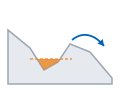 Fill |
Raises every pit — a cell or group of cells with no lower neighbor, where water would get stuck — to the level at which it spills. The result drains everywhere. |
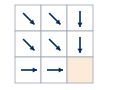 Flow Direction |
Codes each cell with the neighbor its water flows to, the steepest drop of the eight: 1 east, 2 southeast, 4 south, 8 southwest, 16 west, 32 northwest, 64 north, 128 northeast (Figure B). |
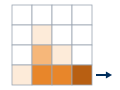 Flow Accumulation |
Counts, for each cell, how many cells upstream drain through it. The cell itself is not counted, so ridge tops are 0 (Figure B). |
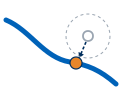 Snap Pour Point |
Moves an outlet point to the cell of highest flow accumulation within a distance you set, so that it sits on the channel rather than beside it. |
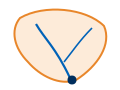 Watershed |
Finds every cell that drains to each pour point. Give it one point and you get one basin; give it a raster of stream segments and you get one subwatershed per segment. |
 Stream Link |
Numbers the segments of a stream raster: each stretch between two junctions (or from a source to a junction) gets its own value. |
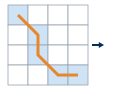 Stream to Feature |
Turns a stream raster into lines that follow the flow direction, one line per segment, drawn downstream. |
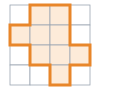 Raster to Polygon |
Turns zones of equal cell value into polygons (Conversion Tools ▸ From Raster). |
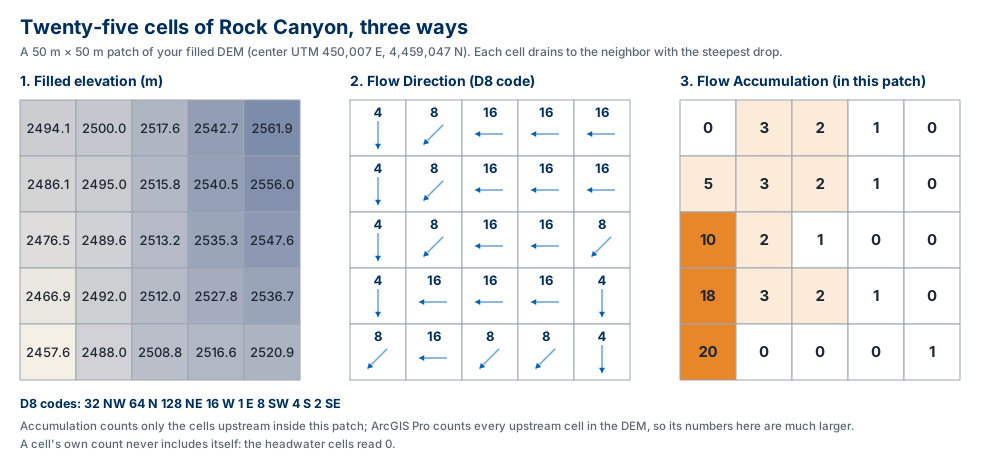
Figure B. The whole method on 25 real cells of your DEM (after Fill). Every cell points to its steepest downhill neighbor; counting the arrows that lead into each cell gives the accumulation. The threshold in Step 8 is a cutoff on the right-hand numbers.
Example Model
Your finished model has four rows — the surface, the basin, the streams and the subwatersheds — and every row after the first reuses Flow_Direction. The model starts from DEM_UTM, an elevation raster you project once, before the model, in Step 1, and from Outlet, a point you create in Step 2. Make your model "your own": lay it out so it reads left to right, and give every tool and dataset a name that says what it holds. Stream_Links tells a reader something; StreamL_Rast1 does not.
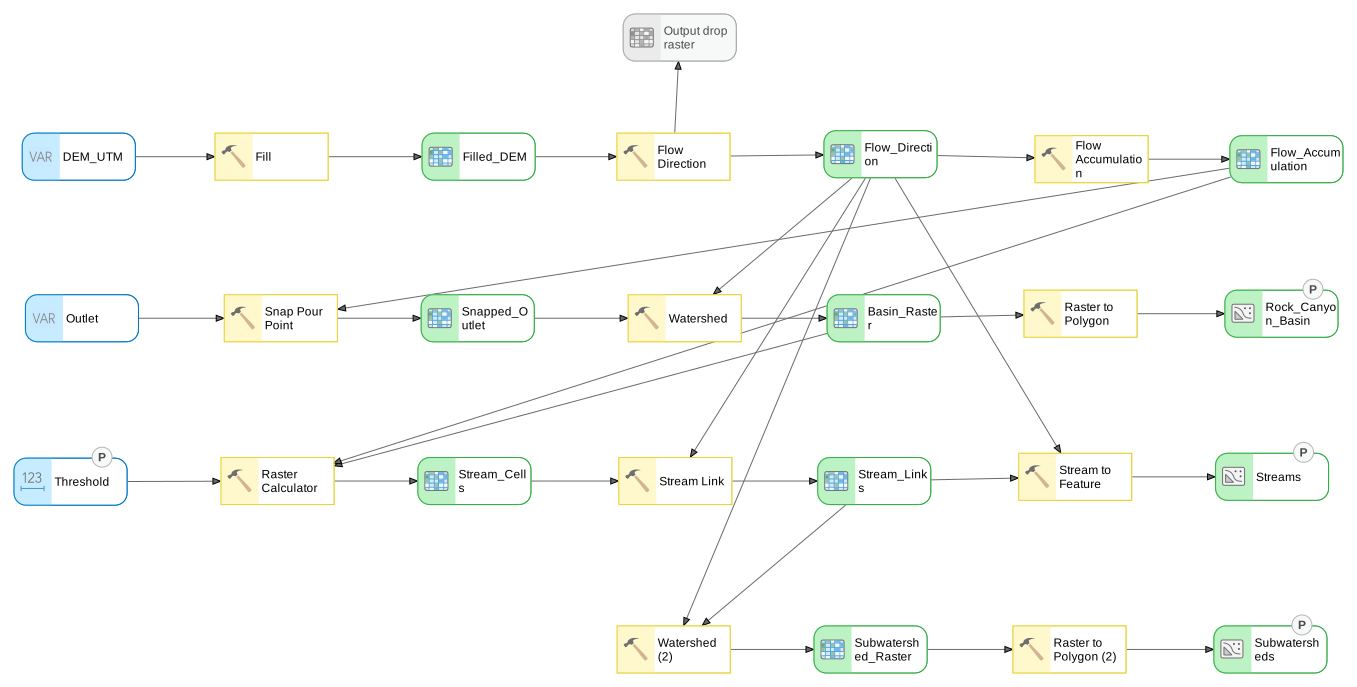
Figure C. The finished model, exported from ModelBuilder. This is a vector diagram — click it to open it full size, where every label is readable. The four elements marked P are the model parameters of Step 12; they appear in the tool dialog you build there. The gray oval above Flow Direction is its optional drop raster, which you leave empty.
Complete the Lab
For an advanced GIS student, the information up to this point is all you need to complete the assignment. Feel free to try the analysis using only the information above. If you complete the lab without the step-by-step instructions below, say so in your report.
Step-by-Step Solution
Note
Important Note #1: The steps walk through Rock Canyon at a threshold of 5,000 cells. In Step 14 you will re-run the same model with other thresholds, so build it once, and build it to be changed.
Note
Important Note #2: Every expected number on this page was measured in ArcGIS Pro 3.7.1 on the extract you download. Your outlet will not be exactly where ours is, so a few numbers (the basin's cell count, above all) may differ from ours in the last digit or two. A result that differs by a lot means a step went wrong; each step says what the common wrong numbers mean.
Step 0 — Set Up the Project
Create the project in your lab folder. Start ArcGIS Pro and choose the Map template. In the New Project dialog, the Location box does not accept a typed path: click the folder button beside it and browse to D:\Smith\Lab05. If you already made that folder, uncheck "Create a folder for this local project", or you will get D:\Smith\Lab05\Lab05.
Check the license. Every hydrology tool in this lab is a Spatial Analyst tool. On the Project tab choose Licensing and confirm that Spatial Analyst is listed as licensed. It is on the lab machines.
Add the DEM to the map: RockCanyon_DEM.tif. When the Build Pyramids and Calculate Statistics dialog opens, leave both boxes checked and click OK.
Create the model. On the Analysis tab click ModelBuilder. A new model named Model opens in Lab05.atbx. Name it now: on the ModelBuilder tab click Properties, type RockCanyon (no spaces) as the Name, and click OK. Step 12 comes back to this dialog for the label and the parameters.
Set the coordinate system for the whole model. On the ModelBuilder tab click Environments and set Output Coordinate System to NAD 1983 UTM zone 12N (search for it; ArcGIS Pro spells zone with a lowercase z) (Figure 0). Leave Cell Size empty: the DEM you build in Step 1 already has the cell size you want, and every tool in the model inherits it.
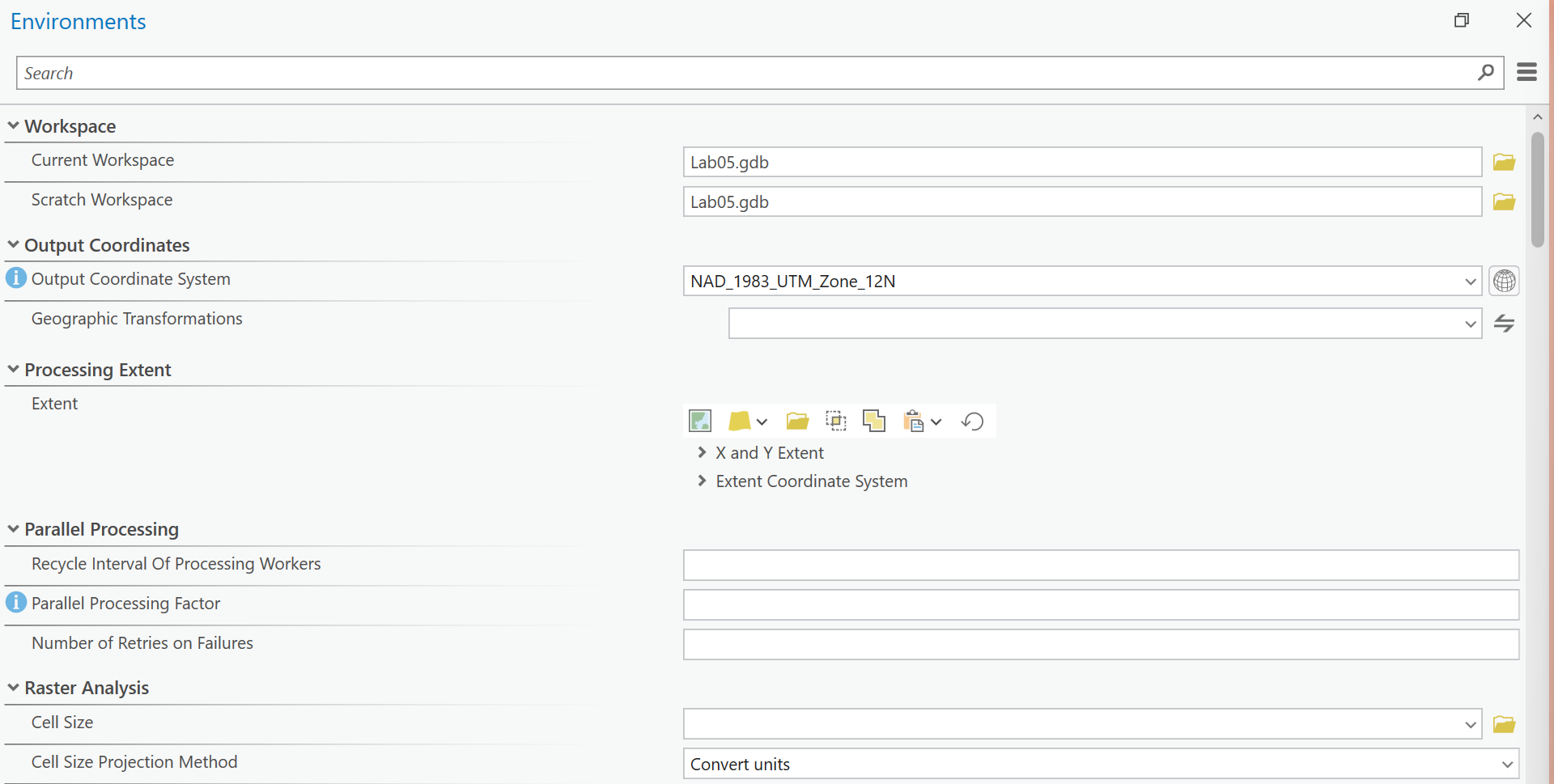
Figure 0. ModelBuilder ▸ Environments with the Output Coordinate System set and the Cell Size left empty.
The first check value is in Step 1.
Step 1 — Project the DEM
The DEM is in latitude and longitude, so its cells have no size in meters and are not square. Build one 10 m UTM elevation raster from it once, from the Geoprocessing pane, not inside your model — the model starts from its result. (The reason is the one from Lab 4: the input never changes between runs, so rebuilding it on every run of Step 14 only costs you time.)
On the Analysis tab click Tools, search for Project Raster (Data Management Tools), and set:
- Input Raster:
RockCanyon_DEM.tif - Output Raster Dataset:
DEM_UTMin your project geodatabase,Lab05.gdb - Output Coordinate System: NAD 1983 UTM zone 12N
- Resampling Technique: Bilinear interpolation — ArcGIS Pro proposes it for this DEM; if yours reads Nearest neighbor, change it
- Output Cell Size:
10in both the X and Y boxes, whatever the tool proposes (it proposes about 9.05)
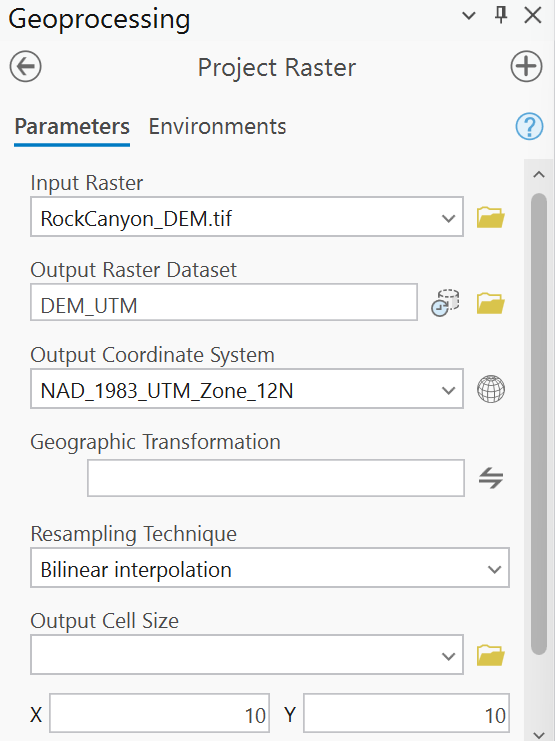
Figure 1. Project Raster with bilinear resampling to square 10 m cells. Type the output name after the input: picking the input fills the output box with a default name such as RockCanyon_DEM_ProjectRaster.
Note
Why Bilinear, and why 10 m? Elevation is continuous, so a new cell that falls between old ones should get a value in between; Nearest neighbor copies one old value and leaves small steps in the surface, and on a surface this steep those steps become false pits and flat spots for Step 3 to fill. And 10 m is the DEM's own spacing north–south: a smaller cell would invent detail the data does not have, and a larger one would throw away the narrow side canyons.
Tip
Check the result: DEM_UTM is 1,284 columns × 1,230 rows of 10 m cells (right-click it ▸
Properties ▸ Source ▸ Raster Information), with elevations from about 1,377 m to about
3,371 m. The corners are NoData — the latitude/longitude rectangle is slightly rotated in UTM.
If the cell size reads anything but 10, the X and Y boxes were left at their proposed values. If
the raster has 1,620 columns, you are looking at the input, not the output.
Step 2 — Place the Outlet
The outlet is the point whose watershed you want: the Rock Canyon trailhead, where the creek leaves the canyon and enters Provo, at about 40.26525° N, 111.63° W.
- Create a point feature class named
OutletinLab05.gdb, with the coordinate system NAD 1983 UTM zone 12N (Creating a point feature class). - Turn on imagery (Map tab ▸ Basemap ▸ Imagery Hybrid) and go to the trailhead: Map tab ▸ Go To XY, set the units to decimal degrees, and type
111.63Wand40.26525N. (A leading minus sign,-111.63, also means west.) Zoom in until you can see the Rock Canyon Trailhead Park parking lot. - On the Edit tab click Create, choose
Outlet, and click once on the creek — the band of trees just northeast of the parking lot, about 60 m north of East 2300 North, running east–west (Figure 2). Click Save on the Edit tab.
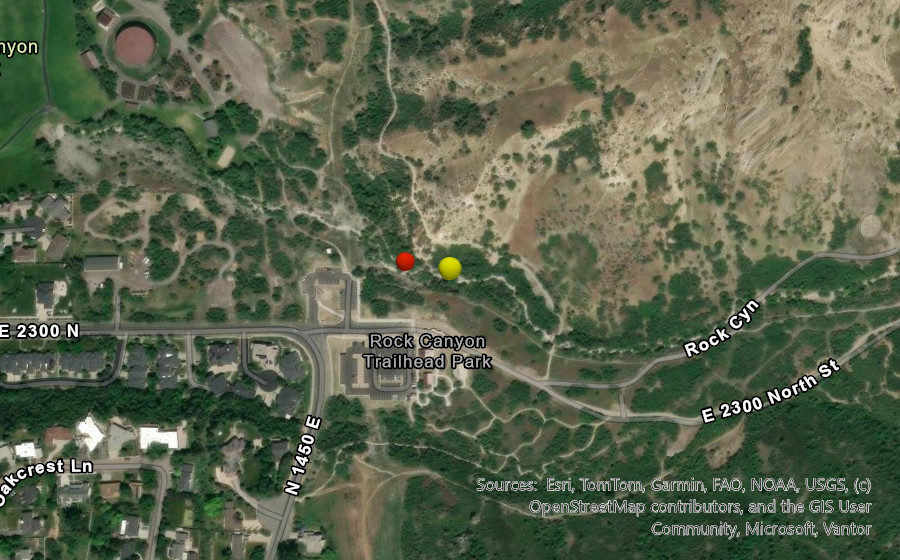
Figure 2. The outlet as placed (yellow) and where Step 6 moves it (red), on imagery. The creek runs east to west through the trees just above the parking lot.
Tip
Check the result: one point, in the trees northeast of the parking lot. It does not have to be on the exact cell of the channel — that is what Step 6 is for — but it has to be within about 50 m of it.
Step 3 — Fill the Sinks
Note
How to check a step before the model is finished. The check values in Steps 3 to 10 are for datasets that exist only once their tool has run. As you add each tool, right-click it on the canvas and choose Run (earlier tools that have not run yet run with it), then right-click its green output and choose Add To Display. Step 11 runs the whole model once more at the end.
Back in your model: add the Fill tool and pick the DEM_UTM layer as its Input surface raster — it becomes a blue input on the canvas. Leave Z limit empty, so every pit is filled however deep. Name the output Filled_DEM.
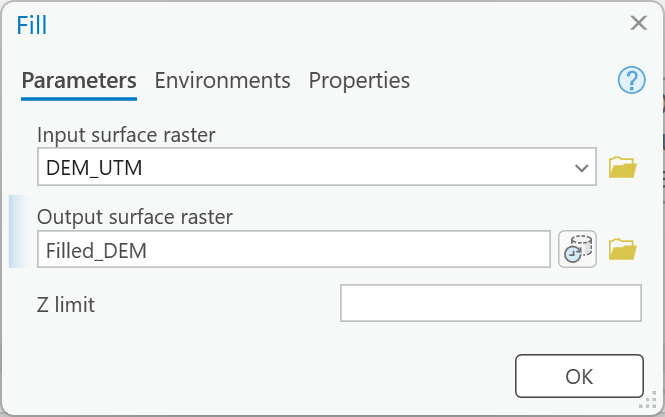
Figure 3. Fill, with no Z limit.
Note
Why fill? In the next step every cell sends its water to a lower neighbor. A cell with no lower neighbor — a pit — would swallow everything upstream of it and stop the network there. Most pits in a DEM are errors: rounding, resampling, or a road fill that the DEM shows as a solid dam because it does not know about the culvert under it (Figure A). Some are real closed depressions, and Fill cannot tell the difference.
Tip
Check the result: Filled_DEM runs from about 1,377 m to about 3,371 m, the same
range as DEM_UTM: Fill only raises pits, so it never changes the lowest or highest cell. What it
changed is invisible at this scale. If you want to see it, run Raster Calculator from the
Geoprocessing pane on "Filled_DEM" - "DEM_UTM": about 12,900 cells were raised, most by
less than a meter; the deepest pit, 13.5 m, is a closed hollow high in the mountains near
40.254° N, 111.532° W, outside the basin you are about to delineate. Inside that basin only a few
dozen cells change.
Step 4 — Compute Flow Direction
Add Flow Direction with Filled_DEM as the Input surface raster, and name the output Flow_Direction. Leave Force all edge cells to flow outward unchecked, leave Output drop raster empty, and check that Flow direction type is D8 and Method is Planar (the defaults). If the dialog opens with a note about the Geodesic Flow Direction tool, close the note and carry on: this lab uses Flow Direction.
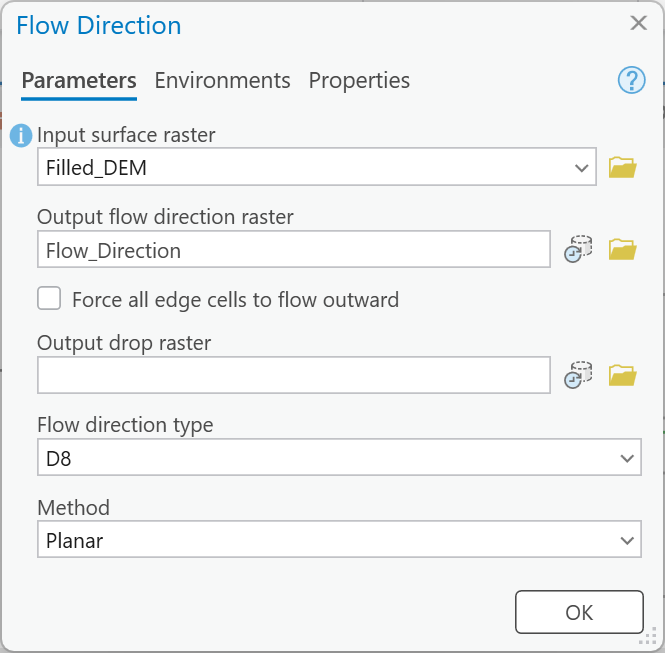
Figure 4. Flow Direction on the filled DEM, D8 and Planar.
Tip
Check the result: Flow_Direction has exactly eight values: 1, 2, 4, 8, 16, 32, 64 and
128 (look at its symbology, or its attribute table after the model has run). If you see values
such as 17, 68 or 132 — about 20 distinct values in all, on a few dozen cells — the input was DEM_UTM, not
Filled_DEM: where a cell has no single downhill neighbor, ArcGIS Pro writes the sum of the
candidate directions' codes instead of one of them. Reconnect the tool to Filled_DEM.
Step 5 — Accumulate the Flow
Add Flow Accumulation with Flow_Direction as the Input flow direction raster, and name the output Flow_Accumulation. Leave Input weight raster empty, so every cell counts as one; Output data type is Float and Input flow direction type is D8, the defaults.
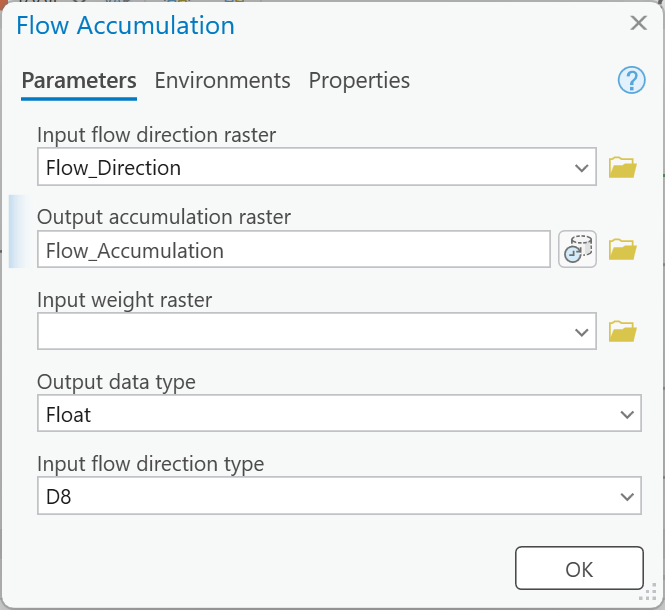
Figure 5a. Flow Accumulation with no weight raster: every cell counts as one.
Tip
Check the result: Flow_Accumulation runs from 0 (ridge tops and every other cell nothing
drains into) to 430,024, at the DEM's west edge on the Provo bench, where several canyons'
water has joined. Symbolize it with a strong stretch and the streams appear (Figure 5b). A maximum
near 246,600 means Flow Direction was run on the unfilled DEM: the pits stop the water before
it reaches the edge.
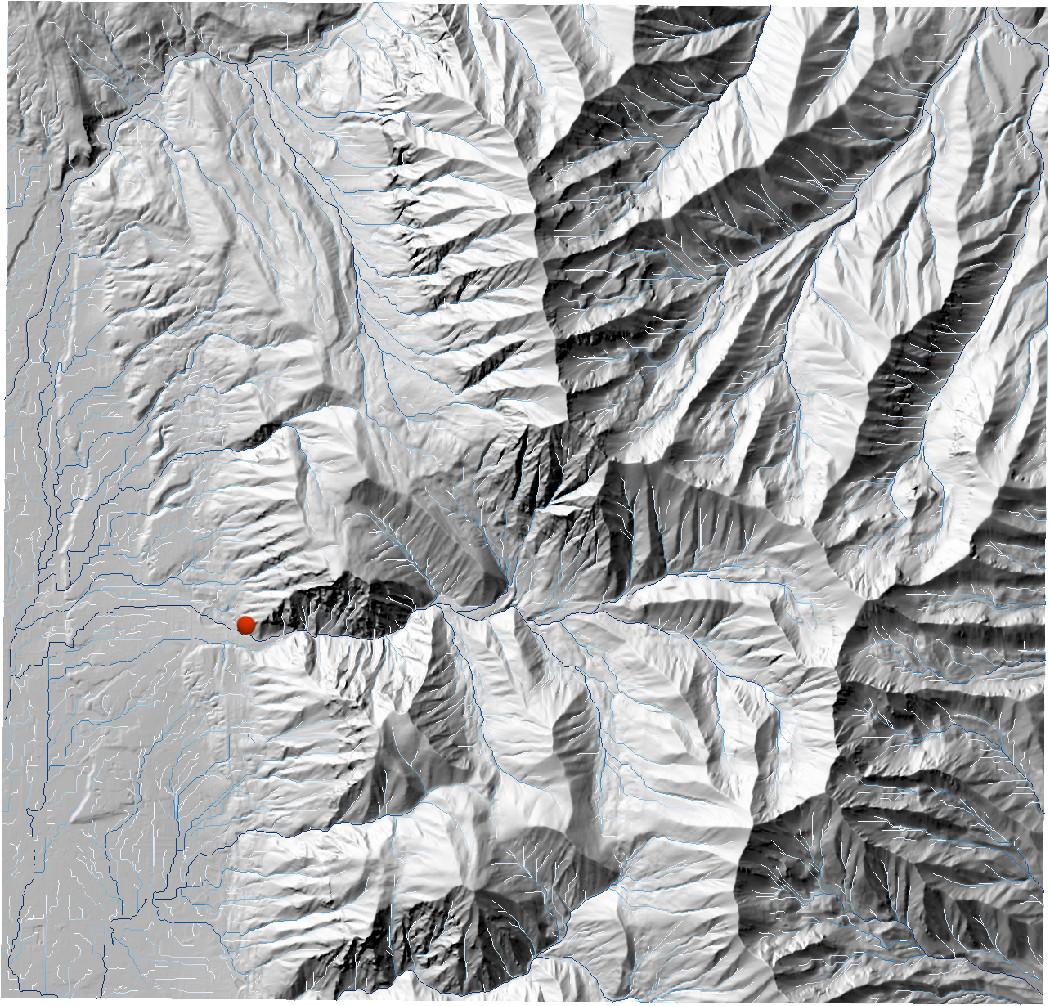
Figure 5b. Flow_Accumulation over a hillshade, darker blue for more upstream cells (a logarithmic stretch, cells below 200 hidden). The red point is the outlet. Notice the straight, parallel lines on the city bench at the left — hold that thought until Step 13.
Step 6 — Snap the Outlet
Add Snap Pour Point with Outlet as the Input raster or feature pour point data and Flow_Accumulation as the Input accumulation raster. Set Snap distance to 50 — it is in the units of the output coordinate system, meters — and leave Pour point field as it fills itself in. Name the output Snapped_Outlet.
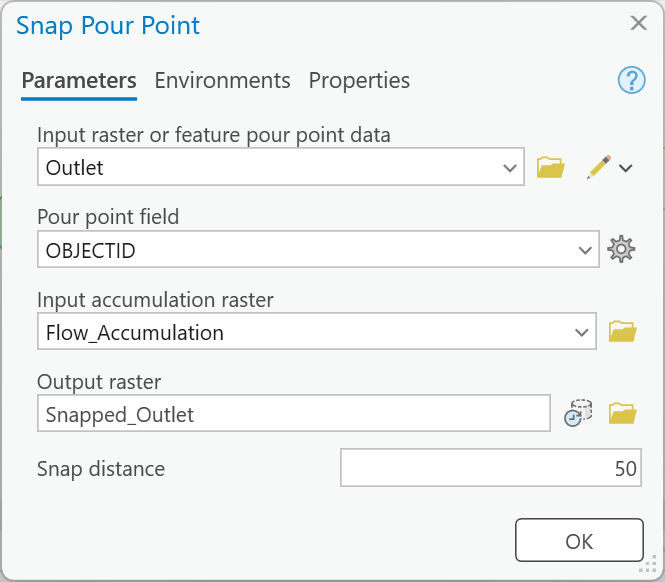
Figure 6. Snap Pour Point. The Pour point field filled itself in with OBJECTID; only the output name and the 50 were typed.
Warning
The snap distance defaults to 0. At 0 the outlet stays on whatever cell you clicked. A click 30 or 40 m to the side of the channel — which looks right on the imagery — lands on a hillside cell that drains only a handful of its neighbors. The model then runs without an error and delineates a "basin" of a few cells to a few dozen. A 10 m snap distance is not enough either. At 50 m the outlet moves onto the channel — about 45 m west, down to the cell with the most flow within reach — and the basin is the whole canyon.
Tip
Check the result in Step 7: the basin's size tells you whether the snap worked. The snapped cell itself has a flow accumulation of about 252,100.
Step 7 — Delineate the Basin
Add Watershed with Flow_Direction as the Input D8 flow direction raster and Snapped_Outlet as the Input raster or feature pour point data, and name the output Basin_Raster. Then add Raster to Polygon with Basin_Raster as input, and name the output Rock_Canyon_Basin.
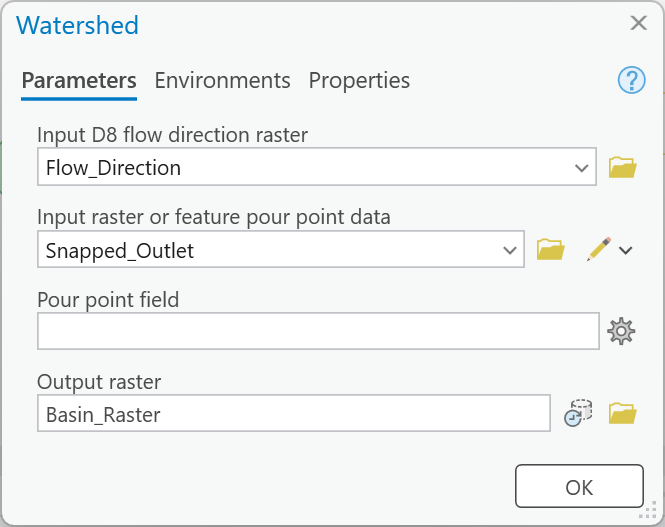
Figure 7a. Watershed, with the snapped outlet as the pour point.
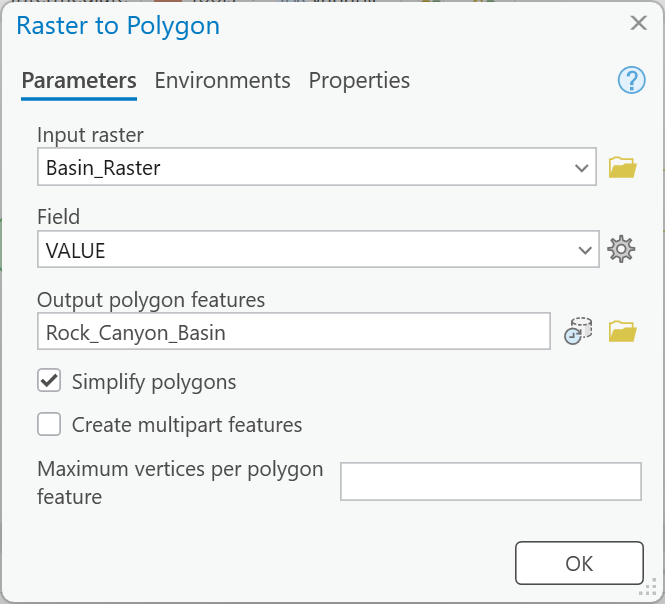
Figure 7b. Raster to Polygon for the basin. The basin is one block of cells, so the defaults are fine here; Step 10 is different.
Tip
Check the result: Basin_Raster has about 252,100 cells, so Rock_Canyon_Basin is one
polygon of about 25.21 km² (9.73 square miles; Shape_Area about 25,210,000 square
meters), reaching from the trailhead at about 1,553 m to Provo Peak at 3,371 m (Figure 7c). If it
is a few cells or a few hundred square meters, the outlet was not snapped: go back to Step 6.
If it is about 43 km², your outlet is at the far west edge of the DEM, not at the trailhead.
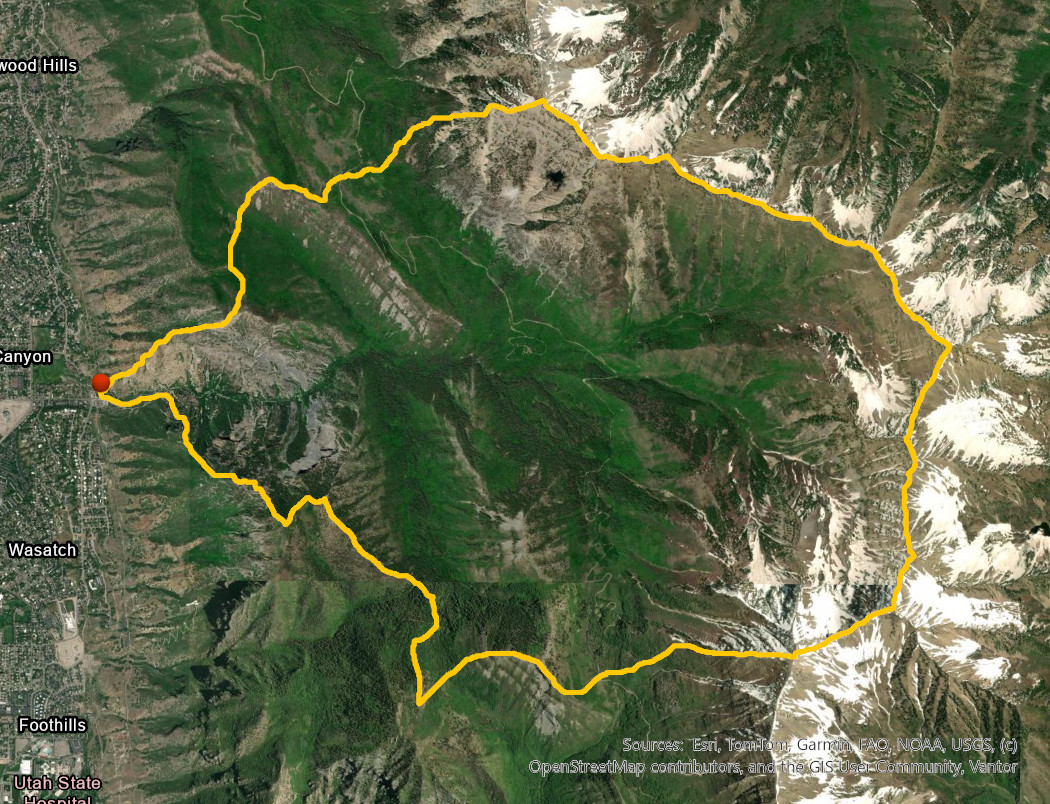
Figure 7c. Rock_Canyon_Basin on imagery, with the snapped outlet in red. Yours should match this outline.
Step 8 — Define the Streams
Add a Raster Calculator (the Spatial Analyst one — typing its name on the canvas offers an Image Analyst tool of the same name first) and type:
Con(("%Basin_Raster%" >= 0) & ("%Flow_Accumulation%" > 5000), 1)
Name the output Stream_Cells. Read it from the inside out: "%Basin_Raster%" >= 0 is true inside the basin and NoData everywhere else (Basin_Raster has a value only inside the basin); "%Flow_Accumulation%" > 5000 is true where more than 5,000 cells drain through; & needs both; and Con(…, 1) with no third argument writes 1 where the test is true and NoData where it is not.
Warning
Type the output name last. When you type an expression, the Raster Calculator replaces
whatever is in Output raster with a default such as RasterC_1. Enter the expression first,
then the name, and look at it before you click OK.
Note
Why NoData and not 0? The next two tools treat every cell with a value as a stream,
including cells whose value is 0. Con(test, 1, 0) would make the whole DEM one enormous "stream".
Leaving out the third argument is what makes the non-stream cells NoData.
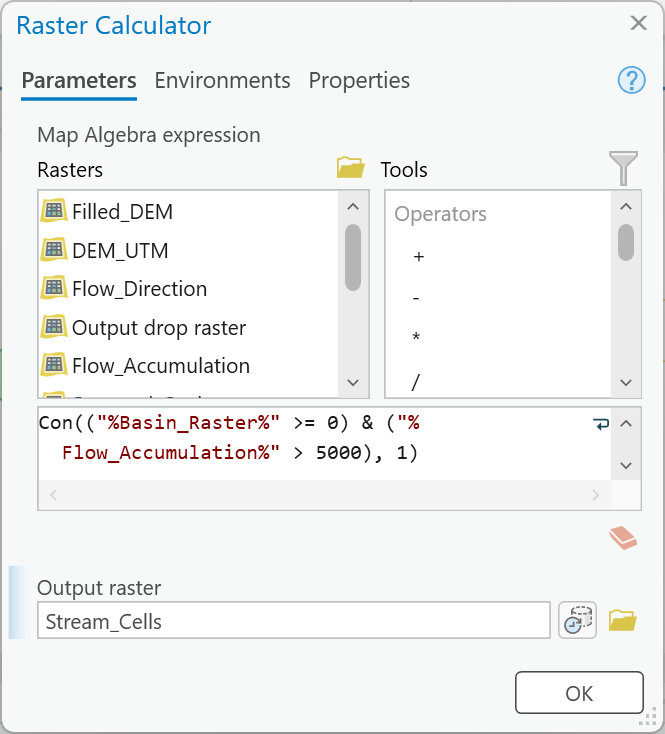
Figure 8. The stream test. In Step 12 the 5000 becomes a model parameter.
Tip
Check the result: Stream_Cells has about 2,030 cells, all with the value 1, all inside
the basin. The threshold is a cell count: 5,000 cells of 10 m × 10 m is 500,000 m², so a
cell is a stream when more than 0.5 km² drains to it. If Stream_Cells covers the whole DEM
or the whole basin, you typed the third argument.
Step 9 — Link the Streams
Add Stream Link with Stream_Cells as the Input stream raster and Flow_Direction as the Input flow direction raster, and name the output Stream_Links. Then add Stream to Feature with Stream_Links as the Input stream raster and Flow_Direction again, leave Simplify polylines checked, and name the output Streams.
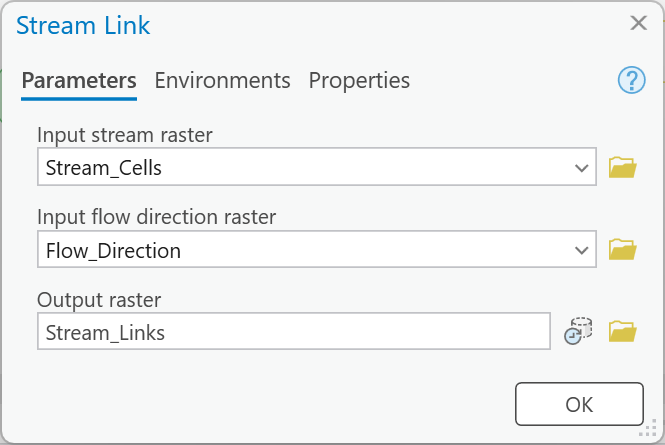
Figure 9a. Stream Link.
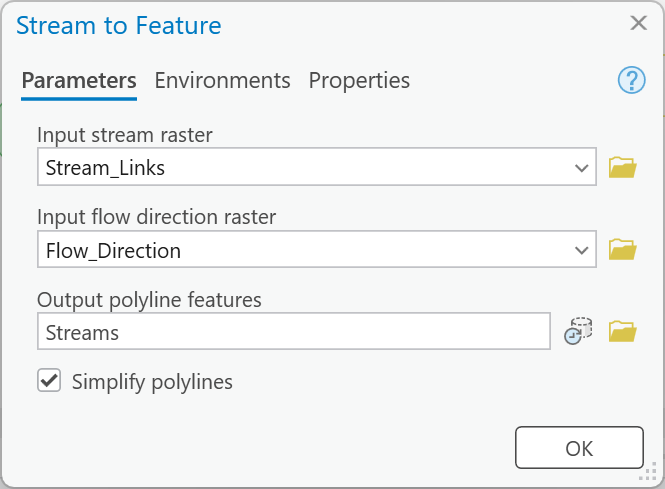
Figure 9b. Stream to Feature, from the numbered links rather than from Stream_Cells.
Tip
Check the result: Stream_Links runs from 1 to 29 — 29 stream segments, each the
stretch between two junctions or from a source to a junction. Streams is 29 lines with a
total length of about 22.9 km (right-click the Shape_Length column heading in its attribute
table ▸ Statistics gives the sum, in meters). If your total is in the hundreds of
kilometers, the stream raster was not limited to the basin.
Step 10 — Delineate Subwatersheds
Add a second Watershed with Flow_Direction as the Input D8 flow direction raster and, this time, Stream_Links as the Input raster or feature pour point data. Name the output Subwatershed_Raster. Every cell in the basin now gets the number of the stream segment it drains to first: one subwatershed per segment.
Then add a second Raster to Polygon with Subwatershed_Raster as input, and check "Create multipart features". Name the output Subwatersheds.
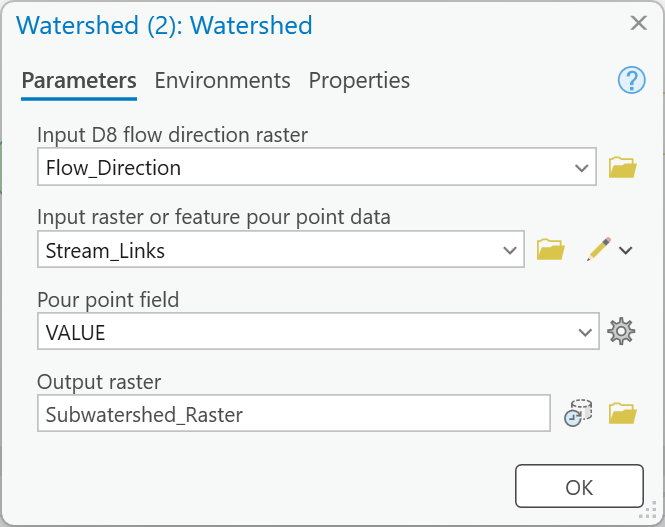
Figure 10a. The second Watershed, with the stream links as pour points.
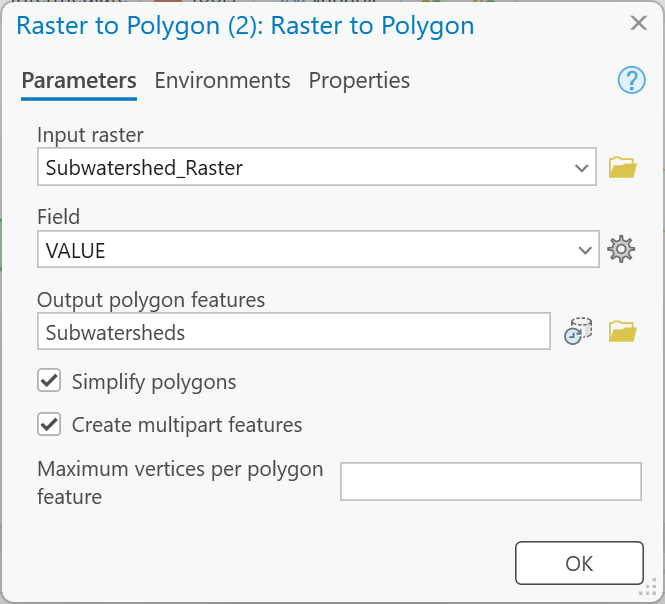
Figure 10b. The second Raster to Polygon, with Create multipart features checked.
Warning
Check "Create multipart features." It is off by default. A subwatershed's cells are all connected, but in D8 some are connected only corner to corner, and Raster to Polygon treats a corner as a break. Left unchecked, the 29 subwatersheds come out as about 61 polygons, including slivers of one or two cells, and any count you report is wrong.
Tip
Check the result: Subwatersheds is 29 polygons that tile the basin with no gaps: their
areas add up to about 25.21 km², the area of Rock_Canyon_Basin. The largest is about
3.5 km² and the smallest less than 0.01 km² — a short segment between two junctions a few cells
apart gets a subwatershed of its own.
Step 11 — Run the Model
Right-click Rock_Canyon_Basin, Streams and Subwatersheds and choose Add To Display, save the model (Save on the ModelBuilder tab), and click Run on the ModelBuilder tab. The whole model takes a minute or two. A later lab reopens it.
Tip
Check the result: 29 stream segments, 29 subwatersheds, 22.9 km of stream, and a basin of 25.21 km². Figure 11 shows what that looks like. Twenty-nine is inside the 20-to-40 range the problem asks for; Step 14 asks how far outside it the other thresholds go.
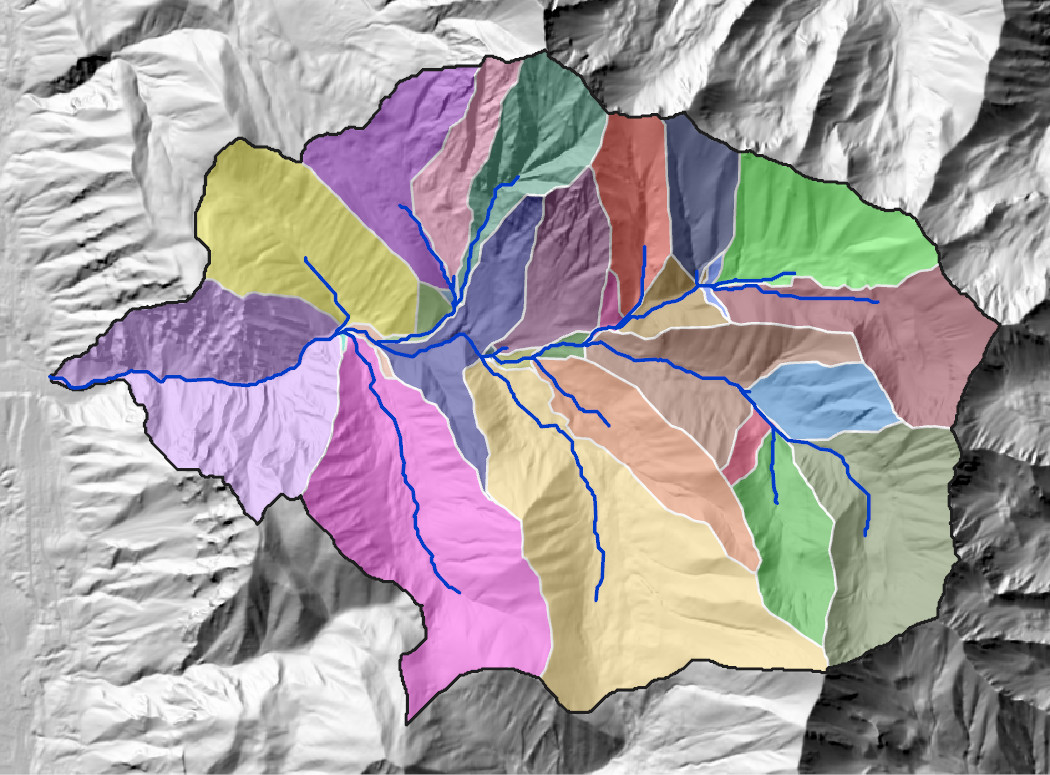
Figure 11. Subwatersheds and Streams at a threshold of 5,000 cells. Yours should look like this, in different colors.
Step 12 — Set Model Parameters
You are about to run this model several times with different thresholds. Expose the threshold as a model parameter now, so each run is "type a number, click Run". It lives inside an expression, so it takes a variable:
- On the ModelBuilder tab, click Variable (the VAR button), type
Longinto the data-type box and press Enter, and click OK. A new oval namedLongappears in the middle of the canvas. Right-click the new oval ▸ Rename ▸Threshold, double-click it and type5000, and right-click it ▸ Parameter. APappears beside it. (Use the oval's own right-click menu: the Ctrl+R shortcut renames whatever is selected, and right after you add a variable that can still be the last tool you added.) - Open the Raster Calculator from Step 8 and change the expression to:
Con(("%Basin_Raster%" >= 0) & ("%Flow_Accumulation%" > %Threshold%), 1)
The %name% syntax means "put this variable's current value here"; the connector from Threshold draws itself when you click OK. Check that the output name is still Stream_Cells (Figure 12a).
3. Make Rock_Canyon_Basin, Streams and Subwatersheds parameters too (right-click each ▸ Parameter), so each run can have its own output names.
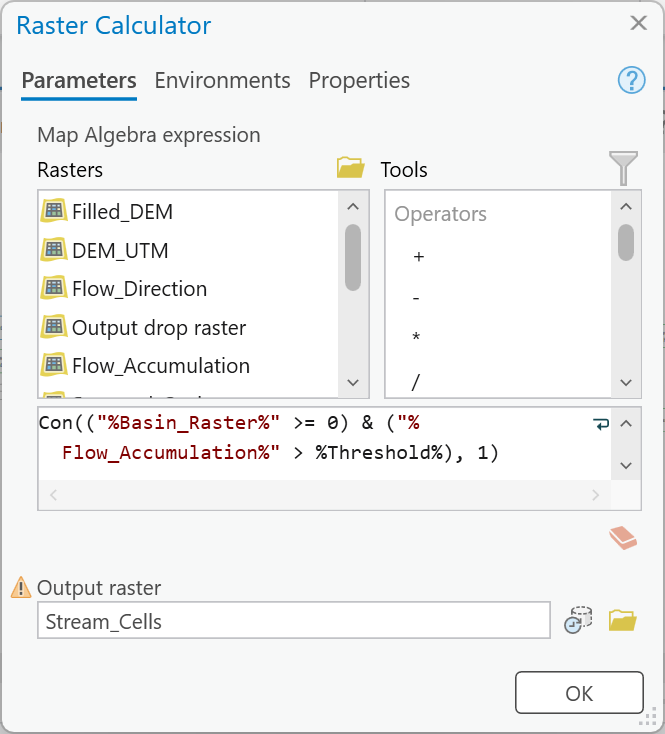
Figure 12a. The threshold as an inline variable.
Save the model (Save on the ModelBuilder tab). Then click Properties on the ModelBuilder tab: on General, check the Name (RockCanyon) and give the model a Label (Rock Canyon Watersheds); on Parameters, check that Threshold comes first, and drag the rows by their numbers if it does not. Click OK and Save again. Then in the Catalog pane, double-click the model in Lab05.atbx: the Geoprocessing pane shows a dialog with the threshold and three outputs (Figure 12b). Screen capture it for your report.
Warning
If the Parameters list in Properties is empty, click Cancel, not OK. It can open empty even
though the canvas shows the four P marks, and OK then saves the empty list: the P marks
stay on the canvas, but the tool has no parameters. If that happens, close the model, right-click
it in the Catalog pane ▸ Edit, make the four parameters again, and save.
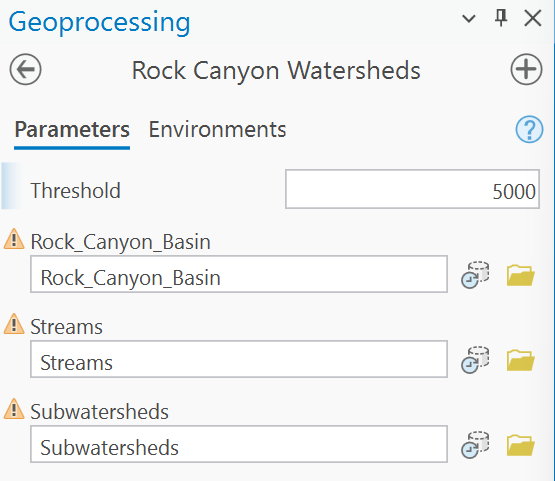
Figure 12b. The model as a tool: one number and three output names. The warning icons only say that those datasets already exist; Step 14 gives every run new names.
Warning
Running from the dialog deletes intermediate data. Everything that is not a parameter or an
input — Filled_DEM, Flow_Direction, Flow_Accumulation, Basin_Raster, Stream_Links and
the rest — is deleted when the model finishes running from its dialog. Clicking Run inside
ModelBuilder keeps all of it. The three outputs survive either way because they are parameters.
Whenever you need an intermediate raster again, run the model once more inside ModelBuilder. Do
not look for a fix on the canvas toolbar: its ✗ Intermediate button is Delete Intermediate
Data, which deletes them immediately.
Step 13 — Check the Result
A model that runs without an error has only proved that it runs. Before you use its answer, compare it with two sources that did not come from your model.
- The basin, against the USGS. Open USGS StreamStats, type
40.26525, -111.63into Find a place, and choose the coordinate it suggests. Select Utah as the state, zoom in to level 15 (the zoom level shows at the lower left of the map), click Delineate, and click the blue stream cell at the trailhead. When the basin appears, click Continue, open Basin Characteristics, check DRNAREA (drainage area), and click Continue again. StreamStats delineates on its own elevation grid and stream network, independently of yours. How close is its drainage area to yourRock_Canyon_Basin? It reports square miles; you have square kilometers (1 mi² = 2.590 km²). -
The streams, against the NHD. The NHD layer you add from a URL is a view of UGRC's server: ArcGIS Pro fetches the lines as you pan, and nothing is stored in your project. Geoprocessing tools do not always run reliably against a live web layer, and Clip can fail with an error when pointed straight at this one. So copy the lines around your basin into your own geodatabase first, then clip the copy:
- Add the service. On the Map tab click the arrow under Add Data ▸ From Path, paste the feature service URL from the Data section, and click Add.
- Select the lines you need. On the Map tab click Select By Location. Set Input Features to the NHD layer, Relationship to Intersect, and Selecting Features to
Rock_Canyon_Basin, and click OK. Every NHD line that touches your basin is now highlighted. Selecting by location, rather than by drawing a box, guarantees that no line crossing the boundary is missed. - Export the selection. In the Contents pane right-click the NHD layer ▸ Data ▸ Export Features. Because lines are selected, the tool exports only those. Name the output
NHD_Localin your project geodatabase. Before you click Run, open the tool's Environments tab and set Output Coordinate System to NAD 1983 UTM zone 12N (see the warning below). You can then clear the selection and remove the service layer;NHD_Localhas everything you need. - Clip the copy. Open Clip (Analysis Tools) from the Geoprocessing pane with
NHD_Localas the input andRock_Canyon_Basinas the clip features, and name the outputNHD_Basin.
Then sum
Shape_LengthinNHD_Basinfor all its lines, and separately for eachFCode(46006 perennial, 46003 intermittent, 46007 ephemeral). Compare the total with yourStreams(Figure 13). -
Look at where they disagree. With the imagery basemap on, follow your streams and the NHD's up the canyon. Where does one draw a channel the other does not? Which one does the imagery support?
Warning
Measure the NHD in meters, not Web Mercator meters. The service is stored in Web Mercator,
and unless the export is projected, Shape_Length is in Web Mercator's inflated units:
the NHD in the basin then reads about 49 km instead of about 37 km, too long by a third
at Utah's latitude. And sum Shape_Length, not the NHD's own LengthKM field: LengthKM is
the length of each whole line before the Clip cut it at the basin boundary.
Tip
Check the result: StreamStats reports 9.8 square miles (about 25.4 km²) — within about 1 % of your basin. The NHD has 36 lines and about 37.4 km of stream in the basin: about 5.5 km perennial, 2.6 km intermittent and 29.3 km ephemeral. Your model has 22.9 km.
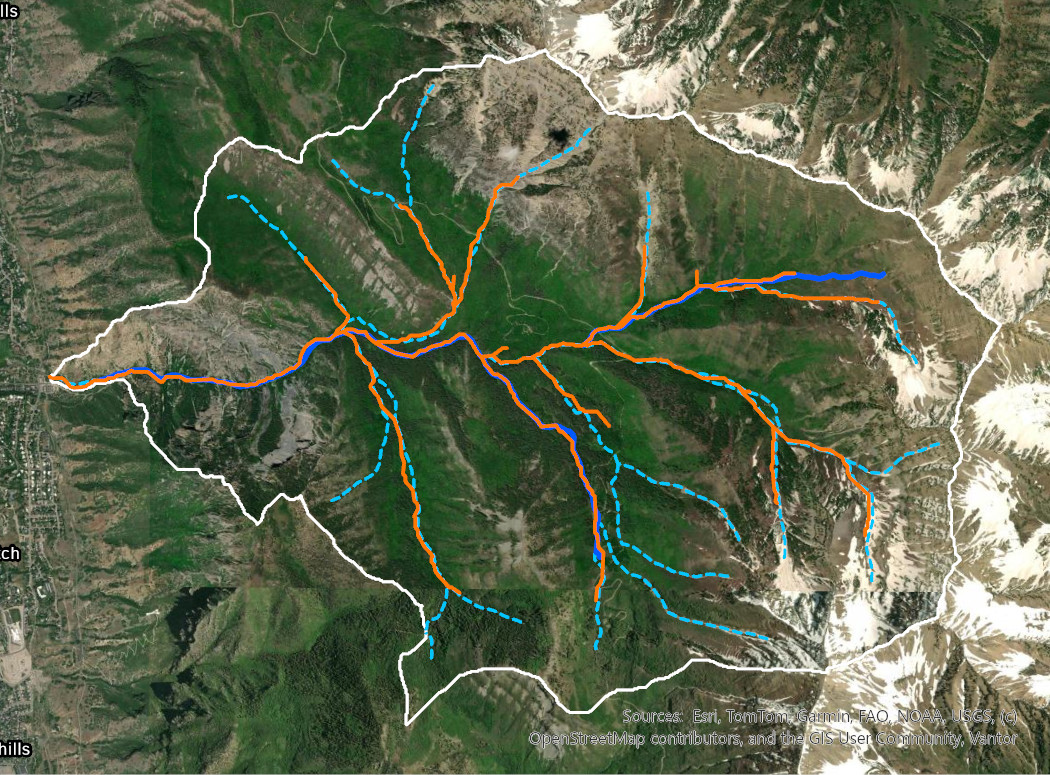
Figure 13. Your streams at 5,000 cells (orange) against the NHD (blue: solid perennial or intermittent, dashed ephemeral), clipped to the basin.
Then write down, for your report, where the model is wrong and why — the "Where the method breaks" part of the rubric. Three places to start: the straight parallel lines on the Provo bench in Figure 5b (what does a D8 model do on a nearly flat, built-up surface, and why does it matter that your outlet is above the bench?); the NHD's ephemeral lines (who drew them, from what, and is a line on a map proof of a channel?); and Figure A's culvert warning (where in or below Rock Canyon could the real water go somewhere the DEM does not show?). For each, say what data would fix it.
Note
Two checks, two different kinds of agreement. StreamStats checks the boundary, which depends on the DEM and the outlet and on nothing you chose. The NHD checks the network, which depends almost entirely on the threshold. Expect the first to agree closely and the second not to — and keep that in mind in Step 14.
Step 14 — Test the Threshold
Everything you drew in Steps 8 to 11 rests on one number: 5,000 cells. It was chosen to give 20–40 subwatersheds, not because anything in Rock Canyon starts flowing at 0.5 km². The map from Step 11 is an answer. This step is about how much of it changes when the threshold moves, and what does not change at all.
Run the model from its tool dialog at least three more times, each with a different threshold, and record what happens. Choose deliberately and say why; spread your choices across at least a factor of ten. Places to start: 1,000, 2,000, 10,000, 20,000 or 50,000 cells. Give each run's three outputs names that say which threshold made them (Basin_T2000, Streams_T2000, Subwatersheds_T2000). Each run takes a minute or two.
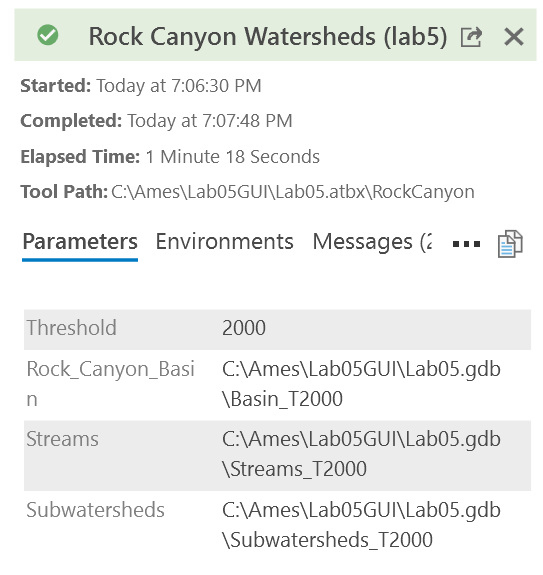
Figure 14. A scenario run from the dialog: threshold 2,000, three new output names, a minute and a quarter. This run gives 78 segments, 38.6 km of stream and 78 subwatersheds, on the same 25.2 km² basin. The path starts with C:\ because it was captured on an instructor machine.
Record, for the baseline and every run, in one table:
| Column | How to get it |
|---|---|
| Threshold (cells) | what you typed |
| Contributing area (km²) | threshold × 100 m² ÷ 1,000,000 |
| Basin area (km²) | the Shape_Area of that run's Rock_Canyon_Basin, ÷ 1,000,000 |
| Stream segments | the number of lines in Streams |
| Subwatersheds | the number of polygons in Subwatersheds |
| Total stream length (km) | the sum of Shape_Length in Streams, ÷ 1,000 |
| Mean subwatershed area (km²) | basin area ÷ number of subwatersheds |
| Drainage density (km/km²) | total stream length ÷ basin area |
That table is a required deliverable, and the baseline row is part of it. Add the NHD's total length from Step 13 as a reference row at the bottom.
Then answer these three questions in your report:
- How do the segment and subwatershed counts depend on the threshold? Describe the relationship with your table — roughly, what happens to the counts when the threshold doubles? — and give the range of thresholds that meets the 20-to-40-subwatershed requirement. Why are two of your columns always equal?
- Which threshold reproduces the NHD, and what does that tell you? Find the threshold at which your total stream length comes closest to the NHD's, and the one at which it comes closest to the NHD's perennial and intermittent length alone. What do those two thresholds say about what the NHD's lines represent — and about which of your networks a runoff model should use?
- What did the threshold not change, and which network would you defend? Look at the basin area, the outlet and the main channel across your runs. Which run would you hand to the engineer who asked for 20–40 subwatersheds, and what would you tell them about the streams in it?
Finally, pick one run for your second map — whichever most changes what a reader would conclude — and say on the map, in its title and its text box, what changed and why you chose it.
Tip
Two things worth knowing before you start. Across the thresholds suggested above, one column of your table never moves at all, whatever you type. And at one of them the whole network collapses to a single segment — which means a single "subwatershed" that is the whole basin. Finding out where that happens, and being able to explain why it happens there and not at a lower threshold, is part of the point of this step.
Deliverables
Make two professional map layouts:
- Your baseline result —
Subwatersheds,StreamsandRock_Canyon_Basinat a threshold of 5,000 cells over imagery or a hillshade, with the NHD streams in the basin shown and labeled so a reader can tell them from yours, the outlet marked, and a locator map showing where Rock Canyon is. - One threshold from Step 14 — whichever of your runs most changes the picture, with its subwatersheds and streams symbolized as on Map 1, the NHD streams and the outlet shown, and its title and text box saying what changed and why you chose it.
Write a brief report (2–3 pages of text, plus your figures and maps) covering:
- a title block — assignment title, your name, the date and the course — and the name of your peer reviewer
- the requirements of the project and your approach to solving it
- a description of your model a reader could repeat from: each tool and its settings, and every input, intermediate and output dataset with its type (point, line, polygon, raster) and source
- one full-page figure of your model — export it from ModelBuilder (Export ▸ Export To Graphic) rather than screen-capturing it — and one screen capture of its tool dialog with the threshold parameter
- the four metadata values from Figure A and what each means for your result
- the two checks from Step 13 — your basin area against StreamStats, and your stream length against the NHD — and where the model is wrong, why, and what data would fix it
- your sensitivity table from Step 14, baseline and NHD rows included, and your answers to its three questions
- one line at the end saying what, if anything, you used AI for (see the note after the rubric)
- a copy of the rubric below with your self-assessment filled in — a score in every row, honestly arrived at. The grader will compare it with theirs.
The rubric at the end of this lab gives the point value of every item above, so read it before you write.
Important
Peer review before you submit. Have another student in the class read your report against the rubric and give you feedback, then act on that feedback before the deadline. Name your reviewer in the report and say in a sentence what you changed because of them. A report nobody else has read is a draft, not a submission.
References
Esri. How Flow Direction works and How Flow Accumulation works. ArcGIS Pro documentation. https://pro.arcgis.com/en/pro-app/latest/tool-reference/spatial-analyst/how-flow-direction-works.htm · https://pro.arcgis.com/en/pro-app/latest/tool-reference/spatial-analyst/how-flow-accumulation-works.htm
Maguire, D. J., Batty, M., and Goodchild, M. F. (2005). GIS, Spatial Analysis, and Modeling. Esri Press.
U.S. Geological Survey. 1/3 Arc-second Digital Elevation Model, 3D Elevation Program, tile n41w112 (published May 20, 2026). The National Map.
U.S. Geological Survey. StreamStats. https://streamstats.usgs.gov/ss/
U.S. Geological Survey Water Science School. Watersheds and Drainage Basins. https://www.usgs.gov/water-science-school/science/watersheds-and-drainage-basins
Utah Geospatial Resource Center. Utah Streams NHD (derived from the USGS National Hydrography Dataset; last updated December 2016). https://gis.utah.gov/products/sgid/water/nhd-streams/
Example Maps
Two example layouts follow, one for each map the Deliverables ask for. They were laid out and exported by ArcGIS Pro against the run described on this page. They show the design: what goes on the page and where. Every piece of wording on them is a bracketed placeholder on purpose. Your title, subtitle and text box are yours to write, from your own run, in your own words. A map that carries these brackets, or a title lifted from anywhere else, is not finished.
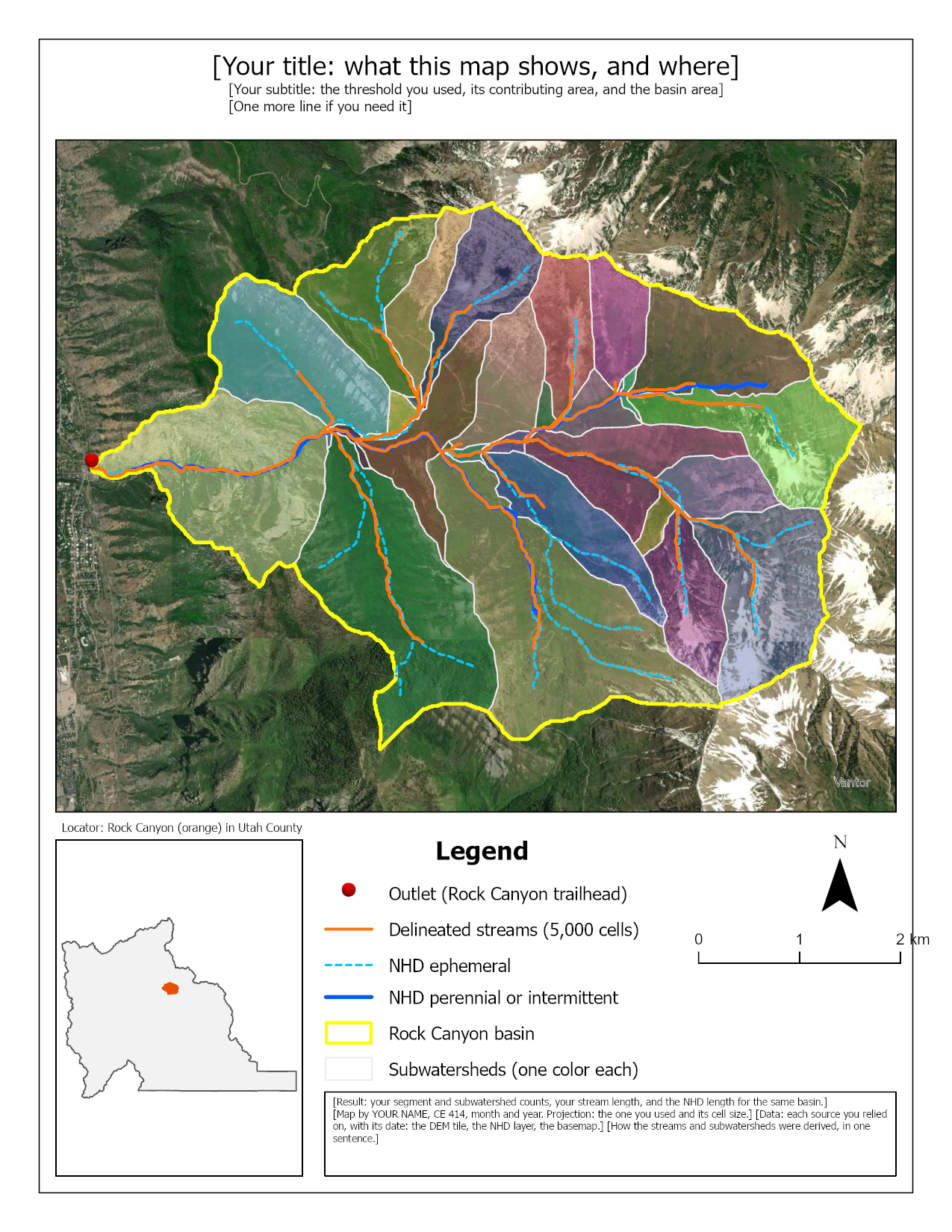
Figure 15. The baseline map, with placeholder wording. Two things to do better than this example: label the peaks and the canyon so a reader can find their way around, and say on the map which of the NHD's lines your model does not reproduce.
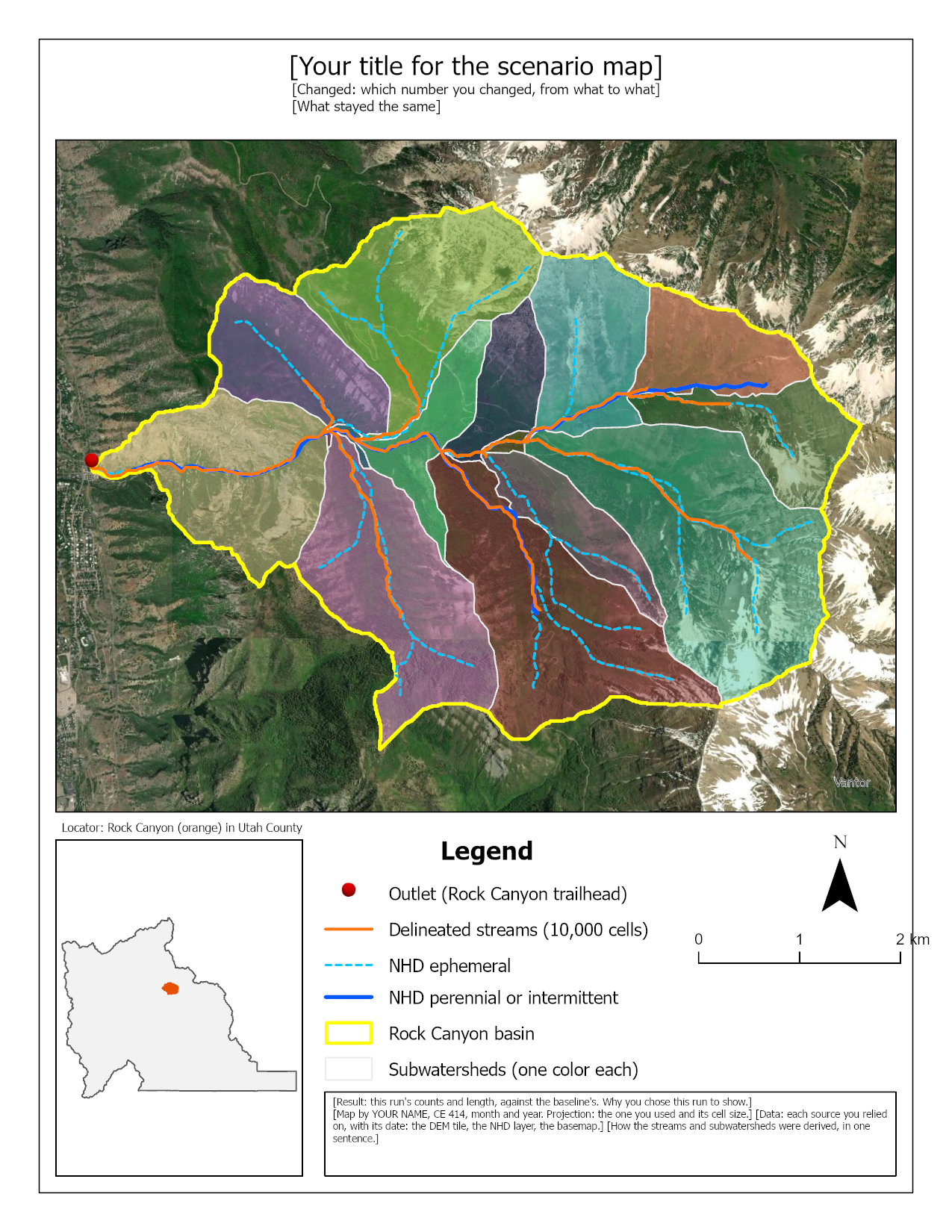
Figure 16. The kind of second map Step 14 asks for: here the threshold was raised from 5,000 to 10,000 cells, everything else unchanged. Your own second map should be the run that most changes what a reader would conclude, which may not be this one. Your title and text box must say exactly what was changed and why you chose that run.
Rubric for Watershed Delineation
Fifty points in five parts of ten. The bullets say what each part is worth, so you know exactly what to submit.
This rubric is already laid out as a fillable table at the end of
lab05-report-template.docx, so you do not have to copy it out
of this page.
| Item | Points |
|---|---|
| Write-up (2–3 pages) • Assignment title, your name, date and course; your peer reviewer named, with a sentence on what you changed because of them (1) • The requirements of the project and your approach to solving it, in your own words (2) • The two checks from Step 13: your basin area against StreamStats and your stream length against the NHD, with the numbers (2) • Where the model is wrong, why, and what data would fix each problem (Step 13) (2) • The four metadata values from Figure A and what each one means for your result (2) • Clear, organized writing: figures numbered and referred to in the text, sources credited, and this rubric pasted in with your self-assessment in every row (1) |
/10 |
| ModelBuilder model — correct and working • The model runs end to end from its tool dialog, with the threshold and the three outputs as its parameters; at the baseline threshold your basin area, segment count and subwatershed count match the Step 7 and Step 11 check values, within the small differences your own outlet can make (4) • A full-page (8.5 × 11) figure of the model, exported from ModelBuilder and laid out so it reads in rows as Figure C does: every tool and dataset shown, labels informative, all text readable at 10 pt or larger (2) • A screen capture of the tool dialog with the threshold and the three outputs exposed as parameters, like Figure 12b (2) • A description of the model a reader could repeat from: each tool, its settings, and every input, intermediate and output dataset with its type and source (2) |
/10 |
| Map 1 — your baseline (full page, 8.5 × 11) • Title, neat line, north arrow and scale bar (1) • Text box with author, date, map projection and data sources (1) • Subwatersheds and the basin boundary clearly symbolized, with a legend (2) • Your streams and the NHD streams both shown, symbolized so a reader can tell them apart (2) • The outlet marked, and a locator map showing where the basin is (2) • Imagery or hillshade visible, zoomed to the basin, and all text legible when printed (2) |
/10 |
| Map 2 — one Step 14 threshold (full page, 8.5 × 11) • Title, neat line, north arrow and scale bar (1) • Text box with author, date, map projection and data sources (1) • Subwatersheds and streams for this threshold symbolized the same way as on Map 1, with a legend (2) • The NHD streams and the outlet shown (2) • Imagery or hillshade visible, zoomed to the basin, and all text legible when printed (2) • The title and text box say what threshold was used, what it replaced, and why you chose this run to show (2) |
/10 |
| Sensitivity analysis (Step 14) • One table with the baseline and at least three more thresholds, giving for each the threshold in cells and km², the basin area, the segments, the subwatersheds, the stream length, the mean subwatershed area and the drainage density, with the NHD as a reference row (4) • How the counts depend on the threshold, the range that gives 20–40 subwatersheds, and why two columns are equal (2) • The thresholds that reproduce the NHD, and what that says about the NHD and about which network to use (2) • What the threshold does not change, and the network you would defend (2) |
/10 |
| Total | /50 |
Note
Using AI on this lab. Use AI freely to understand a tool, work out an error, or tighten your write-up, and add one line at the end of your report saying what you used it for. Do not take a field name, an expression, a coordinate system, or a number from it — those come from your own data, and the rubric asks you to defend every one. See the AI Use Policy for the full policy.