Lab 6: Lake Depth Explorer
Civil Engineering 414 — Engineering Applications of GIS
Fall 2026 · Dr. Dan Ames
Shorelines at Every Water Level — Looping in ModelBuilder, at Lake Powell
Tip
Start from the report template. lab06-report-template.docx
has the title block, a section for every deliverable, the tables already set up with the columns
the rubric asks for (including the table for your five personal levels), and the
rubric at the end ready to fill in. Open it in Word or upload it to Google Docs, replace every
gray italic prompt, and delete the prompts as you go. You are welcome to write your report any
way you like — the template is a floor, not a ceiling — but if you use it and fill in every
section, you will not have left a graded item out.
Background
A reservoir is a valley with a dam across it, and the lake behind the dam is not one shape. It is a different shape at every water-surface elevation. As the lake rises it spreads up side canyons and across benches. As it drops it retreats to the old river channel, leaving boat ramps, marinas, and water intakes stranded above the water line. Anyone who plans around a reservoir needs to know where the shoreline will be at the elevation the lake is going to be, not where it is today: an engineer sizing an intake, a park service deciding which ramp to extend, a houseboat owner deciding whether to renew a slip.
Lake Powell is the clearest case in the country right now. It filled for the first time in 1980 and reached its all-time high of 3,708.34 ft on July 14, 1983. On September 15, 2026 it set a new record low of 3,516.62 ft, below the April 2023 low of 3,519.92 ft — a drop of 192 feet from the high. Over that range the lake lost more than half of its surface area, and one launch ramp after another went dry.
The instructor built a web map that answers exactly this question for Lake Powell. Spend five minutes with the Lake Powell Depth Explorer before reading further: drag the water level and watch the shoreline move. Every shoreline there is the output of the same analysis you will build in this lab.
The analysis is simple. The lake bed is an elevation surface, and the shoreline at any water-surface elevation is the line where that surface equals that elevation. Everything below is wet; everything above is dry. What makes the problem interesting for a modeler is that nobody wants one shoreline. They want a dozen, at regular intervals, from one run. Every lab so far built a model that runs once and produces one answer. This lab builds a model that loops: it takes a list of water-surface elevations, runs the same tools for each one, and collects the results into one dataset with the elevation recorded on every shoreline. Once you have seen that pattern you will find it everywhere, because most real analyses are one analysis repeated over a list of something.
Like every model, this one is only as good as the choices you make in it: which elevation surface, in which vertical datum, at what cell size, over what range of elevations, and at what step. The range and the step are the model's parameters, so in Step 7 the same model runs the whole lake from dead pool up, and then five levels that are yours alone.
Important
Your job — see the deliverables below. Build one ModelBuilder model that loops over a list of water-surface elevations and produces a shoreline polygon for each, with the elevation stored as an attribute. Run it on Lake Powell twice, from dead pool to above full pool and at five levels of your own, and make a map of each run.
Problem Statement
You are given one elevation surface for the Lake Powell basin. It merges the lake bed, mapped by a boat-mounted multibeam sonar survey in 2017, with the land around it, mapped by airborne lidar and older topography. Using that surface:
- Build one ModelBuilder model that produces the shoreline of the lake at every water-surface
elevation in a list, all in one polygon feature class, with the elevation of each stored in an
Elevationfield and its area in anAreaSqMifield. - Run it twice: once from dead pool to above full pool, 3,370 to 3,710 ft at 10 ft, and once at five levels of your own, worked out from your BYU ID.
- Map both results: the nested shorelines of the whole lake, and your own five levels close up.
Analysis Considerations
Every one of these is a decision somebody made, and every one of them can change the answer.
- The elevation surface. The USGS One Meter Topobathymetric Digital Elevation Model for Lake Powell, 1947–2018. It merges 2017 multibeam sonar, 2018 lidar, and older topography (some of it mapped before the dam closed in 1963) into one raster. Where the surveys meet there can be a seam. The original is 1 m and about 3 GB; you get a 30 m version in which each cell is the average of the 900 one-meter cells inside it.
- The vertical datum and units. The surface is in meters above NAVD88, the modern North American datum. Reclamation reports Lake Powell's level, and states every operating threshold, in feet above NGVD29, the older datum the dam was built on. At Lake Powell the two differ by 2.91 ft. If the surface and your elevation list are in different units or datums, every shoreline is wrong by a constant, and nothing in ArcGIS Pro will tell you. Step 1 converts the surface so the two match.
- The water-surface range and step. The main run is 3,370–3,710 ft at 10 ft: from dead pool to just above full pool. Full pool is 3,700 ft; minimum power pool, below which the dam cannot generate electricity, is 3,490 ft; dead pool, below which no water can leave through the dam's outlets, is 3,370 ft; this fall's record low was 3,516.6 ft. The range and step are model parameters, so the same model runs your own five levels in Step 7.
- Cell size. A shoreline is only as fine as the surface's cells. A 30 m cell is wider than many of Lake Powell's side canyons, so narrow arms of the lake disappear or break apart at this resolution. A 10 m close-up of the south end of the lake is included so you can see the difference.
- The coordinate system. Area is reported for every shoreline, so the model must run in a projected coordinate system. The surface arrives in NAD 1983 (2011) UTM zone 12N, in meters, which is appropriate. Keep it.
- What counts as the lake. At any elevation some cells below the water surface lie in closed hollows that would never fill — potholes on the slickrock benches, pits in the surface. The analysis keeps only the water connected to the main pool at the dam. Step 4 is where that decision lives, and your report says what it excluded.
Data
Important
Set up your folder before you download anything. On the lab machines, work on the D:
drive: one folder for this class named after you, D:\Smith\, and one folder per lab inside
it, D:\Smith\Lab06\. The C: drive is locked, and a network drive is slow enough to make
ArcGIS Pro hang. Never use a space in a folder or file name you create — raster tools fail on
them without saying why. Back up your lab folder at the end of every session. The full set of
conventions is on the ArcGIS Tips and Reminders page.
- Download:
lab06-powell-data.zip(5.3 MB). Unzip it into your Lab06 folder, and readREAD-ME-FIRST.txt.
| File | What it is |
|---|---|
powell_tbdem_30m.tif |
The whole lake, 30 m cells, elevation in meters NAVD88. Your main input. |
powell_wahweap_10m.tif |
The south end of the lake — Glen Canyon Dam, Wahweap, Lone Rock, Antelope Point — at 10 m, meters NAVD88. Optional: run your five levels on it for a sharper close-up map. |
main_pool_seed.shp |
One point in the old river channel about 2.1 km upstream of Glen Canyon Dam, under water at every elevation in this lab. It is how your model knows which water is "the lake." |
powell_elevation_usbr.csv |
Reclamation's daily Lake Powell water-surface elevation, December 28, 1963 to September 30, 2026, in feet NGVD29. Recent values are provisional. |
READ-ME-FIRST.txt |
Sources, processing, datums, and the credit line for your maps. |
Tip
Check the data: powell_tbdem_30m.tif is 4,340 columns × 4,331 rows of 30 m cells, values
955.69 to 1,440.73 (meters), NAD 1983 (2011) UTM zone 12N, NoData −9999. Most of the grid is
NoData: the surveyed area hugs the canyon. powell_wahweap_10m.tif is 1,701 × 1,878 cells of
10 m, 954.77 to 1,318.34 m.
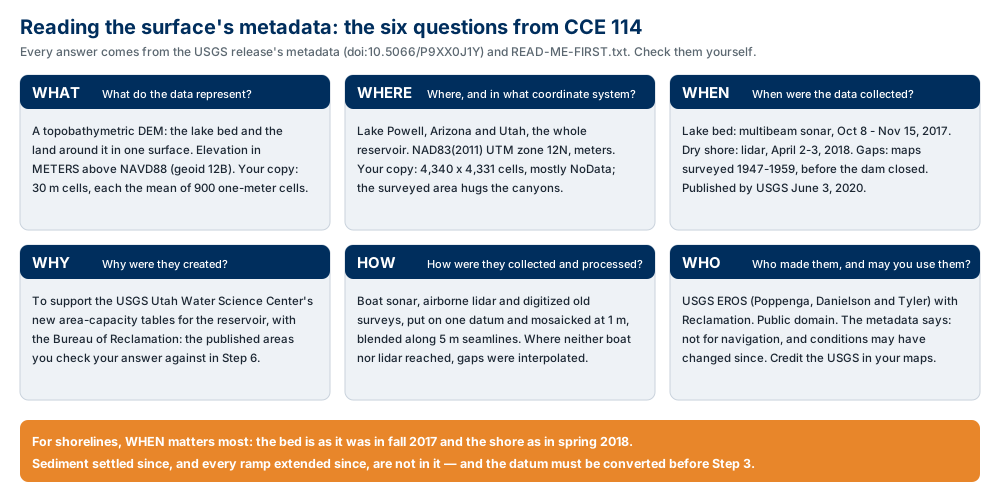
Figure A. The six metadata questions, applied to your surface. Confirm three of the values
yourself — in READ-ME-FIRST.txt, in the raster's properties in ArcGIS Pro, and in the
USGS release — and say in your report what
each one does to your result.
Basemaps and imagery come from ArcGIS Online; you do not download them.
ModelBuilder Tools
New in this lab:
| Tool | What it does |
|---|---|
 For (ModelBuilder ▸ Iterators) |
The loop. Given a From value, a To value, and a By step, it runs everything downstream once per value and hands the current value to those tools as a variable. Tool reference |
 Inline variable substitution |
Writing %Elevation% in a tool's expression or output name inserts the current loop value, so each iteration computes and names its own result. Help page |
 Con (Spatial Analyst) |
Cell-by-cell if: where the surface is at or below the current elevation, 1; elsewhere, NoData. The wet cells at one water level. Tool reference |
 Raster to Polygon (Conversion) |
Turns the wet cells into polygons whose boundaries are shorelines. Tool reference |
 Select Layer By Location (Data Management) |
Keeps only the polygon that contains the seed point: the main pool. Tool reference |
 Collect Values (ModelBuilder ▸ Utilities) |
Gathers the output of every iteration into one growing list, which a tool such as Merge can take as a single input. Tool reference |
 Merge (Data Management) |
Combines the collected shorelines into one feature class. Tool reference |
Tools you already know: Raster Calculator, Copy Features, Calculate Field (which can add a new field as it fills it), and the environment settings from earlier labs.
Example Model
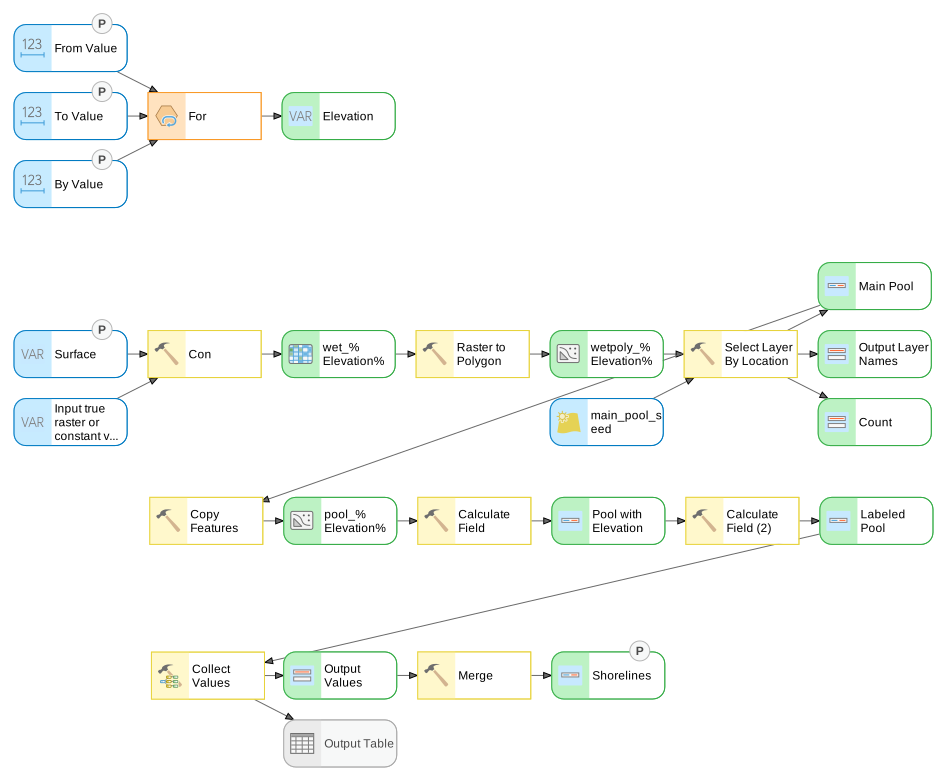
Figure C. The finished model, exported from ModelBuilder. This is a vector diagram — click it
to open it full size, where every label is readable. Its shape is the point of the lab: an
iterator that hands out one elevation at a time, a chain of tools that turns that elevation into one
labeled shoreline, and a collector that gathers the shorelines into one dataset. With an iterator in
a model, ModelBuilder runs every tool once per value, so even Merge runs 21 times; see Step 6. The five elements marked P are the model
parameters; they become the tool dialog of Step 6. Output Layer Names, Count and Output
Table are extra outputs the tools always draw; you do not use them. The oval under Surface is
Con's true value: typing 1 in the dialog draws it. The green Elevation oval has no arrows
because %Elevation% reaches the tools by name, not by a connector — do not try to connect it.
Note
Reading the model. Questions that come up the first time anyone looks at Figure C:
- It looks like two models. It is one. Nothing is drawn from
ElevationtoConbecause%Elevation%is written inside Con's expression and the output names; ModelBuilder draws a connector only when a whole variable is plugged into a parameter. An iterator drives every tool in the model whether a line is drawn or not. If you want the dependency visible, drag a connector fromElevationtoConand choose Precondition: a dashed line, no change in behavior. - Why percent signs in a name? An oval has a label (what you see) and a value (the path).
When you type
pool_%Elevation%as an output name, the value is that path and the oval labels itself with the file name part of it. At run time%Elevation%in a value is replaced by the current value of the oval whose label isElevation. Rename that oval and every reference breaks; renamepool_%Elevation%to "Pool" and nothing breaks. - Count and Output Layer Names dangle off Select Layer By Location. They are derived outputs nothing here needs. Count should read 1 on every pass: the seed touched one polygon.
- Two Calculate Fields because each polygon needs two attributes from two places: the loop's
Elevation, andAreaSqMifrom its own geometry. "Pool with Elevation" and "Labeled Pool" are the same feature class aspool_%Elevation%, passed through with one more field each time. - Collect Values appends one path per pass;
Output Valuesis that list (pool_3370; pool_3380; …), and Merge reads it.Output Tableis a receipt nobody reads. - Merge runs every pass, like every tool downstream of an iterator, and the last pass leaves all the levels.
- For, not another iterator, because the levels are an arithmetic sequence three numbers describe. For counts; the other iterators read a list that already exists.
Complete the Lab
For an advanced GIS student, the information up to this point is all you need to complete the assignment. Feel free to try the analysis using only the information above. If you complete the lab without the step-by-step instructions below, say so in your report.
Step-by-Step Solution
Note
Test on a short loop first. A full run takes about 4½ minutes, on either surface. While you
are building and debugging, set the loop to a few levels — From 3500, To 3520, By 10 is
three — and check the result before you run all 21. Real modelers work this way: get the logic
right on a small piece, then scale up.
Note
Every model check value on this page was measured on the files you download, with the steps below, both in ArcGIS Pro 3.7's arcpy and by running the model shown in the figures. Your numbers should match to the last digit shown.
Step 0 — Set Up the Project
- Create a new project in
D:\Smith\Lab06\(with your own name). Choose the Map template; if you already made the folder, uncheck Create a folder for this local project. - Add both surfaces, the seed point, and an imagery or topographic basemap. When the Build Pyramids and Calculate Statistics dialog opens, click OK.
- Confirm Spatial Analyst is licensed (Project ▸ Licensing).
- On the Analysis tab click ModelBuilder. On the ModelBuilder tab click
Properties, set Name to
ShorelineLoopand Label toShoreline Loop, and save. - On the ModelBuilder tab click Environments. Check that Current Workspace and Scratch Workspace are your project geodatabase, and leave everything else at its default.
Important
Leave Cell Size and Processing Extent empty. With only one raster going into Con, ArcGIS Pro uses that raster's own cells and extent. If you set Cell Size to the 30 m surface and later run the model on the 10 m close-up, every result comes out in 30 m cells, with no error to tell you.
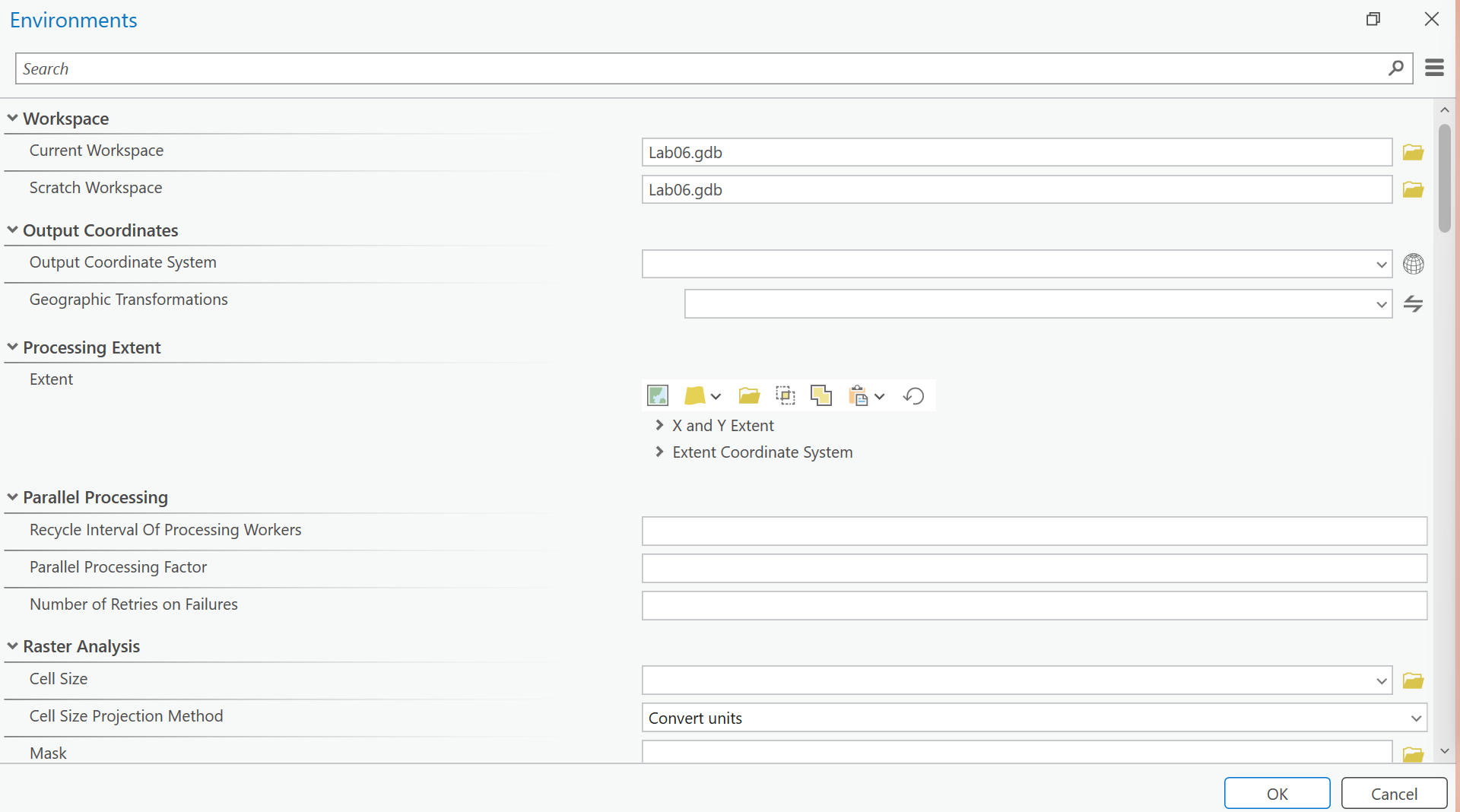
Figure 0. ModelBuilder ▸ Environments: the two workspaces set, everything else left empty.
Step 1 — Read the Surface, and Put It in Feet NGVD29
Look at the surface before you build anything: its value range, cell size, coordinate system, and
vertical units. Then open powell_elevation_usbr.csv. The surface reads about 955–1,441 and the lake
record reads about 3,500–3,700. They are not in the same units, and they are not in the same datum
either.
Convert the surface with Raster Calculator (from the Geoprocessing pane, not as a step in the model) so it matches the Reclamation record:
("powell_tbdem_30m.tif" / 0.3048) - 2.91
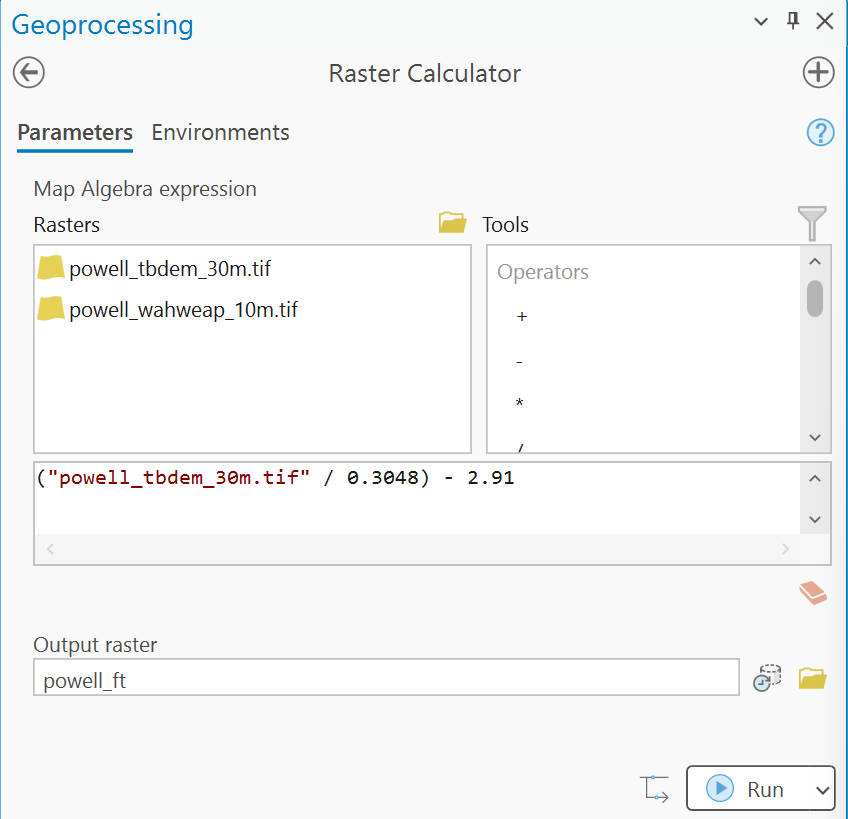
Figure 1. The conversion in Raster Calculator. Type the output name last: choosing a raster
or editing the expression can replace what you typed with a default name such as RasterC_1.
Save it as powell_ft in your project geodatabase. Do the same for the close-up and save it as
wahweap_ft. Dividing by 0.3048 converts meters to feet; subtracting 2.91 ft moves from NAVD88 to
NGVD29 at Lake Powell. The offset is from the USGS area–capacity report for the 2017 survey (Root
and Jones, 2022), and NOAA's VERTCON gives the same 2.9 ft at the dam.
Tip
Check the result: powell_ft runs from 3,132.6 to 4,723.9 ft, and wahweap_ft from
3,129.5 to 4,322.4 ft. If your maximum is about 4,726.8, you forgot the datum shift. If it is
about 1,441, you did not convert at all.
Find on the map the dam, the old river channel, Wahweap and Antelope Point, so you know the lake before you flood it.
Warning
The datum trap. If you skip this step and run the loop in feet on the meters surface, Step 3 runs without an error and floods everything at every elevation, because every cell (955–1,441) is below 3,500. A shoreline that does not move when the elevation changes is the giveaway.
Step 2 — Add the Loop
- On the ModelBuilder tab, in the Insert group, open Iterators and choose For.
- Double-click For and set From Value
3500, To Value3700, By Value10. - Right-click its green output,
Value, choose Rename, and typeElevation. - Right-click For ▸ Create Variable ▸ From Parameter ▸ From Value. Do the same for To Value and By Value. Three blue ovals appear, one per setting.
- Right-click each blue oval and choose Parameter: a
Pappears beside it, and the value can now be changed from the tool dialog without opening ModelBuilder.
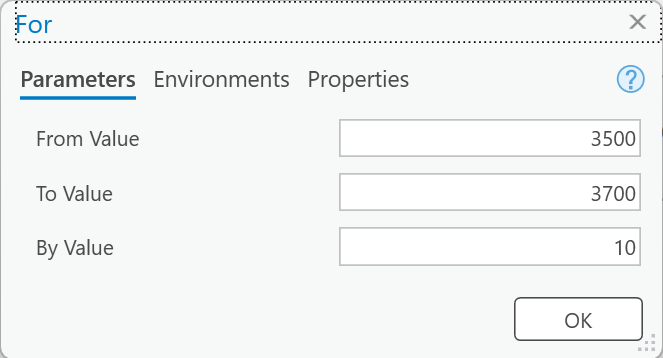
Figure 2. The For iterator. To Value is included: 3,500 to 3,700 by 10 is 21 levels.
Tip
Check the result: the model runs 21 iterations — 3,500, 3,510, …, 3,700.
Step 3 — Flood the Surface
Add Con (search for it in the Geoprocessing pane, right-click the Spatial Analyst result, and choose Add To Model), and double-click it:
- Input conditional raster:
powell_ft - Expression: turn on SQL Editor and type
Value <= %Elevation% - Input true raster or constant value:
1 - Input false raster or constant value: leave it empty, so dry cells are NoData
- Output raster:
wet_%Elevation%
%Elevation% is the iterator's current value, so every iteration floods the surface to its own
level and writes its own raster: wet_3500, wet_3510, and so on.
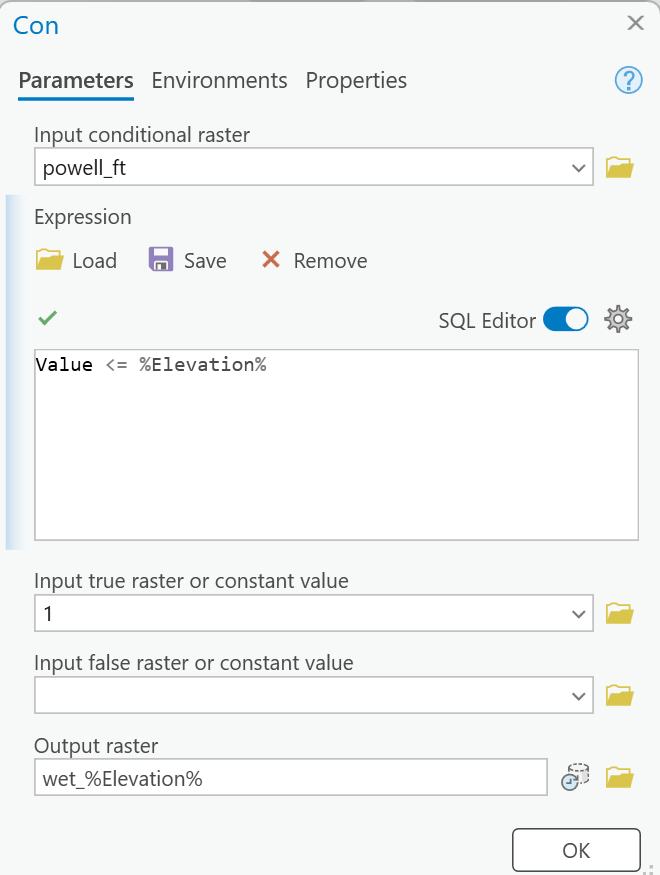
Figure 3. Con, with the expression typed in the SQL Editor.
Warning
Do not switch the SQL Editor off once the expression is in. In our test, switching it off and back on cleared the expression without a warning.
Then make the surface a parameter too, so Step 7 can switch it: right-click the blue powell_ft
oval, choose Parameter, and rename it Surface.
Tip
Check the result: at 3,550 ft, 303,538 wet cells on the 30 m whole lake and 295,745 on the 10 m close-up. These count every wet cell anywhere, not just the lake.
Step 4 — Keep the Main Pool
The flooded raster includes every cell below the elevation: potholes on benches far from the lake that would never fill, and pieces of the lake that 30 m cells cut off where a canyon is narrower than a cell. Keep only the water connected to the dam:
- Raster to Polygon on the wet raster, with Simplify polygons unchecked (so the polygon
follows the cells exactly and the area is exact; see the note below Figure 4a) and Create
multipart features unchecked.
Output
wetpoly_%Elevation%. - Select Layer By Location: input
wetpoly_%Elevation%(the model variable, straight from the list; no Make Feature Layer is needed), relationship Intersect, selecting featuresmain_pool_seed. ModelBuilder names the selected layer after the first elevation, something likewetpoly_3500_Layer; rename that green ovalMain Poolso the name does not mislead you. - Copy Features: input
Main Pool, outputpool_%Elevation%. Copy Features copies only the selected polygon.
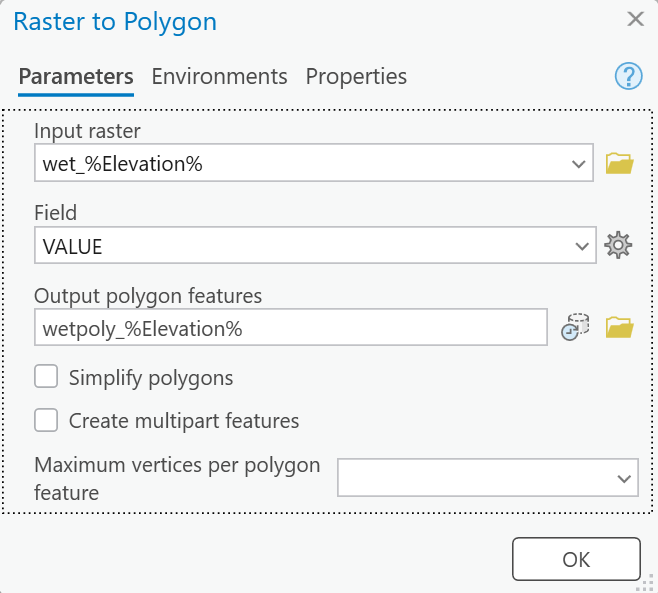
Figure 4a. Raster to Polygon, with both boxes unchecked.
Note
Why are my shorelines stair-stepped when my neighbor's are smooth? It is the Simplify polygons box. Unchecked, each polygon edge runs along the cell edges, so every shoreline is a staircase of 30 m steps. Checked (the tool's default), ArcGIS Pro smooths the staircase into lines that cut across the corners of the cells, so the shoreline looks like a curve.
- Unchecked keeps the most detail: the polygon is exactly the wet cells, and the area is the cell count times the cell area. Every check value on this page was measured this way.
- Checked usually makes the better-looking map, but the smoothed line no longer follows the cells exactly, so the area comes out a little different from the cell count.
Either is acceptable; choose the one you want. If you check it, your areas will not match the check values exactly. Say in your report which you used.
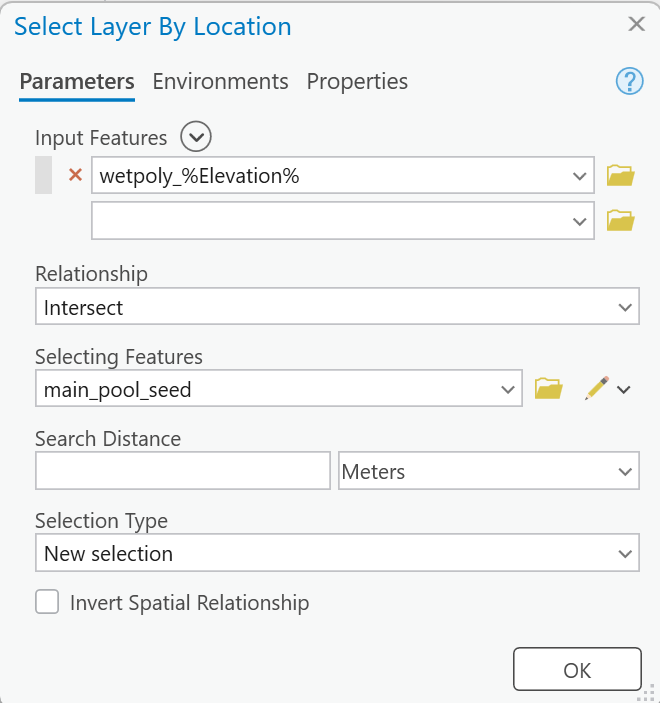
Figure 4b. Select Layer By Location keeps the polygon under the seed point.
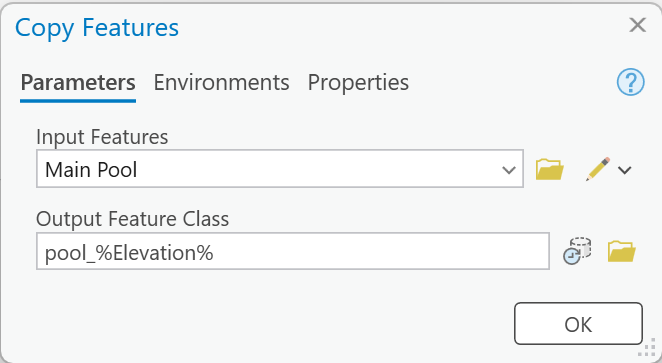
Figure 4c. Copy Features writes the selected polygon to its own feature class.
Tip
Check the result: at 3,550 ft on the whole lake, Raster to Polygon makes 602 separate polygons, and the one you keep is 103.93 sq mi (299,072 cells); Step 4 removed 4,466 cells, about 1.6 sq mi. What does that say about the other 601?
Step 5 — Label the Shoreline
Two Calculate Field tools, one after the other. Calculate Field's Field Name (Existing or New) box adds the field if it does not exist yet, so you do not need Add Field first.
- Calculate Field: Input Table
pool_%Elevation%, Field NameElevation, Field Type Long (32-bit integer), Expression Type Python,Elevation =%Elevation%. - Calculate Field (2): Input Table the first one's output, Field Name
AreaSqMi, Field Type Double (64-bit floating point),AreaSqMi =!shape.area@squaremiles!.
Like Select Layer By Location, each Calculate Field draws a green output named after the first
elevation (pool_3500). Rename them Pool with Elevation and Labeled Pool. Every polygon that
leaves the loop now carries its elevation and its area.
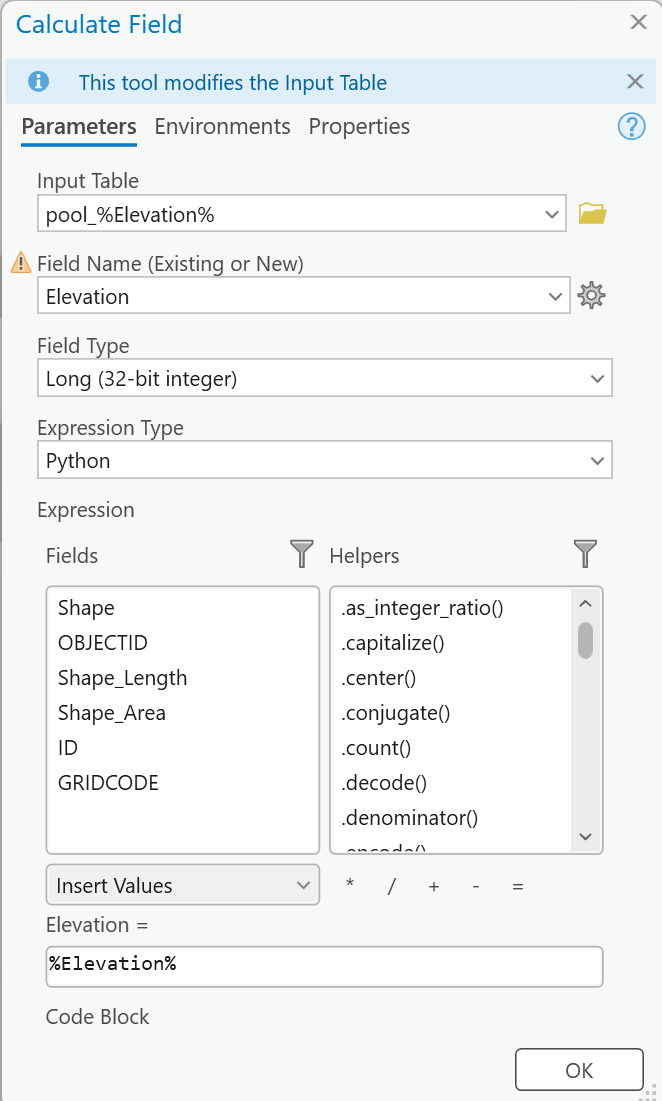
Figure 5a. The first Calculate Field writes the loop value into a new Long field. The warning icon beside Field Name appears because the field is not there yet; Calculate Field adds it when it runs (hover over the icon to read the message).
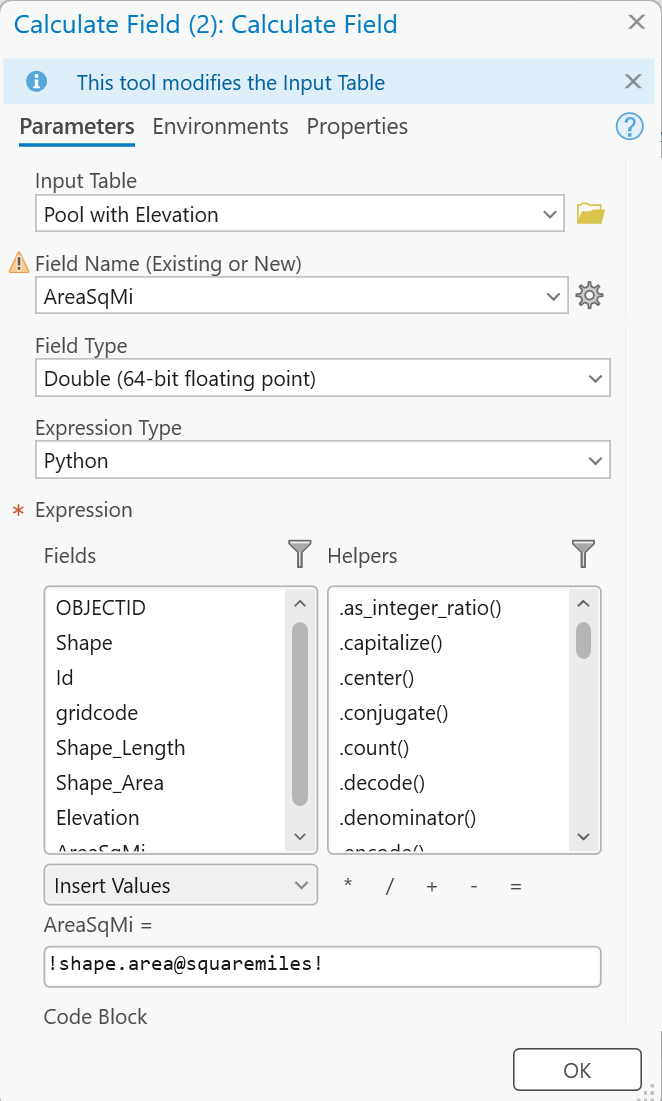
Figure 5b. The second computes the area in square miles from the polygon's geometry.
Step 6 — Collect and Merge
- On the ModelBuilder tab, open Utilities and choose Collect Values. Double-click it
and set Input Value to
Labeled Pool. Leave Output Table empty. - Add Merge. Its Input Datasets list does not offer Collect Values' output, so connect it on the canvas instead: drag from the green Output Values oval onto Merge, and choose Input Datasets from the menu that pops up.
- Double-click Merge and set Output Dataset to
powell_shorelines_3500_3700_10. - Right-click the green output oval, choose Parameter, and rename it
Shorelines. - Save the model, click Open Tool on the ModelBuilder tab, and run the model from the tool dialog that opens in the Geoprocessing pane.
Note
Merge runs on every pass, not once at the end. Once a model has an iterator, ModelBuilder runs
every tool in it once per value. Each pass, Collect Values adds one more shoreline to its list and
Merge rewrites powell_shorelines_3500_3700_10 from the whole list so far; the last pass leaves all
21. That costs a few seconds a pass and gives the right answer. Esri's way to run a tool only once
after a loop is to put the loop in a model of its own and use that model as a tool inside a second
model (Iterators for looping);
you do not need that for this lab. Also from that page: a model can hold only one iterator.
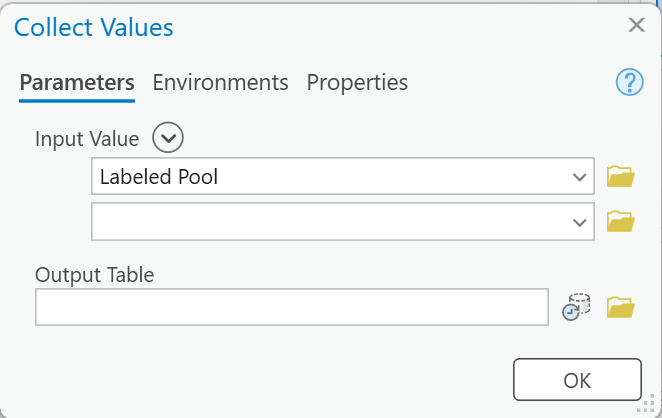
Figure 6a. Collect Values gathers one Labeled Pool from every iteration.
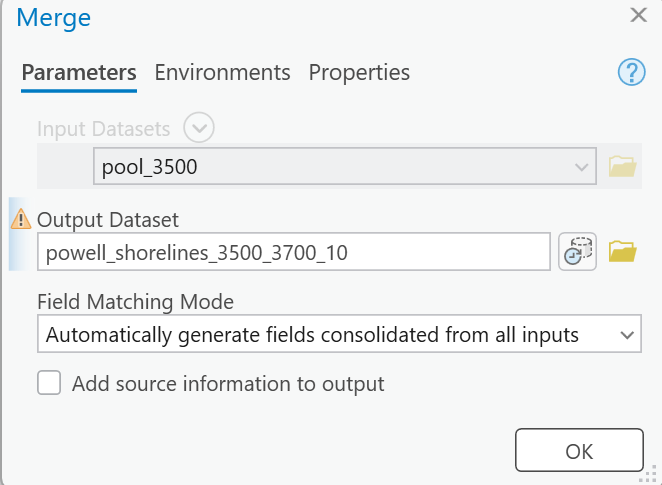
Figure 6b. Merge, fed by the connector from Collect Values. The grayed input only shows the name of one iteration's output; at run time it receives all of them. The warning icon only says the output already exists from an earlier run.
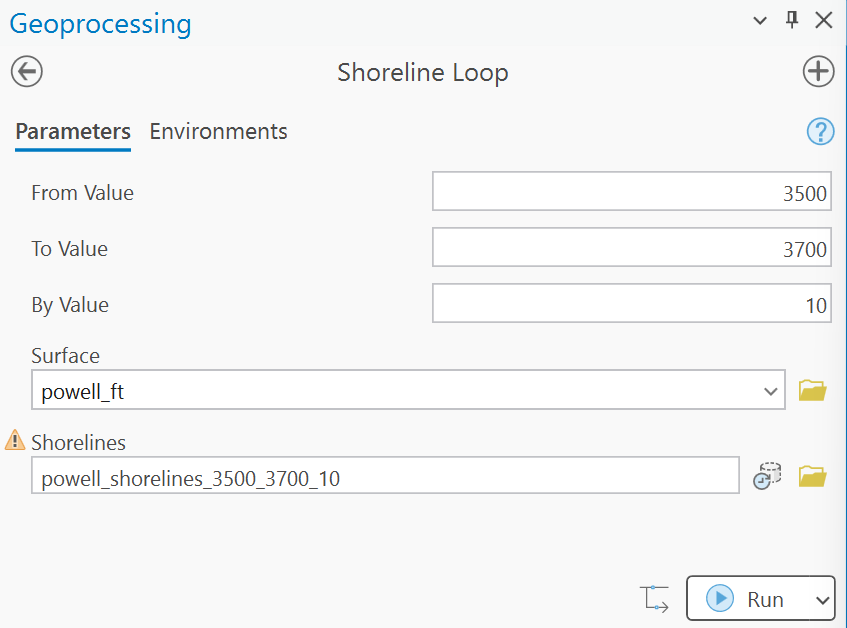
Figure 6c. The model as a tool: the five parameters marked P in Figure C.
Tip
Check the result: one row per elevation, 21 rows. Selected areas:
| Elevation (ft) | Your area (sq mi) | USGS published area (sq mi) |
|---|---|---|
| 3,500 | 75.65 | 76.65 |
| 3,550 | 103.93 | 105.02 |
| 3,600 | 140.37 | 141.54 |
| 3,650 | 192.05 | 193.52 |
| 3,700 | 247.36 | 248.82 |
The published areas are from the USGS area–capacity table for the 2017–18 survey (Root and Jones, 2022; the table itself is the data release), converted from acres. Yours run 0.2 to 1.3 % below them at every level. Your report should say why — think about narrow canyon arms and 30 m cells, and about Step 4.
The whole run took about 4½ minutes in our test (about 13 seconds a level); expect longer on the lab machines.
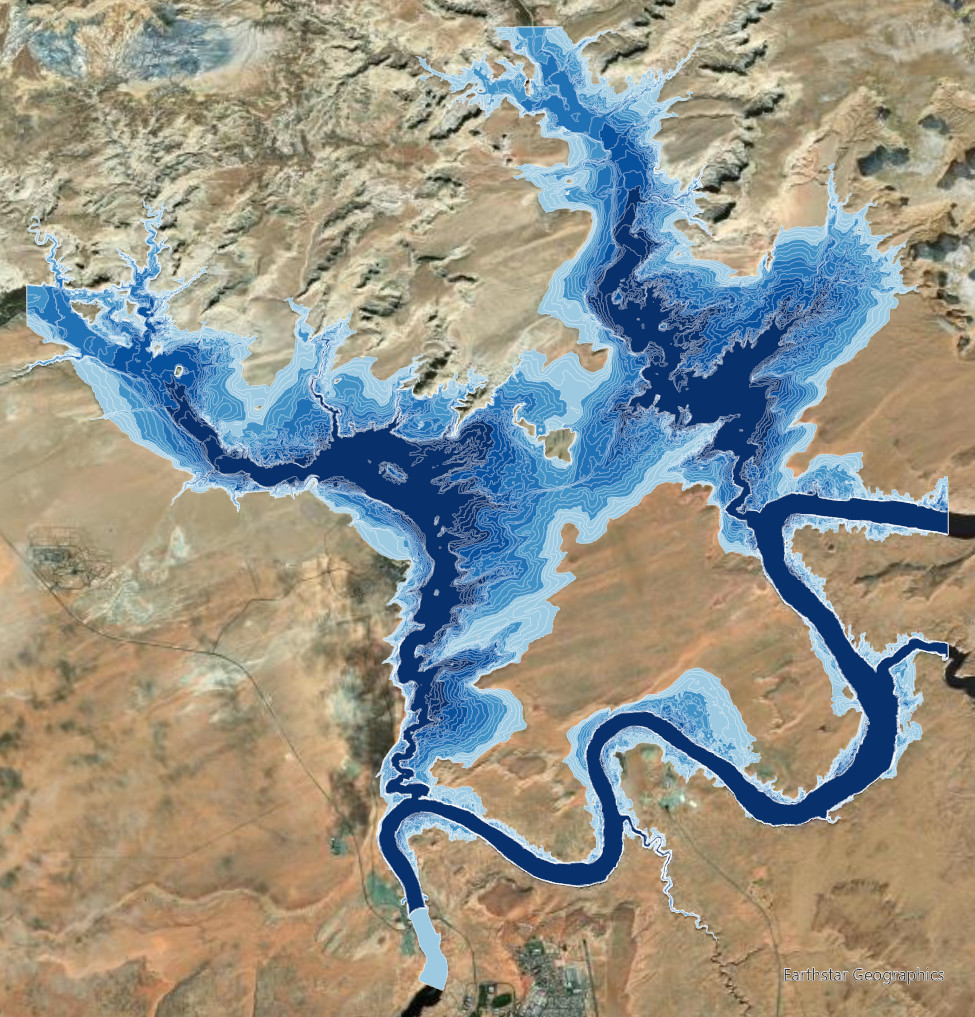
Figure 6d. The default run on the 10 m close-up: 21 shorelines, the lowest (darkest) drawn on top. The main pool there grows from 7.34 sq mi at 3,500 ft to 35.54 sq mi at 3,700 ft.
Step 7 — Run It Twice
Once the three-level test in Step 6 checks out, run the finished model from its tool dialog twice. Open it from the Catalog pane (Toolboxes ▸ Lab06.atbx ▸ Shoreline Loop) so the run goes through the dialog and lands in your Geoprocessing History.
Run 1 — dead pool to above full pool. From Value 3370, To Value 3710, By Value 10,
Surface powell_ft, Shorelines powell_shorelines_3370_3710_10. That is 35 levels, from dead
pool, below which no water can leave the dam, past full pool at 3,700 ft to a level the dam has
never seen. Expect about eight minutes.
Tip
Check the result: 35 rows in the attribute table. At 3,370 ft the main pool is
28.19 sq mi, about 11 % of the lake at full pool; at 3,500 ft it is 75.65 sq mi; at
3,700 ft, 247.36 sq mi. Look at how AreaSqMi grows from row to row: about half a square
mile per foot near the bottom and more than a square mile per foot near the top. Glen Canyon is
narrow at the bottom and wide at the top, and the table shows it.
Run 2 — your own five levels. Every student runs a different set, worked out from your BYU ID
number: the nine-digit number printed on your BYU ID card, such as 123456789. It is not
your NetID, the user name of letters and numbers you use to sign in to BYU sites.
Your starting level E = 3,450 + 2 × (the last two digits of your BYU ID) ft NGVD29. Run the model with From Value E, To Value E + 40, By Value 10: five levels, E to E + 40. Name the output
powell_shorelines_mine_E, with your E in place of E.
- BYU ID
123456789: last two digits 89, E = 3,450 + 2 × 89 = 3,628 ft, so From 3628, To 3668, By 10.- BYU ID
987654302: last two digits 02, E = 3,450 + 4 = 3,454 ft, so From 3454, To 3494, By 10.Every set lies between 3,450 and 3,688 ft, inside Run 1's range, which is the point: your five rows are a finer look at one stretch of the same curve. Open the attribute table: five rows. Copy its
Elevation,AreaSqMi(to 0.01) andShape_Length(in meters, as the table shows it) into your report, with your BYU ID's last two digits and your E. The grader checks every number against a run at your levels, so they have to come from your run, not from Run 1's table.
Important
Give each run its own Shorelines name. A run that keeps the old name overwrites the earlier
one. Type the numbers into the name yourself: in our test, building the name from
%From Value% and the other parameters wrote the right dataset but added the previous run's
layer to the map.
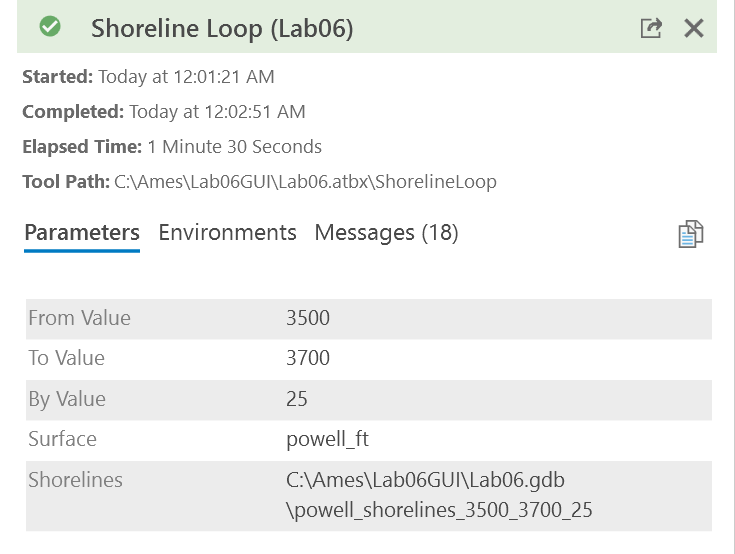
Figure 7. A finished run from the tool dialog, here nine levels at a 25 ft step in a minute and a half. Your runs look the same with your own values; Run 1 takes about five times as long.
Note
Optional, for the curious. Run your five levels again on the 10 m close-up (set Surface to
wahweap_ft, and give the output a new name) and compare the shoreline in one side canyon near
Wahweap with the 30 m version. That is the cell-size question from the Analysis Considerations,
answered with your own eyes, and it makes a sharper Map 2 if your levels fall inside the close-up.
Step 8 — Symbolize the Shorelines
Every pool contains every pool below it, so the polygons sit on top of one another. With the default symbology the biggest one covers the rest, and the map shows one patch of water. Two settings fix that: a color for each level, and a drawing order that puts the small, low pools on top. Do this for each run's layer:
- Right-click the layer ▸ Symbology. Set Primary symbology to Graduated Colors and
Field to
Elevation. - Set Classes so each level gets its own color: 5 for your Run 2 layer, and as many as ArcGIS Pro allows for Run 1. If ArcGIS Pro will not go as high as 35, use fewer classes so that each color covers a band of levels, as in Figure 8.
- Pick a Color scheme that runs from white or pale blue to dark blue. Better still, choose your own colors: the map is yours, and it does not have to match the examples. Whatever you choose, make the low levels the dark end, since that is the deep water. If the scheme runs the wrong way, reverse it.
- Open the Advanced symbology options tab of the Symbology pane (verify the tab name in your
version), expand Feature drawing order, check Enable feature drawing order, and choose
Elevation. Then set the sort so the highest levels draw first and the lowest last. If you still see a single color, the sort is the wrong way round: reverse it.
Tip
Check the result: you see nested rings of color, darkest in the old river channel and lightest along the outer shoreline, as in Figure 8. Use the same colors on both maps so that a level looks the same on Map 1 and Map 2.
Deliverables
Make two professional map layouts, one per run:
- Map 1 — Run 1, the whole lake. The 35 nested shorelines from dead pool to 3,710 ft, symbolized so a reader can tell low from high, with a legend, a few levels labeled on the map, and dead pool, full pool and this fall's record low (3,516.6 ft) pointed out.
- Map 2 — Run 2, your five levels. Zoomed in to a part of the lake where your five shorelines are visibly different, symbolized the same way as Map 1, each level labeled. The title states your five levels.
Write a brief report (2 pages of text, plus your figures and maps) covering:
- a title block — assignment title, your name, the date and the course — and the name of your peer reviewer
- the requirements of the project and your approach to solving it
- a description of your model a reader could repeat from: the iterator and its three values, each tool inside the loop and its settings, how the results are collected, and every input, intermediate and output dataset with its type
- one full-page figure of your model — export it from ModelBuilder (Export ▸ Export To Graphic) rather than screen-capturing it — and one screen capture of its toolbox interface showing its parameters (at least From, To and By)
- the three metadata values for the surface — the survey date (2017 multibeam for the lake bed), the vertical datum (NAVD88, converted to NGVD29), and the cell size (30 m) — and what each one means for your result
- Run 1: a screen capture of the attribute table of
powell_shorelines_3370_3710_10showing all 35 rows withElevationandAreaSqMi, and two or three sentences on how the area grows per foot near dead pool compared with near full pool, and what the shape of Glen Canyon has to do with it - Run 2: a table with your BYU ID's last two digits, your E, and the five rows of your run
(
Elevation,AreaSqMi,Shape_Length), and a sentence on where your five levels sit against this fall's record low and full pool - evidence that the model ran on your machine: a screen capture of the Geoprocessing History pane (Analysis tab ▸ History) listing both runs with their dates and run times
- one line at the end saying what, if anything, you used AI for (see the note after the rubric)
- a copy of the rubric below with your self-assessment filled in — a score in every row, honestly arrived at. The grader will compare it with theirs.
Upload three files, not one: the report as a PDF, and each map as its own PDF exported from the ArcGIS Pro layout (Share tab ▸ Export Layout ▸ PDF, with the default vector settings). The grader opens the map PDFs in a reader and checks that the title and legend text can be selected and that the shorelines are drawn as lines, not pixels. A map image pasted into a document, a screen capture, or anything an image generator produced fails that check. Put the maps in the report too, so it reads on its own.
Important
Peer review before you submit. Have another student in the class read your report against the rubric and give you feedback, then act on that feedback before the deadline. Name your reviewer in the report and say in a sentence what you changed because of them.
Credit line for your maps: Elevation: Poppenga, S.K., Danielson, J.J., and Tyler, D.J., 2020, One Meter Topobathymetric Digital Elevation Model for Lake Powell, Arizona–Utah, 1947–2018, USGS data release, doi:10.5066/P9XX0J1Y (resampled to 30 m, converted to ft NGVD29). Lake levels: U.S. Bureau of Reclamation, Upper Colorado Region, Lake Powell (site 919).
References
- Poppenga, S.K., Danielson, J.J., and Tyler, D.J. (2020). One Meter Topobathymetric Digital Elevation Model for Lake Powell, Arizona–Utah, 1947–2018. U.S. Geological Survey data release. doi:10.5066/P9XX0J1Y
- Root, J.C., and Jones, D.K. (2022). Elevation-area-capacity relationships of Lake Powell in 2018 and estimated loss of storage capacity since 1963. U.S. Geological Survey Scientific Investigations Report 2022-5017. doi:10.3133/sir20225017
- U.S. Bureau of Reclamation, Upper Colorado Region. Lake Powell (site 919) daily pool elevation. usbr.gov
- National Park Service, Glen Canyon National Recreation Area. Changing Lake Levels. nps.gov
- Ames, D.P. Lake Powell Depth Explorer. lakepowell.hydromap.com
- Esri. An overview of the ModelBuilder toolbox, ArcGIS Pro documentation, pro.arcgis.com.
Example Maps
Two example layouts follow, one for each map the Deliverables ask for. They show the design: what goes on the page and where. Every piece of wording on them is a bracketed placeholder on purpose. Your title, subtitle and text box are yours to write, from your own runs, in your own words. A map that carries these brackets, or a title lifted from anywhere else, is not finished.
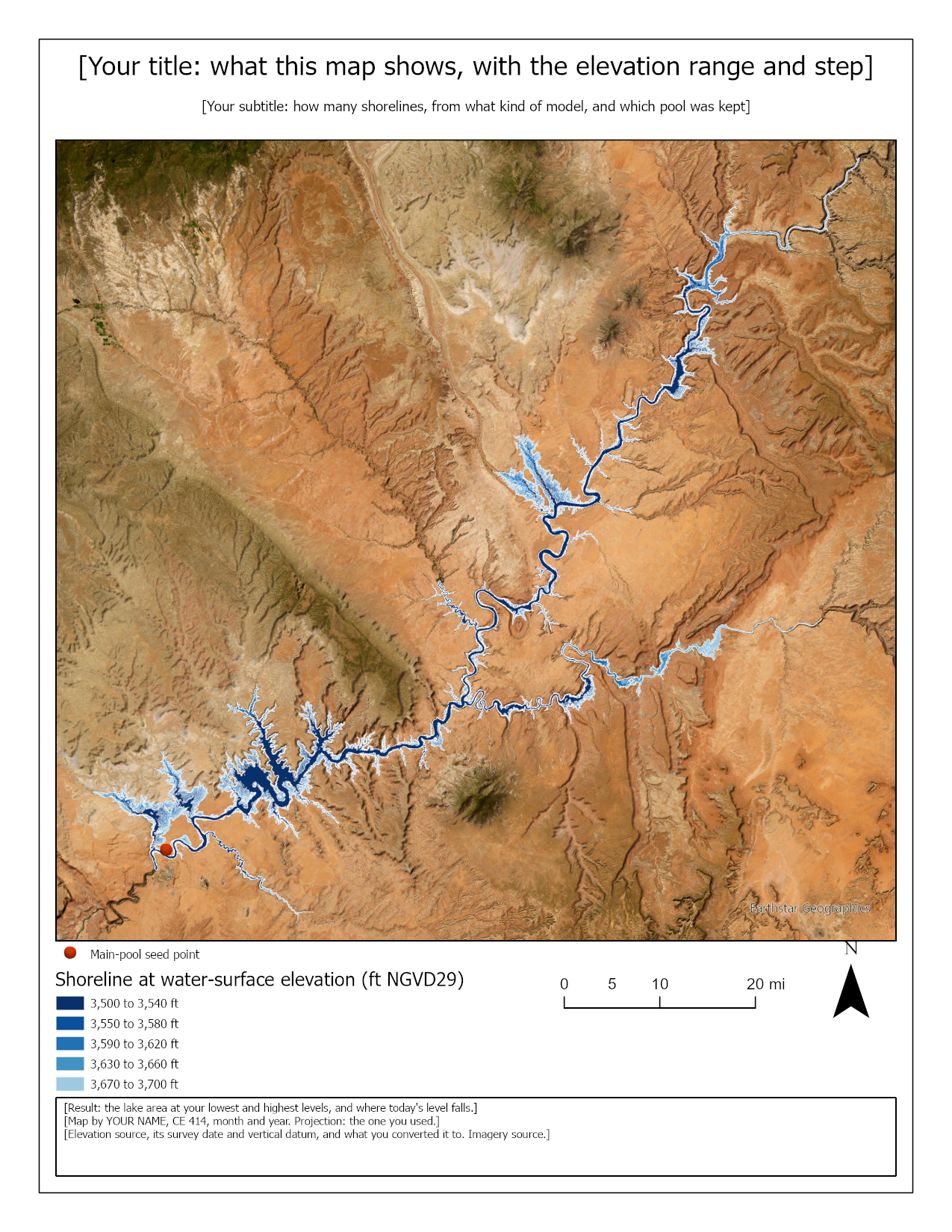
Figure 8. A whole-lake map, with placeholder wording. Yours shows Run 1's 35 levels instead of these 21. Two things to do better than this example: point out dead pool, full pool and the record low, and label a few levels on the map itself so a reader does not have to match colors to the legend.
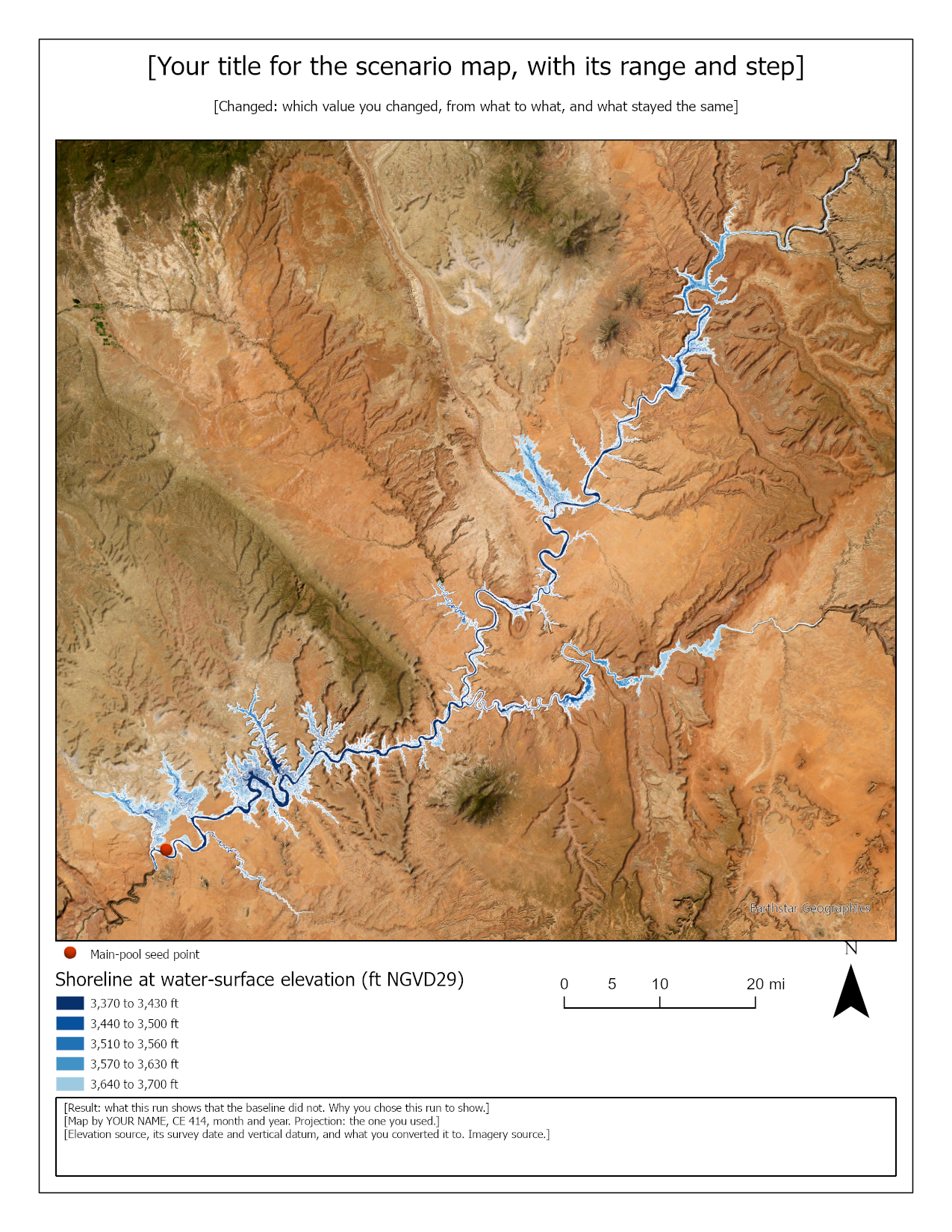
Figure 9. The same design on a different run, here down to dead pool. Your Map 2 shows only your five levels, zoomed in to where they differ, with each level labeled and your five levels in the title.
Rubric for the Lake Depth Explorer
Fifty points in five parts of ten. The bullets say what each part is worth, so you know exactly what to submit.
This rubric is already laid out as a fillable table at the end of
lab06-report-template.docx, so you do not have to copy it
out of this page.
| Item | Points |
|---|---|
| Write-up (2 pages) • Assignment title, your name, date and course; your peer reviewer named, with a sentence on what you changed because of them (1) • The requirements of the project and your approach to solving it, in your own words (2) • The three metadata values for the surface and what each means for your result (3) • The two short observations: how area per foot changes from dead pool to full pool and why, and where your five levels sit against the record low and full pool (2) • Organized writing, figures numbered and referred to, sources credited, rubric pasted with your self-assessment (2) |
/10 |
| ModelBuilder model — correct and working • The model runs end to end from its tool dialog, loops over the elevations, and produces one merged feature class with one labeled shoreline per elevation, and the History capture shows both runs (4) • A full-page model figure exported from ModelBuilder, with the iterator, the loop, and the collector readable (2) • A screen capture of the toolbox interface with the From, To and By parameters exposed (2) • A description of the model a reader could repeat from, including how the loop value reaches the tools inside it (2) |
/10 |
| Run 1 and Run 2 (Step 7) • Run 1's attribute table captured in full: 35 rows, and the areas at 3,370, 3,500 and 3,700 ft match the check values (4) • Run 2's table: your BYU ID digits, your E, and five rows of elevation, area and shoreline length that match a run at your levels (4) • Both Shorelines outputs named for their levels, as Step 7 asks (2) |
/10 |
| Map 1 — Run 1, the whole lake (full page, 8.5 × 11, uploaded as a layout PDF) • Title stating the elevation range and step (1) • Neat line, north arrow and scale bar (1) • Text box with author, date, map projection, and the surface's source, survey date and vertical datum (1) • The 35 nested shorelines symbolized so low and high are readable, with a legend and a few levels labeled on the map (3) • Dead pool, full pool and the record low pointed out (2) • Basemap, scale and legibility appropriate to the lake (2) |
/10 |
| Map 2 — Run 2, your five levels (full page, 8.5 × 11, uploaded as a layout PDF) • Title stating your five levels (1) • Neat line, north arrow and scale bar (1) • Text box with author, date, map projection, and the surface's source, survey date and vertical datum (1) • The five shorelines symbolized as on Map 1, with a legend, each level labeled (3) • Zoomed to a part of the lake where the five levels are visibly different (2) • Basemap, scale and legibility appropriate to the view (2) |
/10 |
| Total | /50 |
Note
Using AI on this lab. Use AI freely to understand a tool, work out an error, or tighten your write-up, and add one line at the end of your report saying what you used it for. Do not take a field name, an expression, a coordinate system, or a number from it — those come from your own data, and the rubric asks you to defend every one. See the AI Use Policy for the full policy.
What the grader verifies. The model figure must be a ModelBuilder export; the maps must be ArcGIS Pro layout exports with selectable text; Run 2's numbers must match a run at your five levels; the History capture must show both runs. A figure or map that was generated, redrawn or "enhanced" by AI, or a number that could not have come from a run, scores zero for that part of the rubric, and the report goes to the instructor under the AI policy. You do the work in ArcGIS Pro yourself: AI may not run it for you.