Lab 8: Interpolation Explorer
Civil Engineering 414 — Engineering Applications of GIS
Fall 2026 · Dr. Dan Ames
Rebuilding a mountain from samples, three ways, and measuring how wrong each one is
Tip
Start from the report template. lab08-report-template.docx
has the title block, a section for every deliverable, the tables already set up with the columns the
rubric asks for, and the rubric at the end ready to fill in. You are welcome to write your report
any way you like — the template is a floor, not a ceiling — but if you use it and fill in every
section, you will not have left a graded item out.
Background
Every elevation model, rainfall map and groundwater surface you will use as an engineer started as points: survey shots, rain gauges, wells. Something turned those points into a surface, and that something was an interpolator. In this lab the interpolator is the subject; in Lab 9 you will use one (IDW) as a tool, to rebuild the plain under Big Southern Butte.
The idea is simple. To estimate a value at one place you look at the samples around it and combine them: take the nearest one (Thiessen, or nearest neighbor), average the nearby ones with the closest weighted most (inverse distance weighting, IDW), or weight them by a model of how fast values stop resembling each other with distance (Kriging). A GIS does this at the center of every cell of an output raster (Bolstad, GIS Fundamentals, Chapter 12). Each method has a personality, and you can see it in the result: Thiessen makes terraces, IDW makes bull's-eyes around its samples and can never go above the highest one, Kriging smooths.
What you usually cannot do is check the answer, because the true surface is the thing you do not have. Here you do. We sampled a real elevation model of Y Mountain at random points; you rebuild it from those points three ways, and subtract each rebuild from the truth, cell by cell. That gives you a map of where each method fails and one number, the root-mean-square error (RMSE), for how badly.
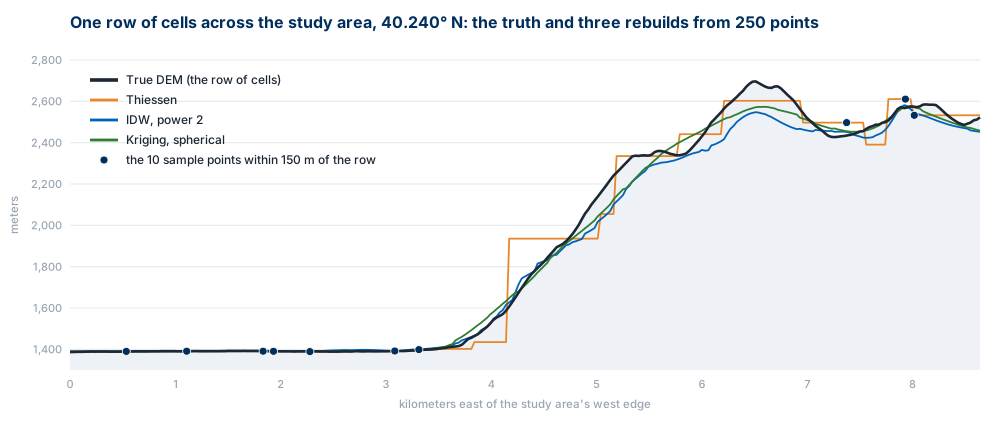
Figure B. One row of cells across the study area, the truth and three surfaces rebuilt from only 250 points. Look at the ridge near kilometer 6.5: no method can put back a peak it never sampled.
How close a rebuild comes depends on choices you make: the method, its parameters, and above all how many points you give it. In Step 8 you vary them, see how far the RMSE moves, and use what moves to decide which method you would trust with a surface you cannot check.
Important
Your job — see the deliverables below. Build one ModelBuilder model that takes a set of sample points, rebuilds the surface by Thiessen polygons, IDW and Kriging, and reports each rebuild's error map and RMSE; run it on Y Mountain; test how the number of points and each method's parameters change the errors; and make two map sheets.
Problem Statement
You are given a 30 m elevation model of Y Mountain and the valley below it — the truth — and three sets of random points that sampled it. Using them:
- Rebuild the surface from the points by Thiessen polygons, IDW and ordinary Kriging.
- Map each rebuild's error against the true elevation model, and compute its RMSE.
- Find out which method and which settings rebuild this mountain best, and where every method fails.
Analysis Considerations
Every one of these is a decision somebody made, and every one of them can change the answer.
- The truth. The elevation model is treated as exact. It is not — it is itself a product of interpolation from lidar and older sources — but here it is the reference everything else is measured against. Your RMSE says how well you rebuilt the DEM, not how well anything matches the ground.
- The cell size. The DEM was projected to 30 m cells, as engineering-scale terrain work often does, and every surface is built on that grid. A finer grid would make the truth rougher and the errors bigger.
- The samples. 250, 2,500 or 10,000 random points in a 60.6 km² rectangle; at 2,500, about one point for every 27 cells. Random points cluster in some places and leave gaps in others, and the gaps are where the errors are. The course's three sets were drawn once, with a fixed random seed, so everyone's numbers match this page.
- The method and its parameters. Thiessen has none. IDW has a power (how fast a sample's influence falls off with distance; 2 is the default) and a number of neighbors (12). Kriging has a semivariogram model (spherical is the default) fitted to the points, and a number of neighbors (12). Every default is somebody's guess about a typical surface; Step 8 tests the guesses.
- The measure of error. RMSE weights large errors heavily, because it squares them. It is one number for the whole rectangle, and most of the rectangle is flat valley floor that every method gets right. Look at the error maps, not just the number.
- The coordinate system. NAD 1983 UTM Zone 12N in meters, so that cells are square and distances, which every interpolator depends on, are in meters in every direction.
Data
Important
Set up your folder before you download anything. On the lab machines, work on the D:
drive: one folder for this class named after you, D:\Smith\, and one folder per lab inside
it, D:\Smith\Lab08\. The C: drive is locked, and a network drive is slow enough to make
ArcGIS Pro hang. Never use a space in a folder or file name you create — raster tools fail on
them without saying why. Back up your lab folder at the end of every session. The full set of
conventions is on the ArcGIS Tips and Reminders page.
| Layer | What it is | How you get it |
|---|---|---|
lab08-y-mountain\Lab08.gdb\True_DEM |
The DEM projected to UTM 12N at 30 m and cut to the study rectangle: the truth | Prepared for you, in the zip |
lab08-y-mountain\Lab08.gdb\Sample_Points_250, _2500, _10000 |
Random points in the rectangle, each with the True_DEM value under it in RASTERVALU |
Prepared for you, in the zip |
lab08-y-mountain\Lab08.gdb\Checkpoints |
200 more random points in the rectangle, never used to interpolate; Step 8 tests the surfaces at them | Prepared for you, in the zip |
lab08-y-mountain\Lab08.gdb\Study_Area |
The study rectangle, on True_DEM's 30 m grid |
Prepared for you, in the zip |
YMountain_DEM.tif |
The source: USGS 3D Elevation Program, 1/3 arc-second DEM, tile n41w112 | In the zip, for its metadata and for Step 1 |
| 3DEP elevation image service | The same elevations, served live | A web service you add in Step 1 |
- Download:
lab08-y-mountain.zip(2.4 MB). Unzip it into your Lab08 folder — the files are in alab08-y-mountainfolder inside it — and readREAD-ME-FIRST.txt.
What we already did for you. Every step below is one you have done in an earlier lab, so we did them once, carefully, and handed you the results; your model starts where the interpolation starts.
- Project Raster (Labs 4 and 5):
YMountain_DEM.tifto NAD 1983 UTM Zone 12N, bilinear, 30 m cells. - Extract by Mask (Lab 4): the projected DEM cut to
Study_Area, a rectangle drawn well inside it with its corners on the 30 m grid. The result isTrue_DEM. - Create Random Points: 250, 2,500 and 10,000 points inside
Study_Area, with the Random Number Generator environment set to seed 1, so the points are the same every time. - Extract Values to Points (Lab 9): the
True_DEMvalue under each point, written toRASTERVALU.
We drew Checkpoints the same way, 200 points with a different seed, and attached no values.
Tip
Check the data: True_DEM has 67,337 cells with values, from 1,368.5 to 2,896.5 m
(mean 1,819.8). Sample_Points_250, _2500 and _10000 have exactly that many points, each
with the fields OBJECTID, Shape and RASTERVALU; at 2,500 points RASTERVALU runs from
1,368.7 to 2,886.7 m and the first point (OBJECTID 1) is at about 444,603.3 E,
4,453,723.7 N. Study_Area is one rectangle of 60.6 km² (8.67 × 6.99 km).
Note
The samples never include the true highest cell (2,896.5 m): the tallest of the 2,500 is 2,886.7 m. Keep that number in mind in Steps 3 to 5.
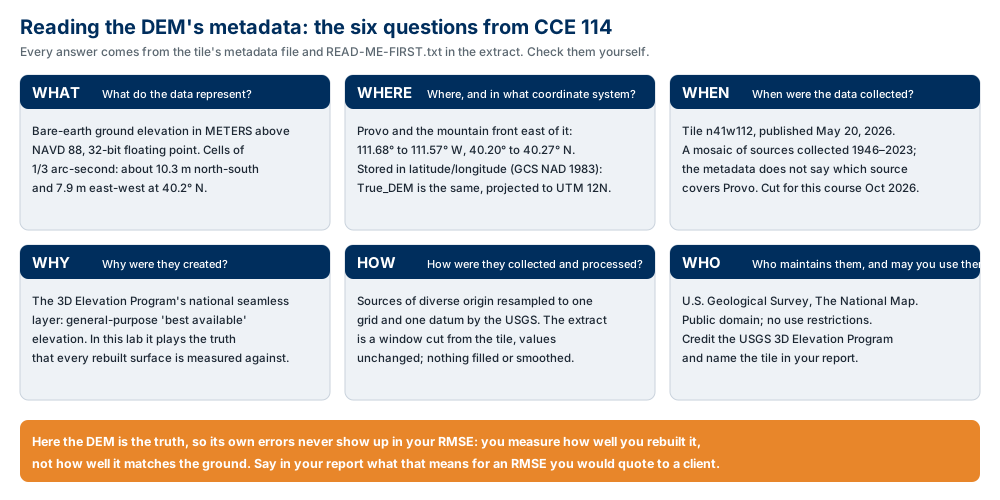
Figure A. The six metadata questions, applied to the DEM. Confirm three of the values yourself —
the publication and source dates, the vertical datum and units, and the cell size —
in READ-ME-FIRST.txt, in YMountain_DEM.tif's properties in ArcGIS Pro, and in the tile's
metadata file
— and say in your report what each one does to your result.
ModelBuilder Tools
New in this lab:
| Tool | What it does |
|---|---|
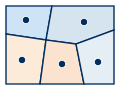 Create Thiessen Polygons (Analysis) |
Draws, around every point, the polygon of all the places nearer to it than to any other point. Given the points' values, it is nearest-neighbor interpolation. Needs an Advanced license. Tool reference |
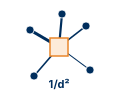 IDW (Spatial Analyst) |
Interpolates a raster surface from points, each cell a weighted average of its nearest points, the nearest weighted most. Tool reference |
 Kriging (Spatial Analyst) |
Interpolates a raster from points, weighting the neighbors by a semivariogram: a curve fitted to how much the values differ as the distance between them grows. Tool reference |
 Zonal Statistics as Table (Spatial Analyst) |
Like Zonal Statistics, but writes the statistics of each zone to a table instead of a raster — here, the mean of the squared errors inside the study rectangle. Tool reference |
Tools you already know: Polygon to Raster, Raster Calculator (Labs 2 and 4–7), Calculate Field (Lab 6), and model parameters. Step 8 also uses Extract Multi Values to Points and Summary Statistics.
Example Model
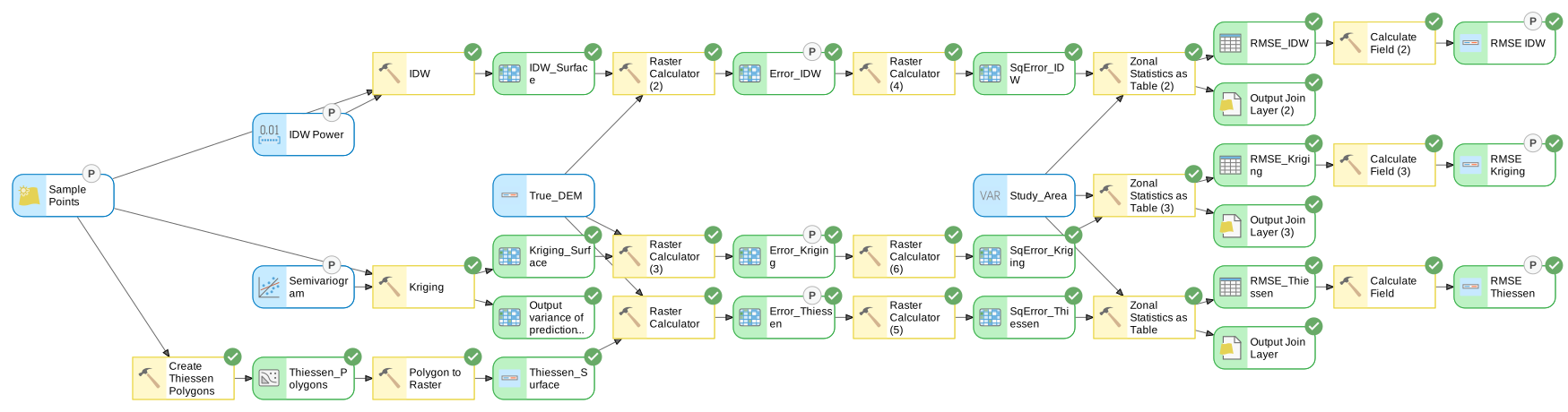
Figure C. The finished model, exported from ModelBuilder — click it to open it full size.
Read it left to right: the sample points are rebuilt into a surface three ways; each rebuild is
subtracted from True_DEM, squared, averaged over the rectangle and square-rooted. The nine
elements marked P become the tool dialog of Step 8.
Complete the Lab
For an advanced GIS student, the information up to this point is all you need to complete the assignment. Feel free to try the analysis using only the information above. If you complete the lab without the step-by-step instructions below, say so in your report.
Step-by-Step Solution
Note
Important Note #1. Steps 0–7 build the model and run it on the course's 2,500 points, so your numbers can be checked against this page. Step 8 re-runs the same model on other points and with other settings. Build it once, and build it to be changed.
Note
Important Note #2. Every check value on this page was measured on the files you download, with
the steps below, in ArcGIS Pro 3.7.1, and should match to the last digit shown. The screenshots
were captured in the same version, building this model, and their paths start with C:\ because
they were made on an instructor machine.
Step 0 — Set Up the Project
- Create a new project named
Lab08inD:\Smith\Lab08\with the Map template; if you already made the folder, uncheck Create a folder for this local project. ArcGIS Pro makes a project geodatabase and toolbox beside it,Lab08.gdbandLab08.atbx. The downloaded data stay in their ownlab08-y-mountain\Lab08.gdb; this page always says which of the two it means. - Add
True_DEM,Study_Area,Checkpointsand the threeSample_Points_layers fromlab08-y-mountain\Lab08.gdb, andYMountain_DEM.tif(click OK to build pyramids and statistics). - Confirm Spatial Analyst is licensed and that your license level is Advanced (Project ▸ Licensing); Create Thiessen Polygons needs it. The lab machines have both.
- On the Analysis tab click ModelBuilder. On the ModelBuilder tab click
Properties, set Name to
InterpolationExplorerand Label toInterpolation Explorer, and save. - On the ModelBuilder tab click Environments and set (type a name in the search box to
find it):
- Current Workspace and Scratch Workspace: your project geodatabase
- Cell Size:
30 - Snap Raster:
True_DEM - Extent: click the second button above the boxes, which lists the map's layers, and choose
True_DEM. The boxes fill with its corners in latitude and longitude; that is fine.
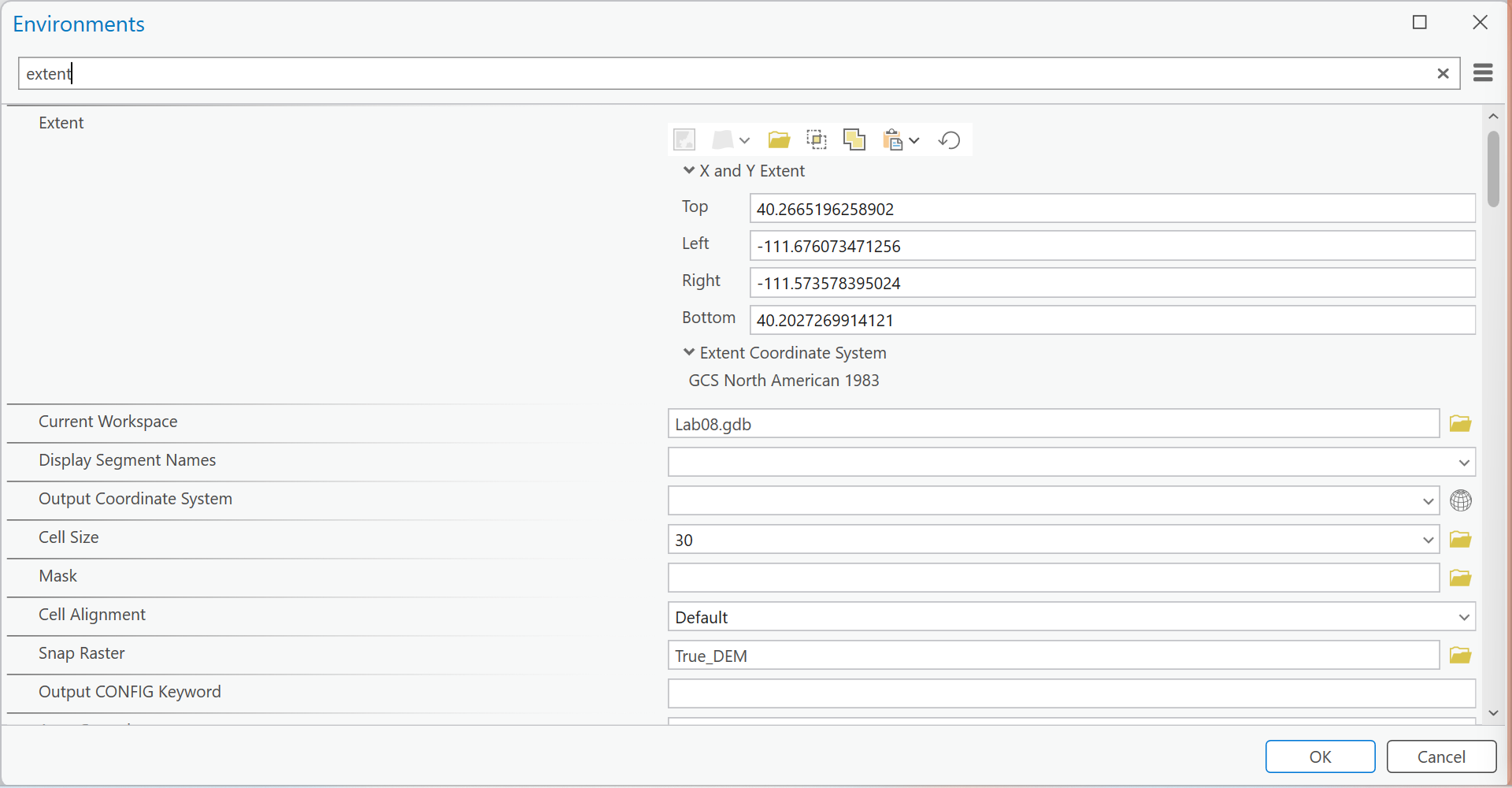
Figure 0. ModelBuilder ▸ Environments. Leave Output Coordinate System empty: everything you use is already in UTM.
Warning
Set all three: Cell Size, Snap Raster and Extent. Without the cell size, IDW and Kriging pick one from the spread of the points. Without the snap raster, they place their cells wherever their points' box puts them, and the subtraction in Step 6 compares cells offset by part of a cell. Without the extent, they fill only the box around the points; with 250 points that box misses strips along the edges, and those cells drop out of the RMSE. Nothing reports an error in any of these cases.
Step 1 — Look at the Service
The same elevations are served live on the web. Before you use the prepared data, look at what the service gives you.
- On the Map tab, in the Layer group, click Add Data From Path (the yellow button
beside the basemap gallery), paste
https://elevation.nationalmap.gov/arcgis/rest/services/3DEPElevation/ImageServer, and click Add. It is slow; give it a minute. - Right-click the new
3DEPElevationlayer ▸ Properties ▸ Source. Expand Raster Information and Spatial Reference and record the columns and rows, the cell size, the pixel type and the coordinate system. Look at the layer's legend in the Contents pane, too. - On the Map tab click Go To XY, enter longitude −111.58865 and latitude 40.21415,
and drop a marker there. This is the highest cell of
YMountain_DEM.tif. Click the marker with Explore: the pop-up reports the service. Turn the service layer off and click again to read the DEM. - Remove the service layer and the marker's graphics layer. The rest of the lab runs on the prepared data.
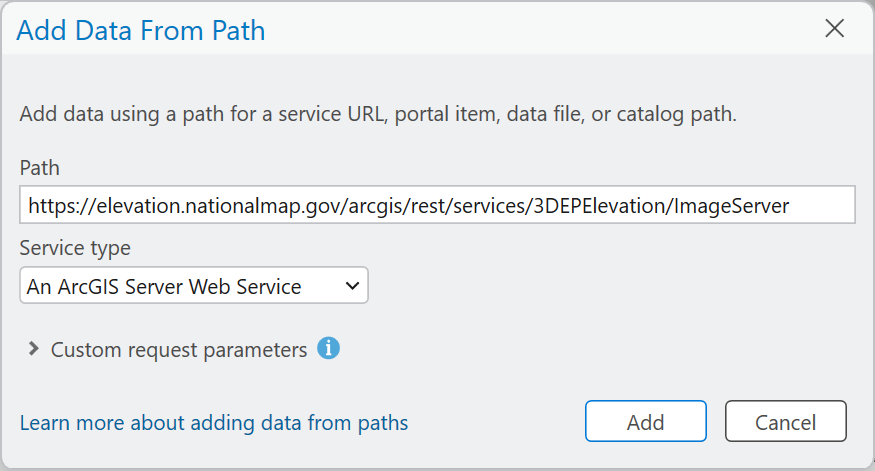
Figure 1a. Add Data From Path, with the 3DEP elevation service.
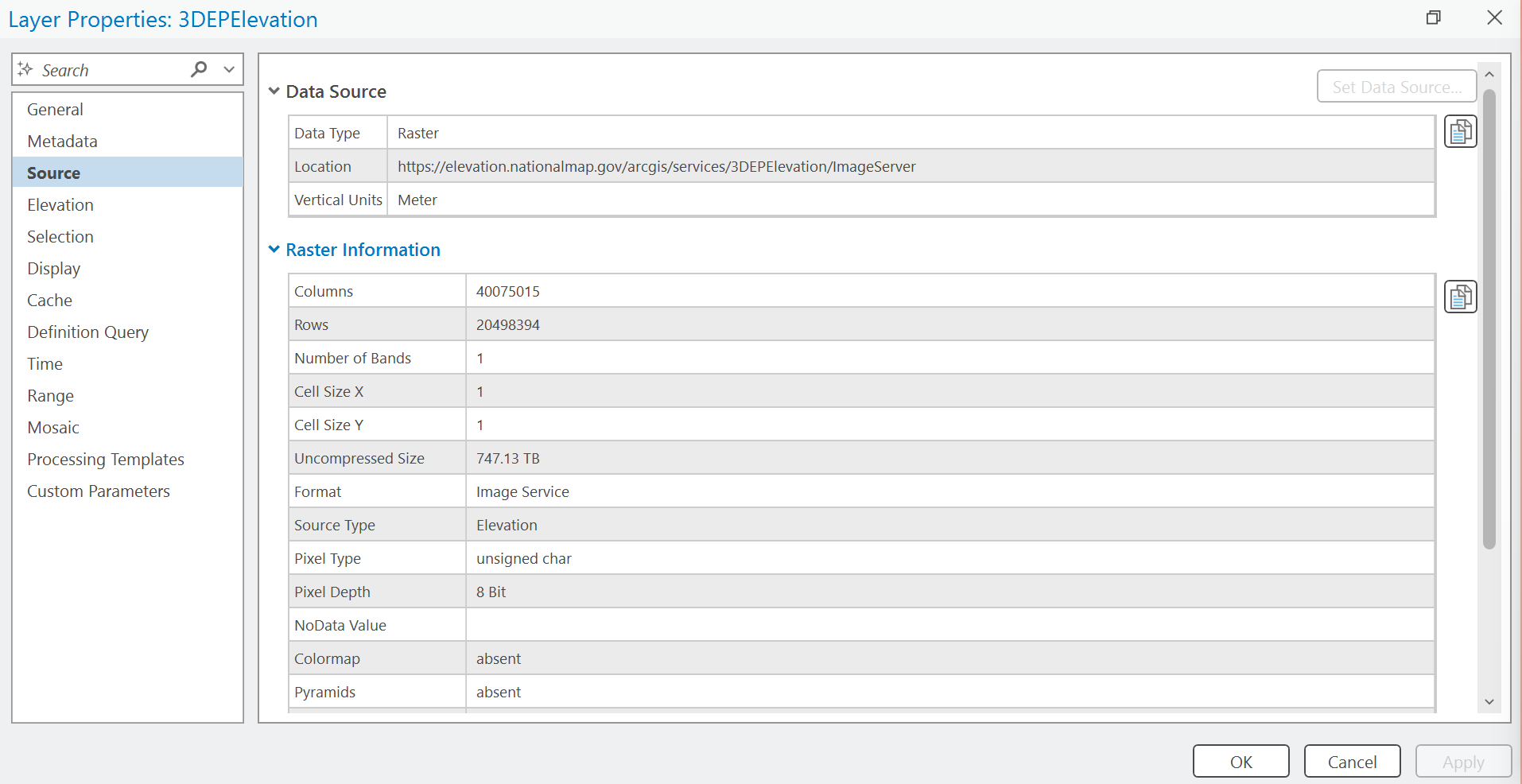
Figure 1b. What came back: 1 m cells covering the whole country — 747 TB if you could download it — in 8-bit unsigned pixels.

Figure 1c. The service's coordinate system: Web Mercator, not the latitude and longitude of the extract, and not UTM.
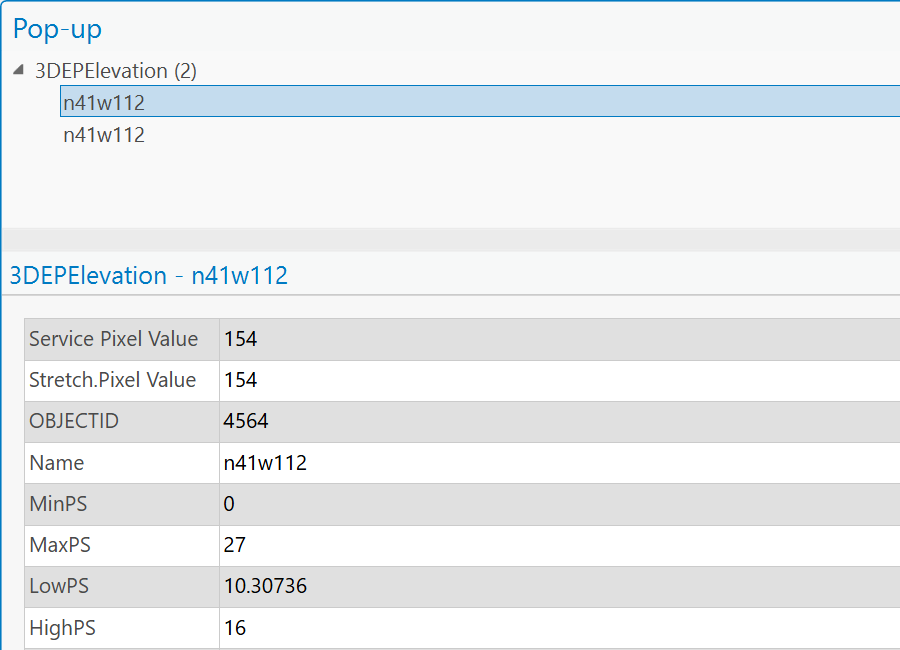
Figure 1d. The service at the highest cell of the extract. The value is 154, not an
elevation; the source item is tile n41w112, the same tile the extract was cut from.
Tip
Check the result: the service arrives drawn as a hillshade, with a legend from 0 to 255.
That is the service's default raster function: the server turns elevations into a picture before
sending them, and that is why the pixel type is 8-bit and the pop-up reads 154 at the marker.
YMountain_DEM.tif reads about 2,893 to 2,897 m there, depending on exactly which cell your click lands
in (the highest cell is 2,896.9 m).
Note
Why not just use the service? A service is convenient and always current, but what comes back depends on the request: here a shaded picture in Web Mercator rather than elevations in meters, and it can change whenever the USGS updates it. An analysis that others must check needs a fixed copy with a known date, which is why the course hosts one. Say in your report which of the two you would cite in an engineering report, and why.
Step 2 — Choose the Sample Points
The sample points are the model's main input, and the one you will change most, so make them a parameter before anything else uses them.
- Add Create Thiessen Polygons to the model (Step 3 fills it in), and in its Input Features
choose
Sample_Points_2500from the map layers. - In the model, right-click the new
Sample_Points_2500oval ▸ Rename itSample Points, and right-click it ▸ Parameter.
Every tool that follows takes Sample Points — choose it under Model Variables in each tool's
list, not the map layer of the same set — so that changing this one input in Step 8 changes all three
methods at once.
Note
Why make the points a parameter? In Step 8 you run the model on 250 and 10,000 points as well. With the points as a parameter, each of those runs is one choice in the tool dialog.
Step 3 — Build the Thiessen Surface
- Create Thiessen Polygons: Input Features
Sample Points, outputThiessen_Polygons, Output Fields All fields. - Add Polygon to Raster: Input Features
Thiessen_Polygons, Value fieldRASTERVALU, Cell assignment type Cell center, Cellsize 30 (it fills in from the environment), outputThiessen_Surface.
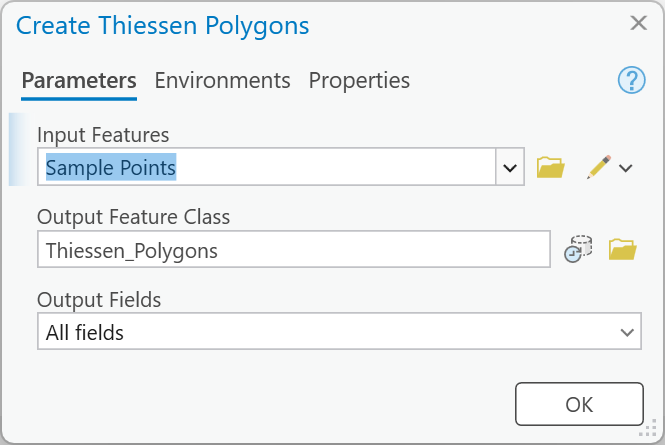
Figure 3a. Create Thiessen Polygons, with All fields.
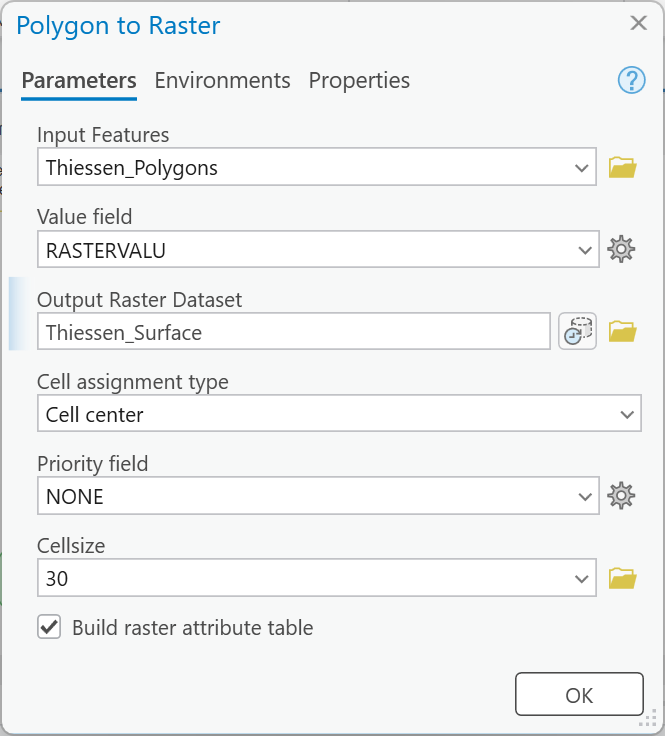
Figure 3b. Polygon to Raster, with the value field changed to RASTERVALU.
Warning
Two defaults here give a surface with no elevations in it. Create Thiessen Polygons opens at
Output Fields: Only feature ID, which leaves the polygons with no RASTERVALU at all. Polygon
to Raster then fills Value field with OBJECTID by itself — a surface of polygon numbers, and
no error. Choose All fields in the first, and RASTERVALU in the second.
Tip
Check the result: 2,500 polygons, one per point. Thiessen_Surface runs from 1,368.7 to
2,886.7 m — exactly the range of the samples, because every cell simply takes the value of its
nearest point.
Step 4 — Build the IDW Surface
Add IDW (the Spatial Analyst tool; the search also offers a 3D Analyst and a Geostatistical
Analyst one): Input point features Sample Points, Z value field RASTERVALU (it fills in
by itself), Output cell size 30, Power 2, Search radius Variable with 12 points, output
IDW_Surface. Then right-click the tool ▸ Create Variable ▸ From Parameter ▸ Power,
rename the new oval IDW Power (select it and press Ctrl+R), and make it a parameter.
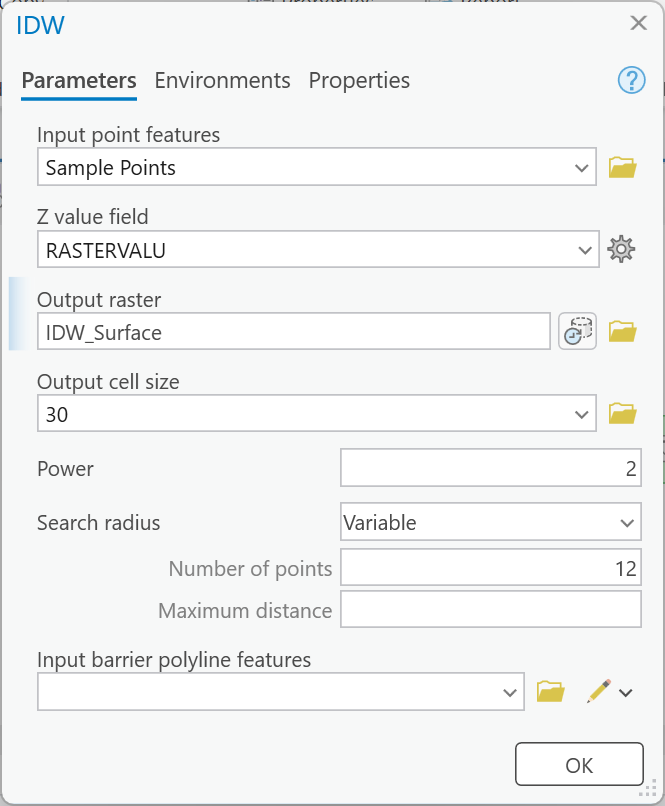
Figure 4. IDW.
Tip
Check the result: IDW_Surface runs from 1,368.7 to 2,885.5 m. IDW is a weighted average,
so it can never go above its highest point or below its lowest: compare with the data check.
Step 5 — Build the Kriging Surface
Add Kriging (Spatial Analyst): Input point features Sample Points, Z value field
RASTERVALU, output Kriging_Surface, Kriging method Ordinary, Semi-variogram model
Spherical, Output cell size 30, Search radius Variable with 12 points. Leave Lag size
at the 30 it fills in, the range, sill and nugget empty, and the optional variance raster empty.
Then right-click the tool ▸ Create Variable ▸ From Parameter ▸ Semivariogram
properties, rename the oval Semivariogram, and make it a parameter. In the tool dialog it shows
the same controls as here: in Step 8 you pick another model from its Semi-variogram model list.
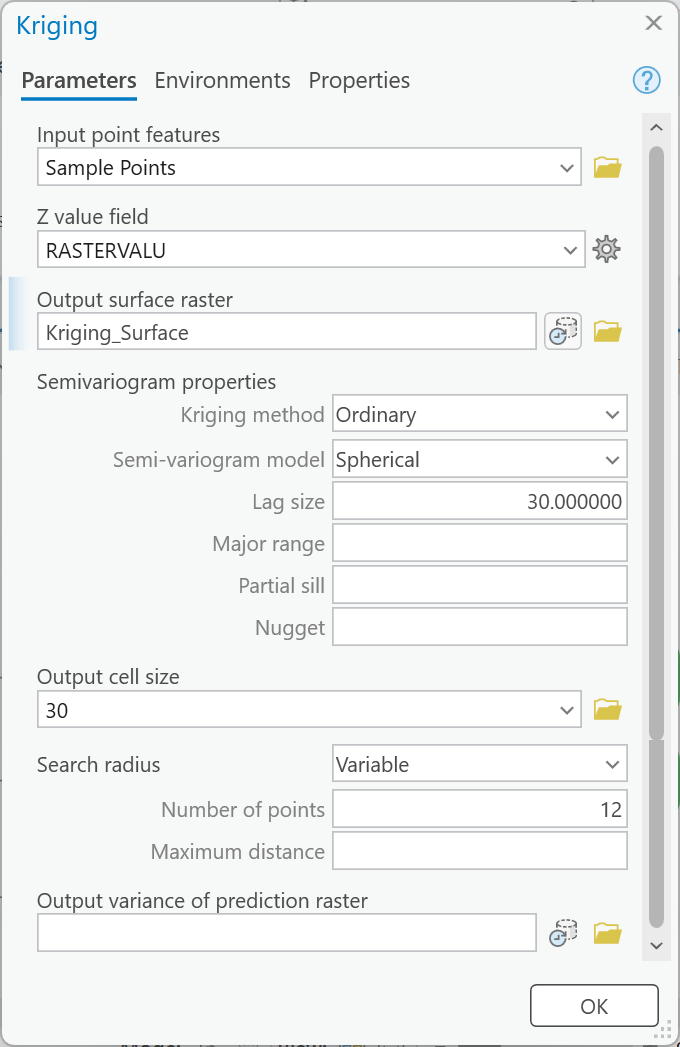
Figure 5. Kriging. The range, sill and nugget stay empty: Kriging fits them to your points.
Tip
Check the result: Kriging_Surface runs from 1,368.7 to 2,884.3 m. Kriging can go beyond
its samples; here it does not, and it pulls the peak down a little further than IDW.
Step 6 — Map the Errors
Add Raster Calculator (Spatial Analyst) three times, one per surface, each the truth minus the
rebuild. Double-click True_DEM in the calculator's Rasters list to put it in the expression;
it joins the model as an input.
| Expression | Output |
|---|---|
"%True_DEM%" - "%Thiessen_Surface%" |
Error_Thiessen |
"%True_DEM%" - "%IDW_Surface%" |
Error_IDW |
"%True_DEM%" - "%Kriging_Surface%" |
Error_Kriging |
The quickest way to the second and third: select the first Raster Calculator, Ctrl+C, click empty canvas, Ctrl+V, drag the copy clear, and edit its expression and output. A positive error means the surface came out too low there; a negative error, too high. Give all three the same diverging color scheme with the same class breaks (the example maps use −100, −50, −20, −5, 5, 20, 50, 100 m), so that the same color means the same error on every map.
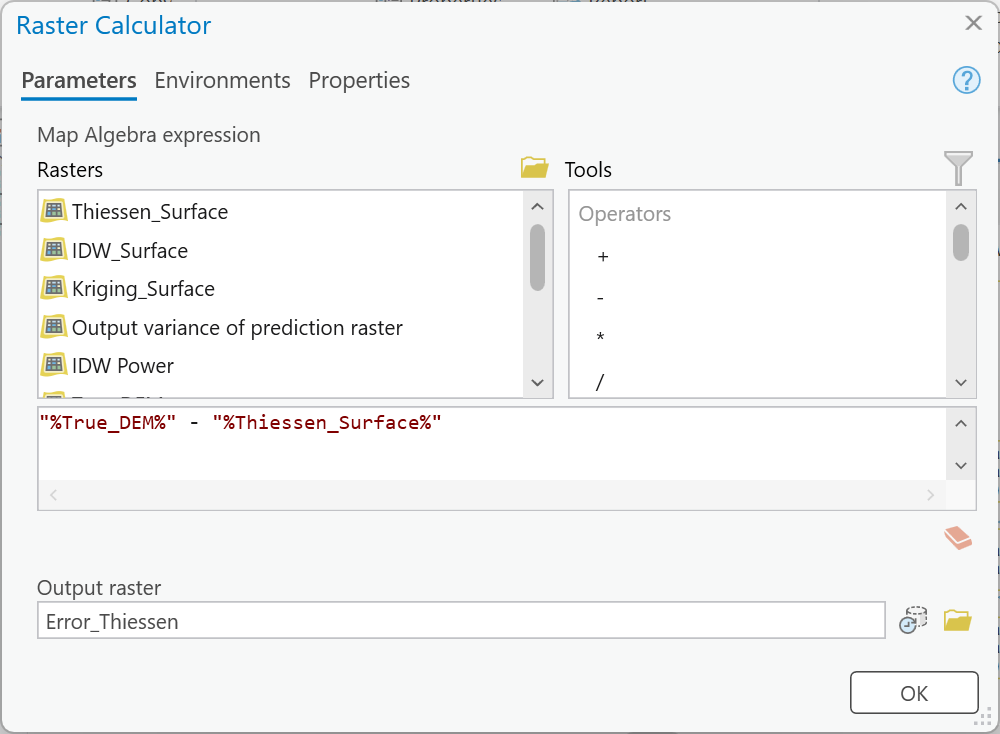
Figure 6. The Thiessen error. Type the output name last and check it before OK: Raster Calculator puts back the old name when the expression changes.
Tip
Check the result:
| Error raster | Minimum | Maximum | Mean |
|---|---|---|---|
Error_Thiessen |
−234.1 | 214.3 | −0.39 |
Error_IDW |
−136.8 | 169.9 | −0.84 |
Error_Kriging |
−104.0 | 164.4 | −0.31 |
Every mean is under a meter: the errors cancel. That is why the next step squares them.
Step 7 — Compute the RMSE
The root-mean-square error is the typical size of an error, whatever its sign: square every cell's error, take the mean of the squares over the rectangle, and take the square root. Build the chain once for Thiessen, then copy it twice:
- Raster Calculator:
Square("%Error_Thiessen%"), outputSqError_Thiessen. - Zonal Statistics as Table: Input raster or feature zone data
Study_Area, Zone fieldOBJECTID, Input value rasterSqError_Thiessen, Statistics type Mean (it opens at All), output tableRMSE_Thiessen. - Calculate Field: Input Table
RMSE_Thiessen, Field NameRMSE, Field Type Double (it opens at Text), Expression Type Python, and in the box underRMSE =,math.sqrt(!MEAN!). Rename its output ovalRMSE Thiessen.
Copy the square Raster Calculator twice and edit it for IDW and Kriging. Then select the Zonal
Statistics as Table and Calculate Field tools and their outputs, copy and paste them twice, and in
each copy change only the value raster and the output table (SqError_IDW and RMSE_IDW;
SqError_Kriging and RMSE_Kriging): the copied Calculate Field follows its table by itself. Rename
the outputs RMSE IDW and RMSE Kriging.
Finally make the outputs parameters: the three error rasters and the three RMSE ovals. With
Sample Points, IDW Power and Semivariogram, that is nine. Save, and run the model inside
ModelBuilder.
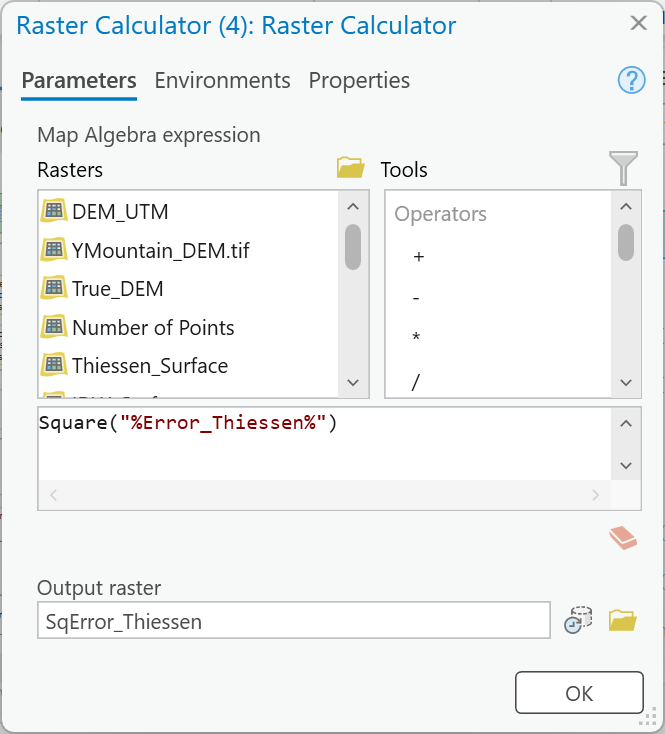
Figure 7a. Squaring the Thiessen error.
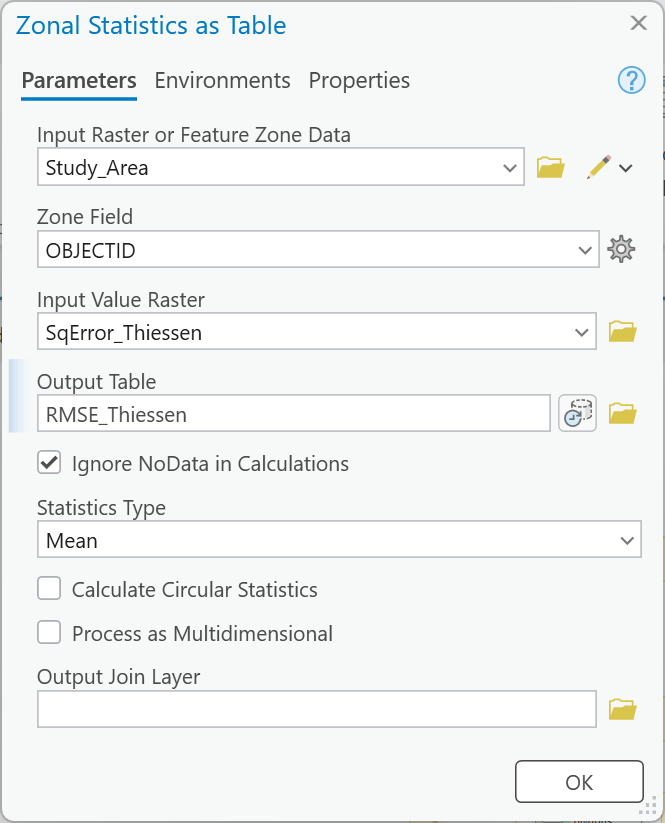
Figure 7b. Zonal Statistics as Table, with Mean.
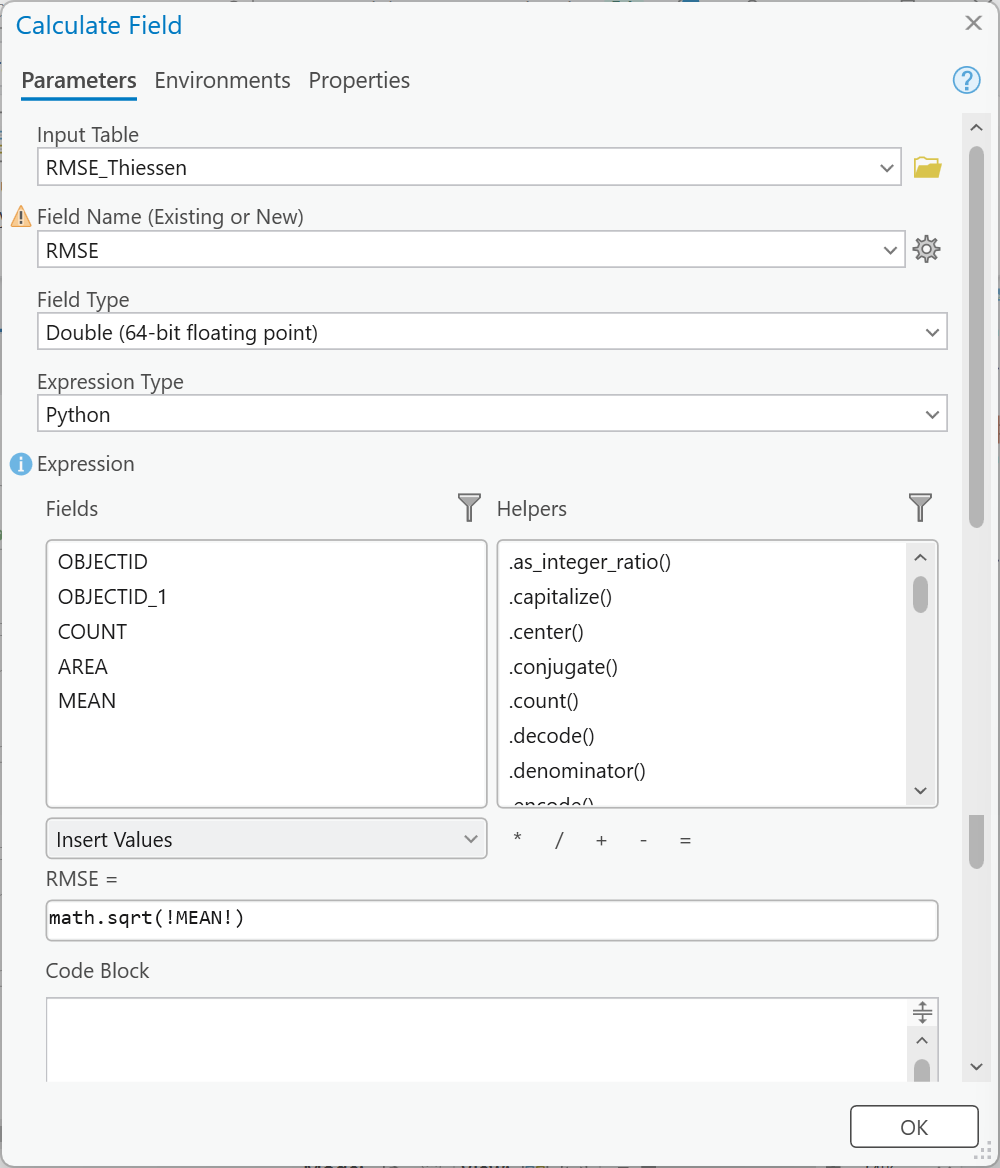
Figure 7c. Calculate Field. The warning beside Field Name only says the field will be added.
Tip
Check the result: each table has one row (the zone field appears as OBJECTID_1) with
COUNT 67,337 and AREA 60,603,300 (m²).
| Table | MEAN (m²) | RMSE (m) |
|---|---|---|
RMSE_Thiessen |
800.3 | 28.29 |
RMSE_IDW |
428.9 | 20.71 |
RMSE_Kriging |
209.0 | 14.46 |
If COUNT is smaller, an interpolator's output does not cover the whole rectangle — check the Extent environment of Step 0. At 2,500 points it can look right without it; at 250 it does not. The whole model runs in under ten seconds inside ModelBuilder.
Step 8 — Test the Choices
The ranking at the defaults is a result, not the result. It came from one set of random points and three sets of default parameters. Find out how much of it survives a change.
First, the checkpoints and Map 1. Your Step 7 run is your baseline, and its surfaces are
still on disk because you ran it inside ModelBuilder. Use them now, before any run from the tool
dialog (see the warning below). In real work you would not have a true DEM; you would hold back some
measured points and test against them. Checkpoints is 200 such points, drawn separately from the
samples and never used to interpolate:
- Extract Multi Values to Points on
Checkpoints(from the downloaded geodatabase; export a copy to your project geodatabase first, so the download stays clean) withTrue_DEM(output field nameTRUE_Z),Thiessen_Surface(TH_Z),IDW_Surface(IDW_Z) andKriging_Surface(KR_Z). - Calculate Field three times, new Double fields:
SQ_TH=(!TRUE_Z! - !TH_Z!) ** 2,SQ_IDW=(!TRUE_Z! - !IDW_Z!) ** 2,SQ_KR=(!TRUE_Z! - !KR_Z!) ** 2. - Summary Statistics on your copy of
Checkpoints: the Mean ofSQ_TH,SQ_IDWandSQ_KR. The square root of each mean is that method's checkpoint RMSE.
Then make Map 1 (see the Deliverables) from the baseline's surfaces and error rasters.
Warning
Finish Map 1 and the checkpoints before the first dialog run. A run from the tool dialog deletes everything that is not a parameter (Lab 5 saw it), including the three surfaces Map 1 and the checkpoints need. The downloaded data are inputs, so they are never deleted.
Then the tool dialog. Save the model, close it, and open it from the Catalog pane
(Toolboxes ▸ Lab08.atbx ▸ Interpolation Explorer). Run it five times, giving every
output a name that says which run it is (RMSE_IDW_n250, Error_Kriging_gauss). Before each run,
empty the Semivariogram's Major range, Partial sill and Nugget boxes if a previous run
filled them, so that Kriging fits its model to the points afresh.
| Run | Sample Points | IDW Power | Semi-variogram model |
|---|---|---|---|
| 1 | Sample_Points_250 |
2 | Spherical |
| 2 | Sample_Points_10000 |
2 | Spherical |
| 3 | Sample_Points_2500 |
1 | Exponential |
| 4 | Sample_Points_2500 |
3 | Gaussian |
| 5 | Sample_Points_2500 |
your own power (below) | Spherical |
Runs 3 and 4 change IDW and Kriging at once; that is fine, because they are in different branches and each RMSE comes from its own branch.
Your own IDW power. Every student tries a different power in run 5, worked out from your
BYU ID number: the nine-digit number printed on your BYU ID card, such as 123456789. It is
not your NetID, the user name of letters and numbers you chose and use to sign in to BYU sites.
Your power = 1 + (the last two digits of your BYU ID) ÷ 40
- BYU ID
123456789: the last two digits are 89, so the power is 1 + 89 ÷ 40 = 3.225.- BYU ID
987654302: the last two digits are 02, so the power is 1 + 2 ÷ 40 = 1.05.- Last two digits 00: the power is 1.
Every power falls between 1 and 3.475. Type it with all its decimals, and write your BYU ID's last two digits and your power in your report: the grader checks your run 5 against them.
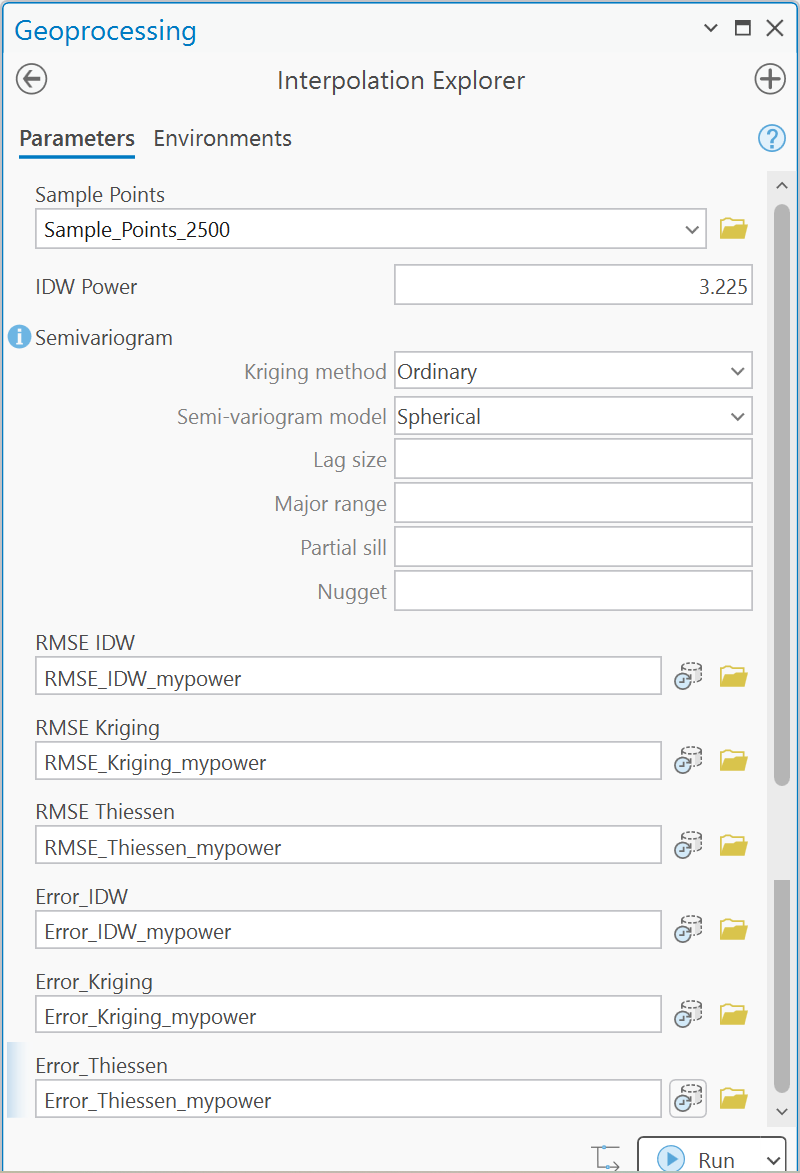
Figure 8. The model as a tool, set up for run 5 with the example ID ending in 89 (power 3.225). Lag size may show empty in the dialog; Kriging fills it in.
Tip
Check run 5: only the IDW RMSE changes; the Thiessen and Kriging RMSEs are the same as your Step 7 run (28.29 and 14.46). With the example power of 3.225, IDW's RMSE is 20.29 m.
Record all of it in one table: your baseline (Step 7) and the five runs, each with the sample points, the IDW power and semivariogram model, and the RMSE of all three methods, plus one more row with the three checkpoint RMSEs of your baseline.
Then answer, in your report:
- Which method wins, and does the ranking survive? Rank the methods at 250, 2,500 and 10,000 points, with your numbers. Does the winner change? How much does going from 250 to 10,000 points buy each method?
- Which parameter mattered, and which barely did? Compare what the IDW power (powers 1, 2, 3 and
yours) and the semivariogram model did with what the number of points did. Before you explain the
Gaussian run, look at its
Error_Krigingmap (an output, so the dialog run keeps it): where are its largest positive errors, the places the surface came out too low? - Could you have known without the truth? Compare each method's checkpoint RMSE with its RMSE over all 67,337 cells. Would 200 checkpoints have told a client the right ranking, and how far off would the number you quoted have been?
Tip
Before you run the 10,000-point set, predict its RMSEs from your 250 and 2,500 results. Then look at where on the error maps the remaining error lives, and at the slope of the ground there.
Deliverables
Make two professional map layouts (letter size, landscape is easiest):
- Your baseline comparison sheet — from your Step 7 run: the true DEM with the sample points and the three surfaces in one row, on one elevation color scale; the three error rasters beneath their surfaces on one diverging color scale with the same breaks; each panel labeled with its method, its parameters and its RMSE; legends for both scales; a title, neat line, north arrow and scale bar; and a text box with your name, the date, the map projection, the DEM's source and date.
- One scenario from Step 8 — whichever run most changes the picture: its three error rasters on Map 1's error scale with a legend, each labeled with its method, parameters and RMSE (the true DEM and the surfaces are optional); a title, neat line, north arrow and scale bar; and a text box with your name, the date, the map projection, and the DEM's source and date. Say in the title and the text box what changed from Map 1 and by how much.
Write a brief report (2–3 pages of text, plus your figures and maps) covering:
- a title block — assignment title, your name, the date and the course — and the name of your peer reviewer
- the requirements of the project and your approach to solving it
- a description of your model a reader could repeat from: each tool and its settings, and every input, intermediate and output dataset with its type
- one full-page figure of your model, exported from ModelBuilder (Export ▸ Export To
Graphic), and one screen capture of its tool dialog with the sample points, the IDW power
and the semivariogram exposed; and upload your project's toolbox (
Lab08.atbx, in your project folder) with the report — the grader opens it and runs it at your IDW power - the three metadata values for the DEM — its publication date and source dates, its vertical datum and units, and its cell size — and what the service returned in Step 1, what each means for your result, and which of the two you would cite in an engineering report
- your check values from Steps 3 to 7, on the course's 2,500 points: each surface's range, the error table, and the three RMSEs
- where the methods break: on your baseline's error map for the best method (lowest RMSE), the cell with the largest error in either direction — its coordinates and size — and why the ground there defeats the interpolators, with a cropped figure of the spot. Its value is the raster's minimum or maximum (Properties ▸ Source ▸ Statistics), whichever is farther from zero. To find it, give the layer a two-class symbology with the break just short of that value, so that one cell stands out, and click it with Explore to read its coordinates
- your sensitivity table from Step 8, with your BYU ID's last two digits and your IDW power, and your answers to its three questions
- a copy of the rubric below with your self-assessment filled in — a score in every row, honestly arrived at. The grader will compare it with theirs.
Note
Make it yours. Everyone works from the same data, so the numbers will match a classmate's; the choices should not. Your map layouts, your color ramps and symbology, the labels you give your model's elements, and the wording of your report are your own work. Submissions whose layouts, labels or symbology match another student's too closely are flagged for follow-up.
Important
Peer review before you submit. Have another student in the class read your report against the rubric and give you feedback, then act on that feedback before the deadline. Name your reviewer in the report and say in a sentence what you changed because of them.
Credit line for your maps: Elevation: USGS 3D Elevation Program, 1/3 arc-second DEM, tile n41w112 (May 2026). Study area: drawn for CE 414.
References
Bolstad, P. GIS Fundamentals: A First Text on Geographic Information Systems. Eider Press. Chapter 12, the Week 9 reading on interpolation (any of the 5th to 7th editions).
U.S. Geological Survey, 3D Elevation Program. 1/3 arc-second DEM, tile n41w112, published May 20, 2026.
U.S. Geological Survey, 3D Elevation Program. 3DEP Elevation image service. elevation.nationalmap.gov.
Example Maps
These are examples, not templates. Your maps carry your name, so your numbers will differ a little from these.
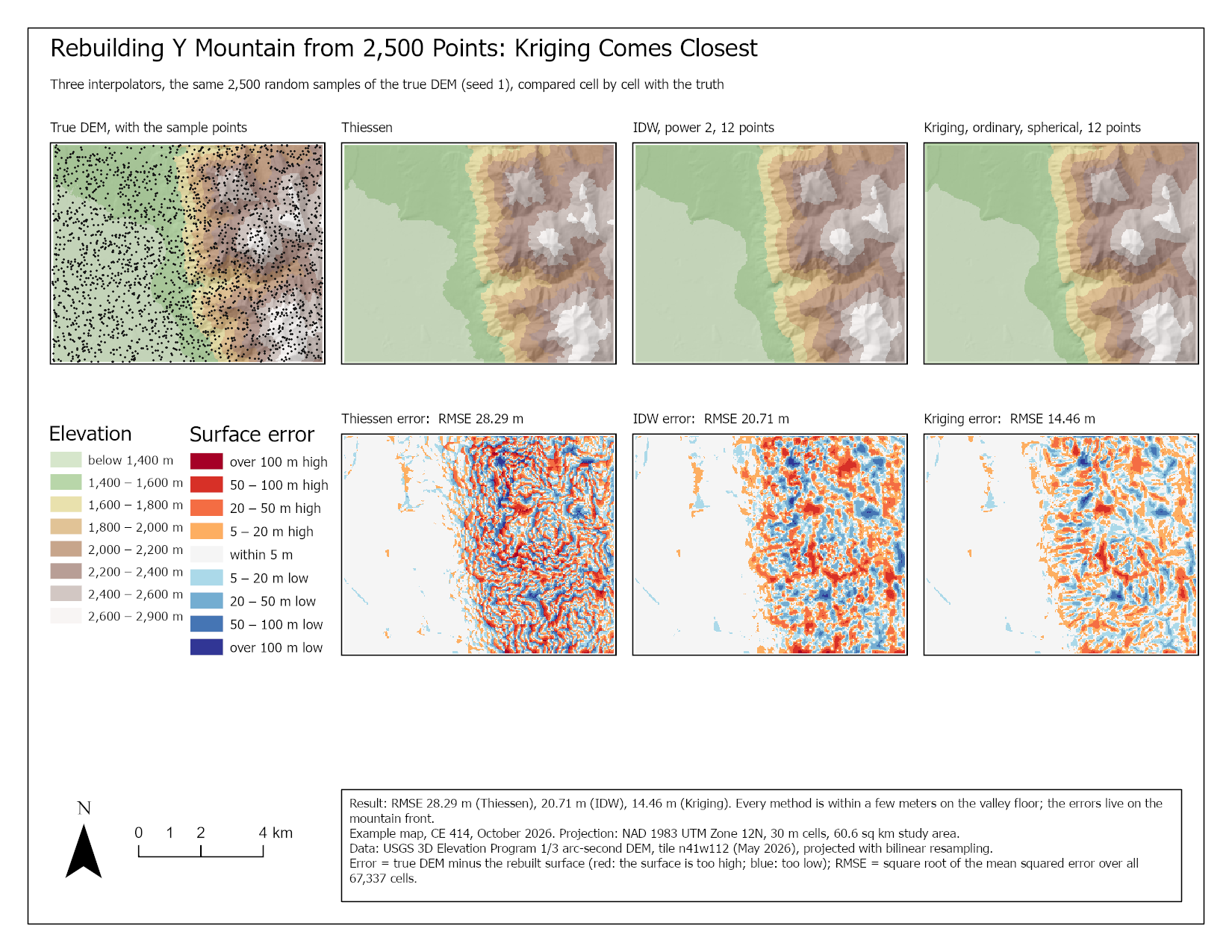
Figure 9. A comparison sheet on the course's 2,500 points. Two things to do better than this example: mark and label the largest error on the best method's error map, and use the empty band below the error maps for a sentence on what the reader should notice.
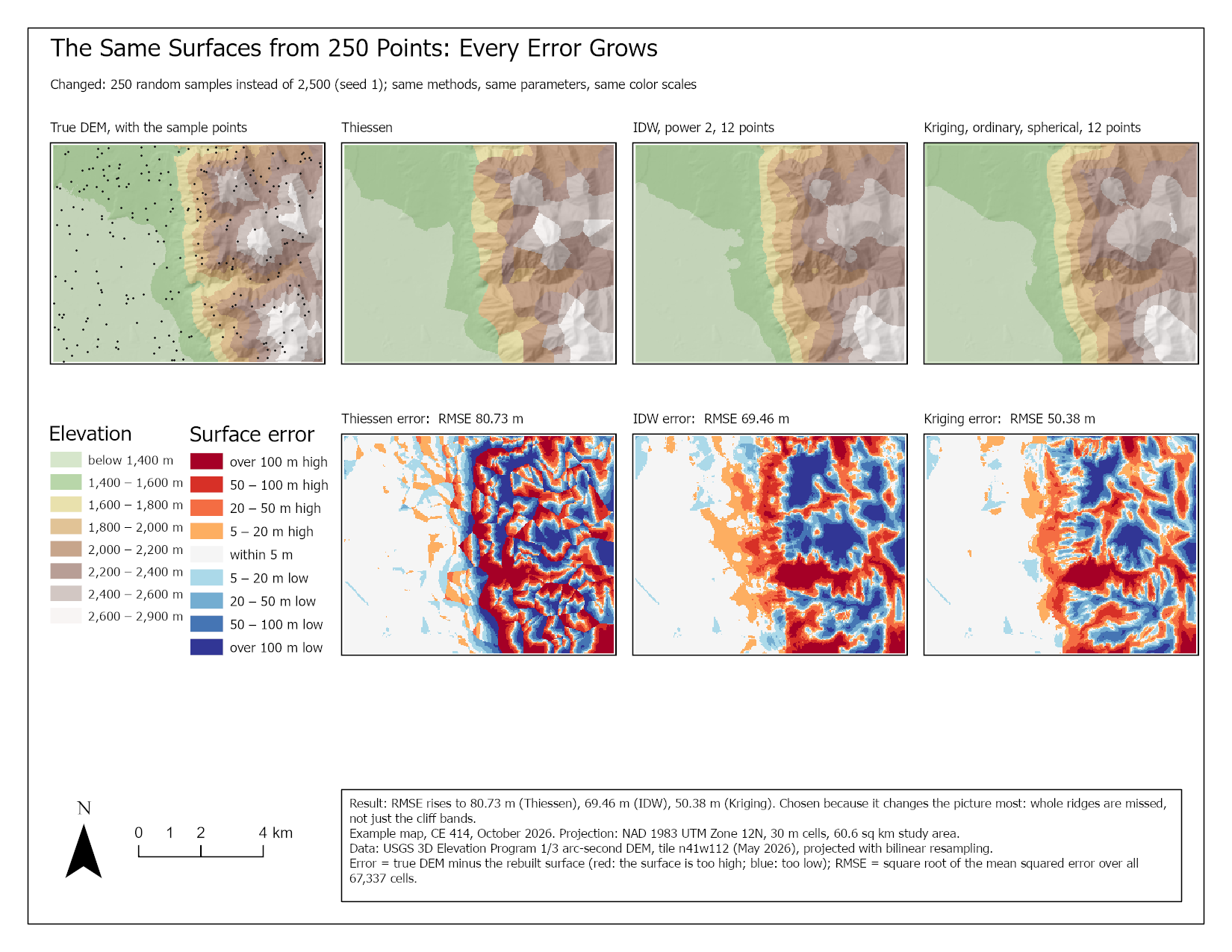
Figure 10. The kind of second map Step 8 asks for. Yours needs only the error maps, and should be the run that most changes what a reader would conclude, which may not be this one.
Rubric for Interpolation Explorer
Fifty points in five parts of ten. The bullets say what each part is worth, so you know exactly what to submit.
| Item | Points |
|---|---|
| Write-up (2–3 pages) • Assignment title, your name, date and course; your peer reviewer named, with a sentence on what you changed because of them (1) • The requirements of the project and your approach to solving it, in your own words (1) • The three metadata values for the DEM and what the service returned in Step 1, what each means for your result, and which you would cite (2) • Your check values from Steps 3 to 7, on the course's 2,500 points (2) • Where the methods break: the largest error on your baseline's error map for the best method, its coordinates and size, with a cropped figure, and why the ground there defeats the interpolators (3) • Organized writing, figures numbered and referred to, sources credited, rubric pasted with your self-assessment (1) |
/10 |
| ModelBuilder model — correct and working • The model runs end to end from its tool dialog and, on the course's 2,500 points, matches the three RMSE check values (4) • A full-page model figure exported from ModelBuilder, all tools and datasets readable (2) • A screen capture of the tool dialog with the sample points, the IDW power and the semivariogram exposed as parameters (2) • A description of the model a reader could repeat from (2) |
/10 |
| Map 1 — your baseline comparison sheet • Title, neat line, north arrow and scale bar (1) • Text box with author, date, map projection, and the DEM's source and date (1) • The true DEM with the sample points and the three surfaces on one elevation scale, with a legend (2) • The three error maps on one diverging scale with the same breaks, with a legend (2) • Every panel labeled with its method, parameters and RMSE (2) • Layout, scale and legibility: a reader can compare the panels at a glance (2) |
/10 |
| Map 2 — one Step 8 scenario • Title, neat line, north arrow and scale bar (1) • Text box with author, date, map projection, and the DEM's source and date (1) • The scenario's three error maps on Map 1's error scale, with a legend (2) • Every panel labeled with its method, parameters and RMSE (2) • Title and text box say what changed from Map 1 and by how much (2) • Layout, scale and legibility (2) |
/10 |
| Sensitivity (Step 8) • One table with your baseline and the five Step 8 runs — including run 5 at your own IDW power, with your BYU ID's last two digits — the RMSE of all three methods in every row, and a row with your baseline's three checkpoint RMSEs (4) • Which method wins and whether the ranking survives, with your numbers (2) • Which parameter mattered and which barely did, with your numbers (2) • What the checkpoints would and would not have told you (2) |
/10 |
| Total | /50 |
Note
Using AI on this lab. Use AI freely to understand a tool, work out an error, or tighten your write-up, and add one line at the end of your report saying what you used it for. Do not take a field name, an expression, a coordinate system, or a number from it — those come from your own data, and the rubric asks you to defend every one. See the AI Use Policy for the full policy.