Lab 10: Avalanche Hazard
Civil Engineering 414 — Engineering Applications of GIS
Fall 2026 · Dr. Dan Ames
Terrain-based avalanche hazard screening from slope, aspect, and elevation
Warning
This is a classroom exercise, not an avalanche safety product. The map you build here is a terrain-based screening of slope, aspect, and elevation, produced for the purpose of learning raster analysis and ModelBuilder. It does not account for snowpack, weather, wind loading, recent avalanche activity, or human triggering, and it is not suitable for operational avalanche safety decisions. For real trip planning, use the current forecast from the Utah Avalanche Center or the avalanche center responsible for where you are going.
Tip
Start from the report template. lab10-report-template.docx
has the title block, a section for every deliverable, the tables already set up with the columns
the rubric asks for (including the Snowbird class-area table and the sensitivity table with all
three rules), and the rubric at the end ready to fill in. Open it in Word or upload it to Google
Docs, replace every gray italic prompt, and delete the prompts as you go. You are welcome to write
your report any way you like — the template is a floor, not a ceiling — but if you use it and fill
in every section, you will not have left a graded item out.
Background
An avalanche is a mass of snow sliding fast down a slope. In the United States an average of 27 people died in avalanches each winter over the last ten winters, according to the Colorado Avalanche Information Center, which keeps the national accident archive (CAIC).
Avalanche centers publish a forecast every morning of the season, and the forecast is partly a map of terrain: it rates the danger by elevation band and by aspect (the compass direction a slope faces), on the five-level North American Public Avalanche Danger Scale — Low, Moderate, Considerable, High, Extreme (Figure B). The snowpack and the weather decide how dangerous today is; the terrain decides where that danger lives. A slope steeper than about 30°, facing the direction the wind loaded with snow, high enough to hold the cold weak layers, is where an avalanche starts on a dangerous day.
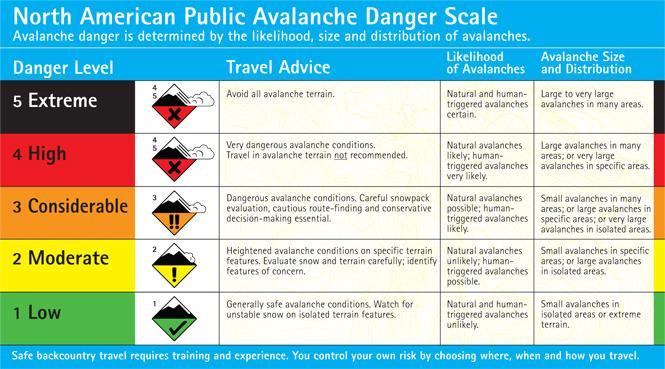
Figure B. The North American Public Avalanche Danger Scale. Its five colors are the colors your maps use.
This lab builds the terrain half of that picture for one ski area, Snowbird, in Little Cottonwood Canyon east of Salt Lake City. A ModelBuilder model computes slope and aspect from an elevation model, rates every 10 m cell on elevation, slope and aspect from a table taken from a real avalanche advisory, and combines the three ratings into one map of terrain-based hazard. The result is a screening: it says which terrain could be dangerous when the snowpack is, not whether it is dangerous today.
The interesting part is the combining. Three ratings from 1 to 5 can be turned into one in several defensible ways, and they do not agree. In Step 9 you will vary the elevation bands and compare three ways of combining, see how far the map moves, and use what moves to say how much of the answer is the terrain and how much is your choice of rule.
Important
Your job — see the deliverables below. Build one ModelBuilder model that rates Snowbird's terrain on elevation, slope and aspect and combines the three into a hazard class; measure how much of the ski area falls in each class; test the elevation bands and the combination rule; and make two maps.
Problem Statement
You are given a 10 m elevation model of upper Little Cottonwood Canyon and the boundary of the Snowbird ski area. Using them:
- Rate every cell on altitude, slope and aspect with Table 1.
- Combine the three ratings into one terrain hazard class from 1 (Low) to 5 (Extreme), by a rule you can state and defend.
- Report how much of Snowbird, in square kilometers, falls in each class.
- Map the result in the danger-scale colors.
Analysis Considerations
Every one of these is a decision somebody made, and every one of them can change the answer.
- The three factors. A forecast says where the danger is by elevation band and aspect; slope angle decides whether a slope can avalanche at all. Most slab avalanches start on slopes between 30° and 50°, avalanches on slopes under 30° are rare, and slopes over about 50° shed snow in small loose slides too often to build big slabs (avalanche.org: slope angle). Aspect matters because wind builds slabs on the slopes downwind of it — a west wind loads east aspects — and because the sun can destroy weak layers on south-facing slopes that survive on shaded ones (avalanche.org: aspect).
- What the model leaves out. The snowpack's layers and their strength, today's weather, wind loading, recent avalanches, and the person who triggers the slide. Also slope shape (convex rolls are more dangerous than concave bowls), ground cover (smooth grass and rock slabs slide more than boulder fields and forest), and terrain traps below a slope. None of these is in an elevation model. Your report says what each one would change.
- Table 1. The class breaks below come from the course's original handout, which took them from one advisory issued by the Sawtooth Avalanche Center, in central Idaho, on one day. Another day's advisory moves the elevation bands, and another center would use different ones. Step 9 moves them.
- How the three ratings combine. "All three agree", the product, the worst of the three, the best of the three — each is a different claim about how the factors interact. Step 6 builds two and Step 7 adds two more.
- The elevation model. Bare earth: the ground surface, without trees, lift towers or the winter snowpack, which can be meters deep and changes the slope a skier stands on. Cells of about 10 m, so a gully narrower than that is not in it.
- The coordinate system. Slope and Aspect need cells and elevations in the same linear unit. The extract arrives in latitude and longitude; Step 1 projects it to NAD 1983 UTM zone 12N in meters.
| Altitude (meters) | Slope (degrees) | Aspect (degrees) | |
|---|---|---|---|
| Low (1) | 0 – 2,200 | 0 – 25 60 – 90 |
180 – 225 |
| Moderate (2) | 2,200 – 2,400 | 25 – 30 55 – 60 |
135 – 180 225 – 270 |
| Considerable (3) | 2,400 – 2,600 | 30 – 32 50 – 55 |
90 – 135 270 – 315 |
| High (4) | 2,600 – 2,800 | 32 – 35 45 – 50 |
315 – 360 45 – 90 |
| Extreme (5) | above 2,800 | 35 – 45 | −1 – 45 |
Table 1. Terrain ratings from a Sawtooth Avalanche Center advisory. A value exactly on a break goes to the lower range: 25° is Low and 35° is High, because ArcGIS Pro's Reclassify counts the end of each range in that range. The Aspect tool gives flat cells −1, which this table rates Extreme. With slope class 1, a flat cell comes out Considerable under the geometric mean of Step 6 and Extreme under the worst-factor rule of Step 7. There are none inside Snowbird, but they show on any map that reaches past its boundary. Say in your report whether you would rate them differently.
Data
Important
Set up your folder before you download anything. On the lab machines, work on the D:
drive: one folder for this class named after you, D:\Smith\, and one folder per lab inside
it, D:\Smith\Lab10\. The C: drive is locked, and a network drive is slow enough to make
ArcGIS Pro hang. Never use a space in a folder or file name you create — raster tools fail on
them without saying why. Back up your lab folder at the end of every session. The full set of
conventions is on the ArcGIS Tips and Reminders page.
| Layer | Where it comes from | How you get it |
|---|---|---|
LittleCottonwood_DEM.tif |
USGS 3D Elevation Program, 1/3 arc-second DEM | Prepared extract, hosted here |
| Snowbird ski area boundary | Utah Geospatial Resource Center (UGRC), Utah Ski Area Boundaries | Live web layer, added by URL |
| Table 1 | A Sawtooth Avalanche Center advisory | You type it into the Reclassify and Raster Calculator tools |
- Download:
lab10-little-cottonwood-dem.zip(2.4 MB). Unzip it into your Lab10 folder — the files are in alab10-little-cottonwood-demfolder inside it — and readREAD-ME-FIRST.txt. - Add the ski areas in Step 0 from this feature service URL:
https://services1.arcgis.com/99lidPhWCzftIe9K/arcgis/rest/services/SkiAreaBoundaries/FeatureServer/0(the same layer as UGRC's Utah Ski Area Boundaries page).
Tip
Check the data: LittleCottonwood_DEM.tif is 1,296 columns × 864 rows of 1/3 arc-second
cells, values 2,176.4 to 3,500.5 (meters above NAVD 88), GCS North American 1983, no NoData
cells. The ski-area layer has 14 polygons; Snowbird's is named Snowbird Ski and Summer Resort.
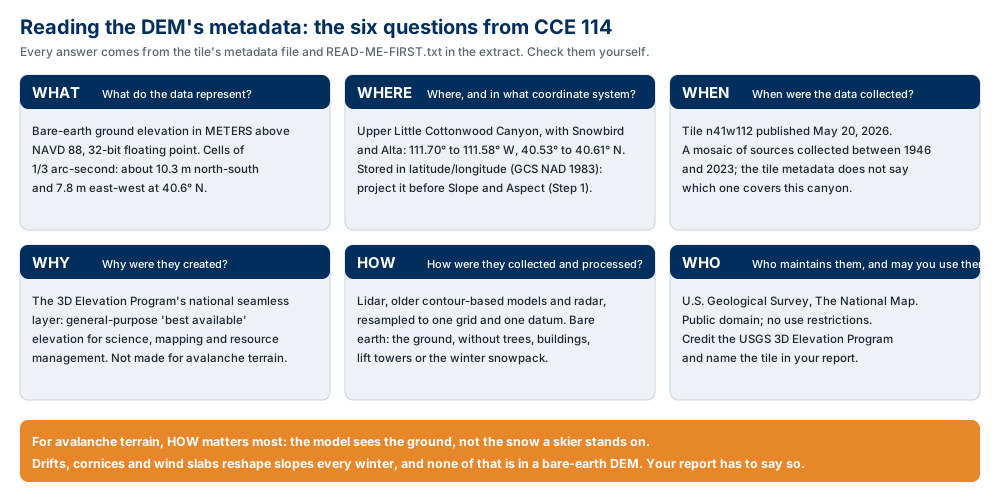
Figure A. The six metadata questions, applied to the DEM. Confirm three of the values yourself —
in READ-ME-FIRST.txt, in the raster's properties in ArcGIS Pro, and in the tile's
metadata file
— and say in your report what each one does to your result.
ModelBuilder Tools
New in this lab:
| Tool | What it does |
|---|---|
 Slope (Spatial Analyst) |
The steepness of each cell, from its eight neighbors, in degrees from 0 (flat) to 90 (vertical). Tool reference |
 Aspect (Spatial Analyst) |
The compass direction each cell's slope faces, in degrees clockwise from north (0 to 360), and −1 where the cell is flat. Tool reference |
 Cell Statistics (Spatial Analyst) |
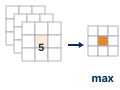
A statistic of several rasters, cell by cell: here the maximum and the minimum of the three ratings. Tool reference |
 Tabulate Area (Spatial Analyst) |
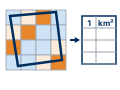
The area of each raster class inside each zone of a polygon layer, in one table. Tool reference |
Tools you already know: Project Raster (Lab 5), Reclassify (Lab 2), Raster Calculator with an inline variable (Labs 2, 4 and 5), and model parameters.
Example Model

Figure C. The finished model, exported from ModelBuilder — click it to open it full size. One
elevation model in, three rating rasters in the middle, and the combined maps out: all three agree,
the geometric mean, the worst and best factor, and where those two differ. The six elements marked
P are the model parameters — the shift, the altitude classes and the four combined maps — and they
become the tool dialog of Step 9.
Complete the Lab
For an advanced GIS student, the information up to this point is all you need to complete the assignment. Feel free to try the analysis using only the information above. If you complete the lab without the step-by-step instructions below, say so in your report.
Step-by-Step Solution
Note
Build it once, build it to be changed. The steps walk through Snowbird at the default elevation bands. Step 9 re-runs the same model with the bands moved, so give every dataset a readable name as you go.
Note
Every check value on this page was measured on the files you download, with the steps below, in ArcGIS Pro 3.7.1. Your numbers should match to the last digit shown.
Step 0 — Set Up the Project
- Create a new project in
D:\Smith\Lab10\with the Map template; if you already made the folder, uncheck Create a folder for this local project. - Add
LittleCottonwood_DEM.tif. When the Build Pyramids and Calculate Statistics dialog opens, click OK. - On the Map tab click the arrow under Add Data ▸ From Path, paste the ski-area URL from the Data section, and click Add. Add an imagery or topographic basemap.
- Confirm Spatial Analyst is licensed (Project ▸ Licensing).
- On the Analysis tab click ModelBuilder. On the ModelBuilder tab click
Properties, set Name to
AvalancheTerrainand Label toAvalanche Terrain, and save. - On the ModelBuilder tab click Environments and check that Current Workspace and Scratch Workspace are your project geodatabase.
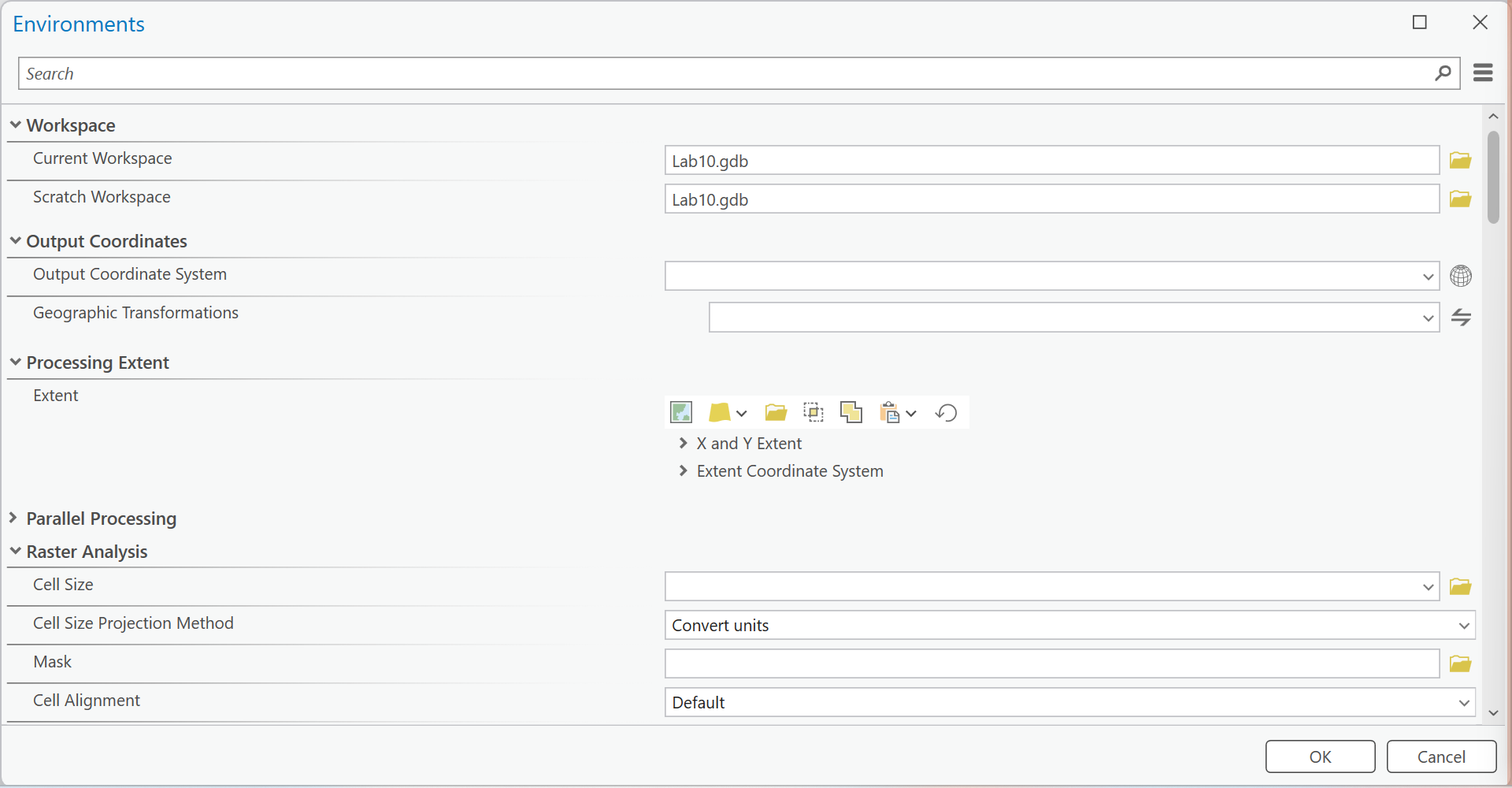
Figure 0. ModelBuilder ▸ Environments: the two workspaces, everything else at its default.
Step 1 — Project the DEM
Add Project Raster to the model with LittleCottonwood_DEM.tif as the input:
- Output Coordinate System: NAD 1983 UTM Zone 12N
- Resampling Technique: Bilinear interpolation (elevations are continuous; nearest neighbor leaves stair steps that become stripes in Slope)
- Output Cell Size: 10
- Output Raster Dataset:
DEM_UTM
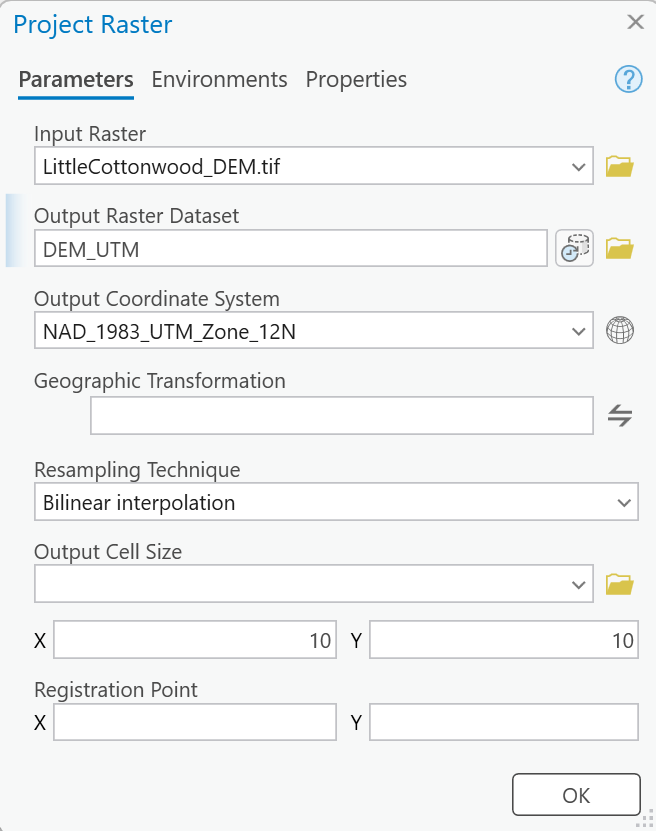
Figure 1. Project Raster. It opens with Nearest neighbor, switches itself to Bilinear when you pick this DEM, and proposes cells of about 9.04 m; type 10 in both X and Y.
Tip
Check the result: DEM_UTM is 1,023 × 896 cells of 10 m, values 2,178.0 to 3,499.4
m. If the cell size reads about 0.0001, you are looking at the unprojected DEM.
Step 2 — Compute Slope
Add Slope with DEM_UTM as the input, Output measurement Degree, and output Slope_Deg.
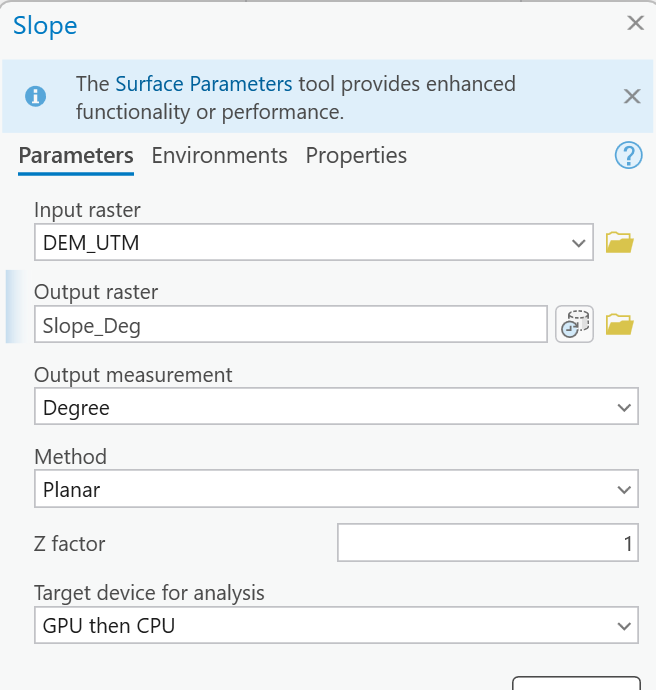
Figure 2. Slope, in degrees, Planar. Ignore the banner; Surface Parameters does more than this lab needs.
Tip
Check the result: the steepest cell is 77.8°, and the mean slope is 26.9° (the layer's Properties ▸ Source ▸ Statistics list both).
Warning
Slope runs on the unprojected DEM too, and gives the wrong answer quietly. On
LittleCottonwood_DEM.tif itself it reports a mean of 24.3° — about 2.6° too gentle. Its cells
are 1/3 arc-second, which here is 10.3 m north–south but only 7.8 m east–west; projected cells are
square meters. Two or three degrees move a lot of terrain across the 25°, 30° and 35° breaks of Table 1.
Step 3 — Compute Aspect
Add Aspect with DEM_UTM as the input and output Aspect_Deg.
Tip
Check the result: values run from 0 to 360, plus −1 on 480 flat cells in the whole projected DEM.
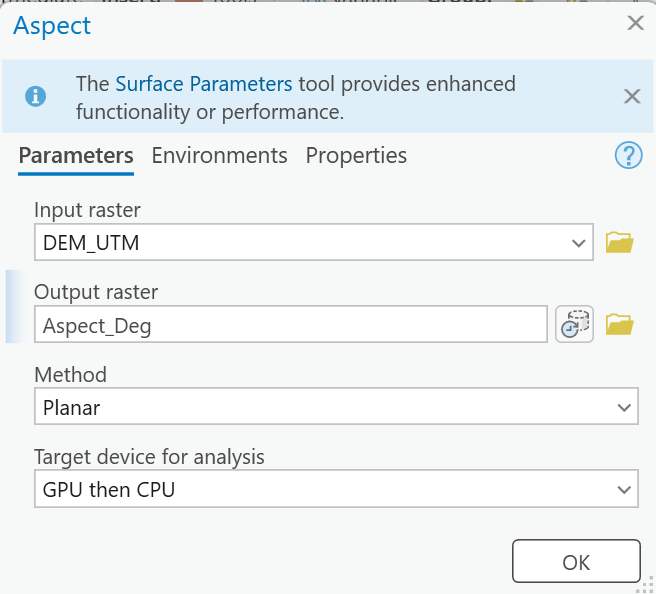
Figure 3. Aspect.
Step 4 — Rate Slope and Aspect
Add Reclassify twice, with the slope and aspect rows of Table 1.
- Reclassify
Slope_Deg, field Value, nine rows: 0–25 → 1, 25–30 → 2, 30–32 → 3, 32–35 → 4, 35–45 → 5, 45–50 → 4, 50–55 → 3, 55–60 → 2, 60–90 → 1. OutputSlope_Class. - Reclassify
Aspect_Deg, eight rows: −1–45 → 5, 45–90 → 4, 90–135 → 3, 135–180 → 2, 180–225 → 1, 225–270 → 2, 270–315 → 3, 315–360 → 4. OutputAspect_Class.
Two ranges can share a new value; that is how the table says "steep and gentle are both Low."
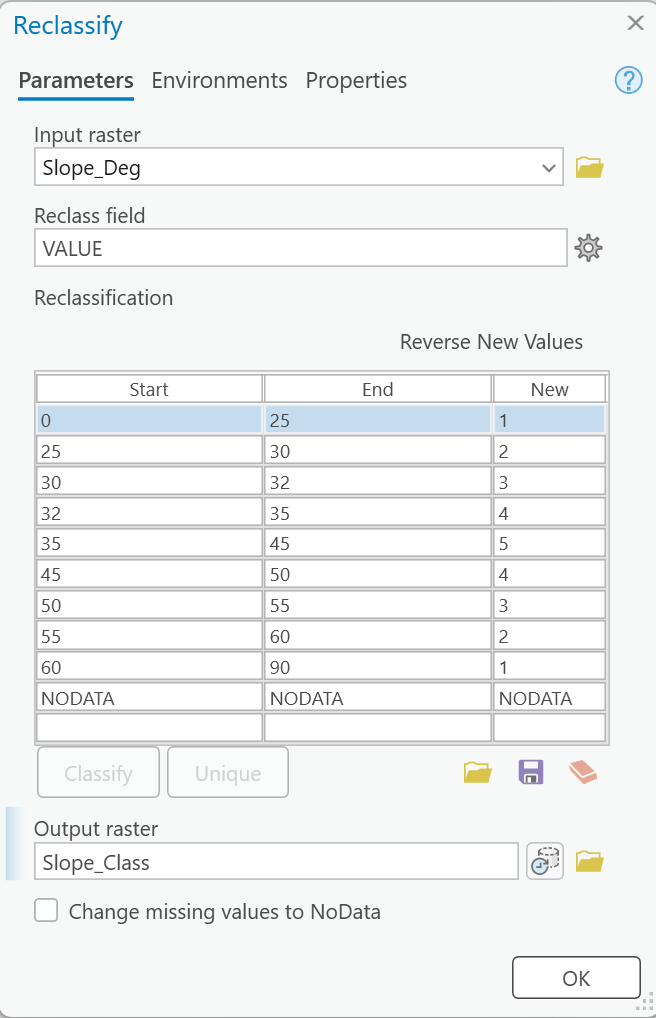
Figure 4a. The slope ratings. ArcGIS Pro adds the NODATA row itself.
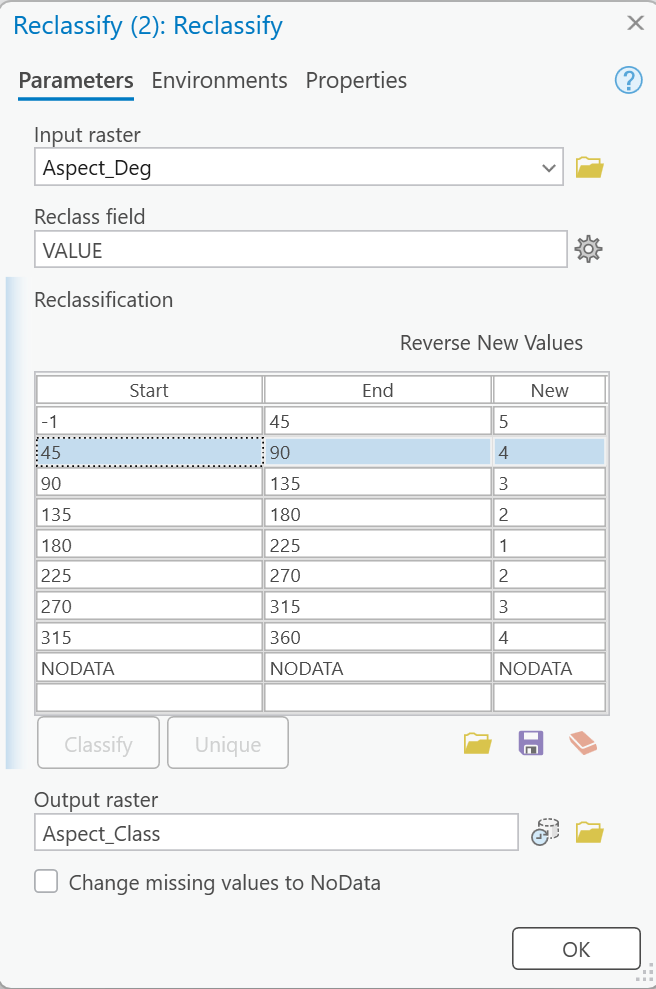
Figure 4b. The aspect ratings.
Warning
Type −1 by editing, not in the blank row. In our build, a new row whose Start was typed as
-1 vanished when the row was committed. Type 0 for the first Start, finish the table, then
double-click that cell and change it to -1. Check that the first row reads −1 before you click
OK; without it the 480 flat cells come out NoData.
Tip
Check the result (inside Snowbird; you measure these in Step 8): slope class 1 covers 4.986 km²
and slope class 5 2.047 km²; aspect class 4 (northwest-to-north and northeast-to-east)
3.493 km². If any cell of Slope_Class is NoData, a range has a gap.
Step 5 — Rate Altitude, With a Shift
Reclassify cannot take a parameter, and Step 9 needs to move the elevation bands. So rate altitude with Raster Calculator, with the bands written out and an inline variable added to each break:
- On the canvas toolbar click Variable, choose Long in the data type list, and click
OK. Right-click the new oval ▸ Rename, type
Shift, double-click it and set its value to0, then right-click it ▸ Parameter. - Add Raster Calculator with this expression, and output
Altitude_Class:
Con("%DEM_UTM%" <= 2200 + %Shift%, 1, Con("%DEM_UTM%" <= 2400 + %Shift%, 2, Con("%DEM_UTM%" <= 2600 + %Shift%, 3, Con("%DEM_UTM%" <= 2800 + %Shift%, 4, 5))))
A positive shift raises every band (less of the mountain counts as high); a negative shift lowers them.
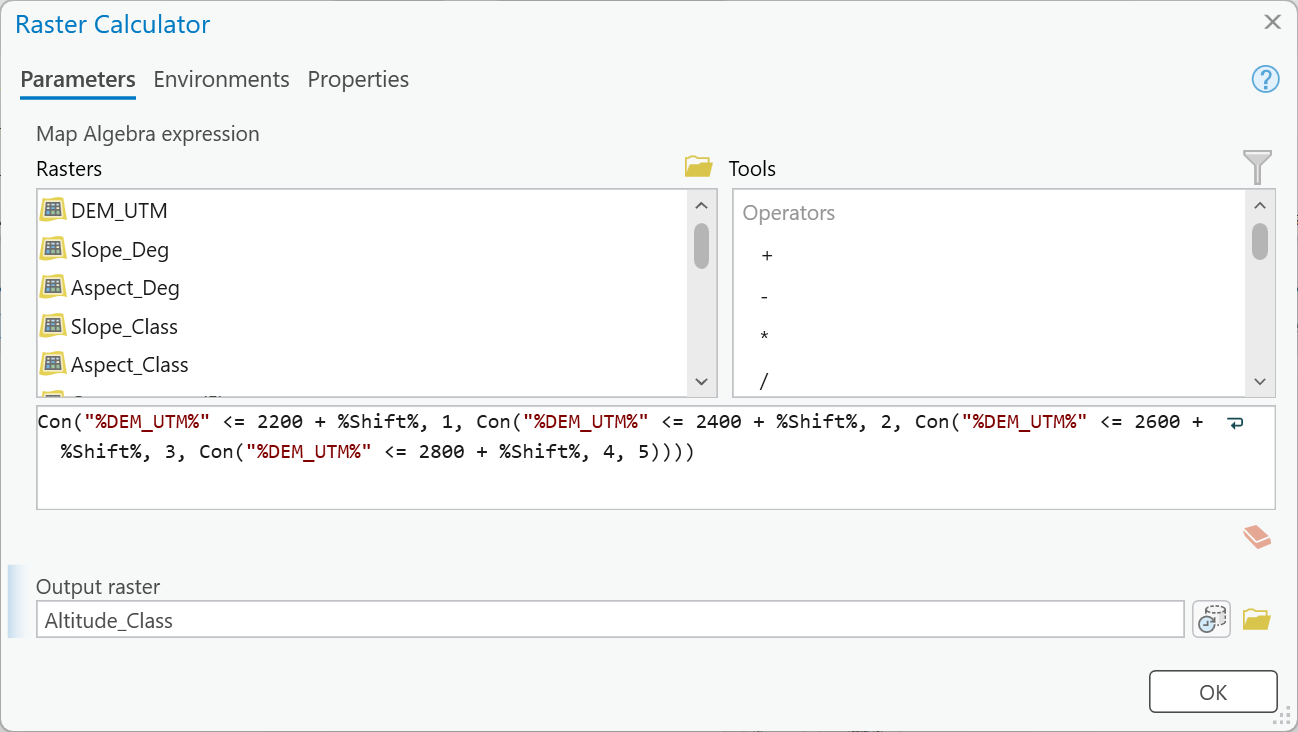
Figure 5. The altitude rating, with %Shift% in every break. On the canvas, Shift draws a
connector to this tool. Type the output name last: Raster Calculator replaces a typed name with a
default such as RasterC_1 when the expression changes.
Tip
Check the result (Step 8): at shift 0, Snowbird has 7.445 km² above 2,800 m (altitude class 5) and no cells below 2,200 m. Most of the ski area is "Extreme" on altitude alone — keep that in mind in Step 9.
Step 6 — Combine the Ratings
Two ways, both in Raster Calculator.
First, "all three agree." A cell gets a class only where all three ratings are that class:
Con(("%Altitude_Class%" == 1) & ("%Slope_Class%" == 1) & ("%Aspect_Class%" == 1), 1, Con(("%Altitude_Class%" == 2) & ("%Slope_Class%" == 2) & ("%Aspect_Class%" == 2), 2, Con(("%Altitude_Class%" == 3) & ("%Slope_Class%" == 3) & ("%Aspect_Class%" == 3), 3, Con(("%Altitude_Class%" == 4) & ("%Slope_Class%" == 4) & ("%Aspect_Class%" == 4), 4, Con(("%Altitude_Class%" == 5) & ("%Slope_Class%" == 5) & ("%Aspect_Class%" == 5), 5, 0)))))
Output Agree_Class. Look at it before you go on.
Tip
Check the result (Step 8): inside Snowbird, 10.346 of 10.781 km² — 96 % — is 0, unclassified. A 35–45° slope above 2,800 m facing between north and northeast (0–45°) rates 5, 5, 5 and is mapped Extreme; the same slope facing northeast-to-east (45–90°) rates 5, 5, 4 and is mapped nothing. Your report says why that is the wrong answer.
Second, the geometric mean. Multiply the three ratings (1 to 125), take the cube root, and round. The cube root of a product of three numbers is their geometric mean, which brings the result back to the 1–5 scale:
Int(Power("%Altitude_Class%" * "%Slope_Class%" * "%Aspect_Class%", 1.0 / 3) + 0.5)
Output Hazard_Class, and make it a model parameter. Rated 5, 5, 4, a cell's product is 100, its
geometric mean 4.6, and its class 5. In product terms the classes are 1–3 Low, 4–15 Moderate, 16–42
Considerable, 43–91 High, 92–125 Extreme.
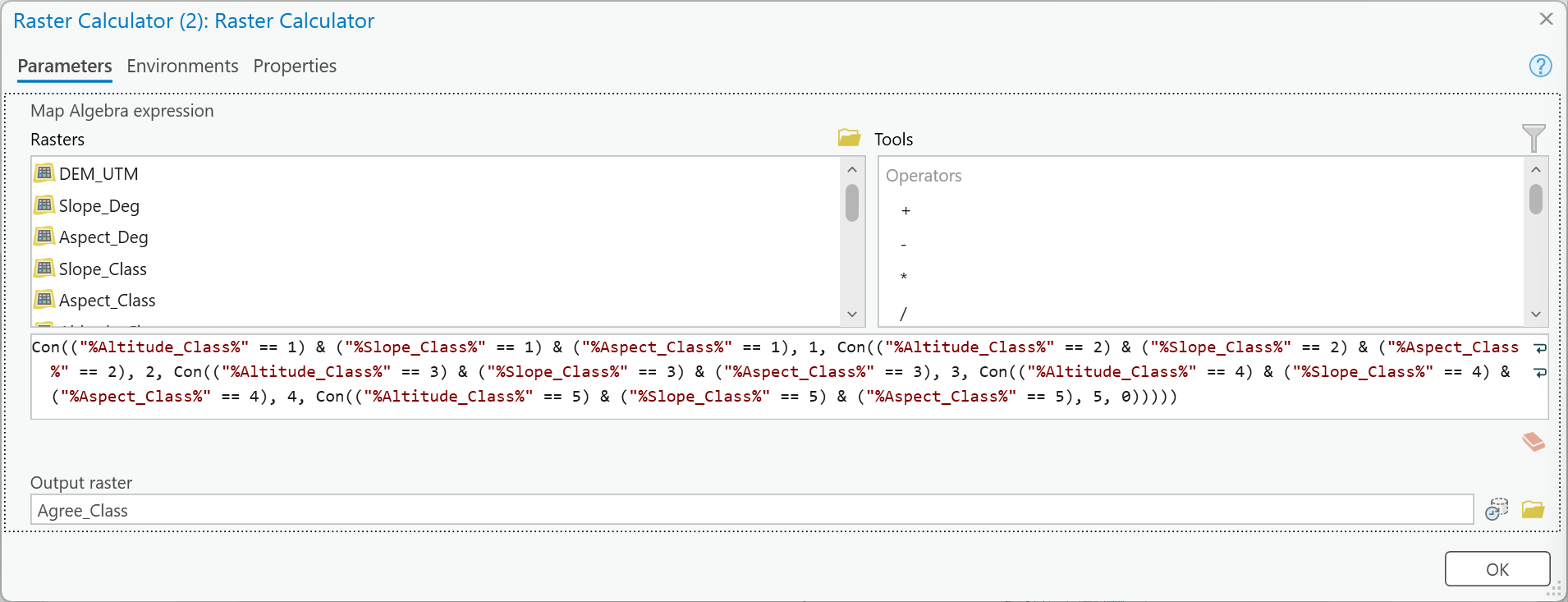
Figure 6a. "All three agree." Widen the dialog to read the whole expression.
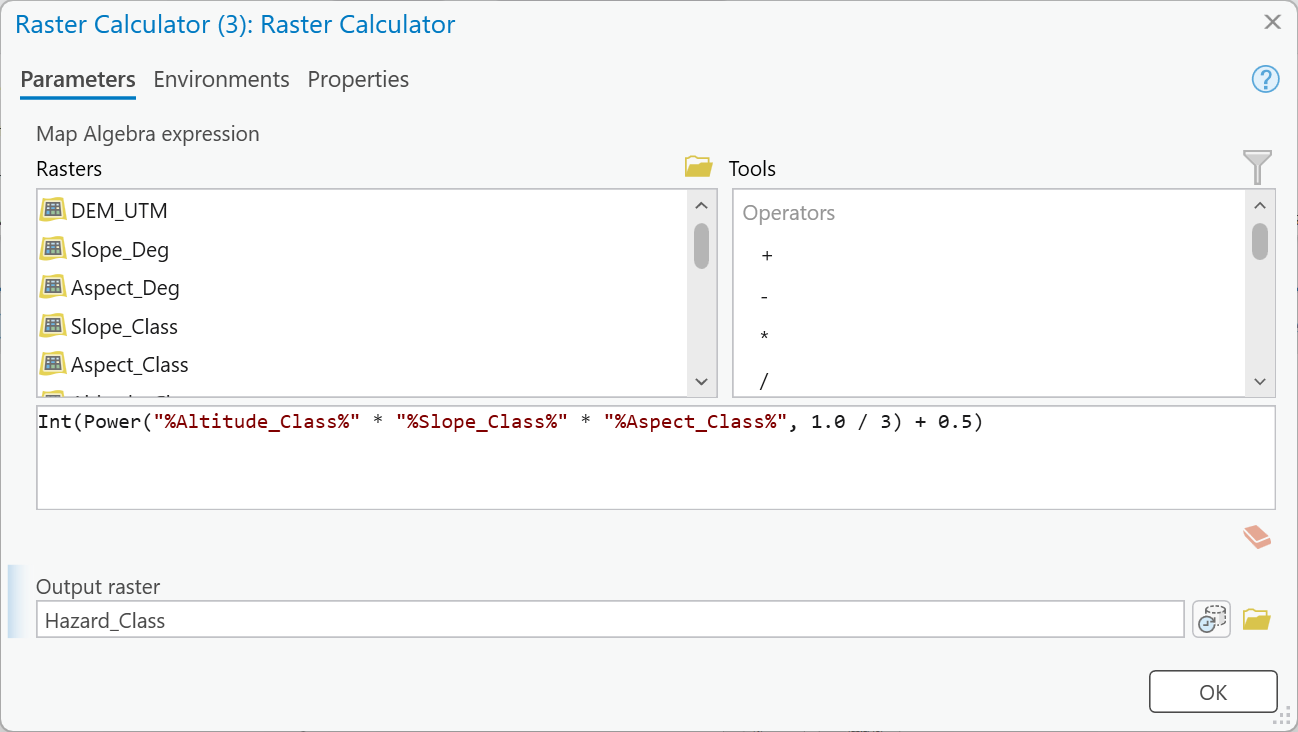
Figure 6b. The geometric mean, rounded to the nearest class.
Note
Why + 0.5 and Int. Int drops the fraction, so adding 0.5 first rounds to the nearest
class: a geometric mean of 3.48 (product 42) is Considerable, 3.50 (product 43) is High.
Step 7 — Add Two More Rules
Add Cell Statistics twice, each with Altitude_Class, Slope_Class and Aspect_Class as the
inputs:
- Overlay statistic Maximum, output
Worst_Class— a cell is as dangerous as its worst factor. - Overlay statistic Minimum, output
Best_Class— a cell is only as dangerous as its least dangerous factor.
These two bracket the geometric mean. Then one more Raster Calculator, output Rule_Spread:
"%Worst_Class%" - "%Best_Class%"
Rule_Spread is 0 where all three factors agree and 4 where one rates 1 and another 5: it maps
where the rule you choose matters.
Make Altitude_Class, Hazard_Class, Worst_Class, Best_Class and Rule_Spread model parameters,
so that every run from the tool dialog keeps them and lets you name them.
Warning
A run from the tool dialog deletes everything that is not a parameter. In our build, the first
dialog run removed DEM_UTM, Slope_Deg, Aspect_Deg, Slope_Class and Aspect_Class from the
geodatabase — including the copies the earlier ModelBuilder run had made. Do Step 8 from a run
inside ModelBuilder, before any dialog run.
Tip
Check the result (Step 8): inside Snowbird, Rule_Spread is 0 on only 0.436 km² and 4
on 3.309 km².
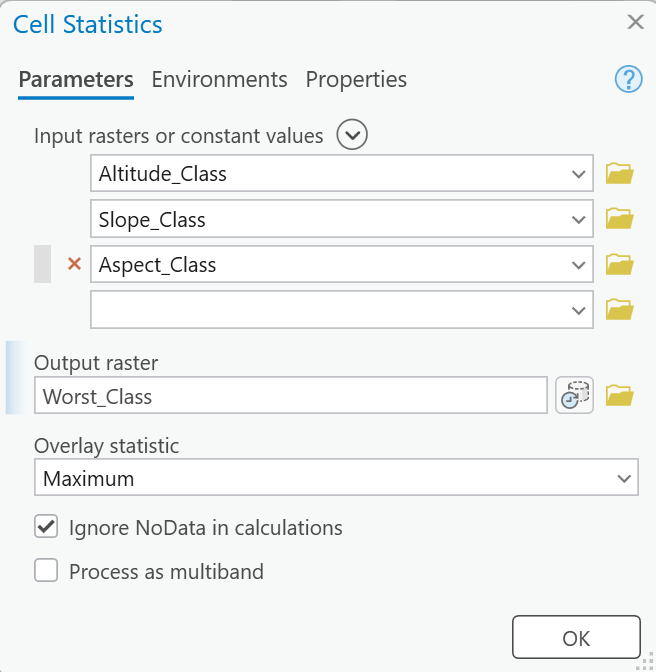
Figure 7a. Cell Statistics, Maximum: the worst factor. The second one is the same with
Minimum and Best_Class.
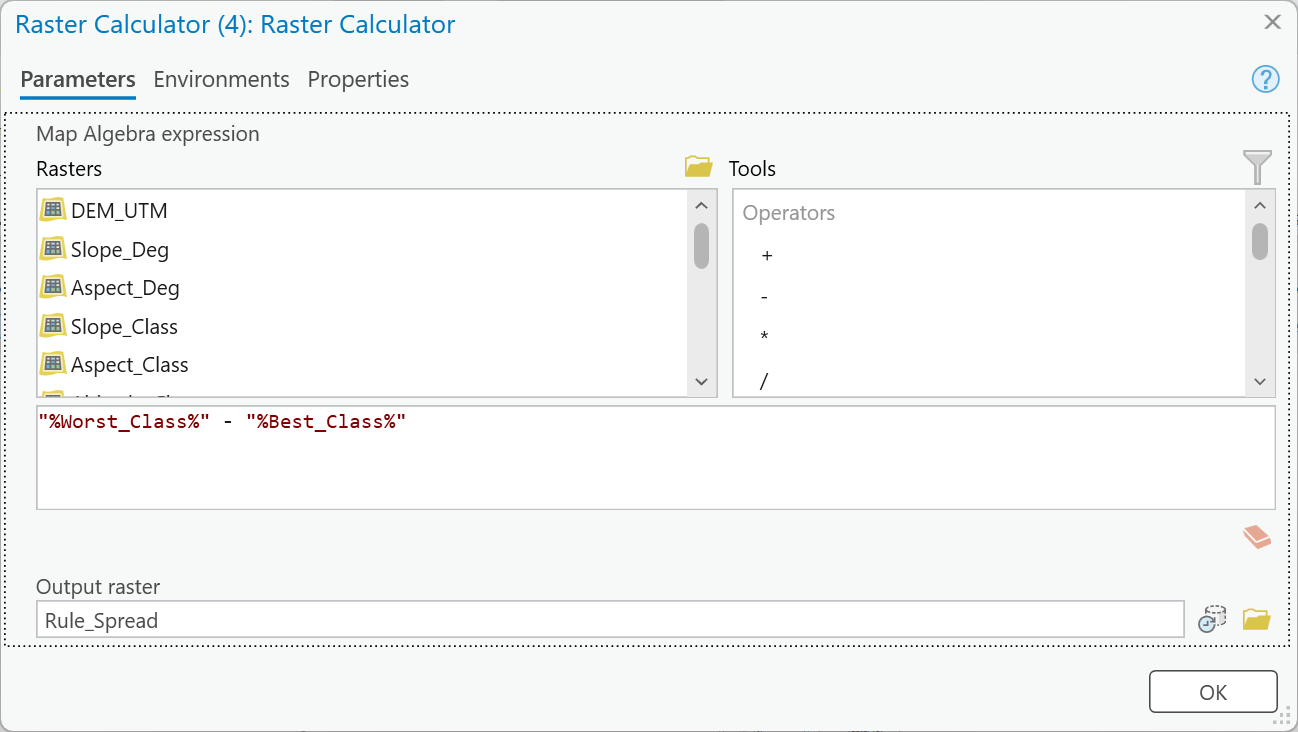
Figure 7b. Where the rules disagree.
Step 8 — Measure Snowbird
Run the model. Then add Tabulate Area (outside the model is fine) with:
- Input raster or feature zone data: the ski-area layer, with only Snowbird selected (select
it with Select By Attributes,
NAMEbegins withSnowbird) - Zone field:
NAME - Input raster or feature class data:
Hazard_Class, Class fieldValue - Output table:
Snowbird_Hazard
The table has one column per class, in square meters. Divide by 1,000,000 for km². Run Tabulate
Area the same way on Altitude_Class, Slope_Class, Aspect_Class, Agree_Class, Worst_Class,
Best_Class and Rule_Spread — the check values in Steps 4 to 7 are these tables — and name each
table for the raster and the run, such as TA_Hazard_s0.
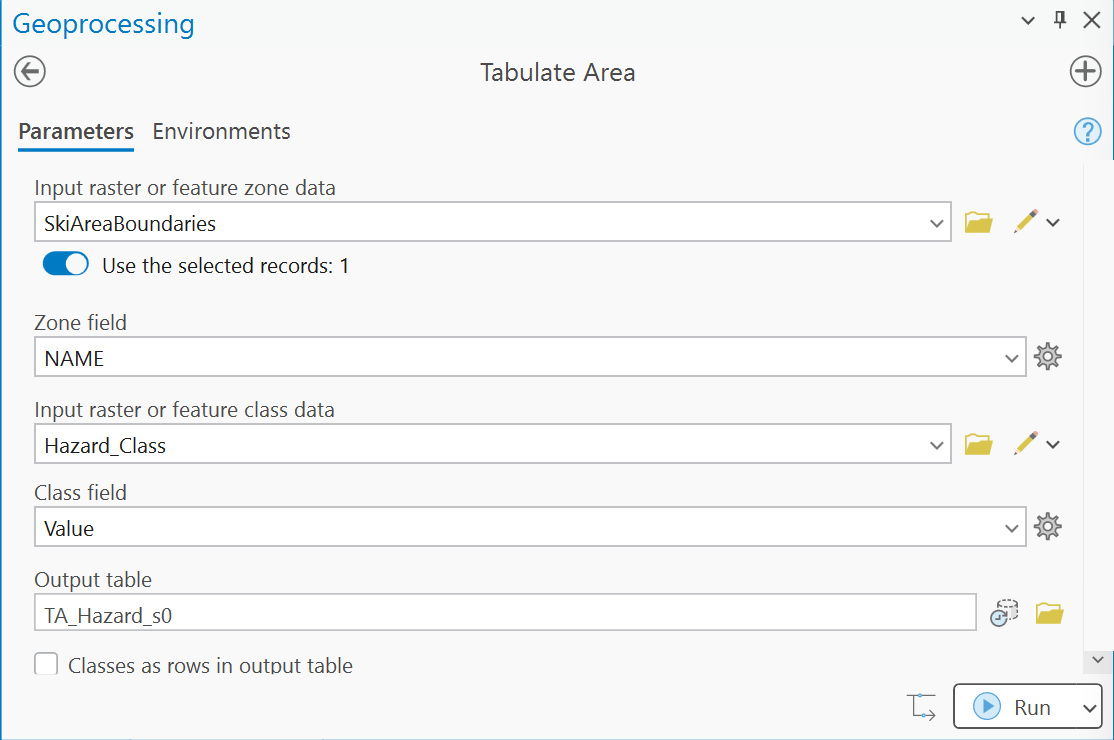
Figure 8a. Tabulate Area on the selected Snowbird polygon. The switch Use the selected records: 1 confirms that only Snowbird is used.
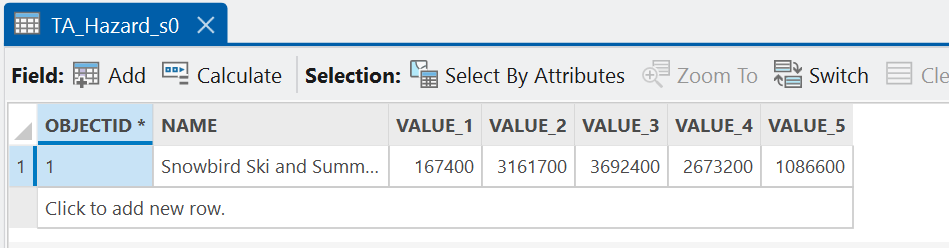
Figure 8b. The output: one column per class, in square meters.
Tip
Check the result (km², Snowbird, shift 0):
| Rule | Low | Moderate | Considerable | High | Extreme |
|---|---|---|---|---|---|
Geometric mean (Hazard_Class) |
0.167 | 3.162 | 3.692 | 2.673 | 1.087 |
The five add to 10.781 km², Snowbird's area. Your figures may differ from any check value on
this page by 0.001 km² — one 10 m cell on the boundary. UGRC's own Shape__Area field says 18.7 million
square meters: that is the area in the layer's Web Mercator coordinates, which stretch areas by
about 1.73 at this latitude. Your table measures in the raster's UTM meters.
Step 9 — Test the Assumptions
The default map is an answer, not the answer: one day's elevation bands from one advisory, and
one rule for combining. Run the model at least three more times from its tool dialog with a
different Shift — for example −400, −200 and +200 or +400 m. Give every output a name that
carries the shift (Hazard_Class_p400), or the run overwrites your baseline. Tabulate
Altitude_Class, Hazard_Class, Worst_Class and Best_Class inside Snowbird each time.
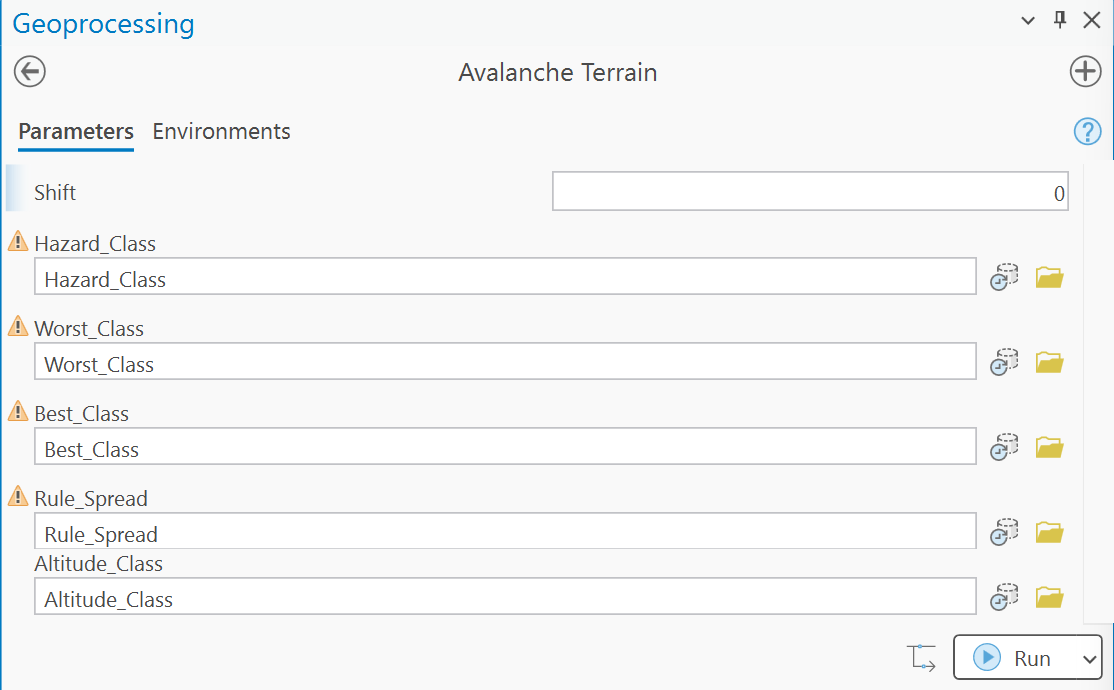
Figure 9a. The model as a tool. The warning icons only say the datasets exist from an earlier run; give every output a new name for each run.
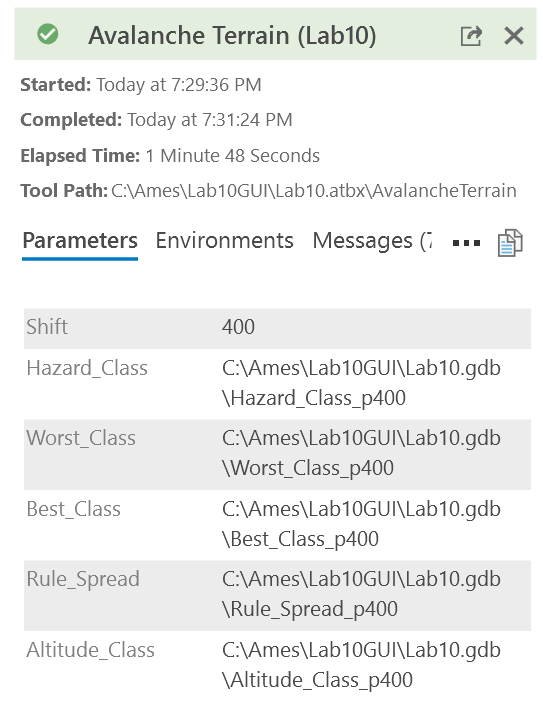
Figure 9b. A run at Shift 400, finished in under two minutes.
Choose your values deliberately and say why: a storm that loads the upper mountain, a warm spell that moves the problem up, a different avalanche center's bands. For the baseline and every run, in one table, record the shift, the area of Snowbird in altitude class 5, and, for each of the three rules, the area rated High or Extreme. Then answer, in your report:
- How much does moving the elevation bands change the map, in each direction? Use the altitude-class column to say why.
- How much does the combination rule change the map? For the same run, compare the High + Extreme area under the three rules. Which rule would you publish, and to whom?
- Where do the three rules agree, and where do they disagree most? Map
Rule_Spreadat shift 0 beside the imagery and say what kind of terrain sits at 0 and at 4.
Pick one run, or one rule, for your second map, and say on the map what changed and why you chose it.
Tip
At Snowbird one of these two choices moves the map far more than the other. Look at Step 5's check value before you guess which.
Deliverables
Make two professional map layouts:
- Your baseline result —
Hazard_Classat shift 0 over Snowbird, titled with the rule and the bands, in the danger-scale colors (Figure B) with the labels Low to Extreme, the Snowbird boundary and labeled places, and an inset locating Little Cottonwood Canyon in Salt Lake County. - One scenario from Step 9 — a different shift or a different rule, whichever most changes the picture. Say on the map what changed and why you chose it.
Write a brief report (2–3 pages of text, plus your figures and maps) covering:
- a title block — assignment title, your name, the date and the course — and the name of your peer reviewer
- the requirements of the project and your approach to solving it
- a description of your model a reader could repeat from: each tool and its settings, and every input, intermediate and output dataset with its type
- one full-page figure of your model, exported from ModelBuilder (Export ▸ Export To Graphic), and one screen capture of its toolbox interface with the shift parameter exposed
- the three metadata values for the DEM — its publication date and source dates, its vertical datum and units, and its cell size — and what each one means for your result
- your Step 8 table of Snowbird's area in each
Hazard_Classat shift 0, in km² - the "all three agree" result: its check value and, in your own words, why it is the wrong answer
- your sensitivity table from Step 9 and your answers to its three questions
- where the map is wrong and why — what the terrain-only model leaves out (snowpack, weather, wind loading, triggering, slope shape, ground cover, terrain traps), what the bare-earth 10 m DEM cannot show, and what Table 1 assumes — and what data would fix each
- a copy of the rubric below with your self-assessment filled in — a score in every row, honestly arrived at. The grader will compare it with theirs.
Important
Peer review before you submit. Have another student in the class read your report against the rubric and give you feedback, then act on that feedback before the deadline. Name your reviewer in the report and say in a sentence what you changed because of them.
Credit line for your maps: Elevation: USGS 3D Elevation Program, 1/3 arc-second DEM, tile n41w112 (May 2026). Ski areas: Utah Geospatial Resource Center. Ratings: Sawtooth Avalanche Center advisory, via CE 414.
References
avalanche.org. North American Public Avalanche Danger Scale. avalanche.org.
avalanche.org. Avalanche Encyclopedia: Slope Angle and Aspect. Accessed October 2, 2026.
Colorado Avalanche Information Center. Statistics and Reporting. avalanche.state.co.us. Accessed October 2, 2026.
Sawtooth Avalanche Center. sawtoothavalanche.com.
Utah Avalanche Center. utahavalanchecenter.org.
U.S. Geological Survey, 3D Elevation Program. 1/3 arc-second DEM, tile n41w112, published May 20, 2026.
Utah Geospatial Resource Center. Utah Ski Area Boundaries. opendata.gis.utah.gov.
Example Maps
These are examples, not templates. Your maps carry your name, and your second map shows the run you chose.
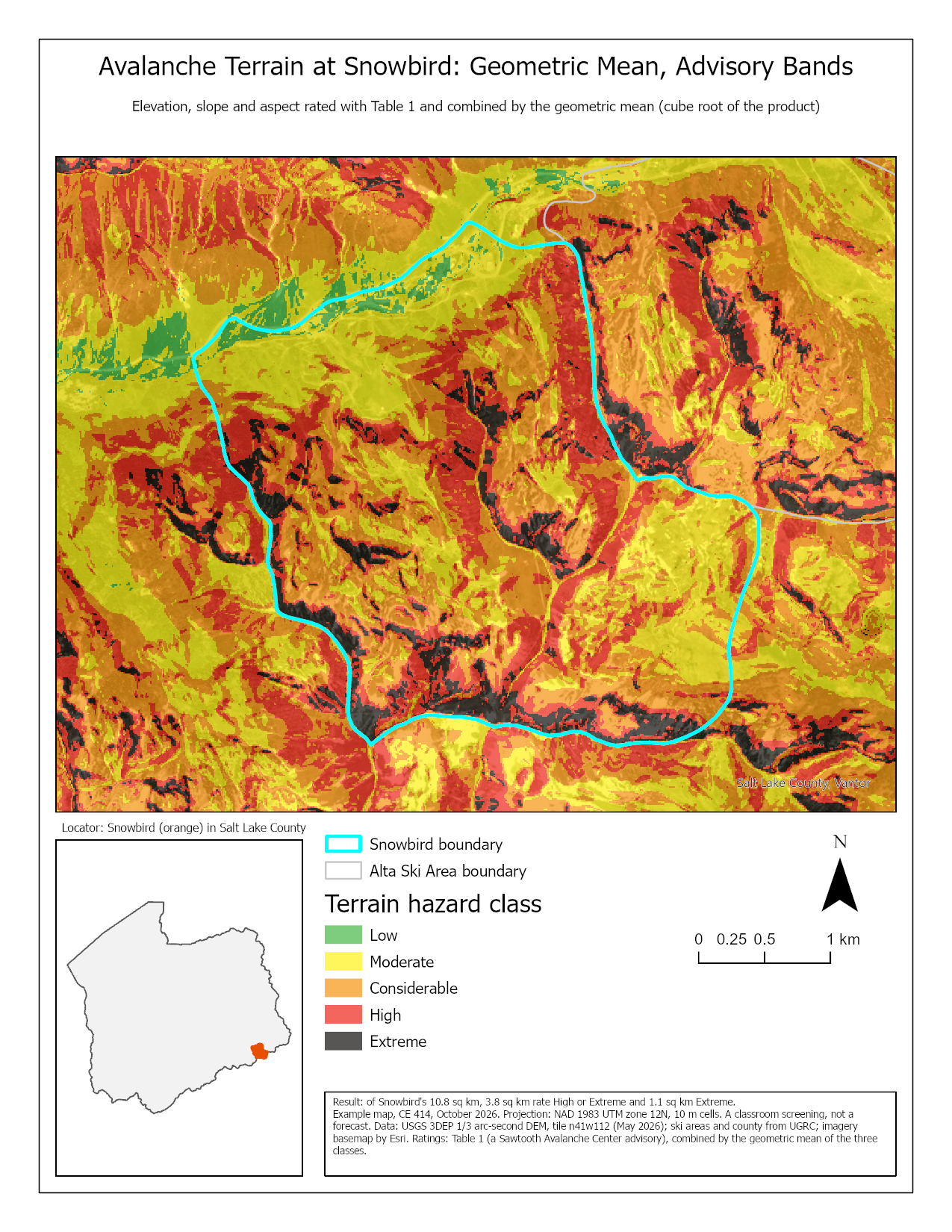
Figure 10. The baseline map. Two things to do better than this example: label the peaks and the lifts so a reader can find their way around, and mark one slope you checked against imagery.
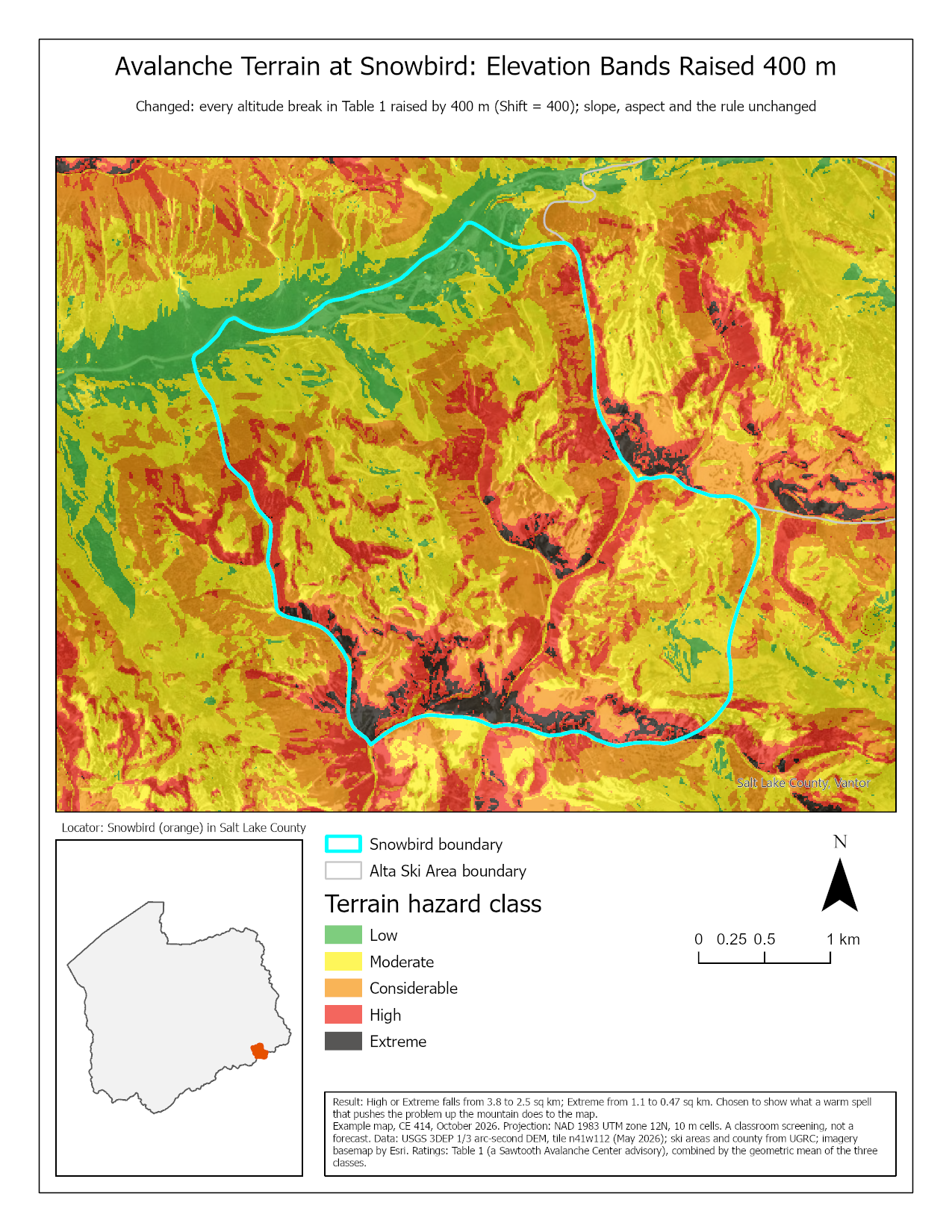
Figure 11. The kind of second map Step 9 asks for. Your own second map should be the run that most changes what a reader would conclude, which may not be this one.
Rubric for Avalanche Hazard
Fifty points in five parts of ten. The bullets say what each part is worth, so you know exactly what to submit.
| Item | Points |
|---|---|
| Write-up (2–3 pages) • Assignment title, your name, date and course; your peer reviewer named, with a sentence on what you changed because of them (1) • The requirements of the project and your approach to solving it, in your own words (2) • The three metadata values for the DEM and what each means for your result (2) • The "all three agree" result and why it is the wrong answer (2) • Where the map is wrong and why, and what data would fix it (2) • Organized writing, figures numbered and referred to, sources credited, rubric pasted with your self-assessment (1) |
/10 |
| ModelBuilder model — correct and working • The model runs end to end from its tool dialog and its Step 8 table of Snowbird's areas at shift 0 matches the check values (4) • A full-page model figure exported from ModelBuilder, all tools and datasets readable (2) • A screen capture of the toolbox interface with the shift parameter exposed (2) • A description of the model a reader could repeat from (2) |
/10 |
| Map 1 — your baseline (full page, 8.5 × 11) • Title stating the rule and the elevation bands (1) • Neat line, north arrow and scale bar (1) • Text box with author, date, map projection, and the DEM's source and date (1) • The hazard classes in the danger-scale colors, labeled Low to Extreme in a legend (2) • The Snowbird boundary and labeled places (1) • An inset locating Little Cottonwood Canyon (2) • Basemap, scale and legibility appropriate to the ski area (2) |
/10 |
| Map 2 — one Step 9 scenario (full page, 8.5 × 11) • Title stating the rule and the elevation bands (1) • Neat line, north arrow and scale bar (1) • Text box with author, date, map projection, and the DEM's source and date (1) • The hazard classes in the danger-scale colors, labeled Low to Extreme in a legend (2) • The Snowbird boundary and labeled places (1) • Title and text box say what changed from Map 1 and why this run was chosen (2) • Basemap, scale and legibility appropriate to the ski area (2) |
/10 |
| Sensitivity (Step 9) • One table with the baseline and at least three more runs, giving the shift, the altitude-class-5 area, and the High + Extreme area of Snowbird under each of the three rules (4) • How much moving the elevation bands changes the map in each direction, and why (2) • How much the combination rule changes the map, and which rule you would publish and why (2) • Where the rules agree and disagree ( Rule_Spread), and what terrain that is (2) |
/10 |
| Total | /50 |
Note
Using AI on this lab. Use AI freely to understand a tool, work out an error, or tighten your write-up, and add one line at the end of your report saying what you used it for. Do not take a field name, an expression, a coordinate system, or a number from it — those come from your own data, and the rubric asks you to defend every one. See the AI Use Policy for the full policy.