Lab 11: Least Cost Path Power Line Analysis
Civil Engineering 414 — Engineering Applications of GIS
Fall 2026 · Dr. Dan Ames
Routing a high-voltage line from Spanish Fork Canyon to Bluffdale, and finding out which decisions move it
Tip
Start from the report template. lab11-report-template.docx
has the title block, a section for every deliverable, the tables already set up with the columns
the rubric asks for, and the rubric at the end ready to fill in. You are welcome to write your
report any way you like — the template is a floor, not a ceiling — but if you use it and fill in
every section, you will not have left a graded item out.
Note
This is a one-week lab, due Saturday of Week 12. Everything that takes preparation is done for you and hosted: you build one model, run it six times, and make two maps.
Background
Aging infrastructure in the United States, and new demand on top of it, means new transmission lines. Before a utility can build one, it has to find a route for it. The placement of a utility line is a hard modeling problem. Left to itself, the cheapest path between two points is a straight line, but engineering limits and terrain make a straight line rare, and public opinion matters as much as either. Opposition summed up as NIMBY (Not In My Back Yard) and BANANA (Build Absolutely Nothing Anywhere Near Anything) can force a utility to rethink a route and the process that chose it (Vajjhala and Fischbeck, 2006).
A GIS professional on a siting project is asked to adjust the model's inputs again and again and to produce paths that weigh many factors at once (Meehan, 2007). That is why the work belongs in a model: added layers, changed weights and new requirements all change the least cost path, and a model can be re-run as many times as it takes to reach a route everyone involved can accept. This lab introduces a few of the processes and requirements used to model a least cost path for a power line. It does not model the public's behavior; Step 9 asks you what that leaves out.
A least cost path works on a cost surface: a raster in which every cell says how expensive it is to build across it. You decide what makes a cell expensive — steep ground, distance from a road you could build from, nearness to a city, distance from an existing line whose corridor you could share, a river to cross — and give each a score. Then ArcGIS Pro accumulates the cost outward from the start and walks the cheapest way home from the end.
The route you get is the cheapest route for the costs you chose, and nothing more. Every score and every weight in this lab is a decision, and several of them are close calls. In Step 9 you will vary the weights, see how far the route moves, and use what moves to say which decisions the answer really depends on, and which ones hardly matter.
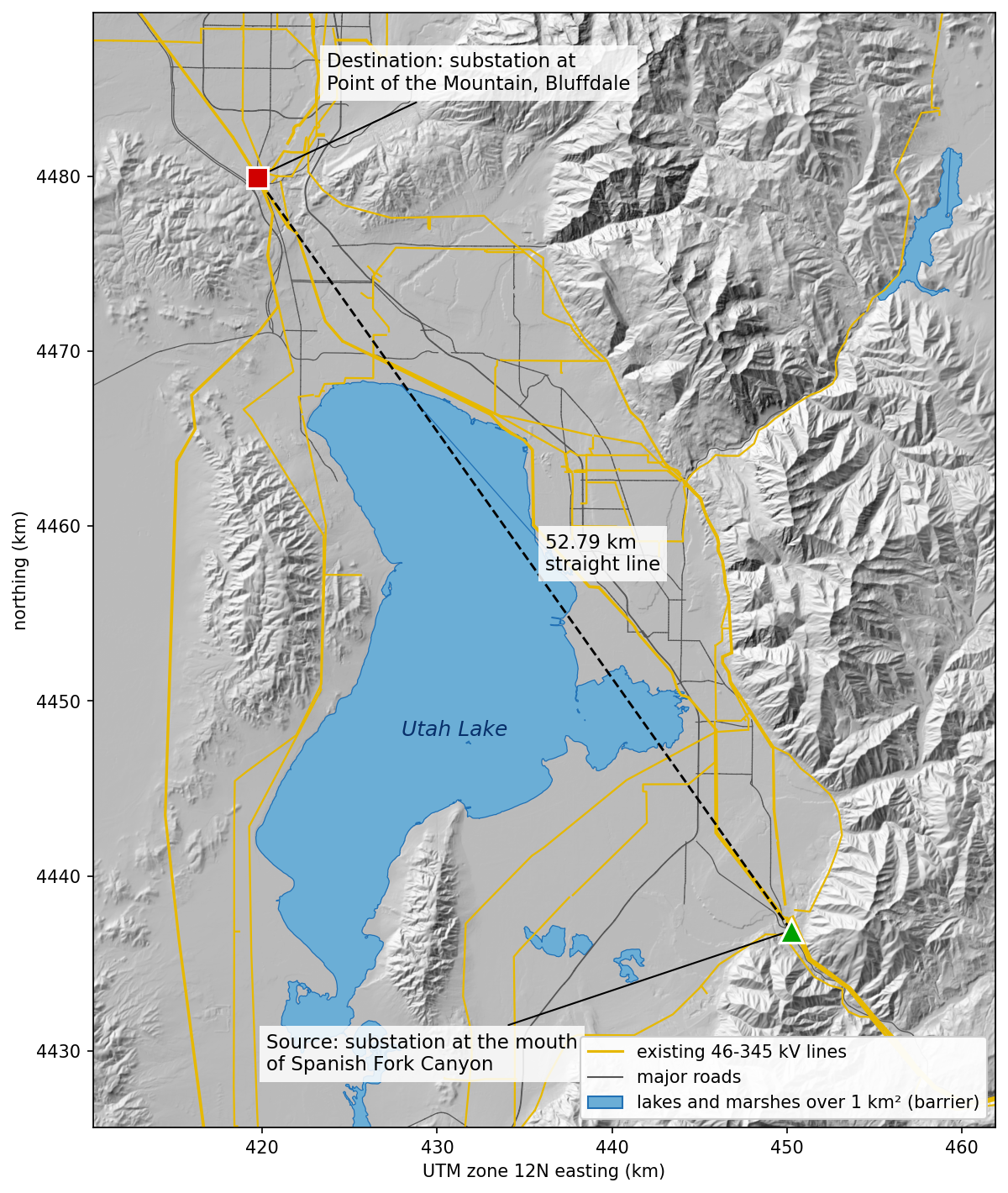
Figure B. The study area. The straight line between the substations crosses Utah Lake, a barrier; the existing lines and roads run up the valley east of it.
Important
Your job — see the deliverables below. Build one ModelBuilder model that turns slope, roads, cities, existing lines and streams into a cost surface and routes a power line across it; run it from the study area's two substations; test how much the route depends on the weights; and make two maps.
Problem Statement
A new high-voltage line is needed from an existing substation at the mouth of Spanish Fork Canyon, in the area of the wind park there, to an existing substation at the Point of the Mountain in Bluffdale, near the data center at Bluffdale. Both substations are features of the Utah Geospatial Resource Center's transmission-line layer. Using an elevation model and the roads, lakes, streams, city boundaries and existing power lines between them:
- Build a cost surface that scores every 30 m cell on slope, distance to a major road, nearness to a city, distance to an existing line, and whether it is a major stream.
- Find the least cost route from the source substation to the destination substation, around the major lakes.
- Report its length, its total accumulated cost, and how many major streams it crosses.
- Re-run the model with the weights changed, and say what moved the route and why.
Analysis Considerations
Every one of these is a decision somebody made, and every one of them can change the answer.
- The endpoints are substations.
Endpointsholds two existing substations, copied from UGRC's transmission layer (its object IDs 2185 and 1350, kept in the fieldUGRC_OID): the Source at the mouth of Spanish Fork Canyon (40.0808° N, 111.5837° W) and the Destination at the Point of the Mountain, Bluffdale (40.4662° N, 111.9473° W). A new line starts and ends where it can connect to the grid. The straight line between them is 52.79 km. - Cell size and coordinate system. 30 m cells, in NAD 1983 UTM Zone 12N, meters, so that
every cell is the same size and distances and costs are in meters. The extent, snap raster and cell
size of every raster are set from
Elevation.tif. - Slope, not elevation. Lower ground is not cheaper to build on; steep ground is more expensive: harder access, harder tower foundations. So terrain enters as slope in degrees, scored 1 to 10. Elevation itself is not in the cost.
-
Four scores, 1 to 10, higher = more expensive. The class breaks are this lab's choices, not an engineering standard. You will defend or change them in your report.
Score From 1 (cheap) … 10 (expensive) Slope_Scoreslope, degrees 0–5: 1, 5–10: 2, 10–15: 4, 15–20: 6, 20–30: 8, over 30: 10 Road_Scoredistance to a major road within 1 km: 1, 1–2 km: 3, 2–5 km: 6, over 5 km: 10 City_Scoredistance to a city boundary (0 inside a city) within 1 km: 10, 1–2 km: 8, 2–3 km: 6, 3–4 km: 4, 4–5 km: 2, over 5 km: 1 Line_Scoredistance to an existing kV line within 500 m: 1, 0.5–2 km: 5, over 2 km: 10 A road you can build from is cheap access; a city is right-of-way you would have to buy through neighborhoods; an existing line is a corridor you can share. - Equal weights by default. The cost of a cell is the sum of the four scores, with Slope_Weight and Line_Weight multiplying the slope and line scores. Both are 1 by default, which says every factor matters equally. Nobody knows that, so the two weights are model parameters and Step 9 changes them. - One hard barrier: lakes and marshes over 1 km². A barrier is a cell the route may never enter; a cost is a cell it may cross if nothing cheaper exists. Only waterbodies over 1 km² — Utah Lake, Deer Creek Reservoir, White Lake and four unnamed marshes — are barriers. Cities stay a cost, not a barrier: both substations are inside cities, and most of the valley floor between them is municipal. - A major stream adds 10 per cell. Each cell a major stream passes through adds 10 to the cost, so a route crosses a river where it has to, and does not run along one. - Distances are straight-line. Distance to a road, a city or a line is measured as the crow flies, not along the ground or a road network. - What the model ignores. Right-of-way and who owns the land; tower placement and span lengths; line capacity and voltage; existing lines that are full; and public opinion. None of these is in the data, and your report says what each would change.
Data
Important
Set up your folder before you download anything. On the lab machines, work on the D:
drive: one folder for this class named after you, D:\Smith\, and one folder per lab inside
it, D:\Smith\Lab11\. The C: drive is locked, and a network drive is slow enough to make
ArcGIS Pro hang. Never use a space in a folder or file name you create — raster tools fail on
them without saying why. Back up your lab folder at the end of every session. The full set of
conventions is on the ArcGIS Tips and Reminders page.
- Download:
lab11-power-line.zip(18.0 MB). Unzip it into your Lab11 folder — the files are in alab11-power-linefolder inside it — and readREAD-ME-FIRST.txt.
Every layer is a prepared extract, clipped to one box, 39.98–40.55° N, 112.05–111.45° W, from the mouth of Spanish Fork Canyon to Bluffdale, and stored in NAD 1983 UTM Zone 12N:
| Layer | What it is | Where it comes from |
|---|---|---|
Elevation.tif |
Ground elevation, meters above NAVD 88, 30 m cells | USGS 3D Elevation Program (3DEP), read from the 3DEP elevation image service and exported at 30 m with bilinear resampling |
PowerLineData.gdb\Roads |
Road centerlines that UDOT gives a functional class (DOT_FCLASS) |
UGRC Road Centerlines (UtahRoads) |
PowerLineData.gdb\Lakes |
Every NHD waterbody in the box, with AreaSqKm |
UGRC NHD Lakes |
PowerLineData.gdb\Streams |
Every NHD flowline in the box, with IsMajor |
UGRC NHD Streams |
PowerLineData.gdb\Cities |
Municipal boundaries | UGRC Municipal Boundaries |
PowerLineData.gdb\Power_Lines |
Transmission lines (LAYER KV-46, KV-138, KV-345) and substations (LAYER SUB-...) |
UGRC TransmissionLines, a live feature service with no product page: the service layer |
PowerLineData.gdb\Endpoints |
The two substations, Role = Source / Destination |
Copied from Power_Lines (UGRC_OID 2185 and 1350) |
Major_Roads, Major_Lakes, Major_Streams, Existing_Lines |
The subsets the model uses | You make them, in Step 1 |
What we already did for you. Read each layer from its source on October 9, 2026, clipped it to
the box, and kept only the fields the lab uses plus UGRC_OID, the feature's object ID in the UGRC
service. Field values were not changed. There is no layer here for you to create and defend; the
weights you choose in Step 9 play that role.
Tip
Check the data: Elevation.tif is 1,719 columns × 2,124 rows of 30 m cells, 1,314.97 to
3,568.37 m, NAD 1983 UTM Zone 12N. In PowerLineData.gdb: Roads 8,937 features, Lakes
967, Streams 4,086, Cities 34, Power_Lines 292, Endpoints 2.
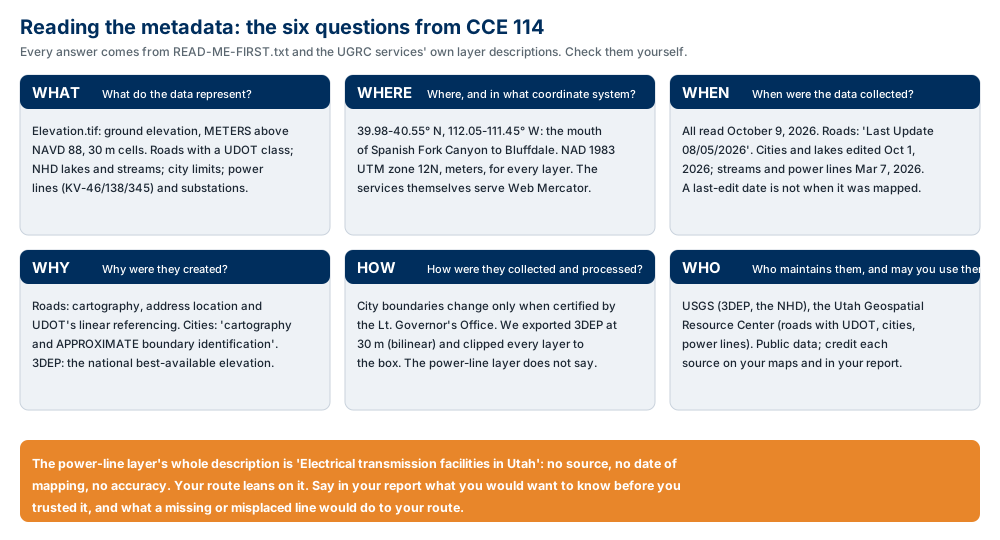
Figure A. The six metadata questions, applied to this lab's data. Confirm three values yourself and copy them into your report: the "Last Update" date in the description of the UtahRoads service layer; what the municipal boundaries are for, from the description of the UtahMunicipalBoundaries service layer; and what the TransmissionLines service layer's metadata says, and what it does not. Say what each one means for your route.
ModelBuilder Tools
New in this lab:
| Tool | What it does |
|---|---|
 Distance Accumulation (Spatial Analyst) |
For every cell, the cheapest total cost of reaching it from a source, spreading slowly through expensive cells and never through a barrier; it also writes the back direction, the way home. With no cost raster it gives plain straight-line distance, so this lab uses it for both jobs. Tool reference |
 Optimal Path As Line (Spatial Analyst) |
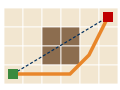
Walks from a destination back to the source along the back direction raster, and draws the cheapest route as a line feature class. Tool reference |
 Polyline to Raster (Conversion) |
Turns lines into cells: every cell a line passes through takes the value of a field you choose, and every other cell is NoData. Here, the major streams become river cells. Tool reference |
Tools you already know: Select (Lab 1), Slope (Lab 10), Reclassify (Lab 2), and Raster Calculator with model variables (Labs 5 and 10).
Example Model
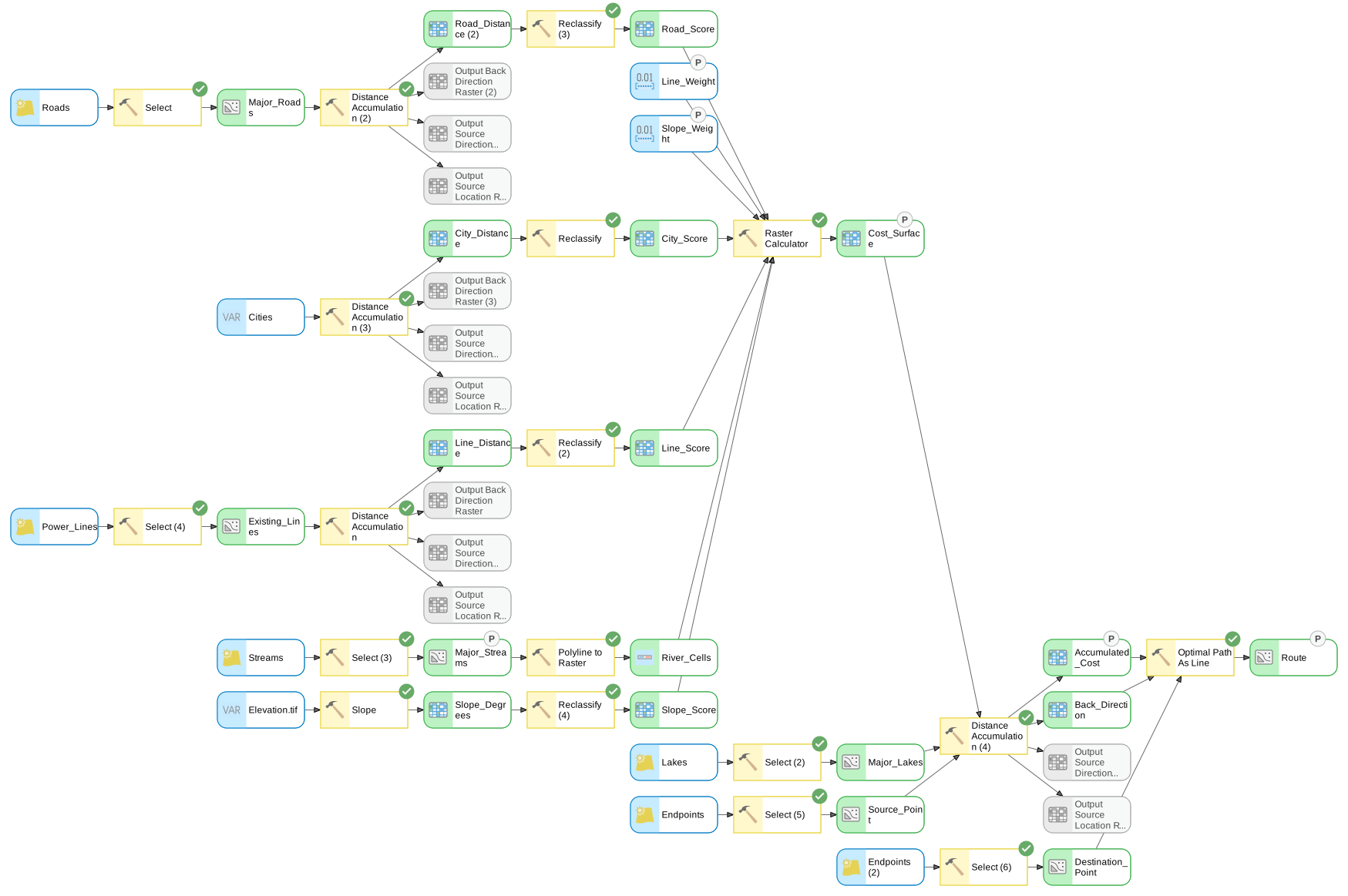
Figure C. The finished model, exported from ModelBuilder — click it to open it full size. Six
selections and an elevation model in; five score rasters in the middle; one cost surface; one
route out. The elements marked P are the model parameters — the two weights and the outputs you keep —
and they become the tool dialog of Step 8. ModelBuilder numbers repeated tools itself:
Select (2), Distance Accumulation (3).
Complete the Lab
For an advanced GIS student, the information up to this point is all you need to complete the assignment. Feel free to try the analysis using only the information above. If you complete the lab without the step-by-step instructions below, say so in your report.
Step-by-Step Solution
Note
Build it once, build it to be changed. The steps walk through the route at the default weights. Step 9 re-runs the same model six times with the weights changed, so give every dataset a readable name as you go.
Note
Every check value on this page was measured on the files you download, with the settings below, in ArcGIS Pro 3.7.1. Your numbers should match to the last digit shown. The screenshots were captured in the same version and may differ slightly from yours.
Step 0 — Set Up the Project
- Create a new project named
Lab11inD:\Smith\Lab11\with the Map template; if you already made the folder, uncheck Create a folder for this local project. ArcGIS Pro makesLab11.gdbandLab11.atbxbeside it. The downloaded data stay in their own geodatabase,lab11-power-line\PowerLineData.gdb. - Add
Elevation.tif(if ArcGIS Pro offers to build pyramids or statistics, click OK) and, fromPowerLineData.gdb,Roads,Lakes,Streams,CitiesandPower_Lines. Add an imagery basemap. - Add
Endpointstoo. It holds both substations; the model separates them in Step 1. - Confirm Spatial Analyst is licensed (Project ▸ Licensing).
- On the Analysis tab click ModelBuilder. On the ModelBuilder tab click
Properties, set Name to
PowerLineRouteand Label toPower Line Route, and save. - On the ModelBuilder tab click Environments and set:
- Current Workspace and Scratch Workspace: your project geodatabase,
Lab11.gdb - Output Coordinate System: NAD 1983 UTM Zone 12N (the same as every layer in the package)
- Extent: choose
Elevation.tiffrom the list of the map's layers - Snap Raster:
Elevation.tif - Cell Size:
Elevation.tif(30)
- Current Workspace and Scratch Workspace: your project geodatabase,
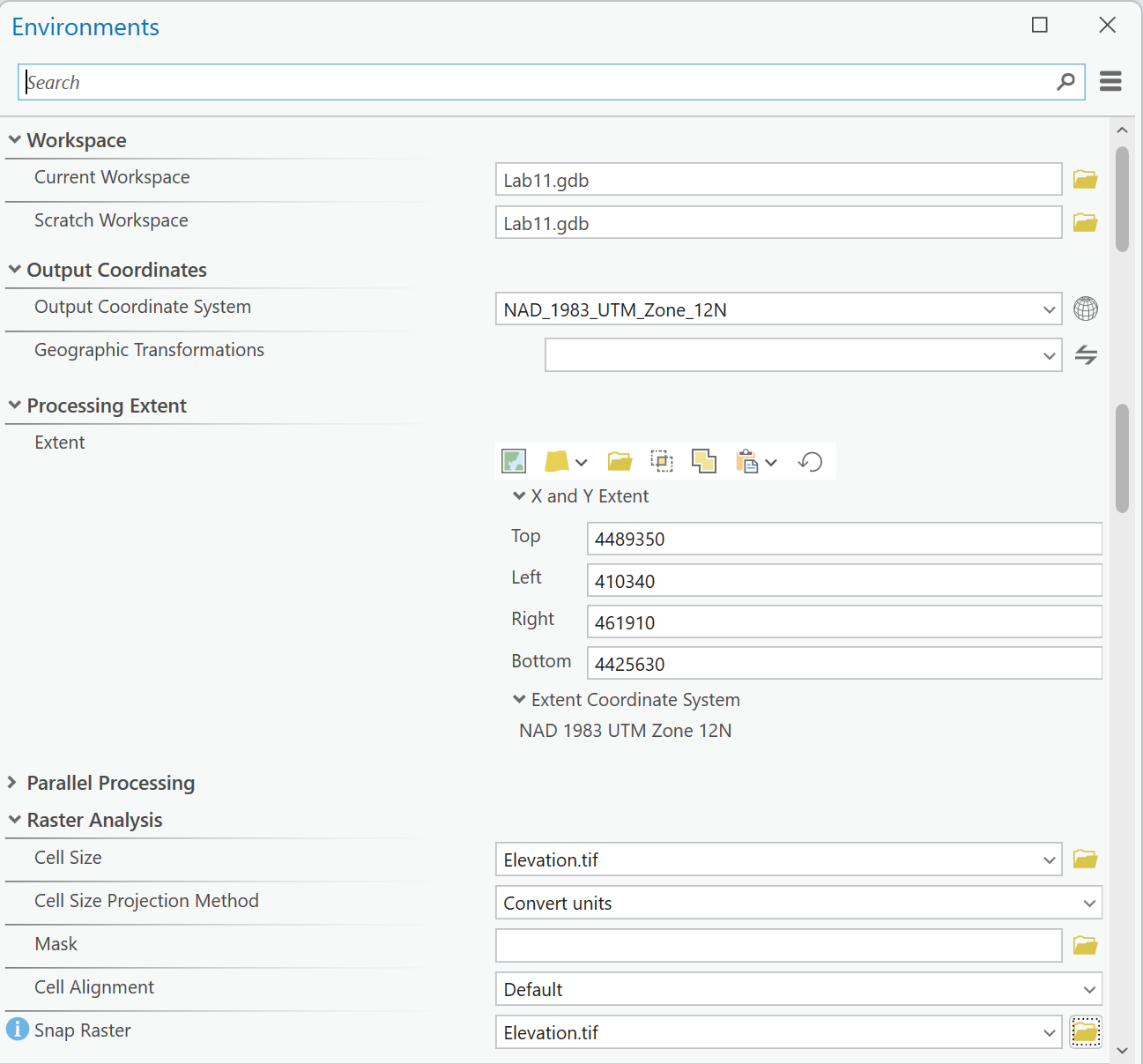
Figure 0. ModelBuilder ▸ Environments. Choosing Elevation.tif for the Extent fills in its
four edges.
Tip
Check the result: after Steps 2 and 3, every raster the model makes is 1,719 columns × 2,124
rows of 30 m cells, exactly the size of Elevation.tif (the layer's Properties ▸
Source ▸ Raster Information). A distance raster of another size means the Extent or Cell
Size environment was not set.
Step 1 — Select the Layers
Add six Select tools to the model, each from the downloaded layer, with these expressions (turn on SQL Editor and type them exactly; the check mark under the box should say The SQL expression is valid):
| Input | Output | Expression |
|---|---|---|
Roads |
Major_Roads |
DOT_FCLASS IN ('Interstate', 'Other Freeway', 'Principal Arterial') |
Lakes |
Major_Lakes |
AreaSqKm > 1 |
Streams |
Major_Streams |
IsMajor = 1 |
Power_Lines |
Existing_Lines |
LAYER LIKE 'KV-%' |
Endpoints |
Source_Point |
Role = 'Source' |
Endpoints |
Destination_Point |
Role = 'Destination' |
The power-line layer holds both lines and substations; the substations' LAYER values begin with
SUB-, and KV-% keeps only the lines. The last two split the endpoints into one point each.
To make the next Select quickly, copy and paste one on the canvas, then change its input,
expression and output; type the output name after validating the expression, which can reset it.
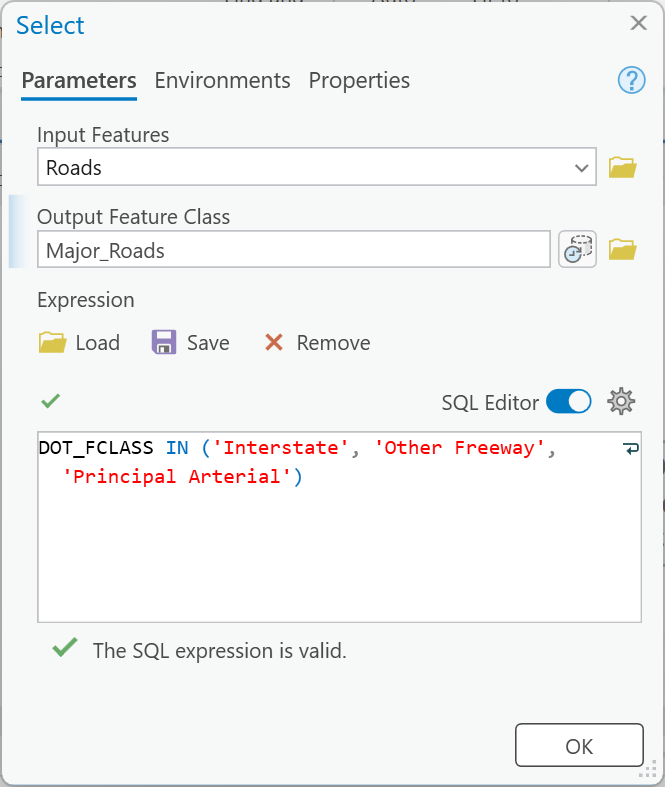
Figure 1. Select, with the expression typed in the SQL editor.
Tip
Check the result: Major_Roads 1,377 features, Major_Lakes 7 (Utah Lake, Deer Creek
Reservoir, White Lake and four unnamed marshes), Major_Streams 319, Existing_Lines 241; Source_Point and Destination_Point 1 each. An output with the
same count as its input — 8,937 roads, 292 power lines — means the expression was not applied; 292
power lines include the 51 substations.
Step 2 — Compute Slope
Add Slope (Spatial Analyst) with Elevation.tif as the input, Output measurement Degree
(the default), and output Slope_Degrees. The dialog suggests the Surface Parameters tool
instead; Slope is the one this lab uses.
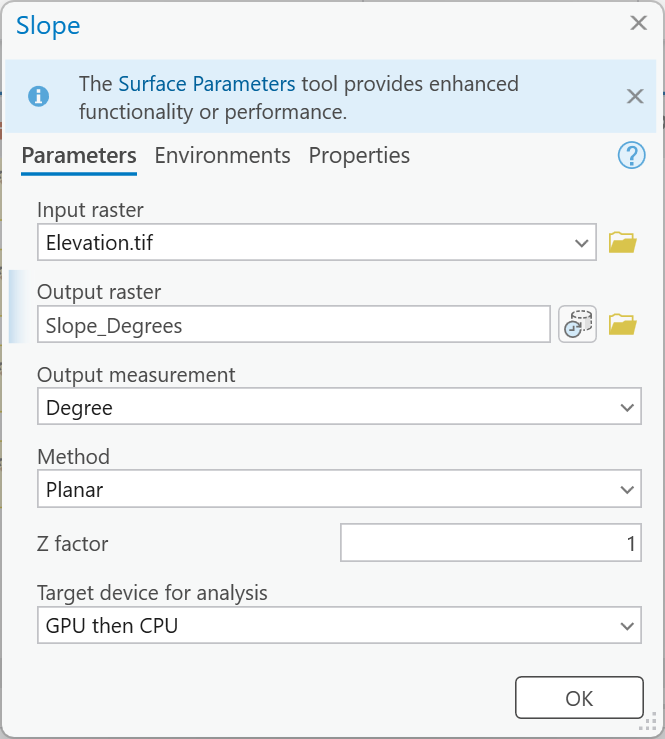
Figure 2. Slope, in degrees.
Tip
Check the result: Slope_Degrees runs from 0 to 71.81°, mean 11.21° (the layer's
Properties ▸ Source ▸ Statistics). A maximum above 90 means Percent rise was chosen.
Step 3 — Measure Distances
Add Distance Accumulation three times. Each takes one layer as Input Raster or Feature Sources and nothing else: leave Input Raster or Feature Barriers, Input Surface Raster and Input Cost Raster empty.
| Input Raster or Feature Sources | Output Distance Accumulation Raster |
|---|---|
Major_Roads |
Road_Distance |
Cities (the downloaded layer) |
City_Distance |
Existing_Lines |
Line_Distance |
With no cost raster, every cell costs 1 per meter, so the "accumulated cost" is simply the straight-line distance in meters to the nearest source. One tool does both jobs in this lab: here it measures distance, and in Step 7 it accumulates cost.
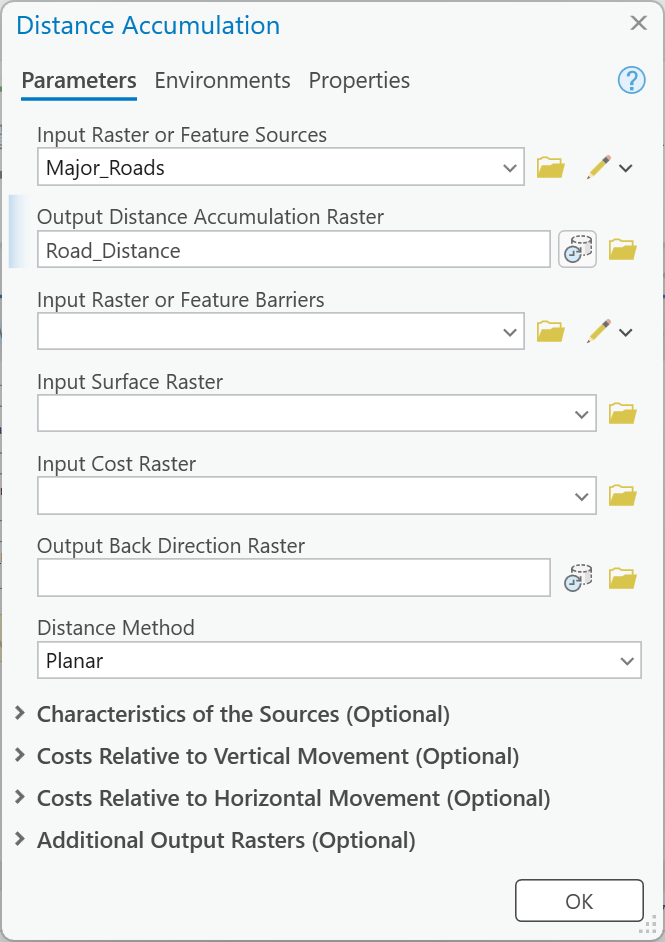
Figure 3. Distance Accumulation with a source and nothing else: straight-line distance.
Tip
Check the result: Road_Distance reaches 24,515 m, City_Distance 14,923 m, and
Line_Distance 15,571 m. City_Distance is 0 inside every city, because a polygon source
covers its own cells.
Step 4 — Score the Factors
Add Reclassify four times, one for each table in the Analysis Considerations. For the last row of each distance table, end the range at 100000 — larger than any distance in the box. The table is empty until the model has run, so type the rows: click a Start cell, type, and press Tab to move to End and New; ArcGIS Pro adds its own NODATA row. To make the next Reclassify, copy one, change its input, and clear the rows with Remove all remap records.
| Input raster | Rows (start – end: new value) | Output raster |
|---|---|---|
Slope_Degrees |
0–5: 1; 5–10: 2; 10–15: 4; 15–20: 6; 20–30: 8; 30–90: 10 | Slope_Score |
Road_Distance |
0–1000: 1; 1000–2000: 3; 2000–5000: 6; 5000–100000: 10 | Road_Score |
City_Distance |
0–1000: 10; 1000–2000: 8; 2000–3000: 6; 3000–4000: 4; 4000–5000: 2; 5000–100000: 1 | City_Score |
Line_Distance |
0–500: 1; 500–2000: 5; 2000–100000: 10 | Line_Score |
A value exactly on a break goes to the lower range: a cell exactly 1,000 m from a road scores 1.
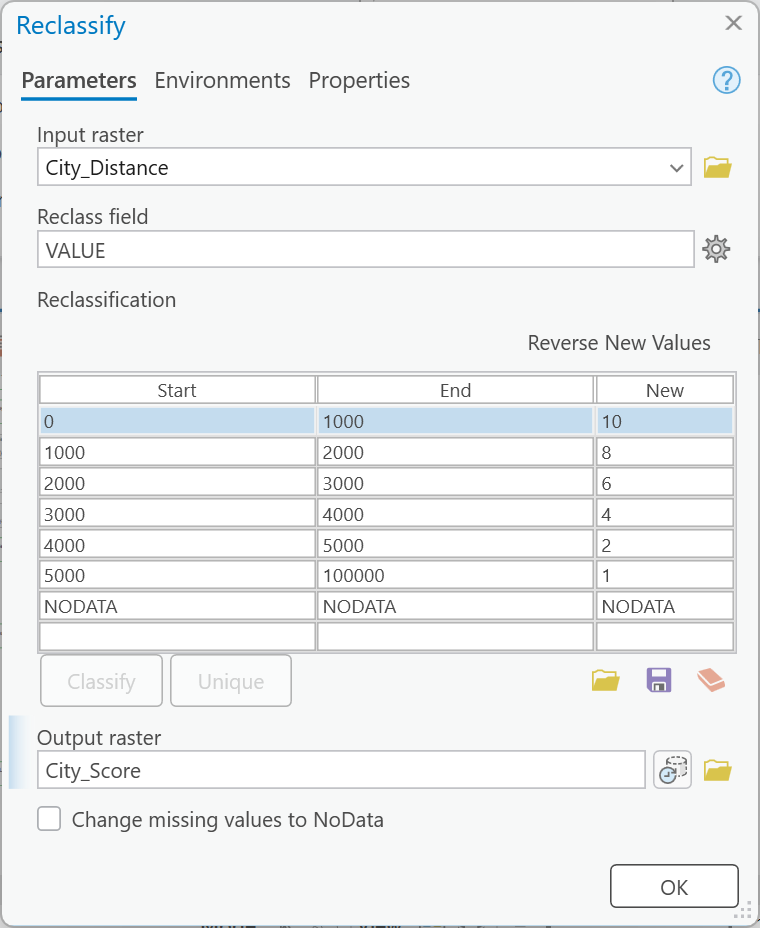
Figure 4. The city score: the nearer the city, the more expensive.
Tip
Check the result (cells in each class; the layer's attribute table lists them):
| Score | 1 | 2 | 3 | 4 | 5 | 6 | 8 | 10 |
|---|---|---|---|---|---|---|---|---|
Slope_Score |
1,848,647 | 324,957 | 259,000 | 249,393 | 501,985 | 459,492 | ||
Road_Score |
646,624 | 374,134 | 835,970 | 1,794,428 | ||||
City_Score |
1,055,936 | 198,582 | 228,810 | 254,776 | 293,203 | 1,619,849 | ||
Line_Score |
614,688 | 1,084,196 | 1,952,272 |
Road_Score, City_Score and Line_Score each add up to 3,651,156 cells, the whole box.
Slope_Score adds up to 3,643,474: 7,682 fewer, the one-cell ring around the edge of the box,
where Slope has no neighbors on one side and writes NoData. If a score raster has
NoData anywhere else, a range has a gap.
Step 5 — Mark the Rivers
Add Polyline to Raster with Major_Streams as the Input Features and Value field
IsMajor — every major stream has IsMajor = 1 — and output River_Cells. Leave Cell
assignment type at Maximum length; the cell size comes from the environment.
Any field that holds 1 on every feature works.
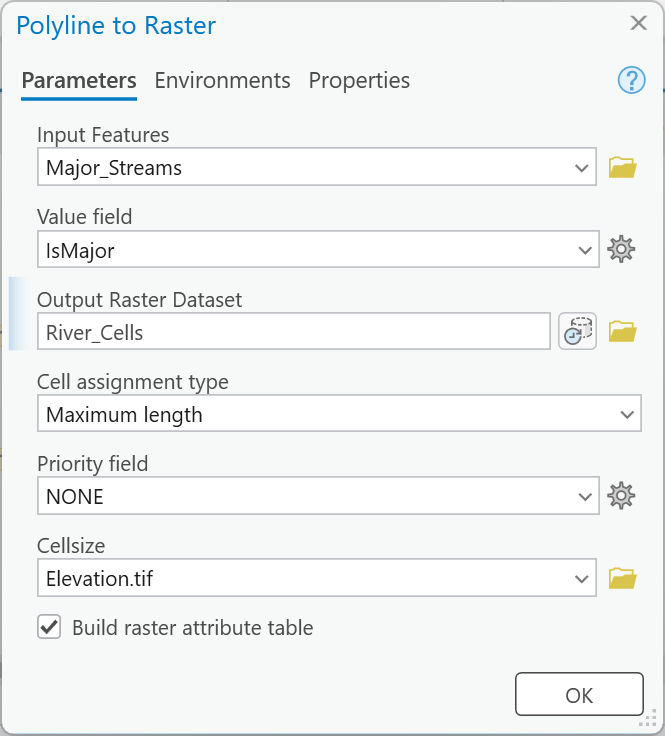
Figure 5. Every cell a major stream passes through becomes a river cell.
Tip
Check the result: River_Cells has 9,713 cells, all with the value 1; every other cell is
NoData.
Step 6 — Build the Cost
- On the ModelBuilder tab click Variable, choose Double, and click OK. Right-click
the new oval ▸ Rename ▸
Slope_Weight, double-click it and type1, and right-click it ▸ Parameter. Do the same forLine_Weight, also1. - Add Raster Calculator with this expression, and output
Cost_Surface:
%Slope_Weight% * "%Slope_Score%" + "%Road_Score%" + "%City_Score%" + %Line_Weight% * "%Line_Score%" + Con(IsNull("%River_Cells%"), 0, 10)
Double-click a raster in the Rasters list and it goes in as "%Slope_Score%"; type the weights
as %Slope_Weight% and %Line_Weight%, without quotation marks, since they are numbers.
The last term turns river cells into 10 and every other cell into 0: IsNull is true where
River_Cells is NoData. Without it, every cell off a river would be NoData in the sum. Type the
output name last; Raster Calculator can replace a typed name with a default when the expression
changes. Make Cost_Surface a parameter, so that a run from the tool dialog keeps it.
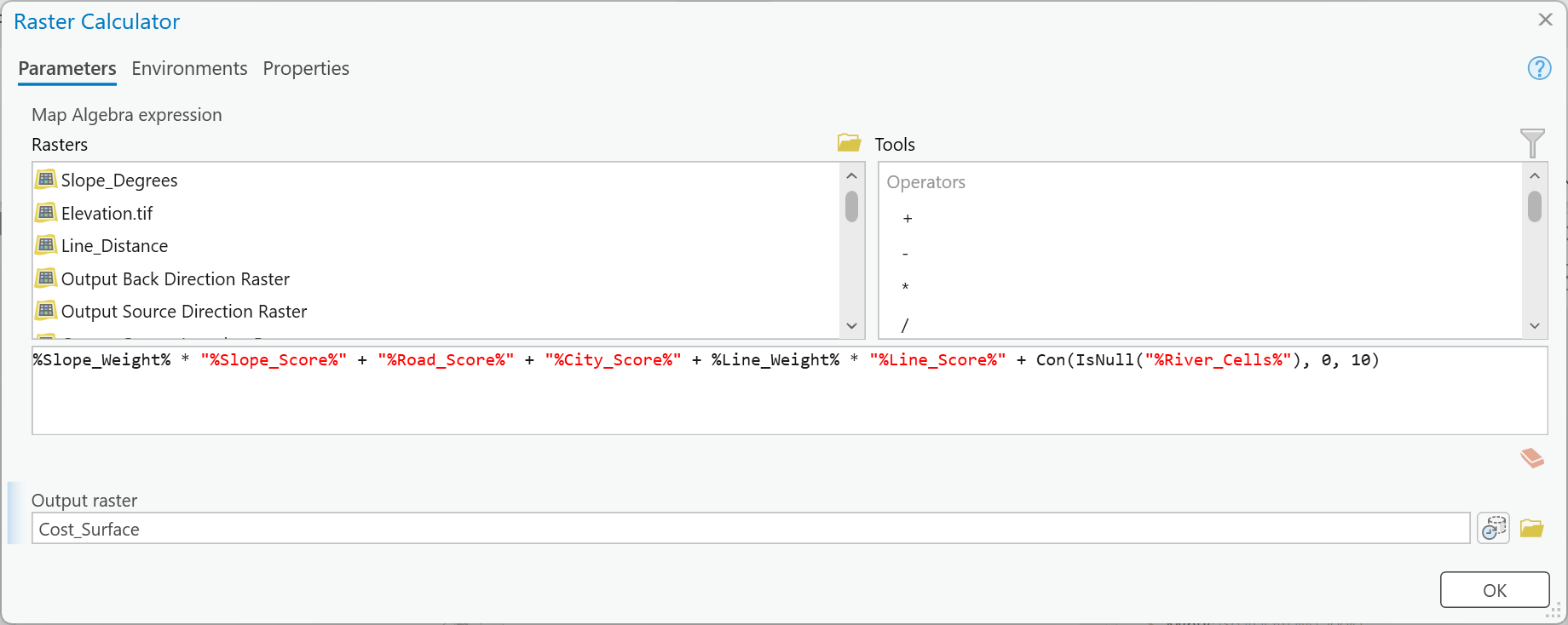
Figure 6. The cost surface: four scores, two weights and the river crossings. Drag the dialog's corner to widen it.
Tip
Check the result: Cost_Surface runs from 4 to 48, mean 23.69. A minimum of 4 is a
cell scoring 1 on every factor, off a river. If your minimum is not 4, a weight is not 1 or a score
raster has NoData; if most of the box is NoData, the Con(IsNull(...)) term is missing.
Note
Why a sum, and why weights. Adding scores says a steep cell next to a road is still expensive for being steep; each factor adds its own cost. A weight of 2 says that factor matters twice as much as the others; 0 removes it. Reclassify's table cannot be a parameter, but a number in Raster Calculator can, which is why the weights live here.
Step 7 — Route the Line
- Add Distance Accumulation again:
- Input Raster or Feature Sources:
Source_Point - Output Distance Accumulation Raster:
Accumulated_Cost - Input Raster or Feature Barriers:
Major_Lakes - Input Surface Raster: empty
- Input Cost Raster:
Cost_Surface - Output Back Direction Raster:
Back_Direction
- Input Raster or Feature Sources:
- Add Optimal Path As Line:
- Input Raster or Feature Destinations:
Destination_Point(Destination Field fills in withUGRC_OID; leave it) - Input Distance Accumulation Raster:
Accumulated_Cost - Input Back Direction or Flow Direction Raster:
Back_Direction - Output Optimal Path as Line:
Route - Path Type: Each zone (with one destination, it does not matter)
- Input Raster or Feature Destinations:
- Make
Accumulated_CostandRouteparameters. Save the model and run it inside ModelBuilder (Run on the ModelBuilder tab). It took about a minute and a half on a laptop.
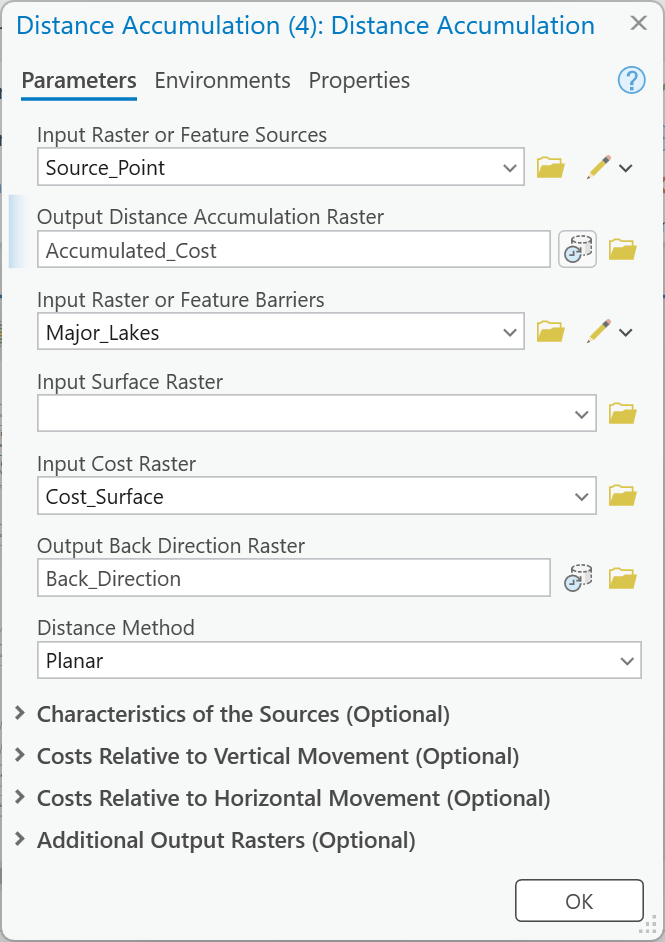
Figure 7a. The cost accumulated outward from the source substation, around the lakes.
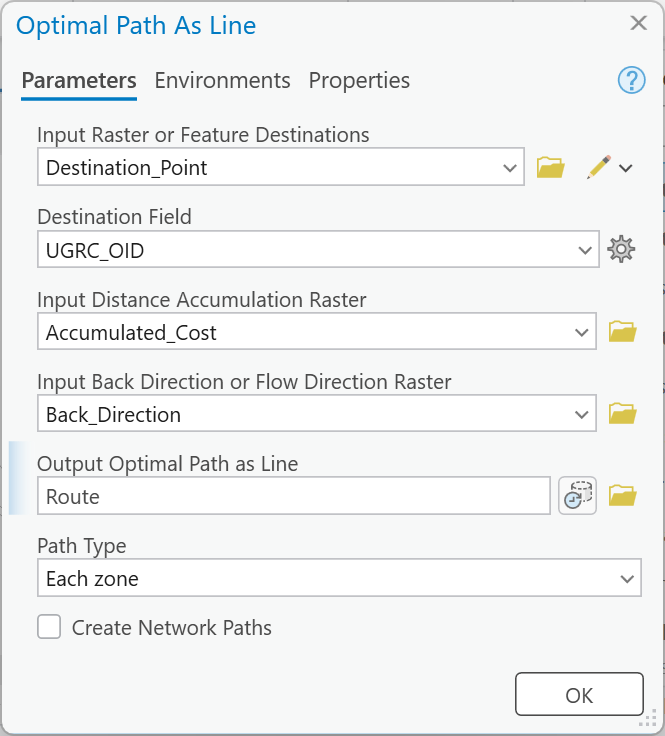
Figure 7b. The route walked home from the destination.
Then measure three things about the route:
- Its length: the
Shape_Lengthfield ofRoute, in meters. IfRoutehas more than one row, add them. - The total accumulated cost: on the Map tab click Explore, and click
Accumulated_Costexactly at theDestinationpoint (zoom in until one cell is clearly visible). The pop-up gives the cell's value. - The major streams it crosses: run Pairwise Intersect of
RouteandMajor_Streamswith Output Type Point, and count the points it makes.
Tip
Check the result: Route is 56.09 km long; the straight line between the substations is
52.79 km. The accumulated cost at the destination is 744,018, and Accumulated_Cost reaches
1,116,187 at the far corner of the box. The route crosses 4 major streams. If your route is
close to the straight line, bending only around the lakes, Distance Accumulation got no cost raster.
Note
Reading the two rasters. Accumulated_Cost is cost × meters: a step across one 30 m cell of cost
4 adds 120. At the destination, 744,018 over 56,090 m is an average cost of about 13 per meter
along the route. Back_Direction says which way to step to get home, in degrees: 0 marks the
source, 90 means go east, 180 south, 270 west and 360 north. The Week 12 Thursday deck reads one cell by cell on an earlier, coarser version of this setup (Least Cost Path Analysis, Part B); its numbers are not this lab's.
Step 8 — Run the Tool
Step 9 runs the model six times, so make each run cheap: everything you will change or keep must be a parameter.
- Check that these are parameters (right-click ▸ Parameter; a
Pappears beside each):Slope_Weight,Line_Weight,Major_Streams(so the crossings can be counted after every run),Cost_Surface,Accumulated_CostandRoute. - Save, and close the model's tab. In the Catalog pane, open
Lab11.atbxand double-click Power Line Route: it opens as a tool in the Geoprocessing pane. - Run it once at the defaults, with new output names —
Route_Base,Accumulated_Cost_Base,Cost_Surface_Base,Major_Streams_Base— and measure the route as in Step 7. A yellow warning that a dataset already exists only means it will be replaced.
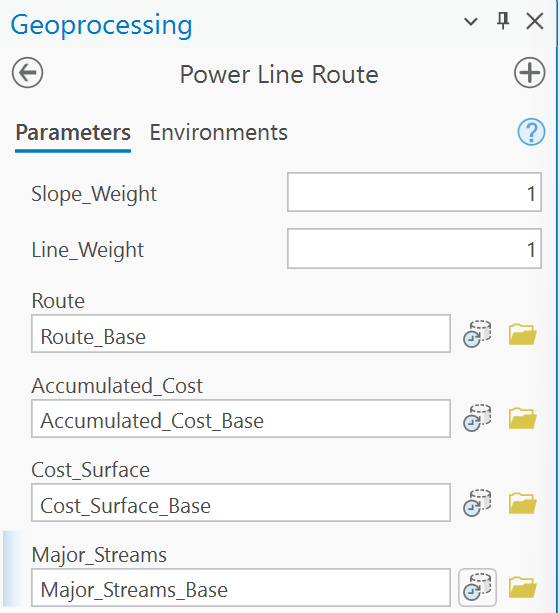
Figure 8. The model as a tool. Give every output a new name for each run.
Warning
A run from the tool dialog deletes everything that is not a parameter (Labs 5, 7 and 10 saw
it): Major_Roads, Existing_Lines, Slope_Degrees, the three distance rasters, the four score
rasters, River_Cells, Back_Direction, Major_Lakes, Source_Point and Destination_Point all
go, including the copies the earlier run inside ModelBuilder made. That is why the datasets you need later are parameters. Make your Step 4 and
Step 5 checks from the run inside ModelBuilder, before any dialog run, and for your maps use the
downloaded layers (Roads, Lakes, Power_Lines, Endpoints) with definition queries
holding the same expressions as the Selects, not the model's outputs.
Tip
Check the result: at the defaults, the dialog run reproduces Step 7 exactly: Route_Base is
56.09 km, with 744,018 at the destination and 4 crossings. If it does not, a parameter
was left at a value from testing.
Step 9 — Test the Weights
The default route is an answer, not the answer. It is the cheapest route only if slope, roads, cities and existing lines each matter exactly as much as the others, and nobody decided that; it is simply what weights of 1 say. Before you defend a route, find out which of those weights it depends on.
First, your own line weight. Every student routes the line with a different Line_Weight,
worked out from your BYU ID number: the nine-digit number printed on your BYU ID card, such as
123456789. It is not your NetID, the user name of letters and numbers you chose and use to sign
in to BYU sites.
Your Line_Weight = 0.005 × (the last two digits of your BYU ID), from 0 to 0.495.
- BYU ID
123456789: last two digits 89, Line_Weight = 0.005 × 89 = 0.445: route 54.95 km, accumulated cost at the destination 707,263, 4 major streams crossed.- BYU ID
987654302: last two digits 02, Line_Weight = 0.005 × 2 = 0.010: route 53.70 km, accumulated cost at the destination 652,118, 4 major streams crossed.Write your BYU ID's last two digits and your Line_Weight in your report: the grader checks your route against them.
Then run the model from its tool dialog at least five times, each with new output names that say
what changed (Route_L0, Accumulated_Cost_L0, Cost_Surface_L0, Major_Streams_L0):
| Run | Slope_Weight | Line_Weight |
|---|---|---|
| Baseline (Step 8) | 1 | 1 |
L0 |
1 | 0 |
L2 |
1 | 2 |
S5 |
5 | 1 |
| Yours | 1 | your Line_Weight |
| Your choice | ? | ? |
For the last run, choose something deliberately and say why: set slope to 0 to remove it, push one weight far up, or try a Line_Weight between 0 and yours to see where the route starts to move.
Record all of it in one table: for the baseline and every run, the Slope_Weight, the Line_Weight, the route length in km, the total accumulated cost at the destination, the number of major streams crossed, and the largest distance between the run's route and the baseline's. Measure that last one with the Measure tool (Map tab ▸ Measure) at the place where the two lines are farthest apart, to the nearest 100 m.
Then answer, in your report:
- Which weight moved the route, and which barely did — and why? Put each run's route on the baseline map and look at where the baseline runs before you explain it.
- How much longer than the straight line is your route, and what is it buying with the extra kilometers? Use your own run's length and the 52.79 km straight line, and point to the places on the map where the route bends.
- What does the cost surface leave out? Right-of-way, landowners, the public opinion the Background raises, line capacity: say what each would do to your route and what data you would add to the model to include it.
Your second map shows your own route and one other run beside the baseline; say on the map what changed and why.
Tip
Look at where the baseline route runs. Nearly all of it hugs existing lines, and in a flat valley, slope is low almost everywhere the route could go. One weight moves the route kilometers; the other barely moves it at all.
Deliverables
Make two professional map layouts (letter size):
- Your baseline route —
Route_Baseand the two substations, clearly symbolized, over the existing lines, the major roads, the cities and the major lakes, with a legend; an inset of the cost surface, the "virtual terrain" the route crossed, with its own legend; an imagery basemap; a title, neat line, north arrow and scale bar; and a text box with your name, the date, the map projection, and the sources and dates of the data. - Your route and one other run — the baseline, your personal Line_Weight route and one other run from Step 9 (whichever most changes the picture), each distinguishable in the legend, with the endpoints, the existing lines and an imagery basemap; a title, neat line, north arrow and scale bar; and a text box with your name, the date, the map projection, and the sources and dates. The title and text box say what changed from Map 1 and why.
Write a brief report (2–3 pages of text, plus your figures and maps) covering:
- a title block — assignment title, your name, the date and the course — and the name of your peer reviewer, with a sentence on what you changed because of them
- the requirements of the project and your approach to solving it
- a description of your model a reader could repeat from: each tool and its settings, the six Select expressions, the four score tables, the Raster Calculator expression, and every input, intermediate and output dataset with its type
- one full-page figure of your model, exported from ModelBuilder (Export ▸ Export To
Graphic), and one screen capture of its tool dialog with the weights and the
route exposed as parameters; and upload your project's toolbox (
Lab11.atbx, in your project folder) with the report — the grader opens it to read your model - the three metadata values — the Roads "Last Update" date, what the municipal boundaries are for, and what the power-line layer's metadata does and does not say — and what each means for your route
- your check values from Steps 1 to 7: the six selection counts, the
Cost_Surfacerange, and the route's length, accumulated cost and stream crossings at the defaults - where the route is unrealistic: two places on your route, each with coordinates, a cropped figure and the reason, and what data would fix it
- your sensitivity table from Step 9, with your BYU ID's last two digits and your Line_Weight, and your answers to its three questions
- figures numbered and referred to in the text, and every source credited
- one line at the end saying what you used AI for, if anything (see the note under the rubric)
- a copy of the rubric below with your self-assessment filled in — a score in every row, honestly arrived at. The grader will compare it with theirs.
Note
Make it yours. Everyone works from the same data, so the numbers will match a classmate's; the choices should not. Your map layouts, your color ramps and symbology, the labels you give your model's elements, your own-choice run, the places you pick as unrealistic and the wording of your report are your own work. Submissions whose layouts, labels or symbology match another student's too closely are flagged for follow-up.
Important
Peer review before you submit. Have another student in the class read your report against the rubric and give you feedback, then act on that feedback before the deadline. Name your reviewer in the report and say in a sentence what you changed because of them.
Credit line for your maps: Elevation: USGS 3D Elevation Program (3DEP), 30 m. Roads, lakes, streams, cities and power lines: Utah Geospatial Resource Center (UGRC), read October 2026.
References
Meehan, B. (2007). Case Studies in GIS: Empowering Electric and Gas Utilities with GIS. Redlands, California: Esri Press.
Schmidt, A.J. (2009). Implementing a GIS methodology for siting high voltage electric transmission lines. Papers in Resource Analysis 11. Winona, Minnesota: Saint Mary's University of Minnesota University Central Services Press.
Vajjhala, S.P., and Fischbeck, P.S. (2006). Quantifying Siting Difficulty: A Case Study of U.S. Transmission Line Siting. Discussion Paper 06-03. Washington, D.C.: Resources for the Future. rff.org.
Esri. Distance Accumulation and Optimal Path As Line, ArcGIS Pro tool reference. Distance Accumulation; Optimal Path As Line.
Utah Geospatial Resource Center. Road Centerlines, NHD Lakes, NHD Streams, Municipal Boundaries and TransmissionLines. gis.utah.gov (the layer pages are linked in the Data section).
U.S. Geological Survey. 3D Elevation Program. usgs.gov.
Example Maps
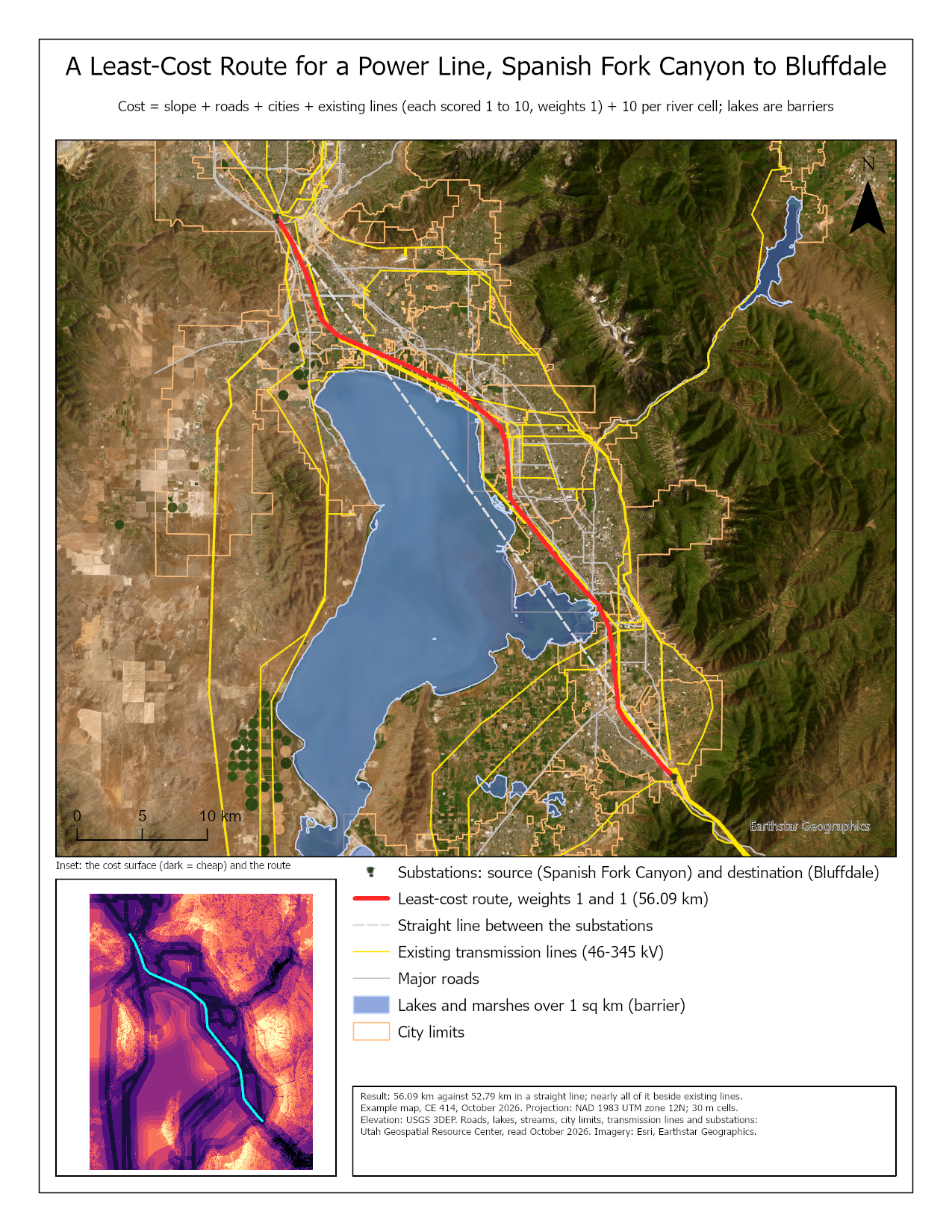
Figure 9. The baseline map. Do better than this example: label the places the route bends and why, and give the cost-surface inset its own legend.
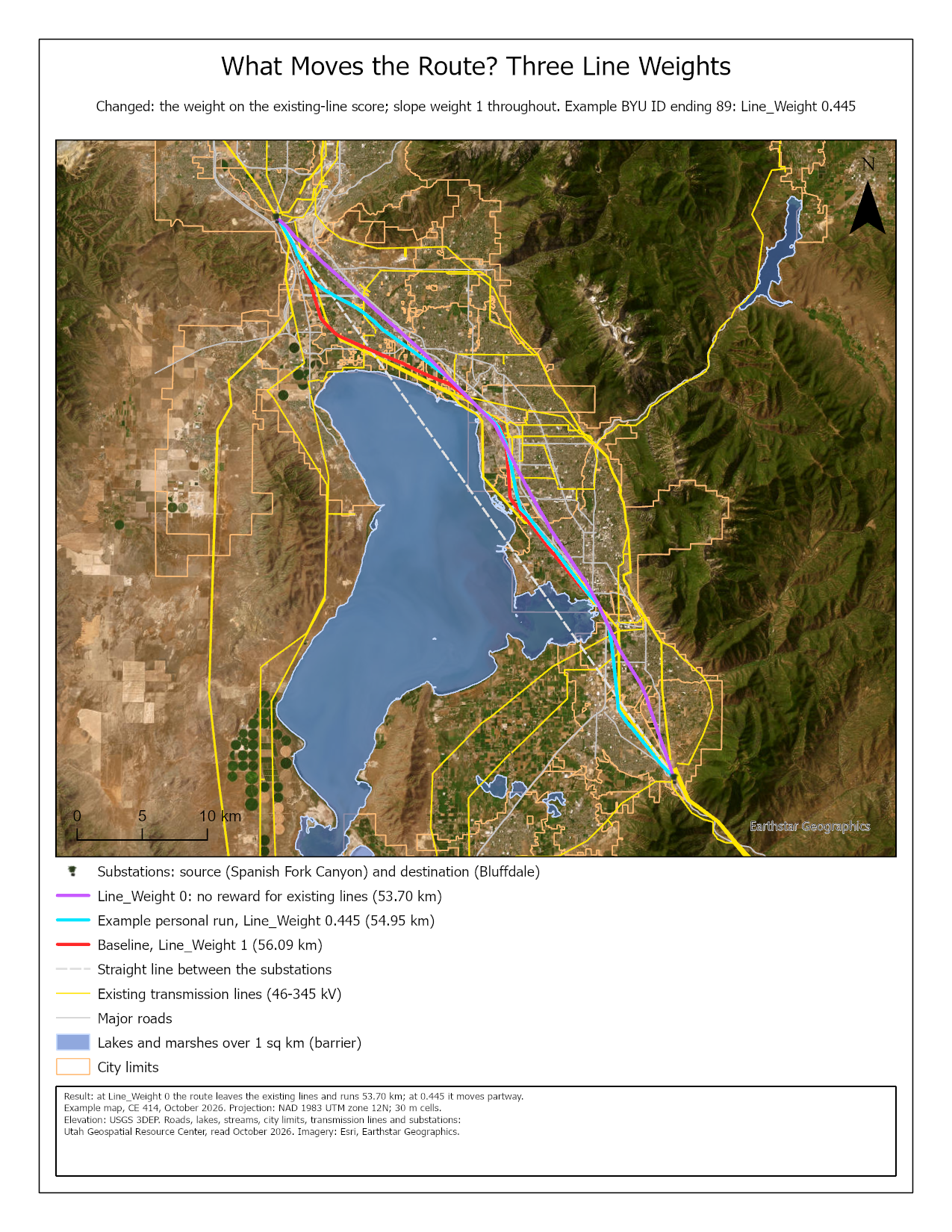
Figure 10. The scenario map, for the example BYU ID ending 89. They are examples, not templates: your maps carry your name and show your own runs.
Rubric for Least Cost Path Power Line Analysis
Fifty points in five parts of ten. The bullets say what each part is worth, so you know exactly what to submit.
| Item | Points |
|---|---|
| Write-up (2–3 pages) • Assignment title, your name, date and course; your peer reviewer named, with a sentence on what you changed because of them (1) • The requirements of the project and your approach to solving it, in your own words (2) • The three metadata values — the Roads "Last Update" date, what the municipal boundaries are for, what the power-line metadata does and does not say — and what each means for your route (2) • Your check values from Steps 1 to 7: the selection counts, the cost range, and the route's length, accumulated cost and crossings (1) • Where the route is unrealistic: two places on your route, each with coordinates, a cropped figure and the reason, and what data would fix it (3) • Organized writing, figures numbered and referred to, sources credited, rubric pasted with your self-assessment (1) |
/10 |
| ModelBuilder model — correct and working • The model runs from its tool dialog and, at the defaults, matches the check values: a 56.09 km route, 744,018 at the destination, 4 crossings (4) • A full-page model figure exported from ModelBuilder, all tools and datasets readable (2) • A screen capture of the tool dialog with the two weights and the route exposed as parameters, and Lab11.atbx uploaded (2)• A description of the model a reader could repeat from, with the Select expressions, the score tables and the cost expression (2) |
/10 |
| Map 1 — your baseline route • Title, neat line, north arrow and scale bar (1) • Text box with author, date, map projection, and the sources and dates of the data (1) • The route and the two substations clearly symbolized, with a legend (2) • Existing lines, major roads, cities and major lakes symbolized and readable (2) • An inset of the cost surface, the "virtual terrain", with its legend (2) • Imagery basemap, scale and legibility appropriate to the route (2) |
/10 |
| Map 2 — your route and one other run • Title, neat line, north arrow and scale bar (1) • Text box with author, date, map projection, and the sources and dates (1) • The baseline, your personal route and one other run, each distinguishable in the legend (2) • The endpoints and the existing lines shown, so a reader can see what the routes follow (2) • Title and text box say what changed from Map 1 and why this run was chosen (2) • Imagery basemap, scale and legibility (2) |
/10 |
| Sensitivity (Step 9) • One table with the baseline and at least five runs — including your BYU ID's last two digits and Line_Weight — giving the weights, length, accumulated cost, crossings and the largest distance from the baseline (4) • Which weight moved the route and which barely did, and why (2) • How much longer than the straight line your route is, and what the extra kilometers buy (2) • What the cost surface leaves out, and what you would add (2) |
/10 |
| Total | /50 |
Note
Using AI on this lab. Use AI freely to understand a tool, work out an error, or tighten your write-up, and add one line at the end of your report saying what you used it for. Do not take a field name, an expression, a coordinate system, or a number from it — those come from your own data, and the rubric asks you to defend every one. See the AI Use Policy for the full policy.