Lab 12: Fire Response Coverage, a Network Analysis
Civil Engineering 414 — Engineering Applications of GIS
Fall 2026 · Dr. Dan Ames
Who in Utah County lives more than four minutes' drive from a fire station, and how much does that answer depend on how you measure distance?
Tip
Start from the report template. lab12-report-template.docx
has the title block, a section for every deliverable, the tables already set up with the columns
the rubric asks for, and the rubric at the end ready to fill in. You are welcome to write your
report any way you like — the template is a floor, not a ceiling — but if you use it and fill in
every section, you will not have left a graded item out.
Note
This is a one-week lab, due Saturday of Week 14, the week Midterm 2 is open. Everything that takes preparation is done for you and hosted, including the road network: you build one model, run it six times, and make two maps.
Background
When a fire is reported, the question that matters is not how far away the nearest engine is but how long it takes to arrive. The standard that career fire departments in the United States are measured against, NFPA 1710, sets a travel time for the first engine of 240 seconds, four minutes, at 90 percent of incidents, and 480 seconds for the full first alarm (NFPA, 2020). Travel time is the part of the response the road network controls: it starts when the engine leaves the station and ends when it arrives, and it does not include the dispatch or the turnout.
Four minutes of driving is not a circle on a map. An engine follows streets, stops where the street stops, cannot cross a lake or a freeway without an interchange, and covers a mile of arterial in a fraction of the time it takes to wind through a subdivision. The area a station can reach in four minutes is an irregular shape that follows the roads, and the people inside it are the people its engines can reach in time. The way to find that shape is network analysis: distance measured along a network of connected road segments, each with a cost in minutes, rather than across the map.
This is the third way this course has measured distance, and the three belong side by side:
| Lab | Distance | How it is measured | What it ignores |
|---|---|---|---|
| Lab 1 | Straight-line | a buffer around the roads and the stores | that nobody travels in a straight line |
| Lab 11 | Cost distance | accumulated across a raster of cell costs, in any direction | that travel in a vehicle happens on roads |
| Lab 12 | Network distance | along the road segments, each costed in minutes, through the junctions that join them | everything off the road network |
Each is right for its question. A power line crosses country, so Lab 11's cost surface fits it. A fire engine does not, so this lab puts the engines on the roads, and in Step 6 it measures the same four minutes as a straight-line buffer, the way Lab 1 would have, to see how far wrong that is.
The road network you will use was built by the Utah Geospatial Resource Center from its statewide roads layer. Every segment carries UGRC's estimate of the minutes it takes to drive, in each direction, from the posted speed limit and the road class, with surface-street times multiplied by 1.5 for signals and congestion. That estimate is a model too: it is "typical network travel, and not the expedited travel of emergency response vehicles" (UGRC, 2022), so the four-minute area it draws is an engine driving like everyone else. Step 9 asks what that leaves out.
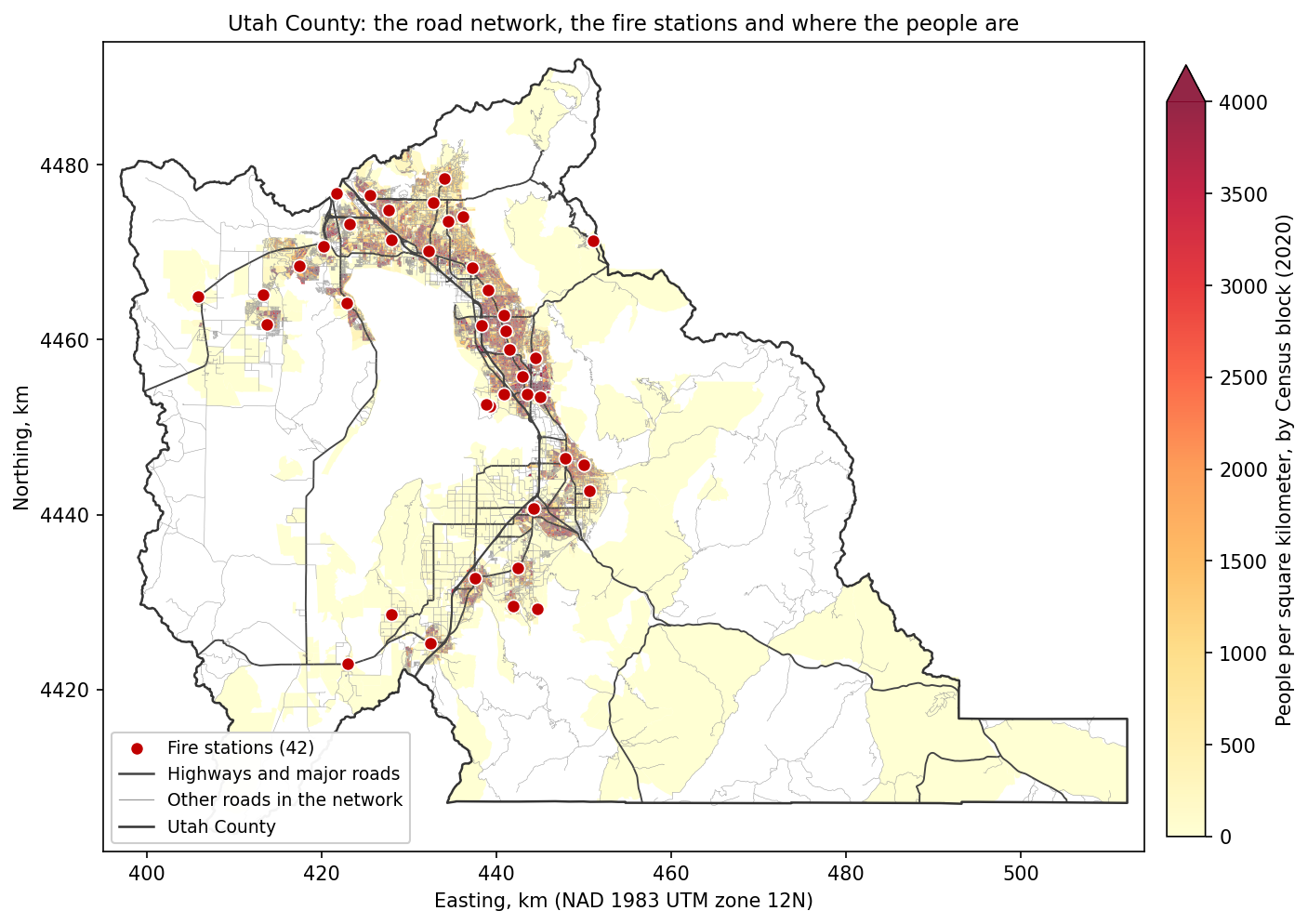
Figure B. The study area. Utah County's 42 fire stations, its road network, and where its 659,399 residents were counted in 2020. Most people live within a few kilometers of a station; the question is how many live within four minutes.
Important
Your job — see the deliverables below. Build one ModelBuilder model that draws the area within a chosen number of minutes of the fire stations along the road network, counts the people in the Census blocks outside it, and draws the same reach as a straight-line buffer for comparison; run it at four minutes and at your own personal cutoff; test how much the answer depends on the cutoff; and make two maps.
Problem Statement
Utah County's fire departments operate 42 stations, from Lehi to Santaquin and from Cedar Fort to the mouth of Provo Canyon. Using UGRC's road network for the county, the station locations and the 2020 Census blocks:
- Find the area that an engine can reach within four minutes of driving from the nearest station, along the roads.
- Count the residents who live in Census blocks whose center is outside that area, and say what share of the county that is.
- Measure the same four minutes as a straight-line distance instead, and compare the two answers.
- Re-run the model with the cutoff changed, and say how much the answer depends on the standard.
Analysis Considerations
Every one of these is a decision somebody made, and every one of them can change the answer.
- The network is UGRC's, clipped to Utah County. It holds 41,460 road segments joined at 33,872 junctions, and two costs: TravelMinutes, the default, and Length in meters. TravelMinutes is UGRC's estimate for typical traffic. Nothing in it is yours to edit; the decisions below are.
- Four minutes, from the facilities outward. The cutoff is NFPA 1710's first-engine travel time. The service area is drawn away from the stations (the direction an engine drives), not toward them. The cutoff is a model parameter, and Step 9 changes it.
- One-way streets are a penalty, not a wall. In UGRC's network the wrong direction on a one-way segment costs 100 times the right direction (590 segments in the county are one-way). An engine with its lights on may legally drive against a one-way street; a 100-times penalty says "almost never", which is one defensible way to model it.
- People are counted by block center. A Census block is "covered" when its center point falls inside the service area, and every one of its residents counts as covered; otherwise none of them do. Blocks are small in the cities (most are a few hundred meters across) and huge in the mountains, where almost nobody lives, so the rule is fair where it matters. 2,125 of the county's 10,092 blocks have no residents at all.
- Residents, where they slept on April 1, 2020. The Census counts people at home. The daytime population of a block, where people work or study, is not in the data.
- The straight-line comparison uses the speed limit. Four minutes at 35 mph is 2.33 miles, 3.75 km: the distance a Lab 1 style buffer would use for the same standard. It, too, is a parameter.
- Dissolved rings, standard detail. The service areas from all 42 stations are dissolved into one shape per cutoff, so that a block near two stations is not counted twice, and drawn as rings when more than one cutoff is given (0–4 minutes, 4–8 minutes). Standard polygon detail is the default and is what every check value on this page was measured with.
- What the model ignores. Turnout time and dispatch; the speed an engine actually drives;
which stations are staffed around the clock; whether a station has an engine or only an
ambulance (34 of the 42 are marked
EMS= Y, 3 N, and five say nothing); traffic by time of day; and any station opened since the layer's 2022 update. Your report says what each would change.
Data
Important
Set up your folder before you download anything. On the lab machines, work on the D:
drive: one folder for this class named after you, D:\Smith\, and one folder per lab inside
it, D:\Smith\Lab12\. The C: drive is locked, and a network drive is slow enough to make
ArcGIS Pro hang. Never use a space in a folder or file name you create. Back up your lab
folder at the end of every session. The full set of conventions is on the
ArcGIS Tips and Reminders page.
- Download:
lab12-fire-response.zip(20.6 MB). Unzip it into your Lab12 folder — the files are in alab12-fire-responsefolder inside it — and readREAD-ME-FIRST.txt. - Utah County boundary: https://opendata.gis.utah.gov/datasets/utah-county-boundaries/explore
- The one layer you fetch yourself, as in Lab 1: on the Explore page click Download (the
cloud icon) and take the Shapefile, then select Utah County and export it to your project
geodatabase as
Utah_County. Nothing in the model depends on it; it is the frame of your maps and the layer whose About page you will read for the metadata questions.
- The one layer you fetch yourself, as in Lab 1: on the Explore page click Download (the
cloud icon) and take the Shapefile, then select Utah County and export it to your project
geodatabase as
Everything else is a prepared extract for Utah County, stored in NAD 1983 UTM Zone 12N:
| Layer | What it is | Where it comes from |
|---|---|---|
FireResponse.gdb\Network\Utah_County_Roads_ND |
A network dataset, already built: the roads joined at their junctions, with the costs TravelMinutes and Length |
UGRC Utah Street Network, the state's prebuilt network, clipped to the county and rebuilt from UGRC's own network template |
FireResponse.gdb\Network\Roads |
The network's 41,460 road segments, with FULLNAME, CARTOCODE, ONEWAY, SPEED_LMT, F_T_IMP_MIN and T_F_IMP_MIN (UGRC's minutes in each direction) |
UGRC Road Centerlines, through the network above |
FireResponse.gdb\Fire_Stations |
42 points, with NAME, ADDRESS, CITY and EMS |
UGRC Fire Stations (COUNTY = UTAH) |
FireResponse.gdb\Census_Blocks |
10,092 polygons, with GEOID20, PP_TOTAL (people), HU_TOTAL (housing units), ALAND20 |
UGRC CensusBlocks2020 (COUNTYFP20 = 049), the 2020 Census counts |
Utah_County |
The county boundary | You download it, above |
What we already did for you. Read each layer from its UGRC service on October 10, 2026, kept the
fields the lab uses plus UGRC_OID (the feature's object ID in the UGRC service), exported the road
segments with Utah County on either side, and rebuilt the network dataset from UGRC's template so its
cost definition is UGRC's, unchanged. Field values were not changed, and nothing was filtered: every
station and every block in the county is here.
Tip
Check the data: in FireResponse.gdb, Roads 41,460 features and
Utah_County_Roads_ND_Junctions 33,872; Fire_Stations 42; Census_Blocks 10,092,
and the sum of PP_TOTAL (right-click the field ▸ Statistics) is 659,399.
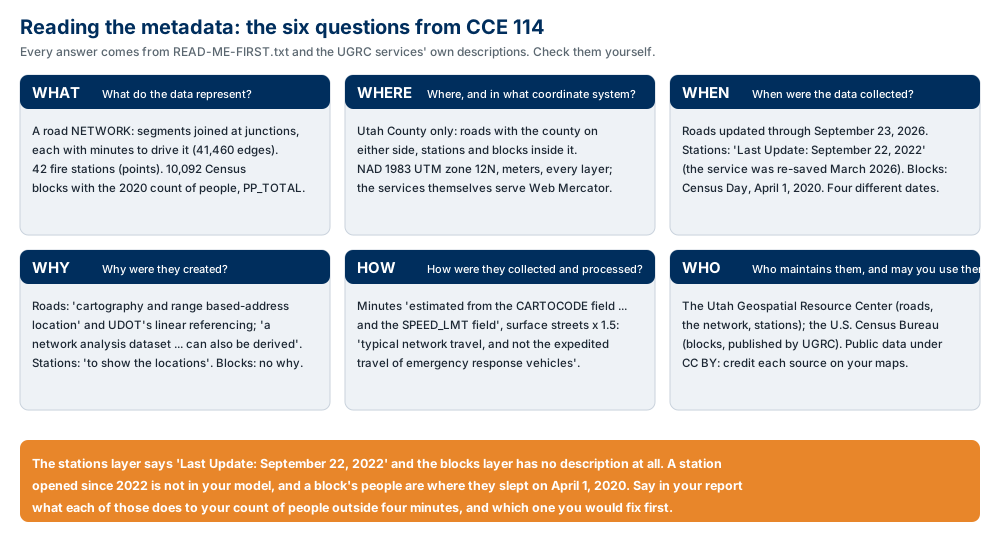
Figure A. The six metadata questions, applied to this lab's data. Confirm three values yourself and copy them into your report: the "Last Update" date in the description of the FireStations service layer; what UGRC says its travel minutes were estimated from, on the Utah Street Network page; and what the CensusBlocks2020 service layer's description says (look for it). Say what each one means for your count of people outside four minutes.
ModelBuilder Tools
New in this lab, all from the Network Analyst toolbox unless marked:
| Tool | What it does |
|---|---|
 Make Service Area Analysis Layer |
Creates an empty analysis layer on a network dataset: a group layer with sublayers for Facilities, Polygons and Lines, and the settings of the analysis (the cutoffs, the travel direction, how the polygons are drawn). It computes nothing yet. Tool reference |
 Add Locations |
Loads features into one sublayer of an analysis layer, here the fire stations into Facilities, and snaps each to the nearest street within the search tolerance. Tool reference |
 Solve |
Runs the analysis layer: walks the network outward from every facility until the cutoff and fills in the Polygons sublayer. Tool reference |
 Make Feature Layer (Data Management) |
Makes a layer from a feature class: a view of the data that can carry a selection, without copying it. A selection belongs to a layer, so each branch of this model gets its own. Tool reference |
 Select Layer By Location (Data Management) |
Selects features of one layer by where they sit relative to another: here, the blocks whose center is inside the service area, inverted to keep the ones outside. It selects on a layer, so it follows Make Feature Layer. Tool reference |
 Summary Statistics (Analysis) |
Writes one table row with statistics of a field over the features it is given: the sum of PP_TOTAL over the unserved blocks, and their count. Tool reference |
Also used: Select Data (ModelBuilder), which pulls one sublayer, the Polygons, out of the analysis layer so the next tool can read it (tool reference); Copy Features (Data Management), which writes a layer or a selection to a feature class; and Buffer (Lab 1).
Example Model
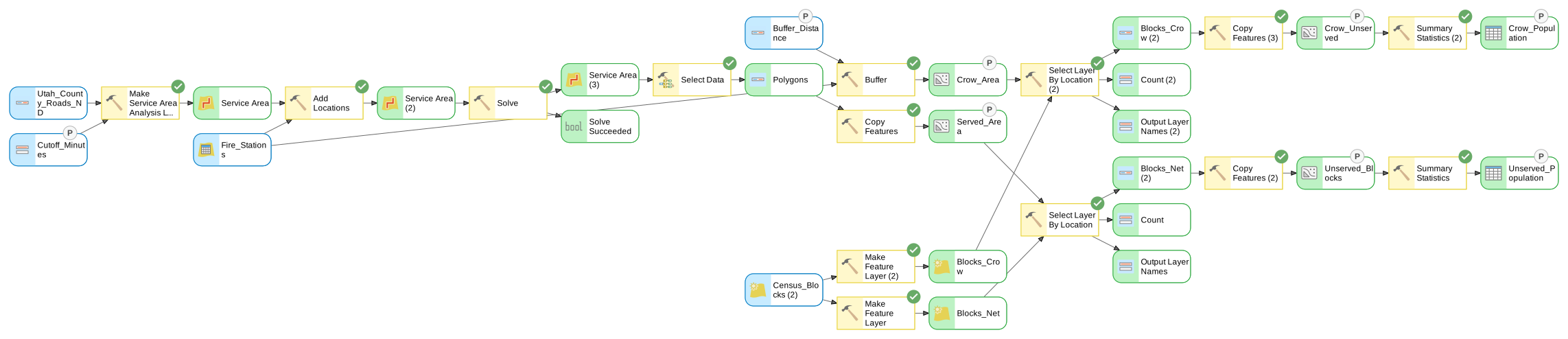
Figure C. The finished model, exported from ModelBuilder — click it to open it full size.
The network, the stations and the blocks in; one service area, one buffer, a layer of blocks for
each; two counts of people out. The elements
marked P are the model parameters — the cutoff in minutes, the buffer distance and the outputs you
keep — and they become the tool dialog of Step 8.
Complete the Lab
For an advanced GIS student, the information up to this point is all you need to complete the assignment. Feel free to try the analysis using only the information above. If you complete the lab without the step-by-step instructions below, say so in your report.
Step-by-Step Solution
Note
Build it once, build it to be changed. The steps walk through the model at four minutes. Step 9 re-runs the same model six times with the cutoff changed, so give every dataset a readable name as you go.
Note
Every check value on this page was measured on the files you download, with the settings below, in ArcGIS Pro 3.7.1. Your numbers should match to the last digit shown. The screenshots were captured in the same version and may differ slightly from yours.
Step 0 — Set Up the Project
- Create a new project named
Lab12inD:\Smith\Lab12\with the Map template; if you already made the folder, uncheck Create a folder for this local project. ArcGIS Pro makesLab12.gdbandLab12.atbxbeside it. The downloaded data stay in their own geodatabase,lab12-fire-response\FireResponse.gdb. - Confirm Network Analyst is licensed (Project ▸ Licensing ▸ Esri Extensions). The Network Analyst tools stay gray without it.
- In the Catalog pane, add a folder connection to your Lab12 folder, open
FireResponse.gdb, and addFire_Stations,Census_Blocksand, from theNetworkfeature dataset, the network datasetUtah_County_Roads_ND(it draws as a group layer withEdges,JunctionsandDirty Areasunder it). AddUtah_Countyfrom your own geodatabase and an imagery basemap. - On the Analysis tab click ModelBuilder. On the ModelBuilder tab click
Properties, set Name to
FireResponseCoverageand Label toFire Response Coverage, and save. - On the ModelBuilder tab click Environments and set Current Workspace and Scratch
Workspace to your project geodatabase,
Lab12.gdb, and Output Coordinate System to NAD 1983 UTM Zone 12N (the same as every layer in the package). No raster environments this time: nothing in this lab is a raster.
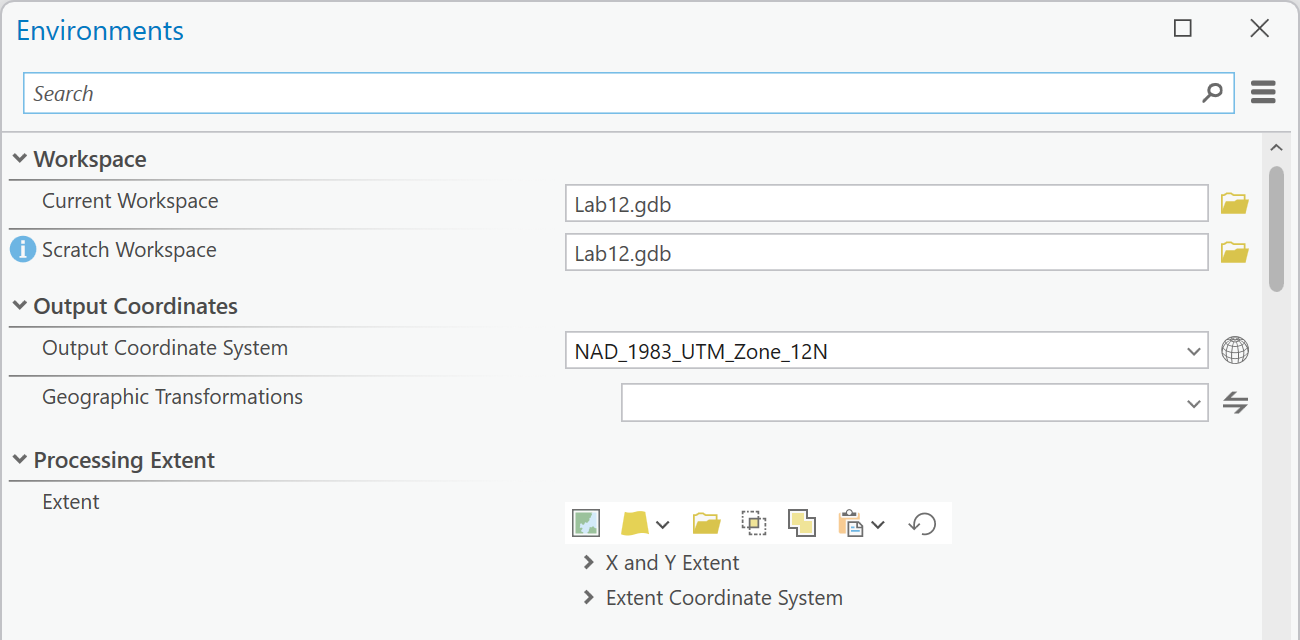
Figure 0. ModelBuilder ▸ Environments. Two workspaces and a coordinate system are all this model needs.
Tip
Check the result: in the Catalog pane, Roads has 41,460 features and
Utah_County_Roads_ND_Junctions 33,872 (the network's Properties ▸ General page says
85,272 edges, two per road segment, one each way); Fire_Stations has 42 rows and
Census_Blocks 10,092. If the network dataset will not add, or adds without its edges, Network
Analyst is not licensed on this machine.
Step 1 — Look at the Network
Before you use the network, see what it is made of.
- In the Catalog pane, right-click
Utah_County_Roads_ND▸ Properties. The General page says the network is built, with one edge source,Roads, and its system junctions (Figure 1a). Under Travel Attributes ▸ Costs are two costs,TravelMinutes(the default, in minutes) andLength(meters); clickTravelMinutesand scroll its Properties down to Evaluators: along a segment's digitized direction it reads the fieldF_T_IMP_MIN, against itT_F_IMP_MIN(Figure 1b). - Open the
Roadsattribute table and Select By Attributes withONEWAY IN ('1', '2'): these are the one-way segments. Find the longestI-15 NB FWYsegment among them (sort byShape_Length) and compare itsF_T_IMP_MINwith itsT_F_IMP_MIN.
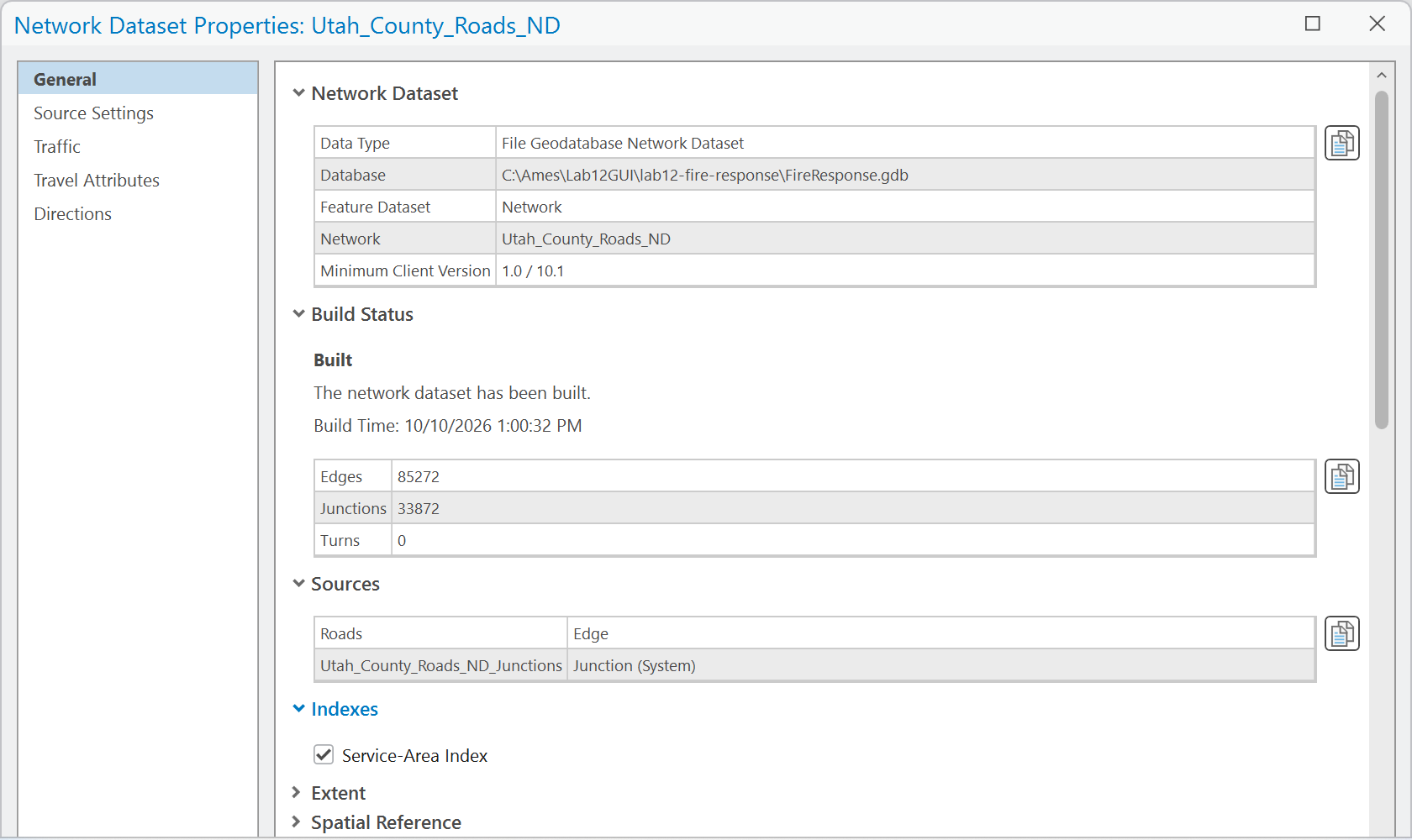
Figure 1a. The network dataset's General page: built, one edge source and its system junctions. The edge count is twice the road count because every segment is an edge in each direction.
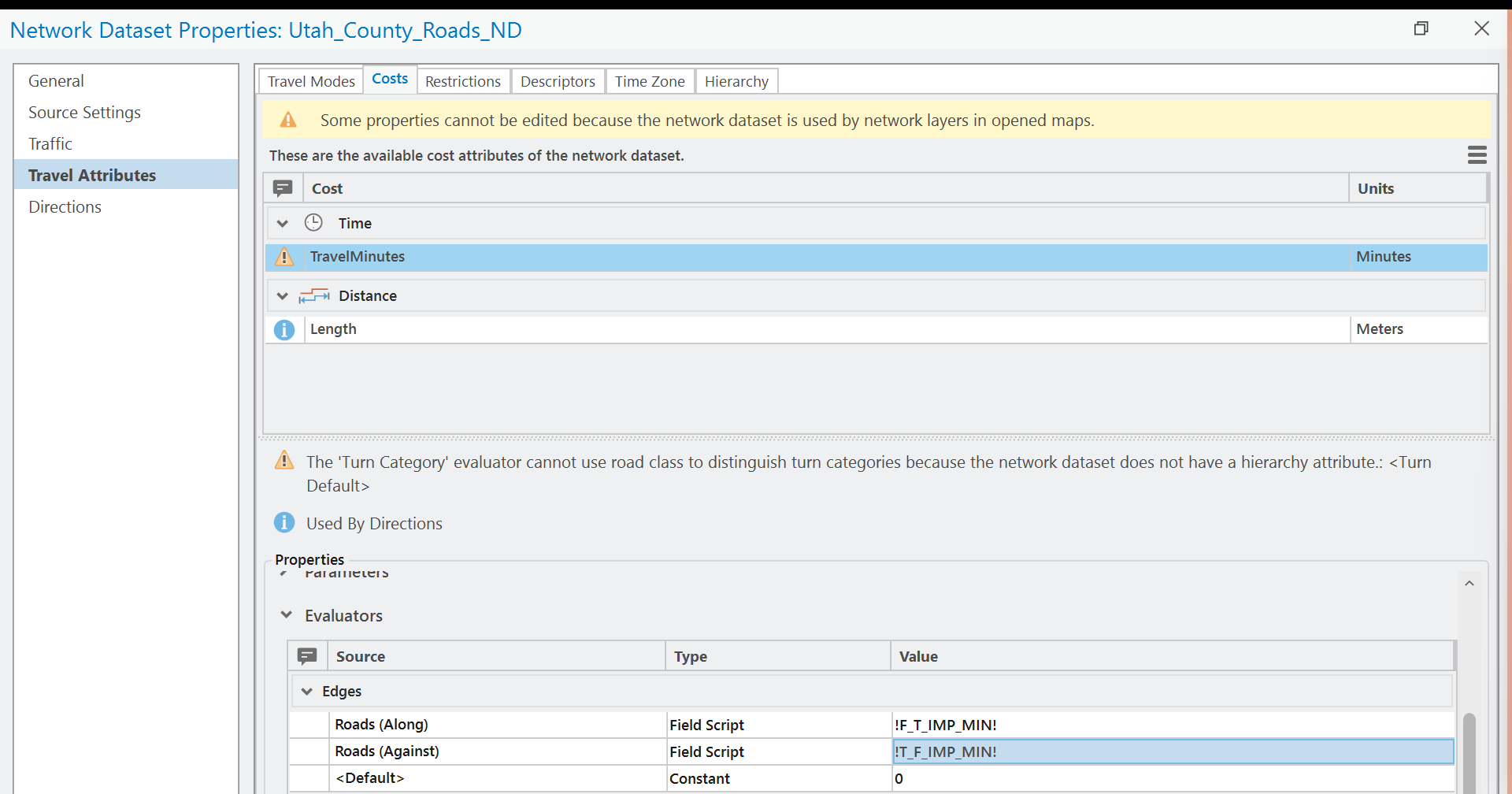
Figure 1b. Travel Attributes ▸ Costs: the two costs, and the evaluators that read
TravelMinutes from a field in each direction.
Tip
Check the result: 590 segments are one-way. The longest one-way I-15 NB FWY segment is
4,418.5 m long with a posted 65 mph: F_T_IMP_MIN 3.0419 minutes along it, and
T_F_IMP_MIN 304.1884 against it, exactly 100 times more. That ratio is UGRC's one-way
rule, and it is a cost, not a prohibition.
Note
Why minutes, not meters. A network can carry any cost. Length makes the nearest station the one fewest meters away by road; minutes make it the one an engine reaches first, which is what a response standard measures. Both are in this network; the lab uses minutes. The Week 14 Tuesday lecture walks through how UGRC built the network: sources, connectivity, elevation, attributes and evaluators, the decisions you are being spared.
Step 2 — Make the Service Area Layer
Add Make Service Area Analysis Layer to the model:
- Network Data Source:
Utah_County_Roads_ND - Layer Name:
Service Area - Travel Mode: the network has no named travel modes, so this box is empty and its list has
nothing in it; leave it, and the layer uses the network's default cost,
TravelMinutes - Travel Direction: Away from facilities
- Cutoffs:
4 - Time of Day: empty
- Output Geometry ▸ Polygon Detail: Standard; Geometry at Overlaps: Dissolve; Geometry at Cutoffs: Rings
Leave everything else, including the Analysis Workspace and Locations sections, at its default.
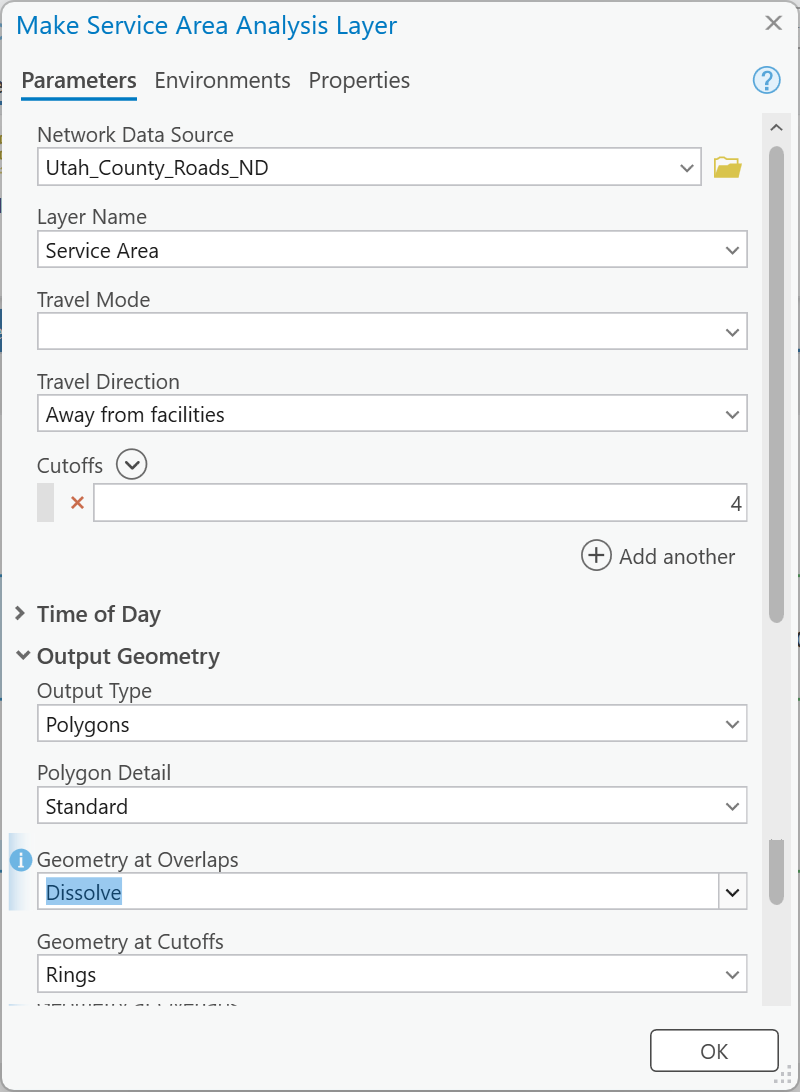
Figure 2. The analysis layer: four minutes, outward, one dissolved shape per cutoff.
Tip
Check the result: nothing is computed yet. Run the tool from the model and a group layer named Service Area appears in the Contents pane with Facilities, Polygons and Lines (and more) under it, all empty.
Step 3 — Add the Stations
Add Add Locations:
- Input Network Analysis Layer:
Service Area(the output of Step 2) - Sub Layer: Facilities
- Input Locations:
Fire_Stations - Under Advanced, Search Tolerance:
5000 Meters(the default) — how far a station may sit from the nearest street and still be snapped to it
Leave the field mappings and the rest at their defaults.
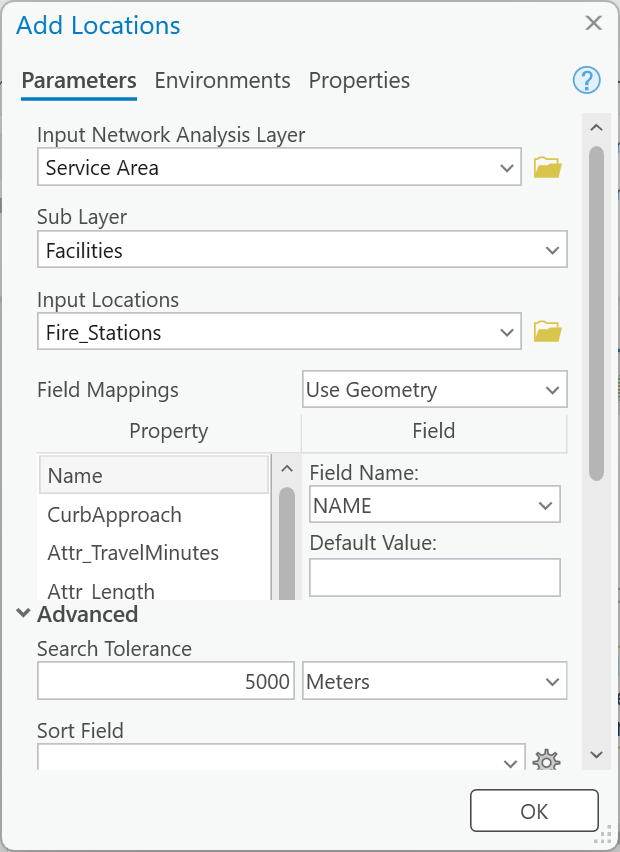
Figure 3. The 42 stations become the analysis layer's facilities, each snapped to a street.
Tip
Check the result: run the model so far and open the Facilities sublayer's table: 42
rows, every one with Status OK (0). A station with Status "Not located" sits farther from a
street than the tolerance; none of these do.
Step 4 — Solve and Export
- Add Solve with the
Service Arealayer as its Input Network Analysis Layer. Its output is the same layer, now with polygons in it. - Add Select Data (search for it; it is in the ModelBuilder toolbox) with the solved layer as its Input Data Element and Polygons as the Child Data Element.
- Add Copy Features with that Polygons element as its input and
Served_Areaas the output feature class. The analysis layer lives only in the map; the copy is the feature class your maps and the next step use. - Run the model inside ModelBuilder (Run on the ModelBuilder tab). The solve takes a few seconds.
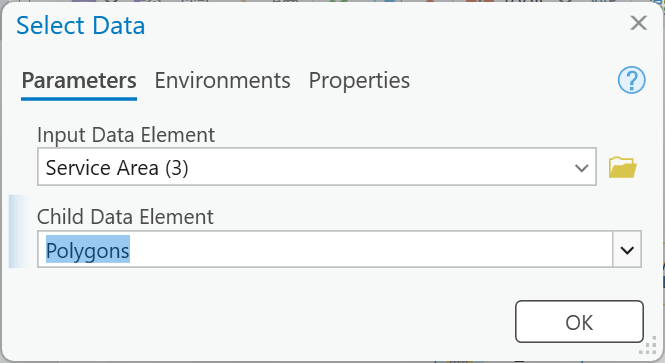
Figure 4. Solve fills the analysis layer; Select Data takes its Polygons out; Copy Features keeps them.
Tip
Check the result: Served_Area is 1 feature (all 42 stations' areas dissolved together,
a multipart polygon) with FromBreak 0, ToBreak 4 and Shape_Area 194,852,812.5 m², that
is 194.85 km². For your first map you will want two rings: Cutoffs is a list, one value per
row, so add a second row with 8, run again, and Served_Area has 2 features, 194.85 km²
(0–4 minutes) and 363.13 km² (4–8 minutes). Remove the 8 before Step 5, or your counts will
be for eight minutes.
Step 5 — Count the People Outside
- Add Make Feature Layer (Data Management). For Input Features click the folder icon and
browse to
FireResponse.gdb▸Census_Blocks(the dataset in the geodatabase, not the layer in the map); Output Layer:Blocks_Net. - Add Select Layer By Location:
- Input Features:
Blocks_Net - Relationship: Have their center in
- Selecting Features:
Served_Area - Selection Type: New selection
- Invert spatial relationship: checked — keep the blocks whose center is outside
- Input Features:
- Add Copy Features with the selected layer (the green
Blocks_Net (2)that Select Layer By Location puts out) as input andUnserved_Blocksas output. - Add Summary Statistics with
Unserved_Blocksas the Input Table, outputUnserved_Population, and two Statistics Fields:PP_TOTALSum andGEOID20Count. The Field list showsPP_TOTALby its alias, Total Population.
A block is one shape with one number of residents. "Center in" asks where that shape's center point falls, which is the same rule for a small city block and a hundred-square-kilometer mountain block; Step 9 asks you whether that is fair.
Note
Why a layer first. Select Layer By Location does not make a new dataset; it marks a selection on a layer, and Copy Features copies the marked features. A selection belongs to the layer, so if Step 6's second selection used the same layer, whichever tool ran last would win, and the model could copy the wrong blocks. Make Feature Layer gives each branch its own layer from the same dataset, and browsing to the dataset (rather than picking the map layer) keeps any selection you have made in the map out of the model.
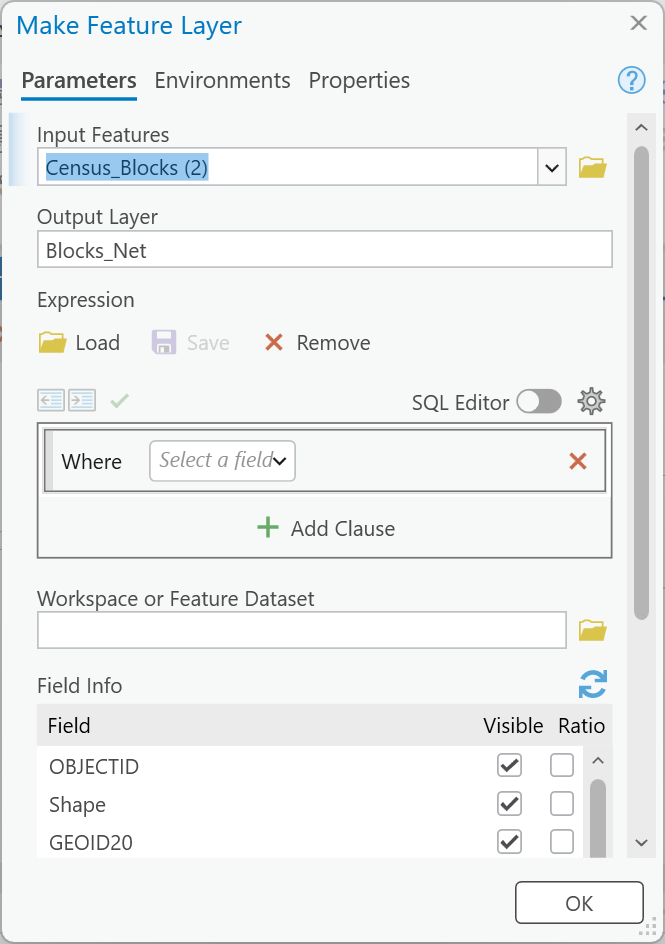
Figure 5a. Make Feature Layer: the blocks as a layer of their own, Blocks_Net.
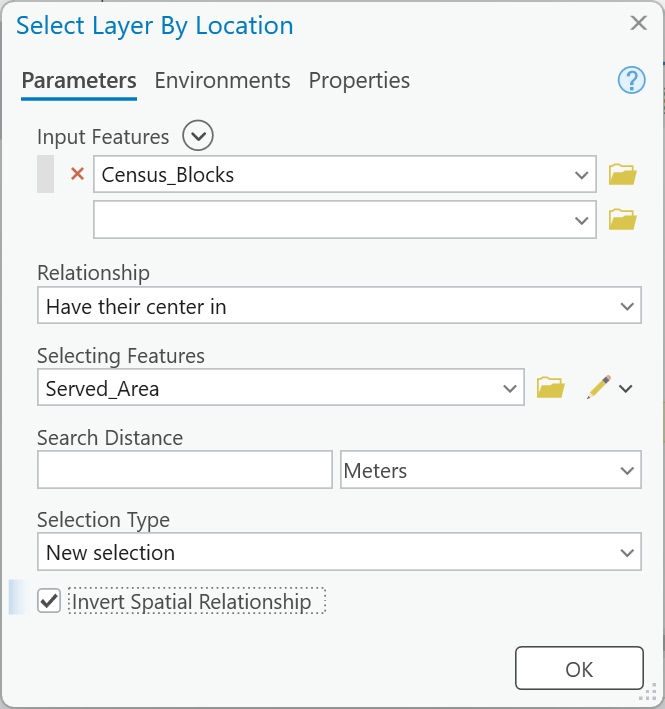
Figure 5b. Have their center in, inverted: the blocks outside four minutes.
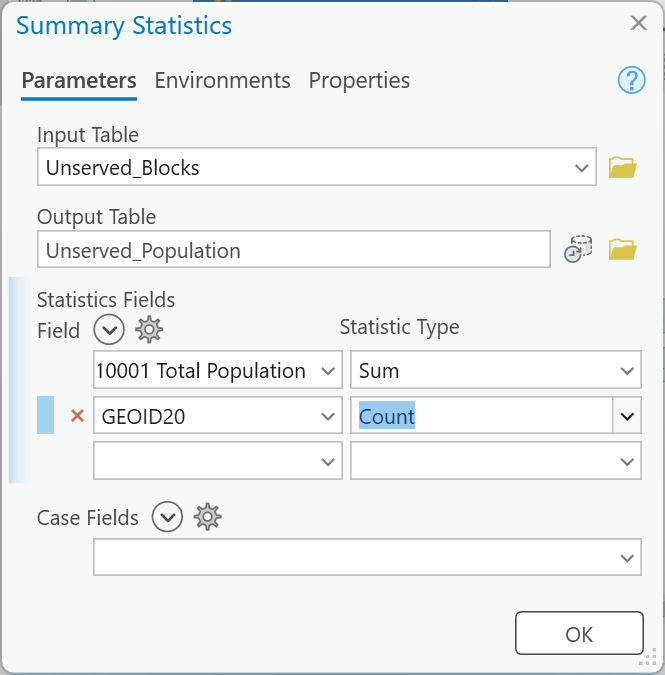
Figure 5c. Summary Statistics: the sum of the people and the count of the blocks.
Tip
Check the result: Unserved_Blocks has 6,341 features. Unserved_Population is one row:
SUM_PP_TOTAL 379,054 and COUNT_GEOID20 6,341. That is 57.5 % of the county's
659,399 residents more than four minutes' drive from a station, by UGRC's typical-traffic minutes.
A sum near 280,000 means the box was not inverted (you counted the people inside); a sum of
659,399 means the selection was empty and Copy Features copied every block.
Step 6 — Compare the Straight Line
Now measure the same four minutes the way Lab 1 would have.
- Add Buffer with
Fire_Stationsas input, Distance3.75 Kilometers, Dissolve Type Dissolve all output features into a single feature, and outputCrow_Area. (3.75 km is four minutes at 35 mph, a typical arterial speed limit: 35 × 4 ÷ 60 = 2.33 miles.) - Add a second Make Feature Layer from the same
Census_Blocksdataset, Output LayerBlocks_Crow(select the first one on the canvas, copy and paste it, and change the output name). - Add a second Select Layer By Location on
Blocks_Crow, Have their center inCrow_Area, inverted; a Copy Features of the selected layer toCrow_Unserved; and a Summary Statistics toCrow_Populationwith the same two statistics.
The two branches now share the dataset and nothing else, so it does not matter which runs first.
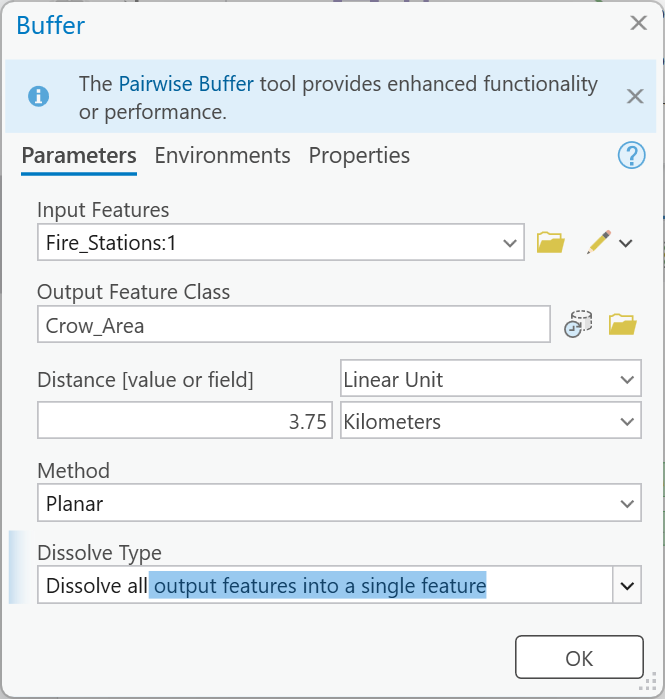
Figure 6. The crow's four minutes: 3.75 km, dissolved. Fire_Stations:1 is the second copy
of the stations on the canvas.
Tip
Check the result: Crow_Area is 1 feature of 1,070.61 km², five and a half times the
network's 194.85 km². Crow_Population: SUM_PP_TOTAL 23,203, COUNT_GEOID20 1,365: the
buffer says 3.5 % of the county is beyond four minutes; the roads say 57.5 %. Both are "four
minutes". Map 2 is about why they differ. If Unserved_Population now reads 23,203 too, both
selections ran on one layer: check that each Select Layer By Location has its own Make Feature
Layer in front of it.
Step 7 — Set Model Parameters
Step 9 runs the model six times, so make the two numbers you will change, and everything you will keep, parameters.
- Right-click Make Service Area Analysis Layer ▸ Create Variable ▸ From Parameter ▸
Cutoffs. Rename the new oval
Cutoff_Minutesand right-click it ▸ Parameter. Cutoffs is a list, so the tool dialog of Step 8 shows it as a small table with one value per row. - Right-click Buffer ▸ Create Variable ▸ From Parameter ▸ Distance [value or
field]. Rename it
Buffer_Distanceand make it a parameter. - Make the six outputs parameters too:
Served_Area,Unserved_Blocks,Unserved_Population,Crow_Area,Crow_UnservedandCrow_Population. (A run from the tool dialog deletes every dataset that is not a parameter, as in Labs 5, 7 and 11.) - Save the model, then Export ▸ Export To Graphic as SVG, full page: that is the model figure your report needs.
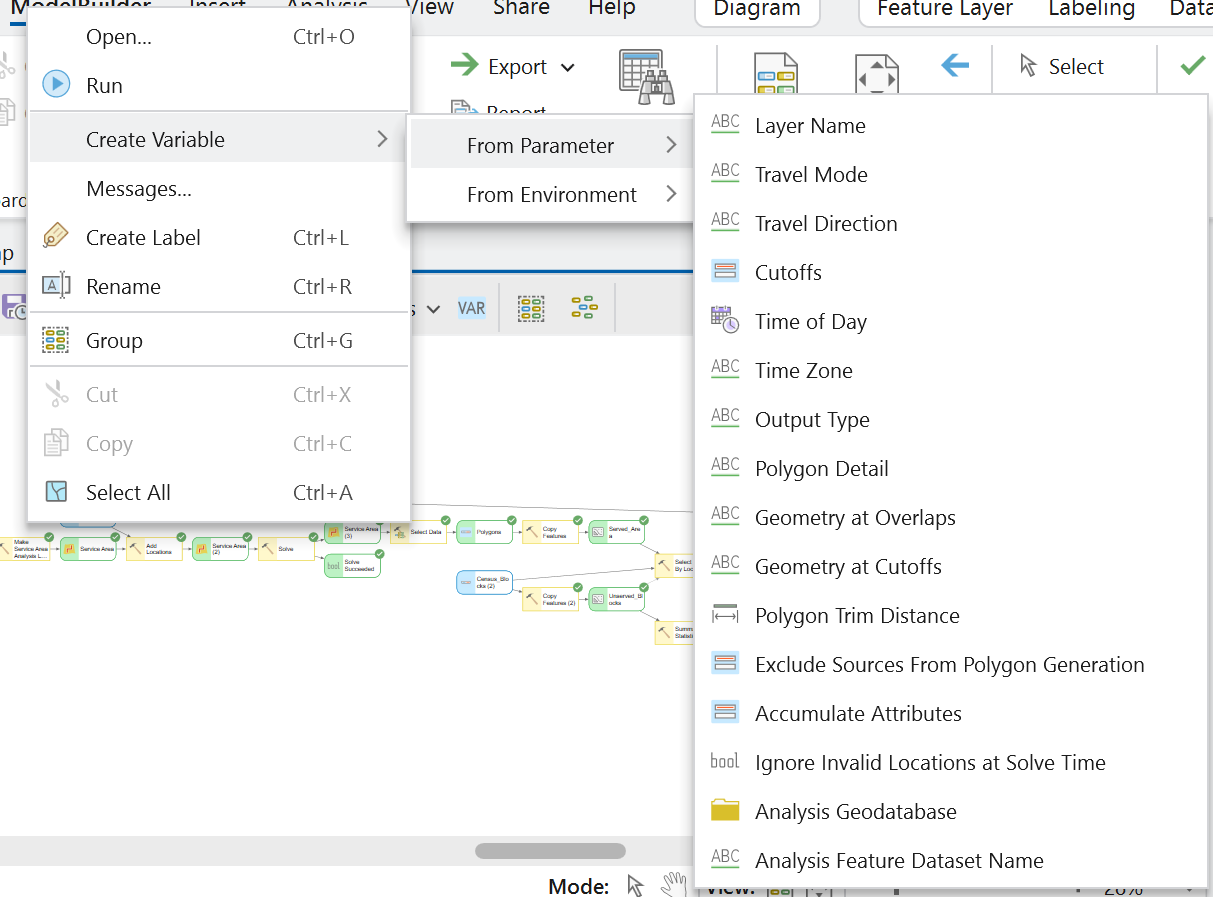
Figure 7. The cutoff becomes a variable, and then a parameter.
Tip
Check the result: a P beside eight elements: the two numbers and the six outputs. Figure C
above shows where they sit.
Step 8 — Run the Tool
- Save, and close the model's tab. In the Catalog pane, open
Lab12.atbxand double-click Fire Response Coverage: it opens as a tool in the Geoprocessing pane. - Run it once at the defaults,
4and3.75 Kilometers, with new output names —Served_Area_Base,Unserved_Blocks_Base,Unserved_Population_Base,Crow_Area_Base,Crow_Unserved_Base,Crow_Population_Base— and check the two sums. - Then run it at your own cutoff. Every student runs a different cutoff, worked out from your
BYU ID number: the nine-digit number printed on your BYU ID card, such as
123456789. It is not your NetID, the user name of letters and numbers you chose and use to sign in to BYU sites.
Your Cutoff_Minutes = 4 + 0.04 × (the last two digits of your BYU ID), from 4.00 to 7.96 minutes.
- BYU ID
123456789: last two digits 89, cutoff = 4 + 0.04 × 89 = 7.56 minutes: served area 519.07 km², 2,537 blocks and 90,929 people outside (13.8 %).- BYU ID
987654302: last two digits 02, cutoff = 4 + 0.04 × 2 = 4.08 minutes: served area 201.50 km², 6,247 blocks and 370,716 people outside (56.2 %).Write your BYU ID's last two digits and your cutoff in your report: the grader checks your numbers against them. Name the outputs
_Mine. If your cutoff happens to equal one of Step 9's runs (digits00give 4.00,50give 6.00,75give 7.00), run it anyway, say so, and add one more run of your own choice so the table still has five that differ.
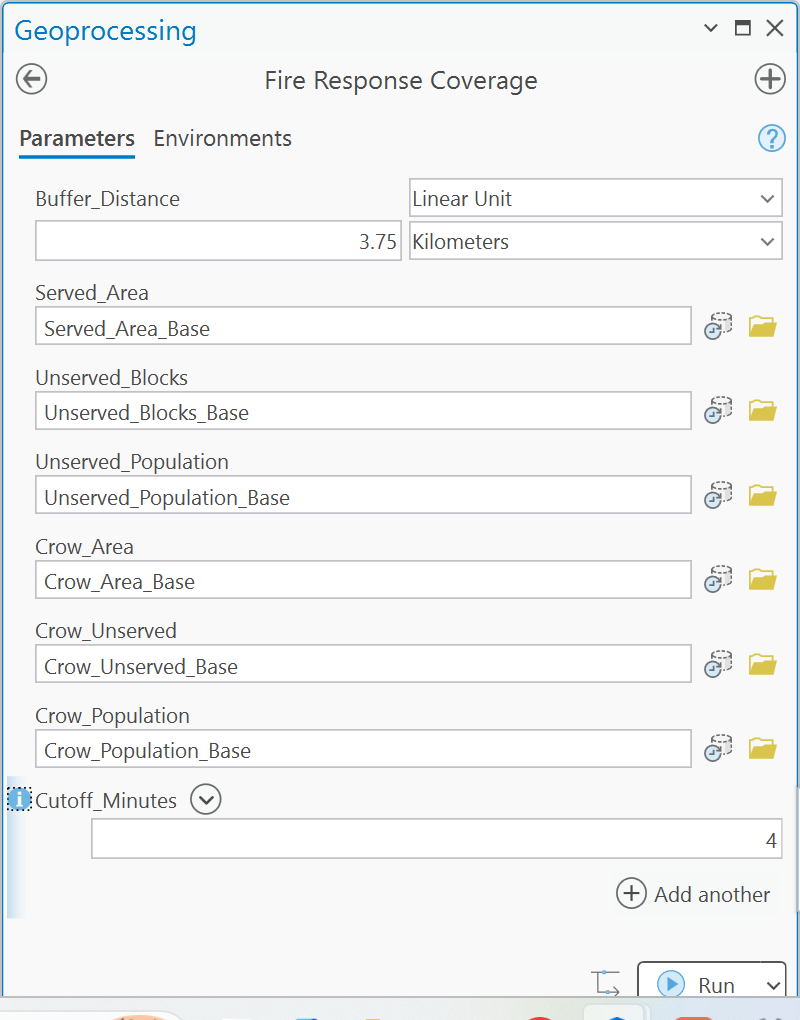
Figure 8a. The model as a tool. The parameters appear in the order they were made, so
Cutoff_Minutes is last, as a list with one row. Give every output a new name for each run.
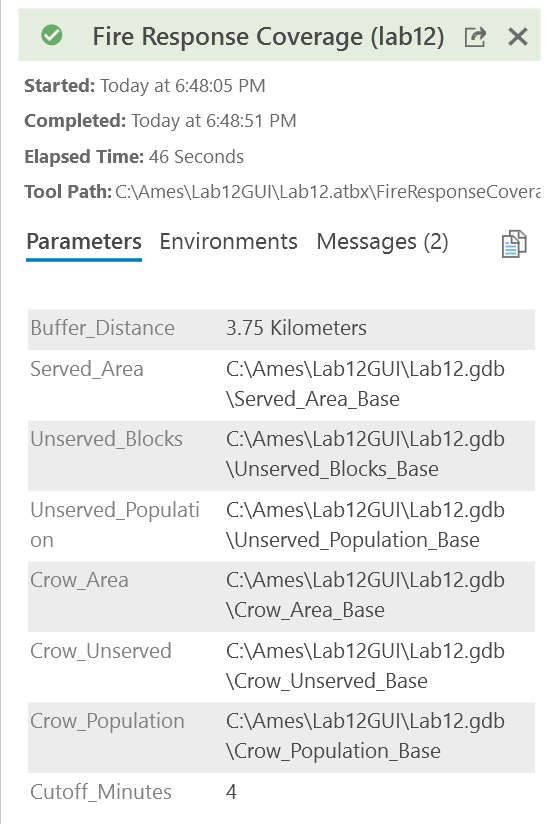
Figure 8b. The pop-up when the run finishes; a dialog run of the whole model took 46 s.
Warning
A run from the tool dialog deletes everything that is not a parameter, including the
Service Area analysis layer's contents from the run inside ModelBuilder. For your maps use the
_Base and _Mine outputs, which are parameters and survive, together with the downloaded
Fire_Stations and Census_Blocks layers.
Tip
Check the result: at the defaults, the dialog run reproduces Steps 4 to 6 exactly: 194.85 km²,
379,054 people outside, 23,203 outside the buffer. If it does not, a parameter was left at
a value from testing, or a _Base output name points at an old dataset.
Step 9 — Test the Standard
Four minutes is a standard, not the answer. The share of the county outside it is whatever four minutes of UGRC's typical-traffic minutes says, and nobody decided that the right number for Utah County is four. Before you report a share, find out how much it depends on the cutoff.
Run the model from its tool dialog at least five more times, each with new output names that say
what changed (Served_Area_C2, Unserved_Blocks_C2, Unserved_Population_C2, and so on):
| Run | Cutoff_Minutes | Buffer_Distance |
|---|---|---|
| Baseline (Step 8) | 4 | 3.75 km |
C2 |
2 | 3.75 km |
C6 |
6 | 3.75 km |
C8 |
8 | 3.75 km |
| Mine (Step 8) | your cutoff | 3.75 km |
B2_5 |
4 | 2.5 km |
| Your choice | ? | ? |
For the last run, choose something deliberately and say why: a cutoff of 10 or 12 to see when the share stops falling, a buffer that gives the same share as the network's four minutes, or a cutoff between 4 and yours.
Record all of it in one table: for the baseline and every run, the cutoff, the buffer distance, the served area and the buffer area in km², the number of blocks outside the network area, the people outside it, and the share of the county's 659,399 residents that is; for the buffer runs, the people outside the buffer. (A buffer run leaves the served area at 194.85 km²; what changes is the buffer's area and its count.)
Then answer, in your report:
- How does the share outside respond to the standard? Plot people outside against the cutoff from your table, or read it off. Between which two cutoffs does it fall fastest, and what does that say about where Utah County's stations are?
- Why do the buffer and the network disagree? Put
Crow_Area_BaseoverServed_Area_Baseand select the blocks ofUnserved_Blocks_Basewhose center is inCrow_Area_Base: the people the buffer claims and the roads do not reach in four minutes (at the defaults, 4,976 blocks and 355,851 people). Using the two places you describe in the write-up, say what the roads do there that a circle cannot see: a lake, a freeway with no interchange, a canyon, a subdivision with one way in, a 25 mph grid of local streets. - What does the model leave out? UGRC's minutes are for typical traffic, not an engine running with lights and siren; the stations layer is dated 2022; people are counted where they sleep; a block is covered or not by its center point. Say what each would do to your share, which way, and what data you would add to fix the one that matters most.
Your second map shows the buffer and the network area together, with the blocks the buffer claims and the network does not; say on the map what changed and give both counts of people outside, the buffer's and the network's.
Tip
Look at where the four-minute area is. It is a string of small shapes around the stations, and the stations are in the cities. One cutoff of a few minutes more takes in whole cities; a few more after that takes in almost nobody, because almost nobody is left. The buffer, meanwhile, covers the lake.
Deliverables
Make two professional map layouts (letter size):
- Fire response coverage — the 0–4 and 4–8 minute service areas (the two-row run of Step 4, or
a dialog run with
4and8as the cutoffs, named_Rings; its counts are for eight minutes, so the headline numbers come from_Base), the blocks outside four minutes, and the 42 stations, over the county boundary and an imagery basemap, with the cities labeled and a legend; the headline numbers (people outside four minutes, share of the county) on the map; a title, neat line, north arrow and scale bar; and a text box with your name, the date, the map projection, and the sources and dates of the data. - Straight line versus network —
Crow_Area_BaseandServed_Area_Basetogether, each distinguishable in the legend, with the blocks the buffer counts as covered that the network does not (select them:Unserved_Blocks_Basewhose center is inCrow_Area_Base), the stations, the county and an imagery basemap; a title, neat line, north arrow and scale bar; and a text box with your name, the date, the projection and the sources. The title and text box say what changed from Map 1 and give both counts of people outside, the buffer's and the network's.
Write a brief report (2–3 pages of text, plus your figures and maps) covering:
- a title block — assignment title, your name, the date and the course — and the name of your peer reviewer, with a sentence on what you changed because of them
- the requirements of the project and your approach to solving it
- a description of your model a reader could repeat from: each tool and its settings (the cutoff, the travel direction, the polygon options, the search tolerance, the selection relationship and its inversion, the buffer distance and dissolve), and every input, intermediate and output dataset with its type
- one full-page figure of your model, exported from ModelBuilder (Export ▸ Export To
Graphic), and one screen capture of its tool dialog with the cutoff and the buffer distance
exposed as parameters; and upload your project's toolbox (
Lab12.atbx, in your project folder) with the report — the grader opens it to read your model - the three metadata values — the stations' "Last Update" date, what UGRC's minutes were estimated from, and what the blocks layer's description says — and what each means for your count
- your check values from Steps 0 to 6: the four layer counts, the one-way count, the served area, the people and blocks outside at four minutes, and the buffer's area and people outside
- where the straight line is wrong: two places on your map, each with coordinates, a cropped figure and the reason
- your sensitivity table from Step 9, with your BYU ID's last two digits and your cutoff, and your answers to its three questions
- figures numbered and referred to in the text, and every source credited
- one line at the end saying what you used AI for, if anything (see the note under the rubric)
- a copy of the rubric below with your self-assessment filled in — a score in every row, honestly arrived at. The grader will compare it with theirs.
Note
Make it yours. Everyone works from the same data, so the numbers will match a classmate's at the defaults; the choices should not. Your map layouts, your colors and symbology, the labels you give your model's elements, your own-choice run, the places you pick where the buffer is wrong and the wording of your report are your own work. Submissions whose layouts, labels or symbology match another student's too closely are flagged for follow-up.
Important
Peer review before you submit. Have another student in the class read your report against the rubric and give you feedback, then act on that feedback before the deadline. Name your reviewer in the report and say in a sentence what you changed because of them.
Credit line for your maps: Road network: Utah Geospatial Resource Center (UGRC) Utah Street Network, roads through September 2026; travel minutes are UGRC's estimate for typical traffic. Fire stations: UGRC, last update September 2022. Population: 2020 Census blocks, U.S. Census Bureau via UGRC. Imagery: Esri.
References
National Fire Protection Association (2020). NFPA 1710: Standard for the Organization and Deployment of Fire Suppression Operations, Emergency Medical Operations, and Special Operations to the Public by Career Fire Departments. Quincy, Massachusetts: NFPA. nfpa.org.
Esri. Service area analysis layer, ArcGIS Pro help; Make Service Area Analysis Layer, Add Locations and Solve, ArcGIS Pro tool reference. Service area analysis; Make Service Area Analysis Layer; Add Locations; Solve.
Utah Geospatial Resource Center. Utah Street Network Dataset, Fire Stations, Road Centerlines and CensusBlocks2020. Utah Street Network; Fire Stations; Road Centerlines; CensusBlocks2020 service.
Utah Geospatial Resource Center (2022). Fire Station Travel Times (feature service; the note that its travel times are "based on typical network travel, and not the expedited travel of emergency response vehicles"). Fire Station Travel Times.
U.S. Census Bureau. 2020 Census. census.gov.
Example Maps
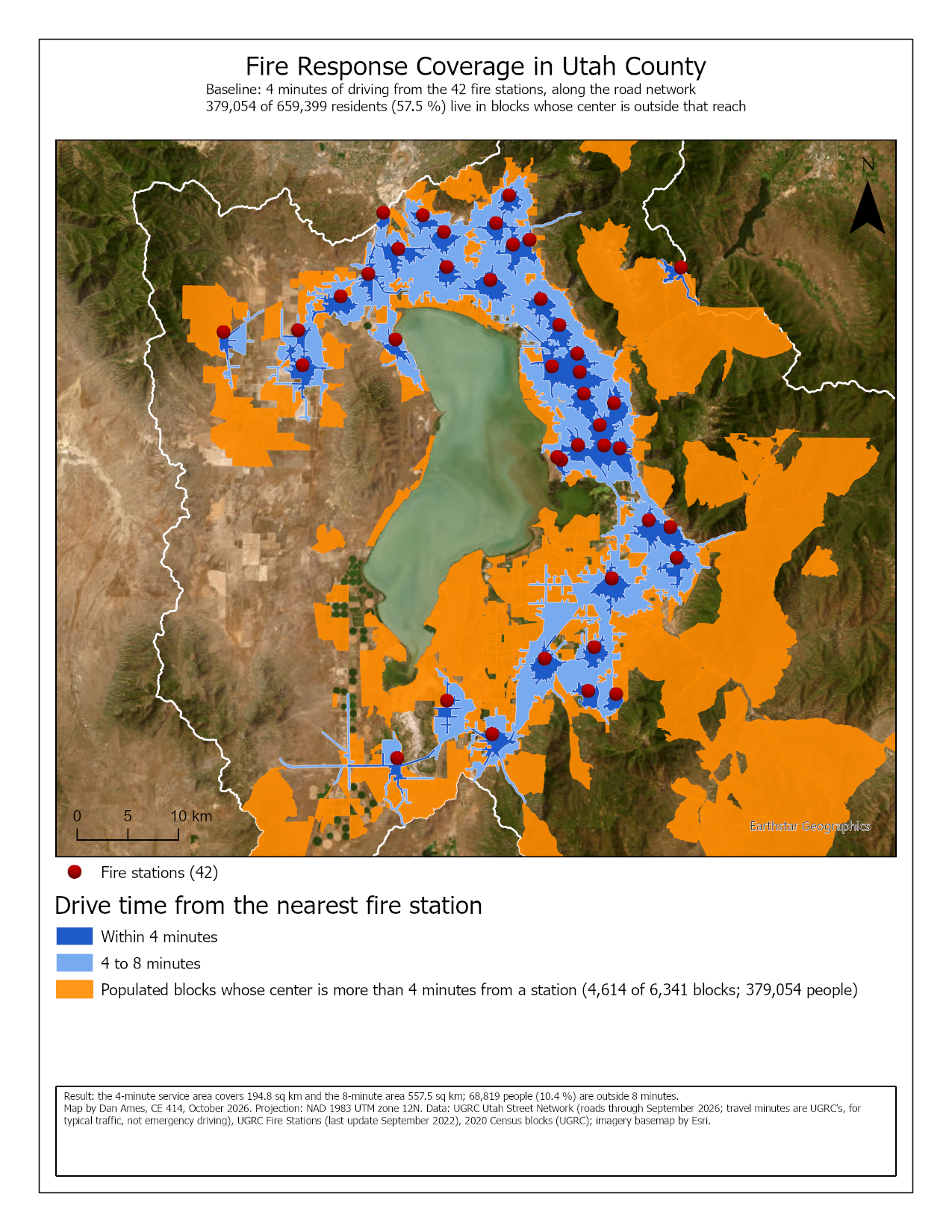
Figure 9. The baseline map. Do better than this example: label the cities, and say on the map which ones the four-minute area leaves out.
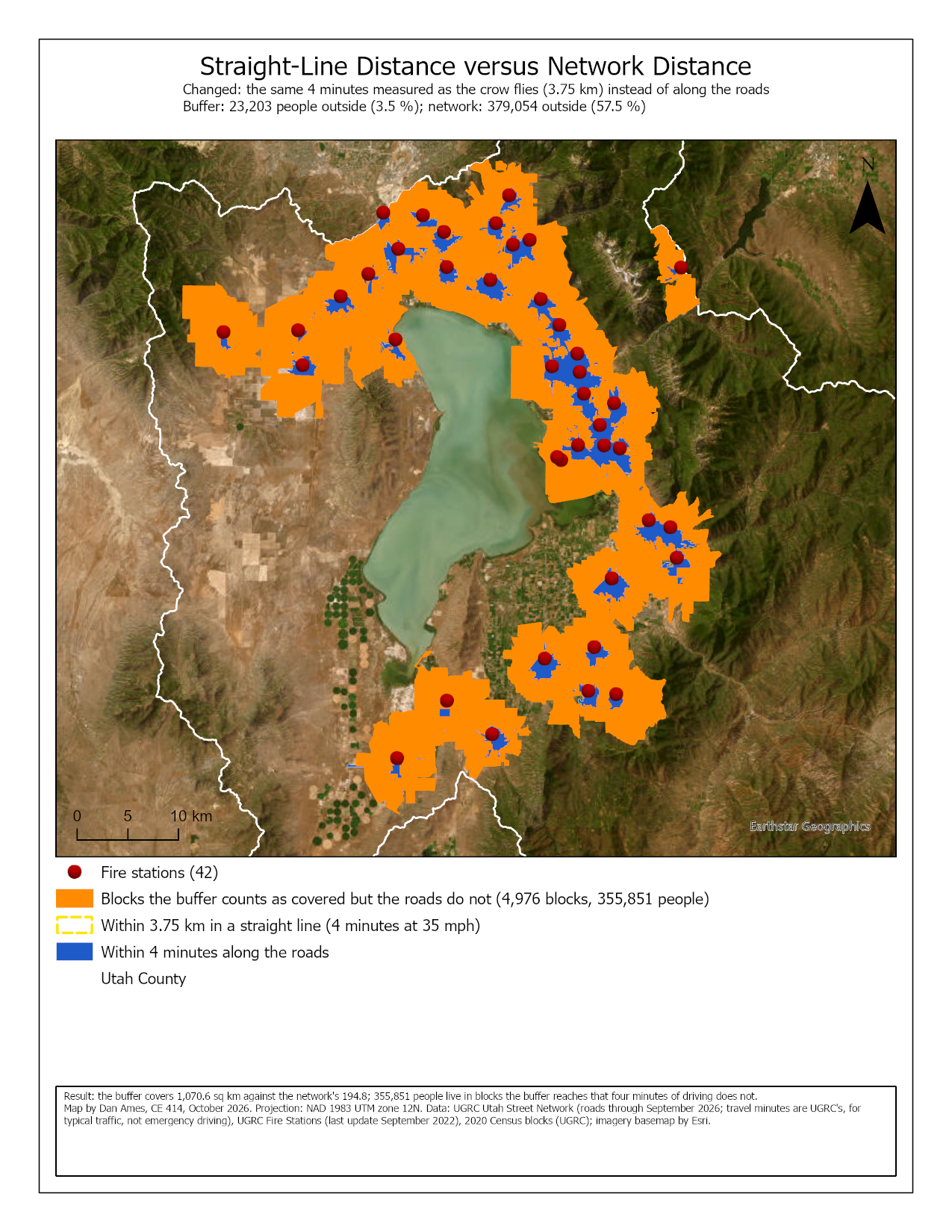
Figure 10. The comparison map. They are examples, not templates: your maps carry your name and show your own runs.
Rubric for Fire Response Coverage
Fifty points in five parts of ten. The bullets say what each part is worth, so you know exactly what to submit.
| Item | Points |
|---|---|
| Write-up (2–3 pages) • Assignment title, your name, date and course; your peer reviewer named, with a sentence on what you changed because of them (1) • The requirements of the project and your approach to solving it, in your own words (2) • The three metadata values — the stations' "Last Update" date, what UGRC's minutes were estimated from, what the blocks layer's description says — and what each means for your count (2) • Your check values from Steps 0 to 6: the layer counts, the one-way count, the served area, the people and blocks outside at four minutes, the buffer's area and people (1) • Where the straight line is wrong: two places on your map, each with coordinates, a cropped figure and the reason (3) • Organized writing, figures numbered and referred to, sources credited, rubric pasted with your self-assessment (1) |
/10 |
| ModelBuilder model — correct and working • The model runs from its tool dialog and, at the defaults, matches the check values: 194.85 km² served, 379,054 people outside, 23,203 outside the buffer (4) • A full-page model figure exported from ModelBuilder, all tools and datasets readable (2) • A screen capture of the tool dialog with the cutoff and the buffer distance exposed as parameters, and Lab12.atbx uploaded (2)• A description of the model a reader could repeat from, with every tool's settings and every dataset (2) |
/10 |
| Map 1 — fire response coverage • Title, neat line, north arrow and scale bar (1) • Text box with author, date, map projection, and the sources and dates of the data (1) • The 0–4 and 4–8 minute areas and the blocks outside four minutes symbolized, with a legend (2) • The stations, the county and the cities readable against the basemap (2) • The headline numbers on the map: people outside four minutes and the share of the county (2) • Imagery basemap, scale and legibility appropriate to the county (2) |
/10 |
| Map 2 — straight line versus network • Title, neat line, north arrow and scale bar (1) • Text box with author, date, map projection, and the sources and dates (1) • The buffer and the network area both shown and distinguishable in the legend (2) • The blocks the buffer counts as covered that the network does not, highlighted (2) • Title and text box say what changed from Map 1 and give both counts of people outside (2) • Imagery basemap, scale and legibility (2) |
/10 |
| Sensitivity (Step 9) • One table with the baseline and at least five runs — including your BYU ID's last two digits and cutoff — giving the cutoff, the buffer distance, the served area, the blocks and people outside and the share (4) • How the share responds to the standard, and between which cutoffs it falls fastest (2) • Why the buffer and the network disagree: the people the buffer claims and the roads do not reach, and what the roads do at your two places (2) • What the model leaves out, which way each would move your share, and what data would fix the one that matters most (2) |
/10 |
| Total | /50 |
Note
Using AI on this lab. Use AI freely to understand a tool, work out an error, or tighten your write-up, and add one line at the end of your report saying what you used it for. Do not take a field name, an expression, a coordinate system, or a number from it — those come from your own data, and the rubric asks you to defend every one. See the AI Use Policy for the full policy.